AI Evolution Videos: 23 Prompts for Cars, Phones and Humans
An evolution video shows one subject changing through history with no visible cuts. This guide gives you the image prompts and full workflow for three versions: a car, a phone and a human figure. The method is the same each time: create matching frames, put them in order, then morph between them.
What’s on This Page
| Section | Prompts | Best for |
|---|---|---|
| Vehicle evolution | 7 | A car from early to modern |
| Mobile Evolution Video Workflow | 7 | A phone from brick to smartphone |
| Human Evolution Video Workflow | 9 | Longer, multi-clip transitions |
Vehicle Evolution Video Workflow
Step 1: Create the Images
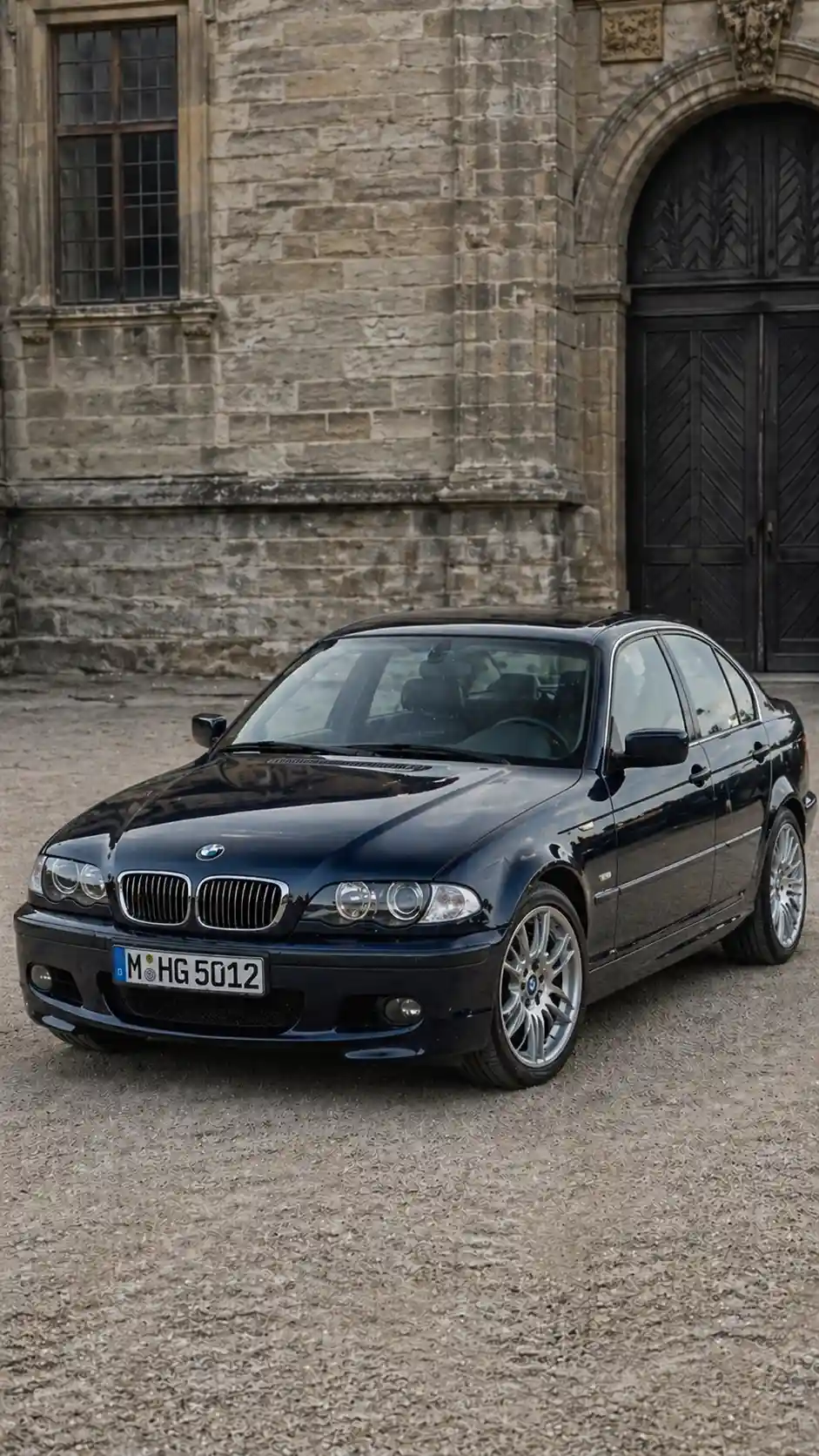
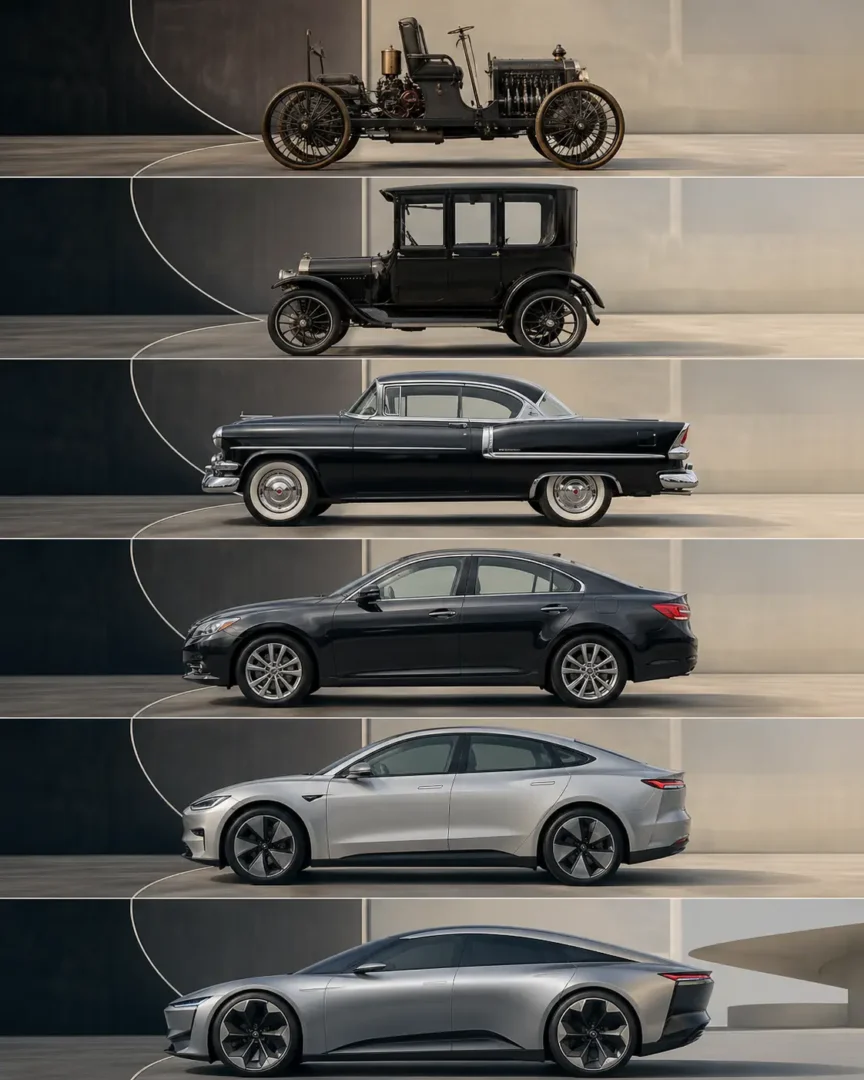
Create all six frames in ChatGPT, Nano Banana or Flux, using the same angle, background and framing. Small differences between frames can make the video jump.
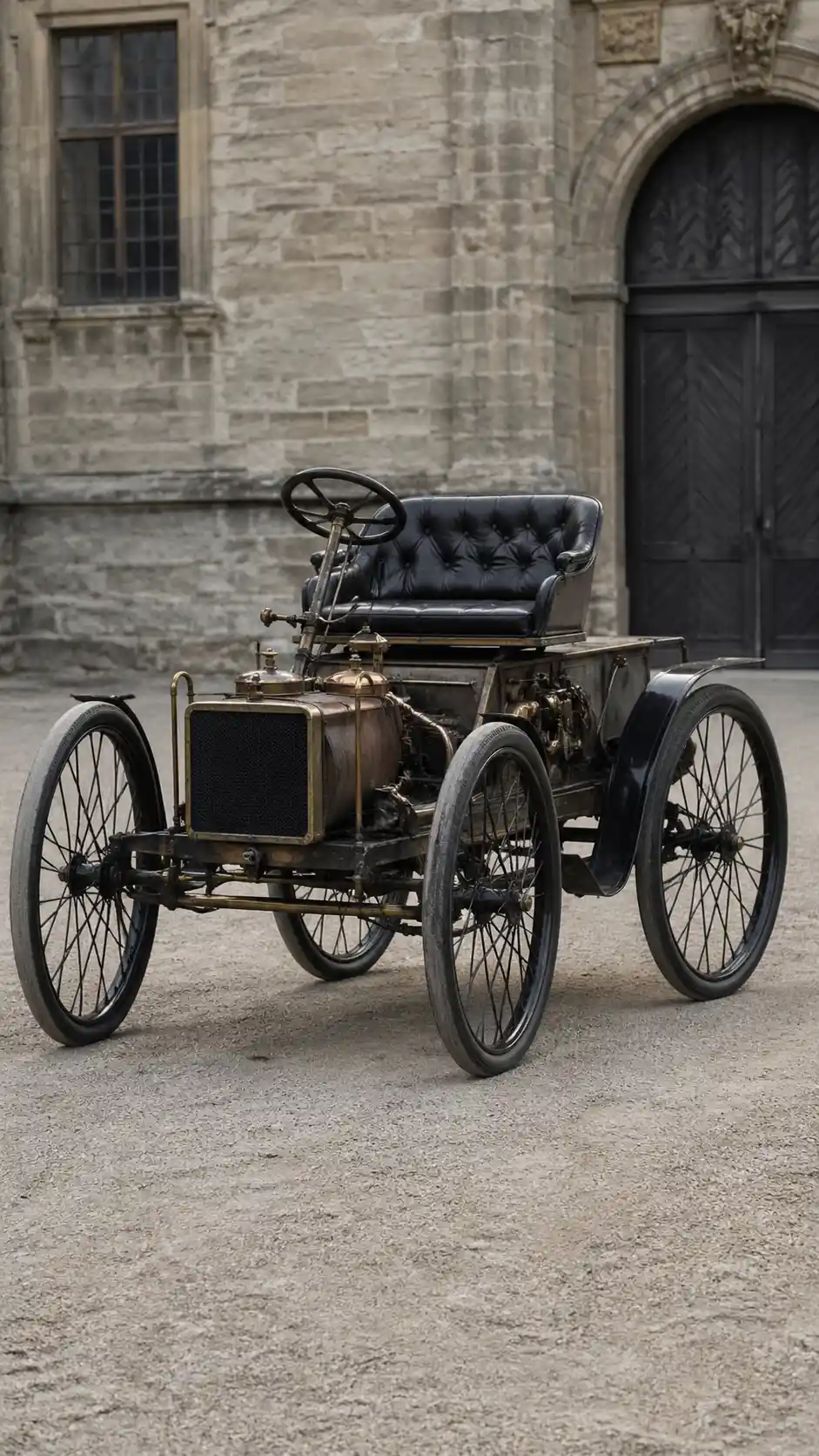
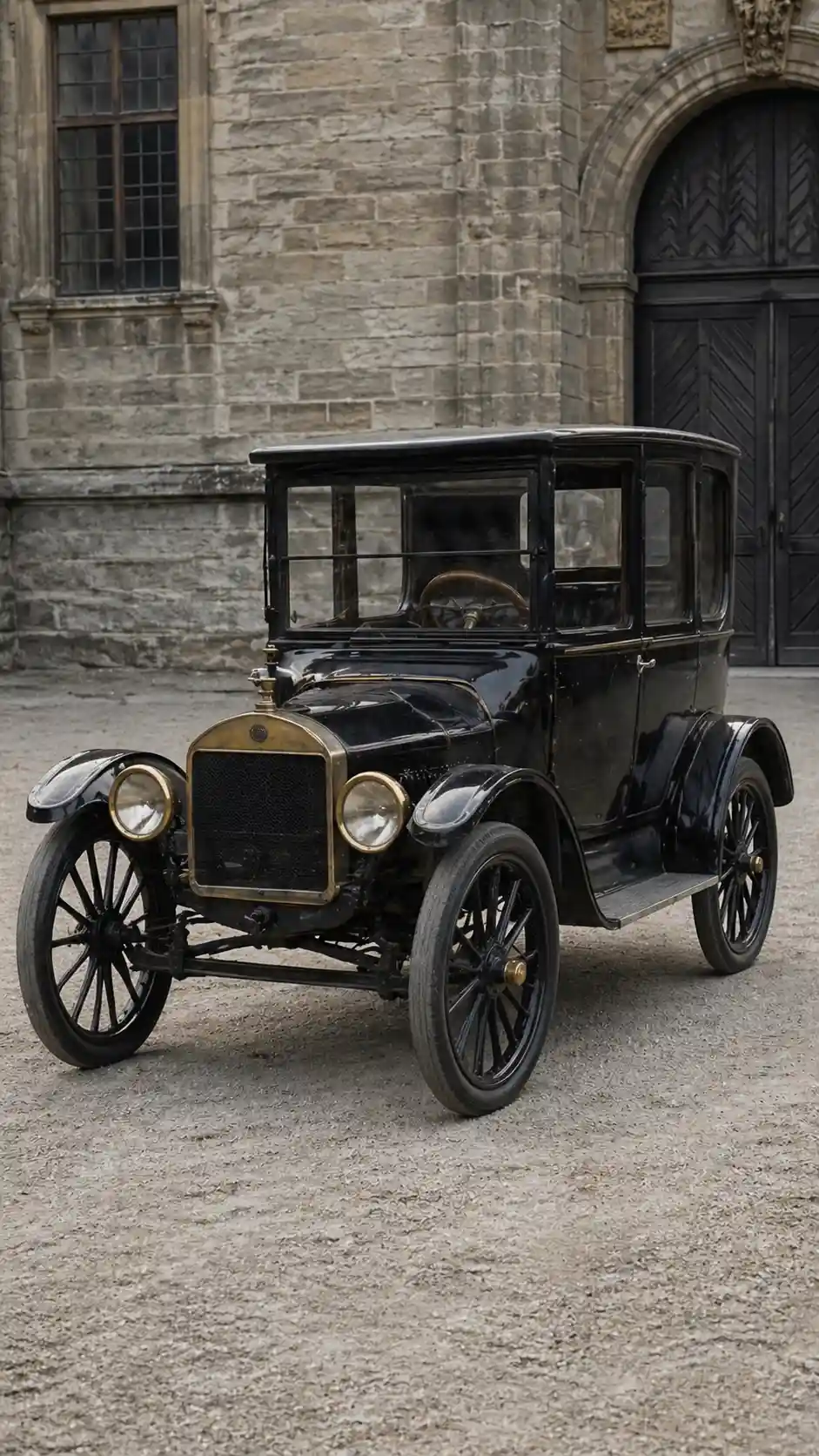
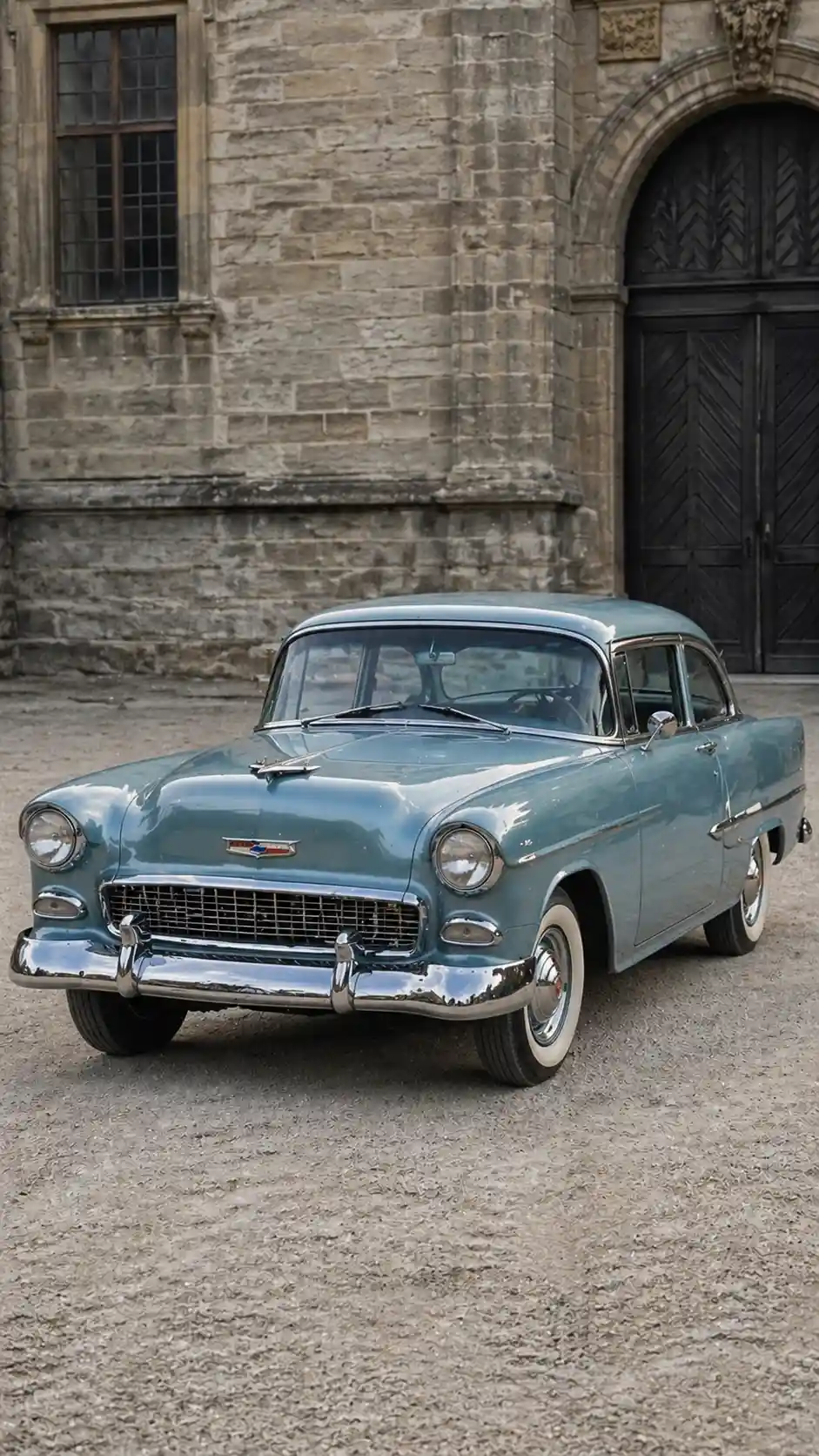
6 Image Prompts for Vehicle Evolution
Early Mechanical Vehicle (1880s)
Replace the highlighted text with your own details before you run the prompt.
Industrial Era Vehicle (1900–1930)
Replace the highlighted text with your own details before you run the prompt.
Mid-Century Development (1950–1980)
Replace the highlighted text with your own details before you run the prompt.
Modern Automotive Design (2000–2015)
Replace the highlighted text with your own details before you run the prompt.
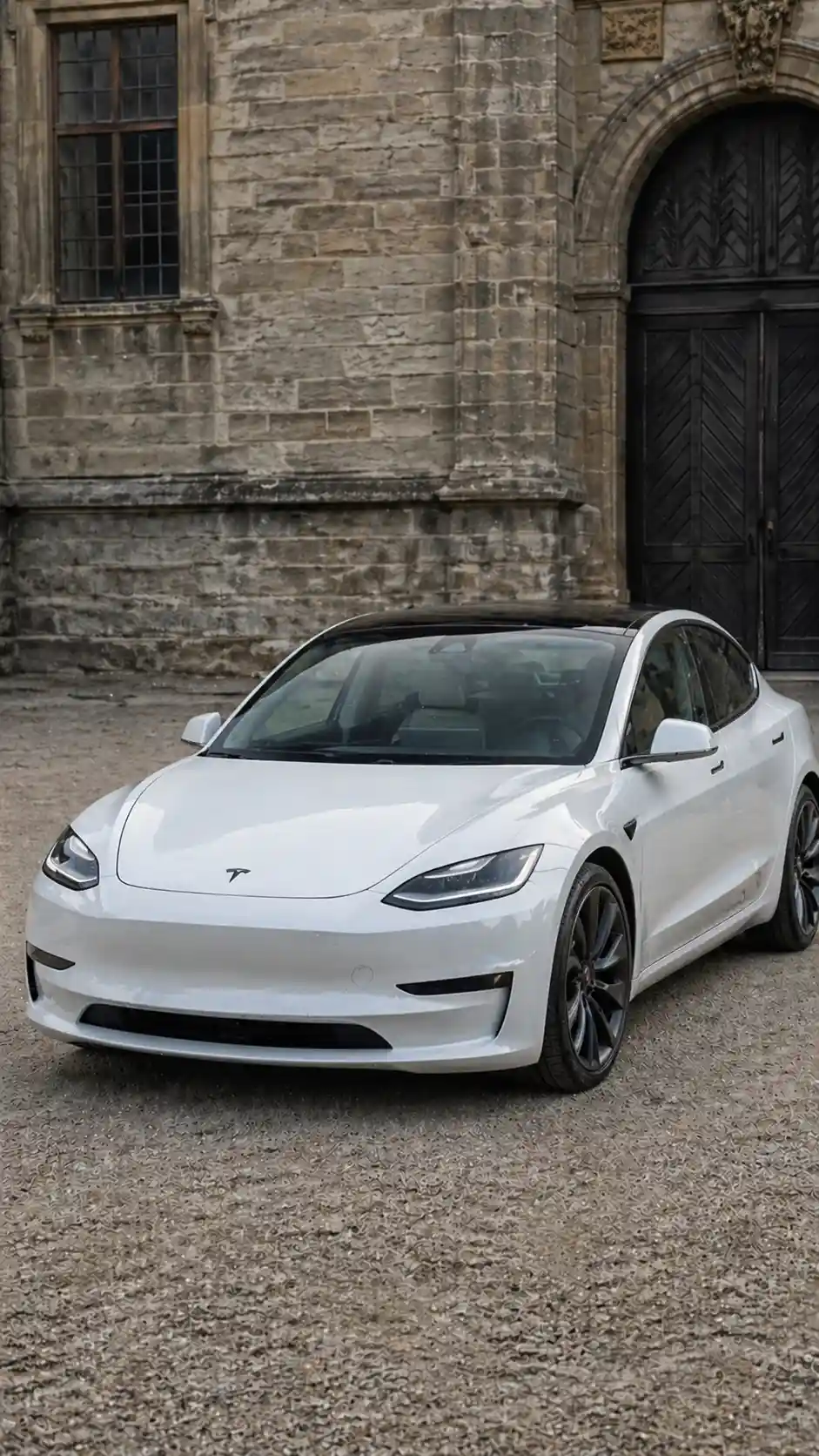
Electric Transition (2020–2024)
Replace the highlighted text with your own details before you run the prompt.
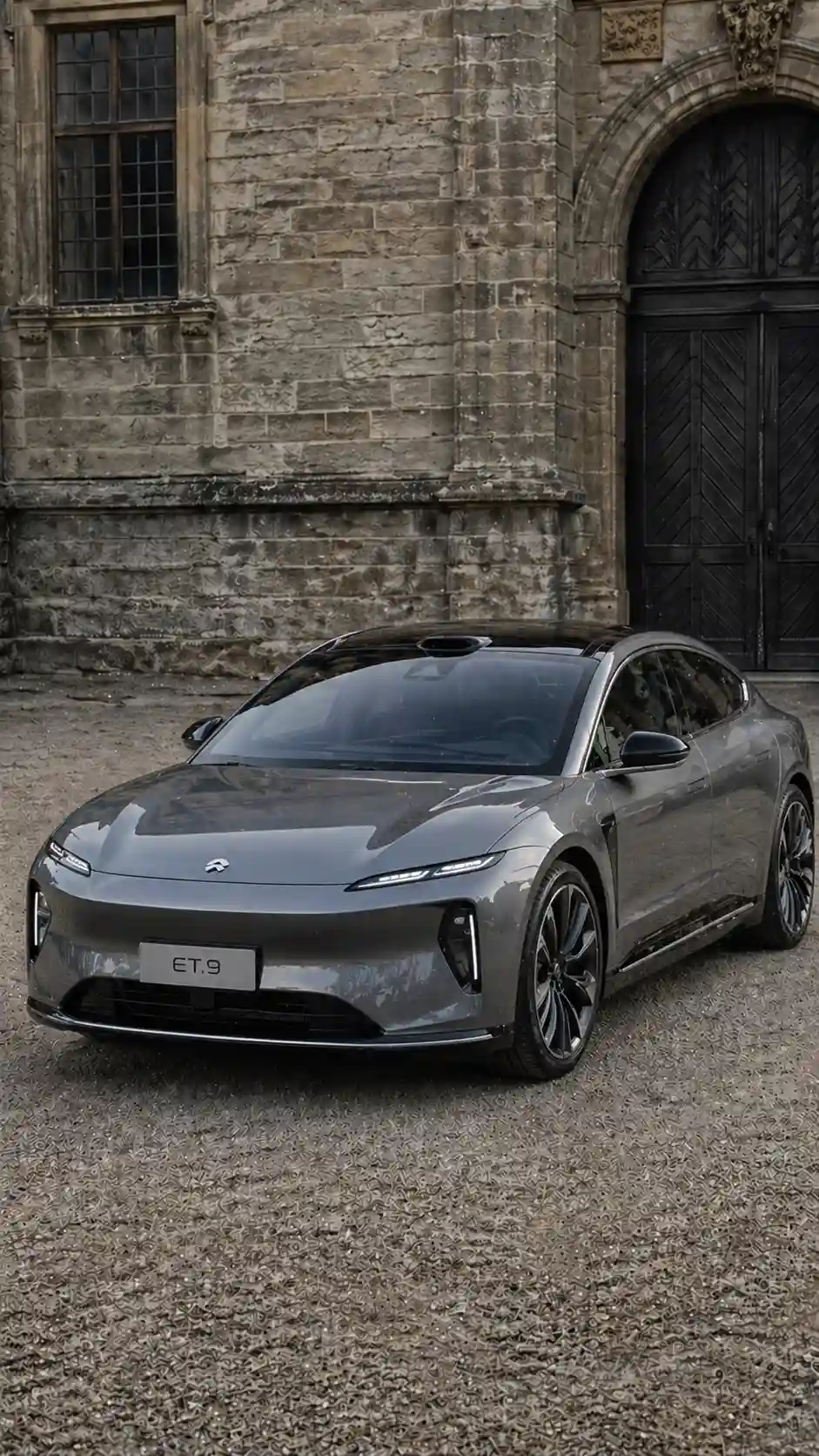
Latest Generation Vehicle
Replace the highlighted text with your own details before you run the prompt.
Step 2: Organize Your Frames
Name your images in order so they stay in sequence:
- frame_01.jpg
- frame_02.jpg
- frame_03.jpg
- frame_04.jpg
- frame_05.jpg
- frame_06.jpg
Step 3: Turn the Images Into Video
Open Google Flow, choose the option that makes a video from frames, and upload your first frame as the start and your last frame as the end. Menu names can change, so look for the start-and-end-frame option if these differ.
Video Prompt for Vehicle Evolution
Vehicle Evolution Video Prompt
For Smoother Results
One long clip has a lot to change at once. For smoother results, make shorter clips between neighbouring stages, then join them in your video editor or in Flow if your plan allows it:
- Early to industrial
- Industrial to mid-century
- Mid-century to modern
- Modern to latest
Mobile Evolution Video Workflow
A mobile evolution video shows a phone changing from a 1990s brick to a modern smartphone. This guide gives you seven AI prompts: six for the images and one for the video. You generate the frames first, then join them in Google Flow.
Step 1: Create the Images
Create all six frames in ChatGPT, Nano Banana or Flux, using the same angle, background and size. If the phone moves between frames, the video can jump.
6 Image Prompts for Mobile Evolution
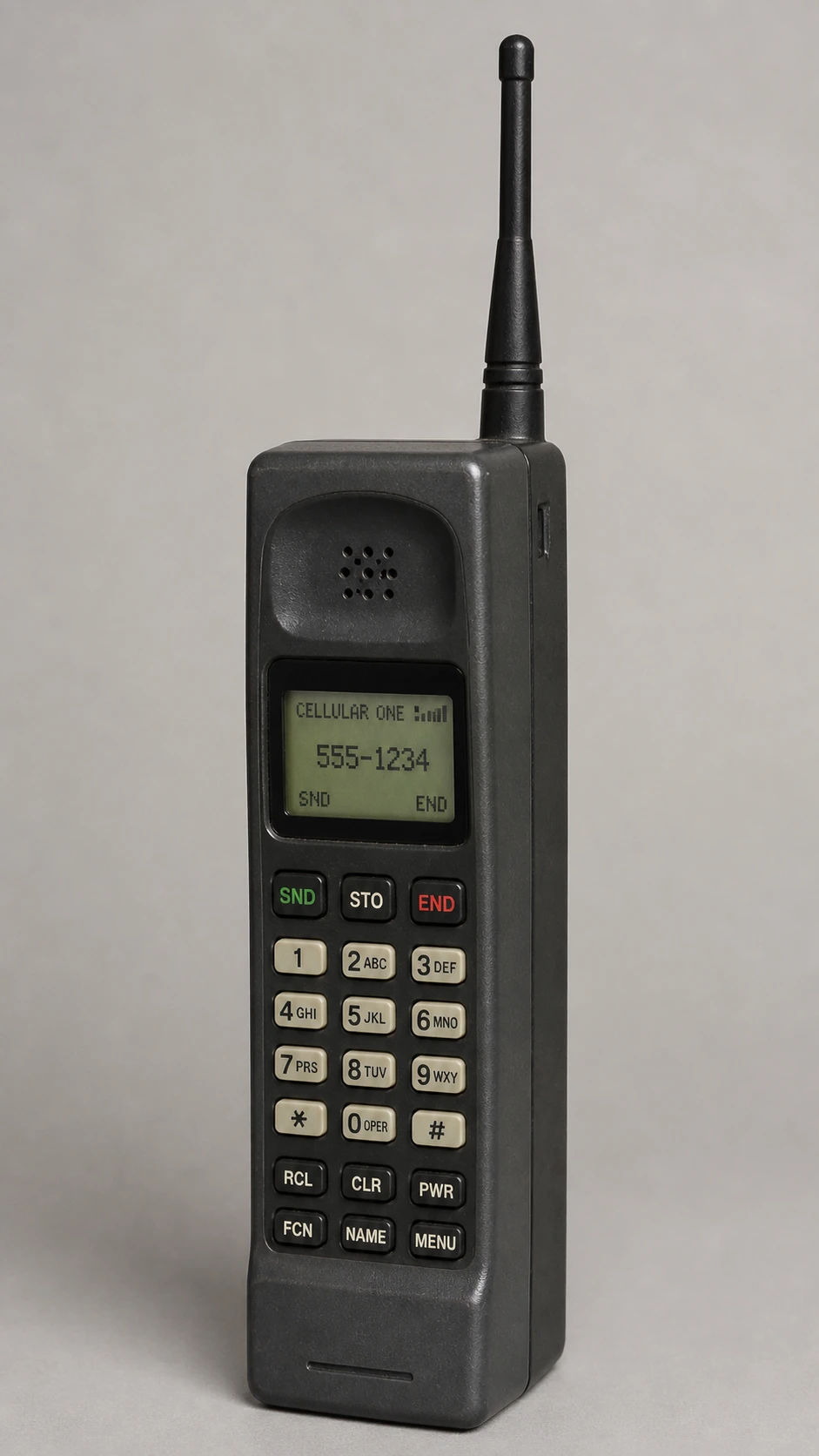
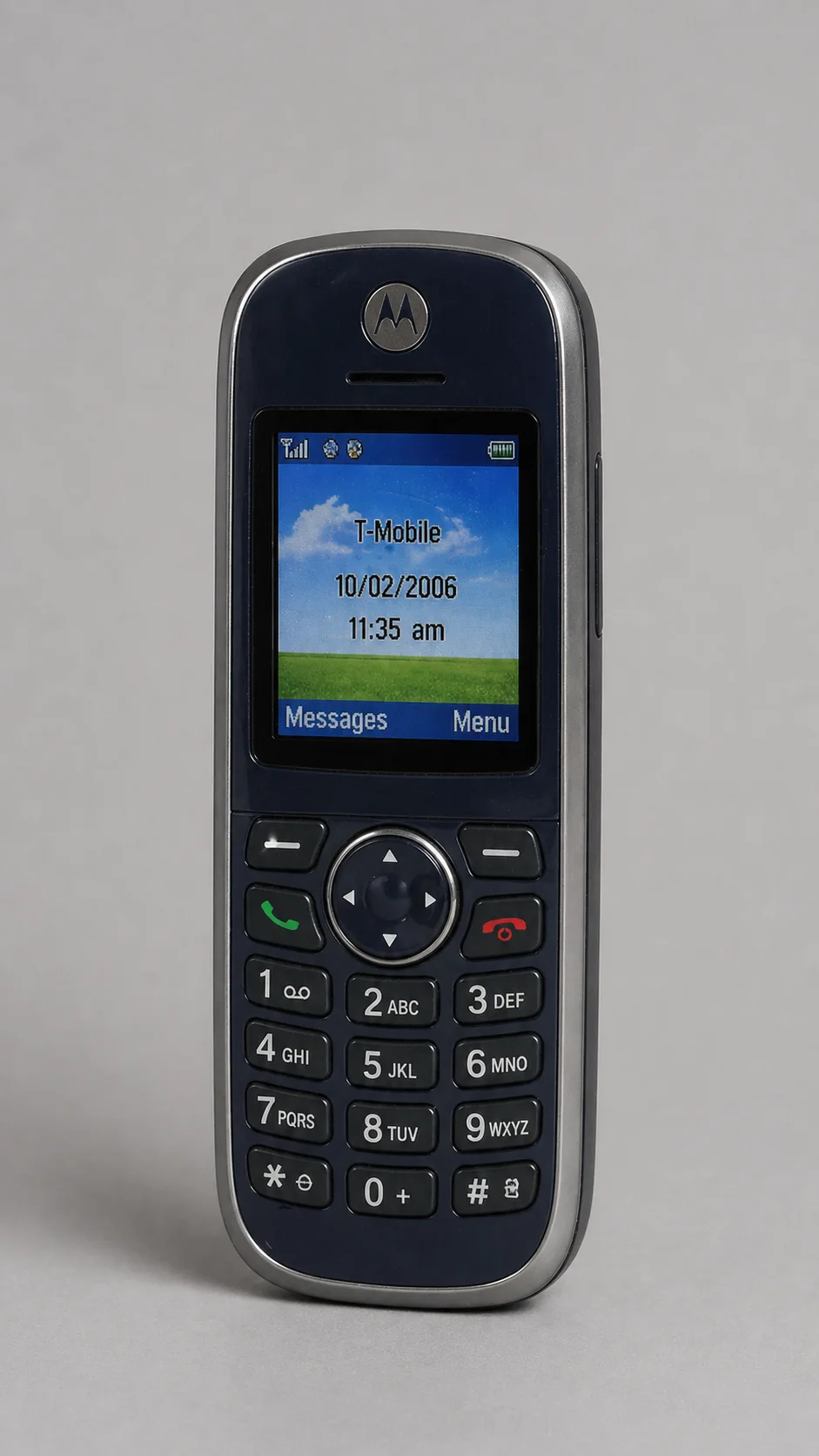
Early Mobile Phone (1990s Brick Phone)
Replace the highlighted text with your own details before you run the prompt.
Compact Keypad Phone (2000s)
Replace the highlighted text with your own details before you run the prompt.
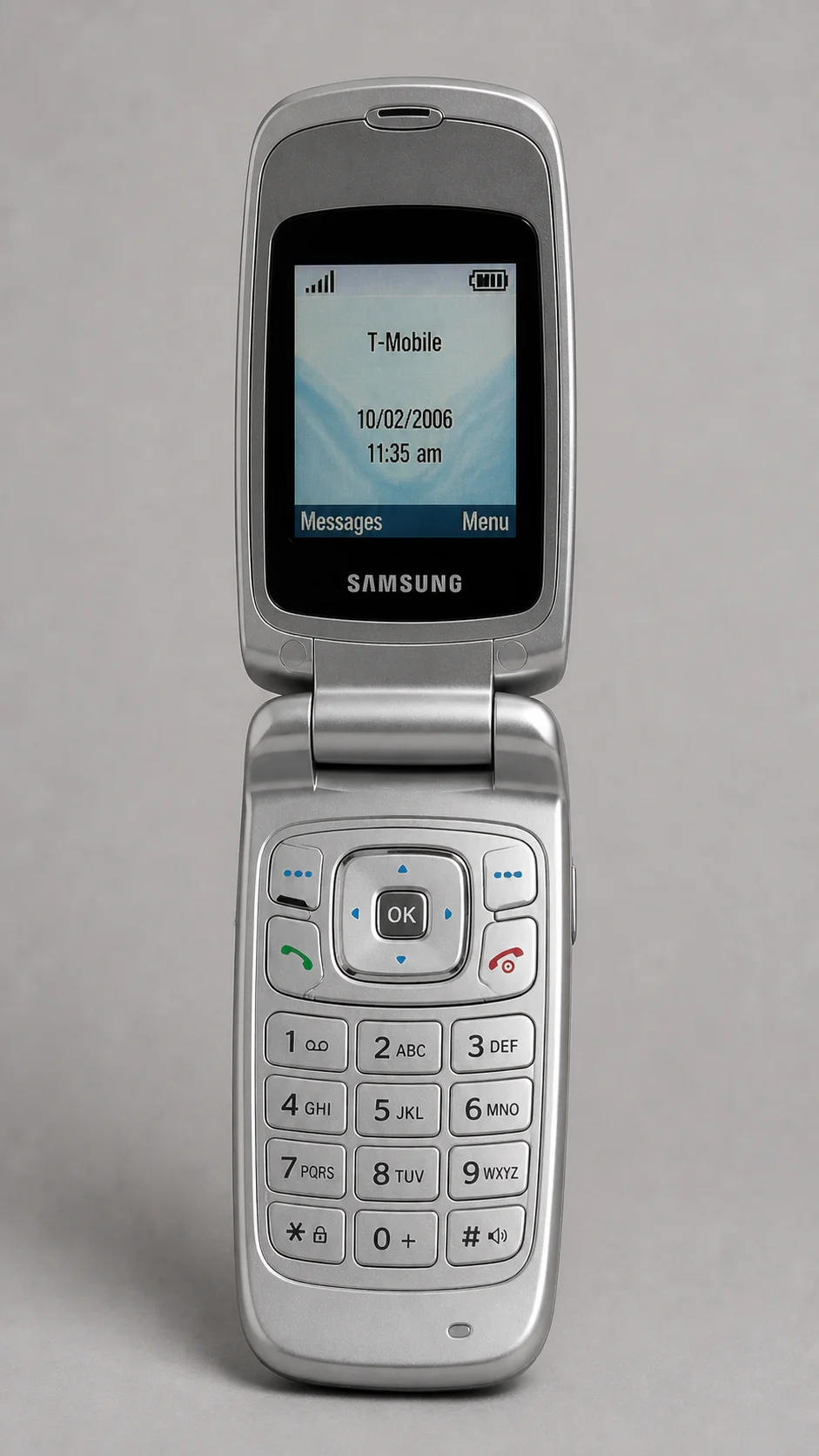
Flip Phone Era
Replace the highlighted text with your own details before you run the prompt.
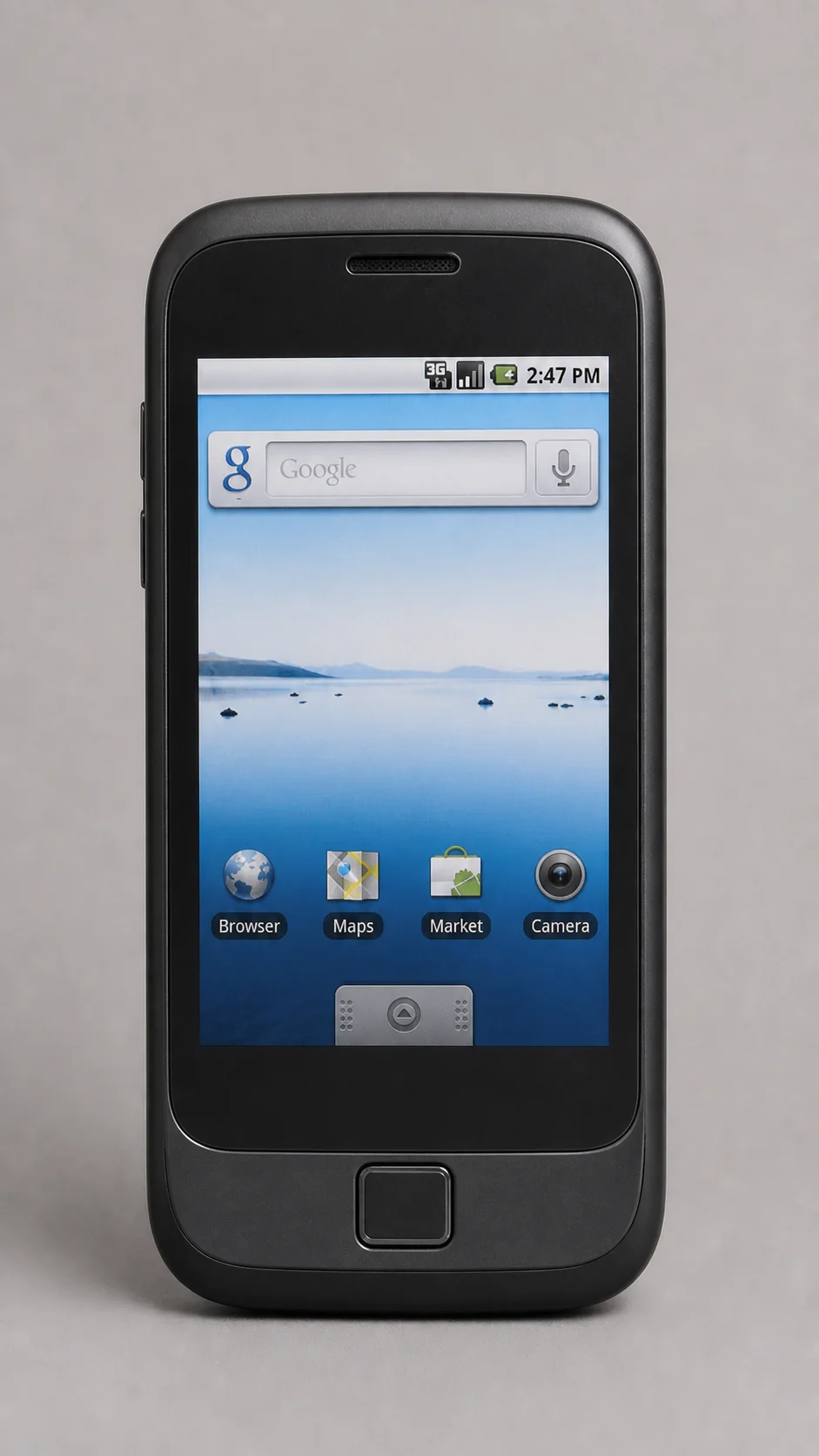
Early Smartphone (Touchscreen Introduction)
Replace the highlighted text with your own details before you run the prompt.
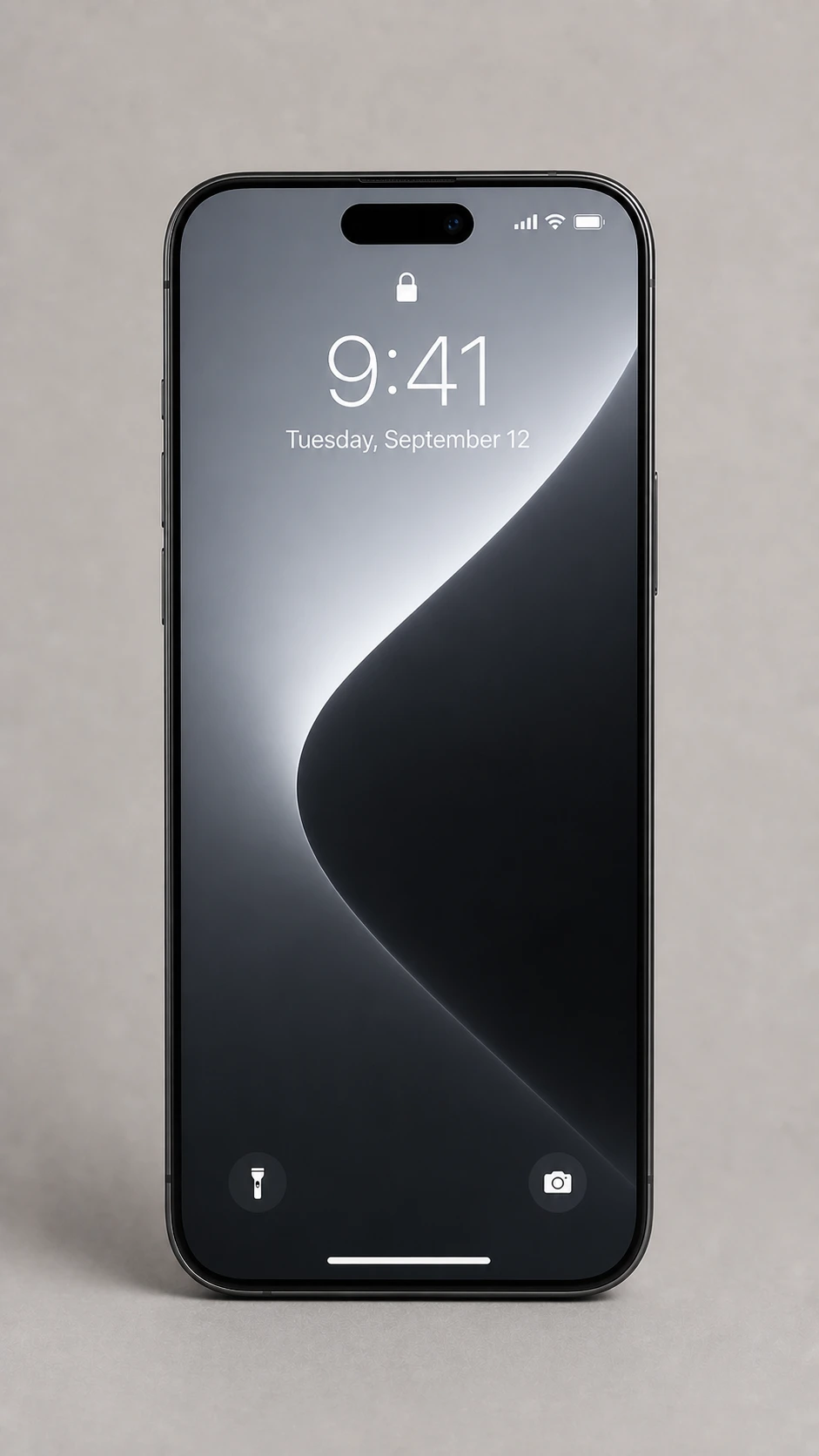
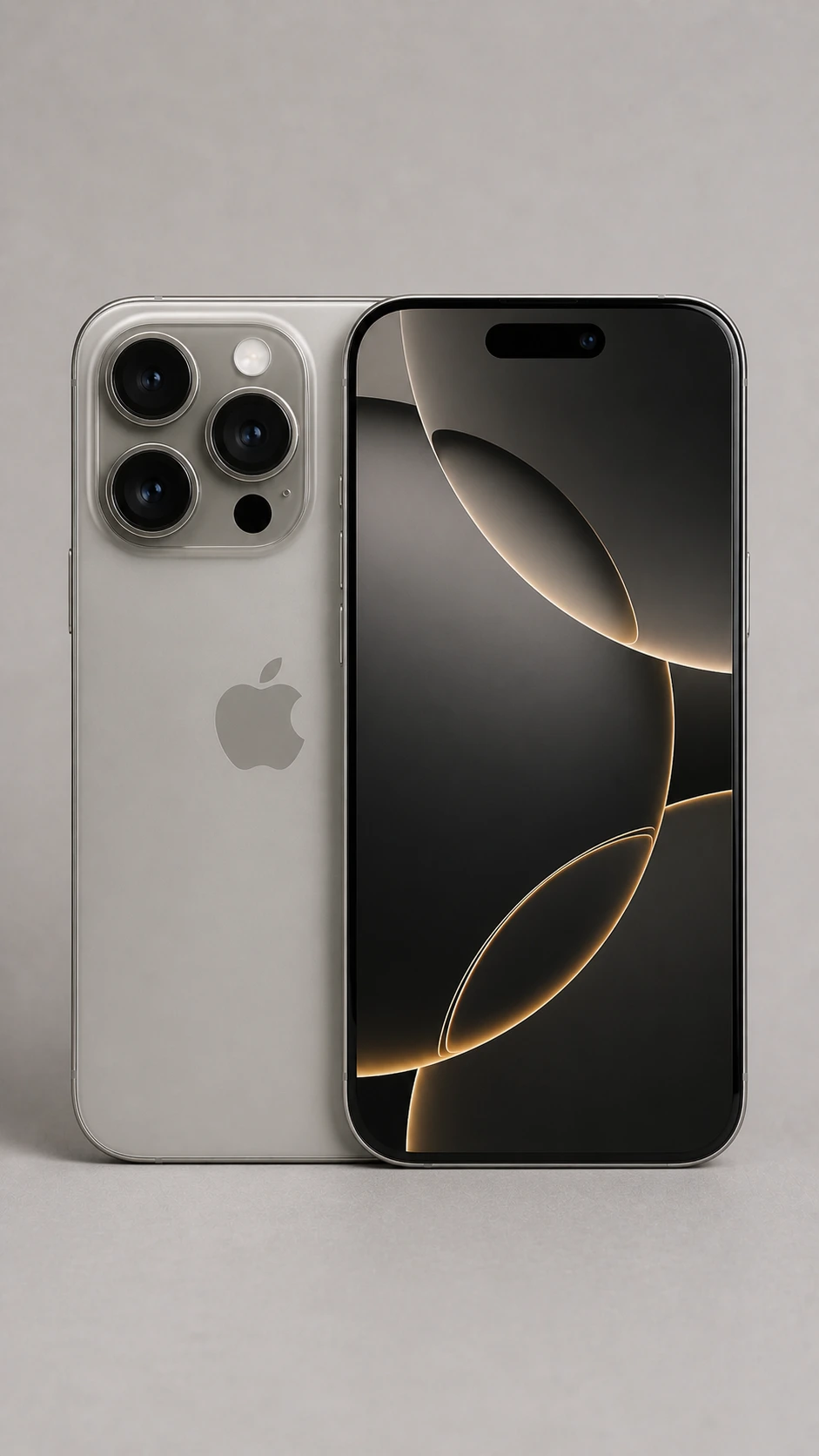
Modern Smartphone (Minimal Design)
Replace the highlighted text with your own details before you run the prompt.
Latest Generation Smartphone
Replace the highlighted text with your own details before you run the prompt.
Step 2: Organize Your Frames
Name your images in order so they stay in sequence:
- frame_01.jpg
- frame_02.jpg
- frame_03.jpg
- frame_04.jpg
- frame_05.jpg
- frame_06.jpg
Step 3: Turn the Images Into Video
Open Google Flow, choose the option that makes a video from frames, and upload your first frame as the start and your last frame as the end. Menu names can change, so look for the start-and-end-frame option if these differ.
Video Prompt for Mobile Evolution
Mobile Evolution Video Prompt
Recommended Settings
Use a short clip and keep the camera still, so that only the phone changes:
- Duration: 5–7 seconds
- Camera: locked
- Motion: smooth
- Style: realistic
Human Evolution Video Workflow
A human evolution video shows one figure changing from an early primate to a modern person, with no visible cuts. This guide gives you nine AI prompts: eight for the images and one for the video. The stages are a simplified creative sequence and not a scientific timeline.
Step 1: Create the Images
Generate each stage in ChatGPT, Nano Banana or Flux. Keep the same pose, framing and background in every image, because the video will jump if they change.
8 Image Prompts for Human Evolution
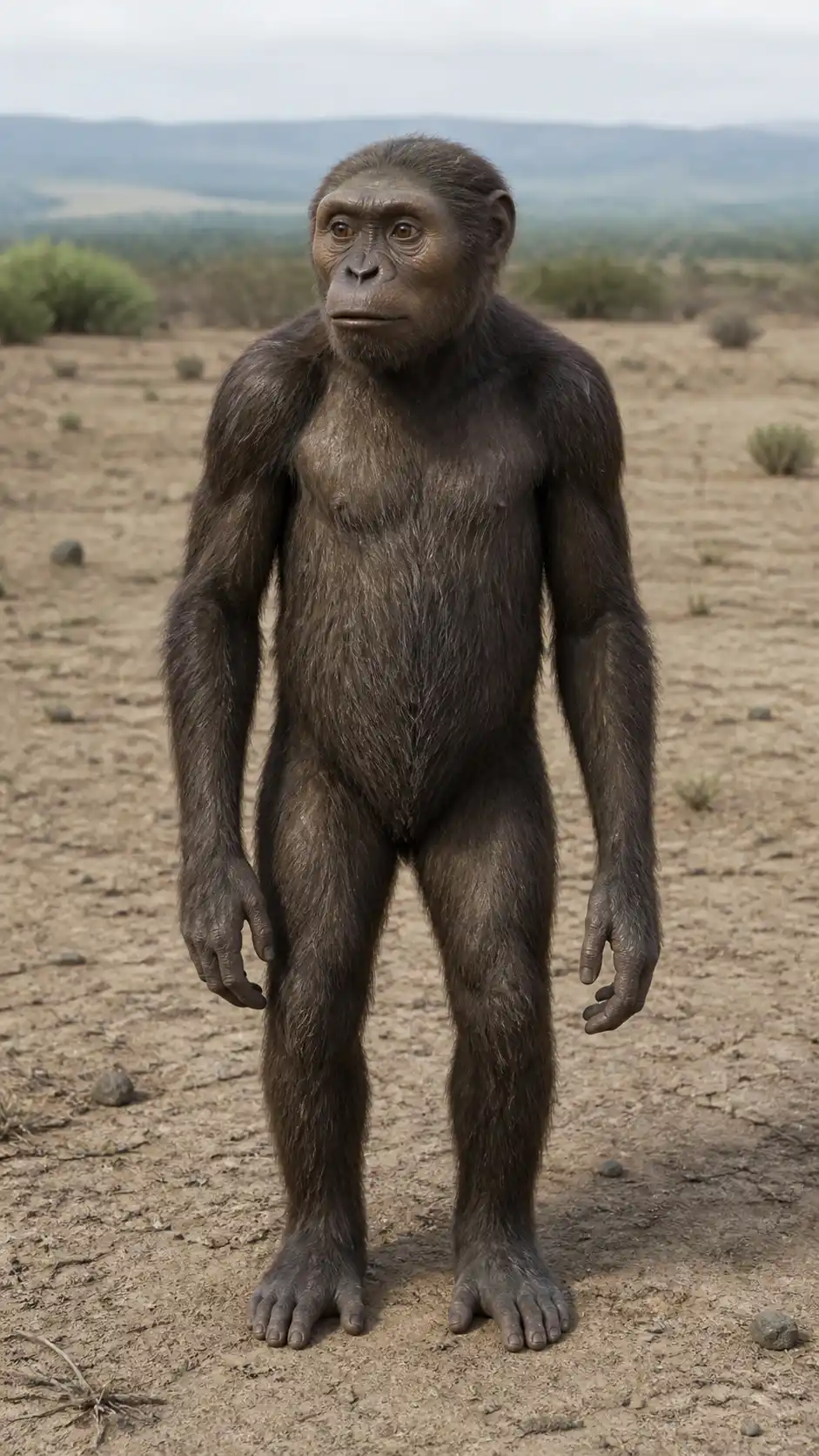
Frame 1 — Early Primate
Replace the highlighted text with your own details before you run the prompt.
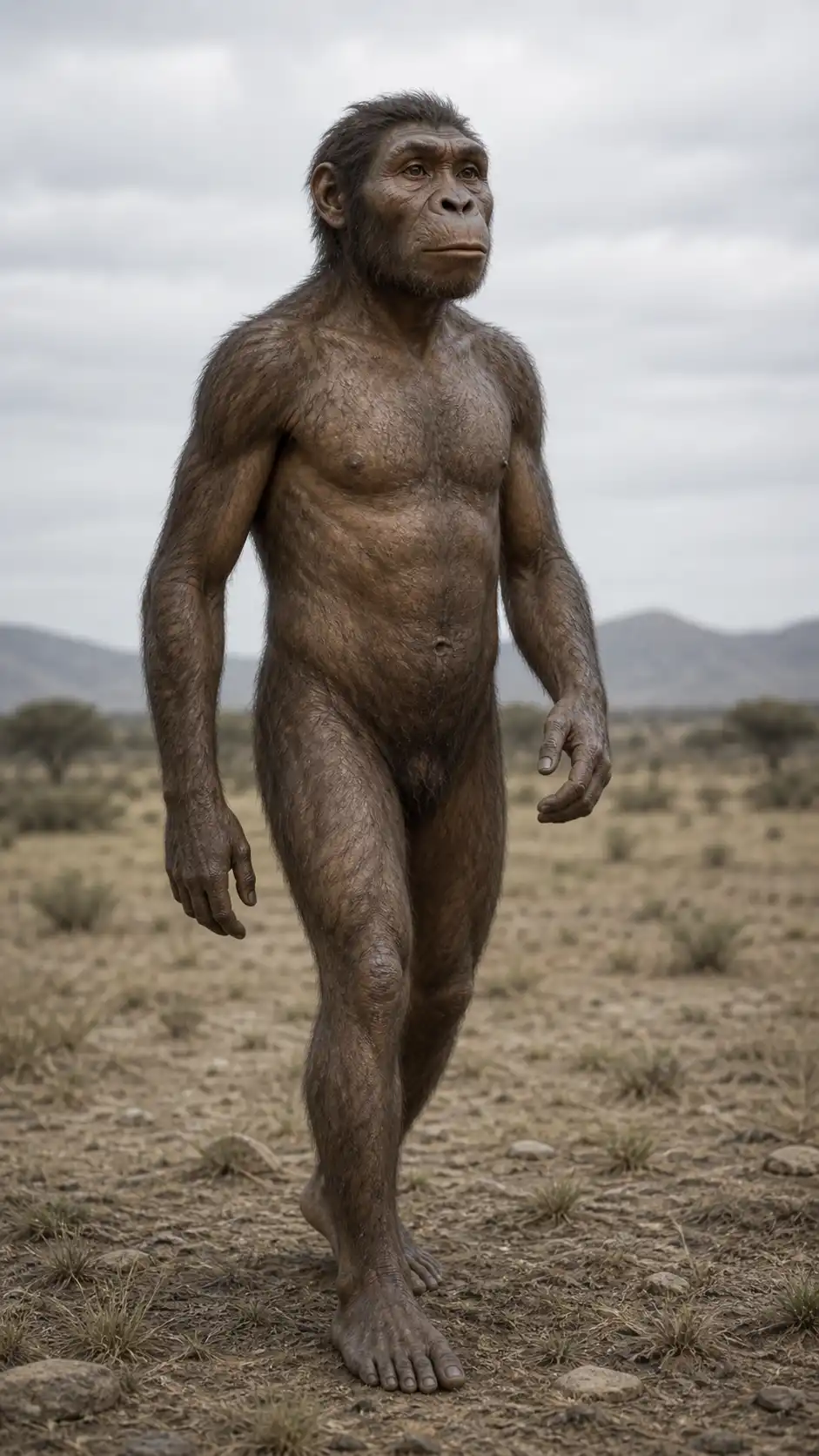
Frame 2 — Hominid
Replace the highlighted text with your own details before you run the prompt.
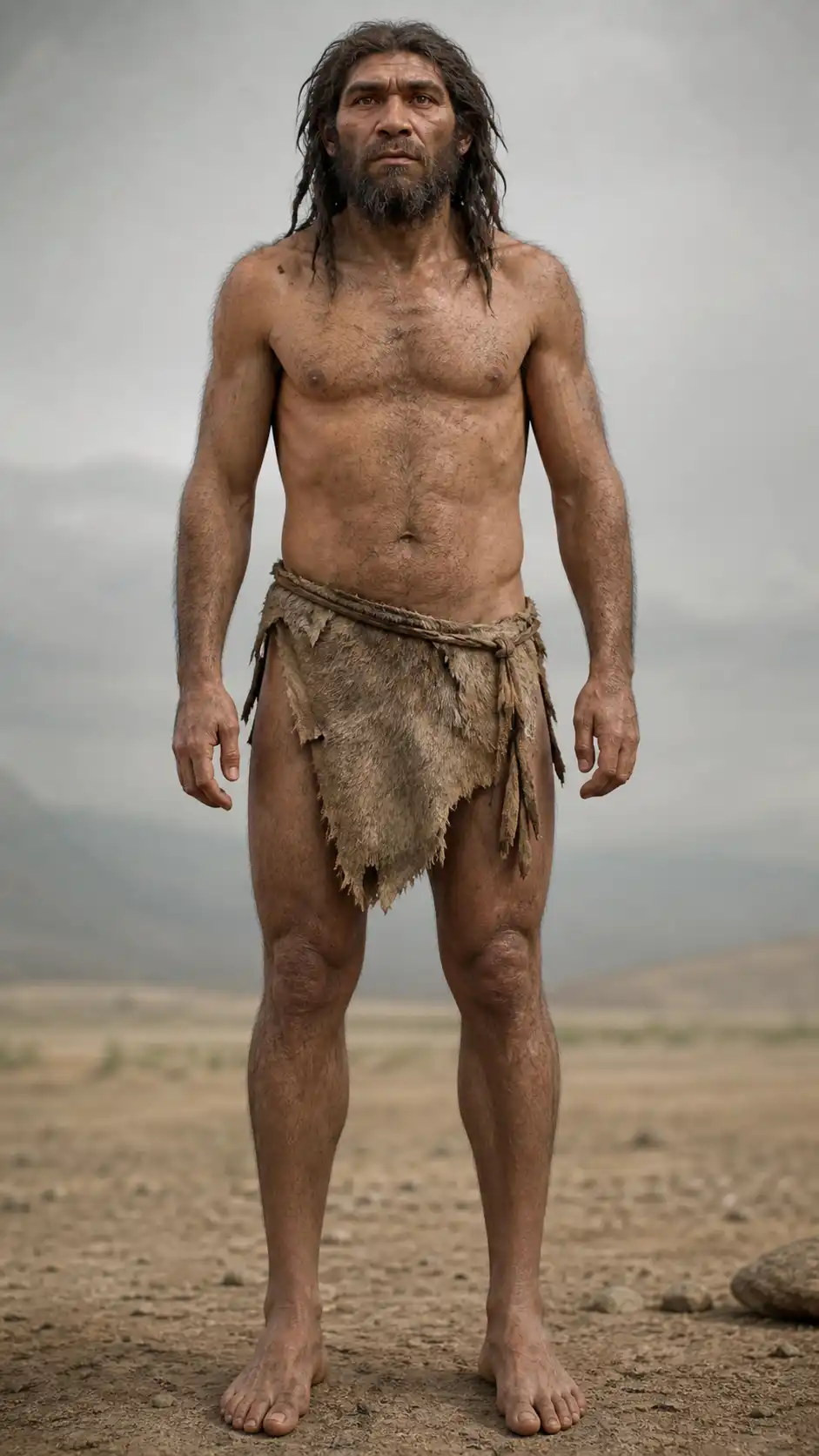
Frame 3 — Early Human
Replace the highlighted text with your own details before you run the prompt.
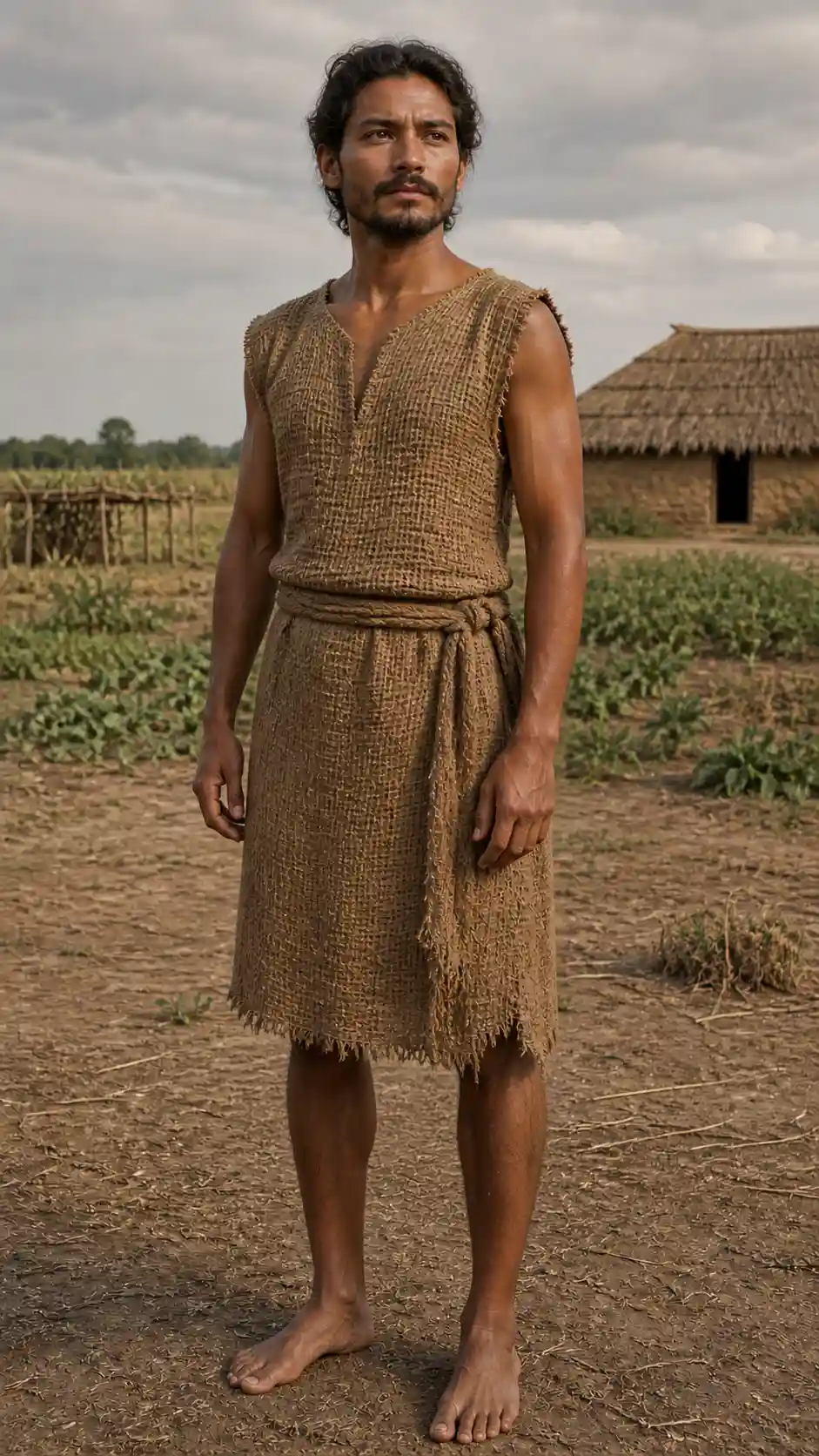
Frame 4 — Agricultural Human
Replace the highlighted text with your own details before you run the prompt.
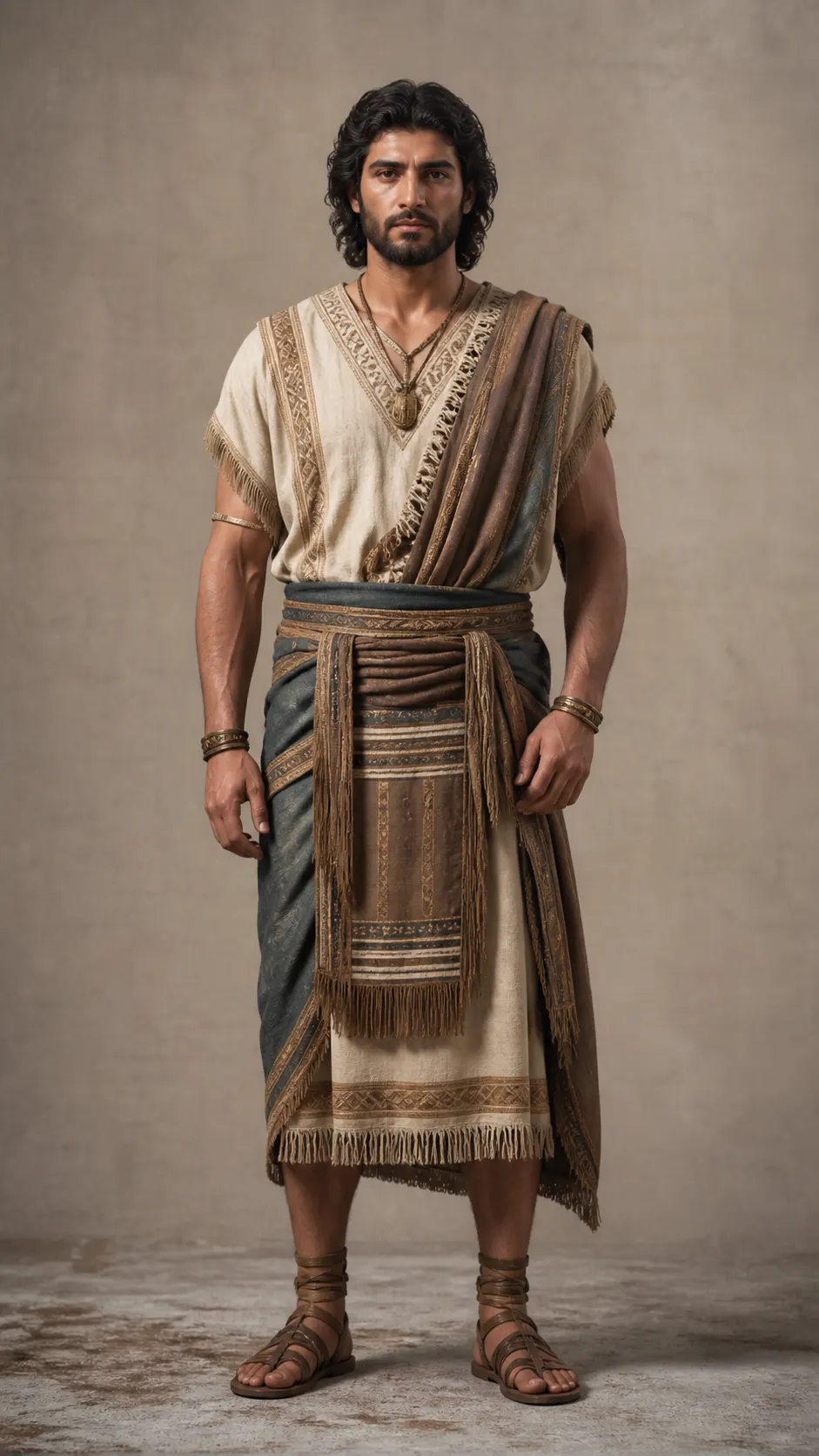
Frame 5 — Ancient Human
Replace the highlighted text with your own details before you run the prompt.
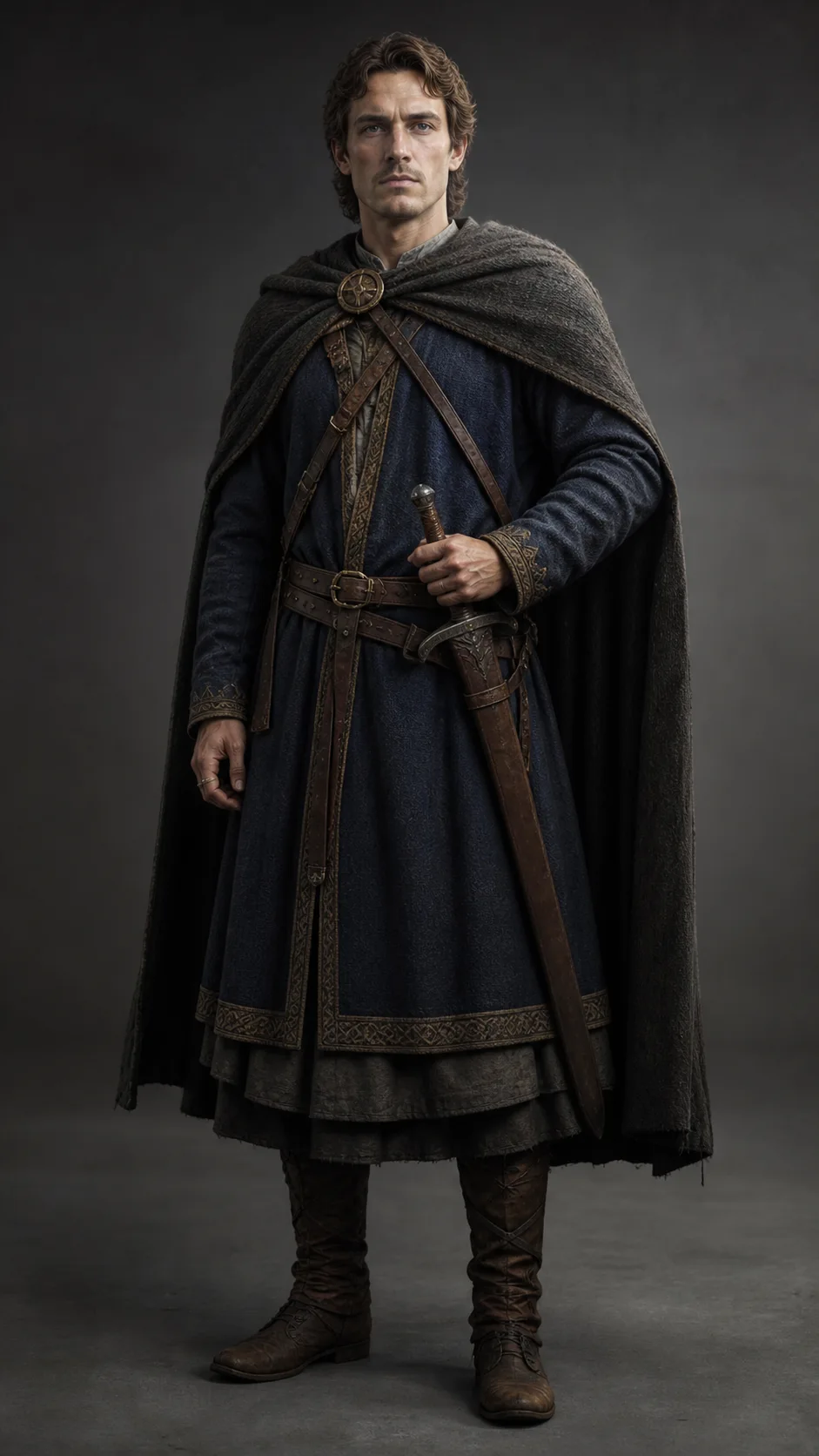
Frame 6 — Medieval Human
Replace the highlighted text with your own details before you run the prompt.
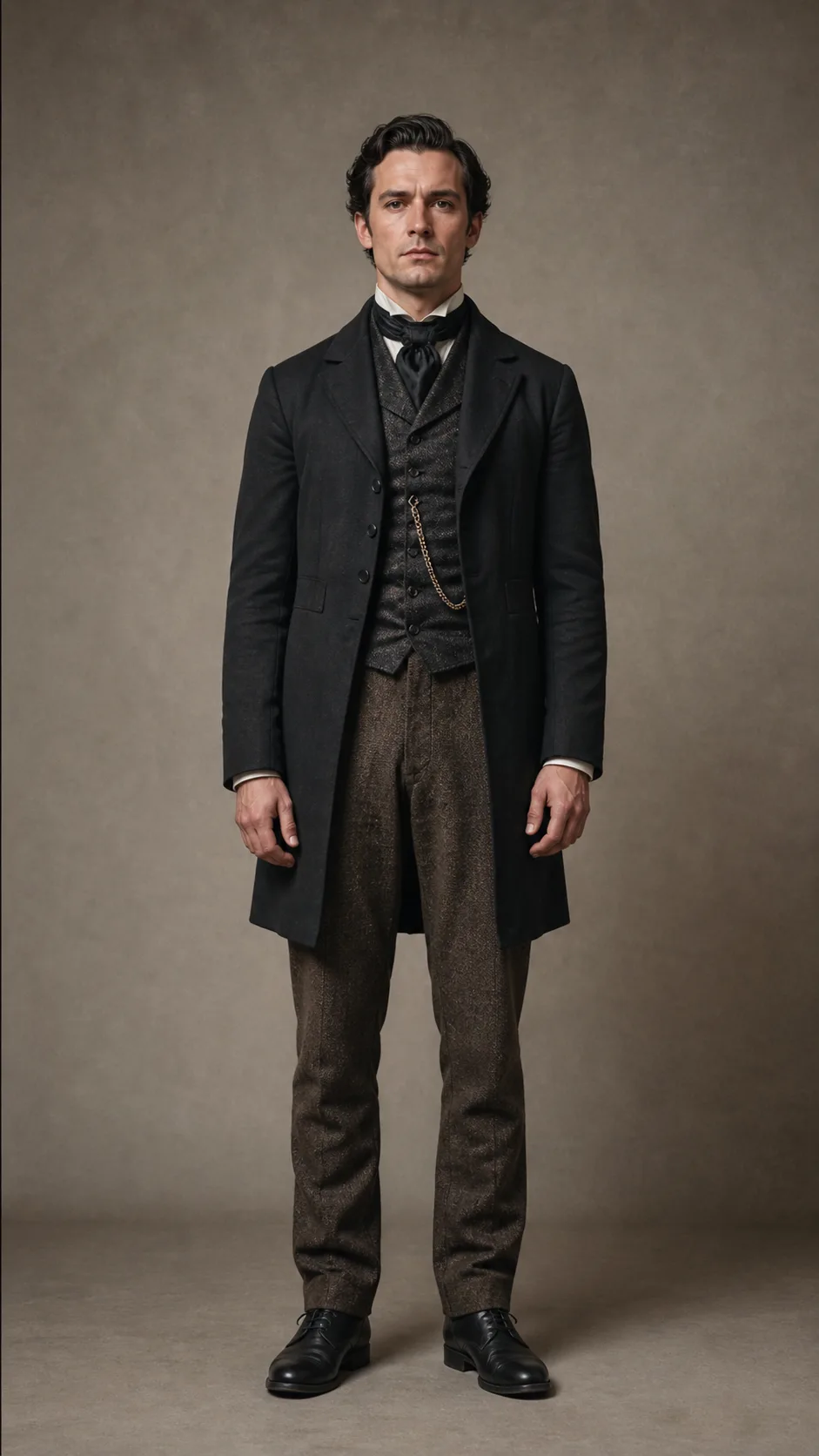
Frame 7 — Industrial Human
Replace the highlighted text with your own details before you run the prompt.
Frame 8 — Modern Human
Replace the highlighted text with your own details before you run the prompt.
Step 2: Organize Your Images
Name your images in order so they stay in sequence, from frame_01.jpg to frame_08.jpg.
Step 3: Turn the Images Into Video
Open Google Flow or PixVerse and choose the option that makes a video from a start frame and an end frame. Upload two frames at a time, not all of them at once. Menu names can change, and features depend on your plan.
Morph Prompt
Morph Video Prompt
Step 4: Make All the Transitions
Make one clip for each neighbouring pair, using the morph prompt each time:
- frame_01 to frame_02
- frame_02 to frame_03
- frame_03 to frame_04
- frame_04 to frame_05
- frame_05 to frame_06
- frame_06 to frame_07
- frame_07 to frame_08
Step 5: Join the Clips
Put the clips in order in a video editor and join them with no added transitions, so the change looks continuous.
More in AI Video Prompts and Workflows
This guide is part of our AI Video Prompts and Workflows hub, where you’ll find every related guide, along with tips and common questions.