These AI video prompts cover six kinds of short clip: cloud animals, animated line art, psychedelic scenes, junk journals, surreal slicing and singing animals. Each one says what moves and how, which helps the tool. Keep one main motion in a clip, because too many movements can look messy.
What’s on This Page
| Section | Prompts | Best for |
|---|---|---|
| Cloud animals | 6 | Playful animal shapes in the sky |
| Animated Line Art Prompts | 4 | One clear movement in line art |
| Psychedelic Art Motion Prompts | 6 | Surreal, colourful loops |
| Spring Journal Motion Prompts | 5 | Soft cottagecore page animations |
| Surreal Fruit Slicing Prompts | 6 | Satisfying material close-ups |
| Animal Music Video Prompts | 6 | Funny singing animals |
| Evolution Video Prompts | 23 | Car, phone and human evolution videos |
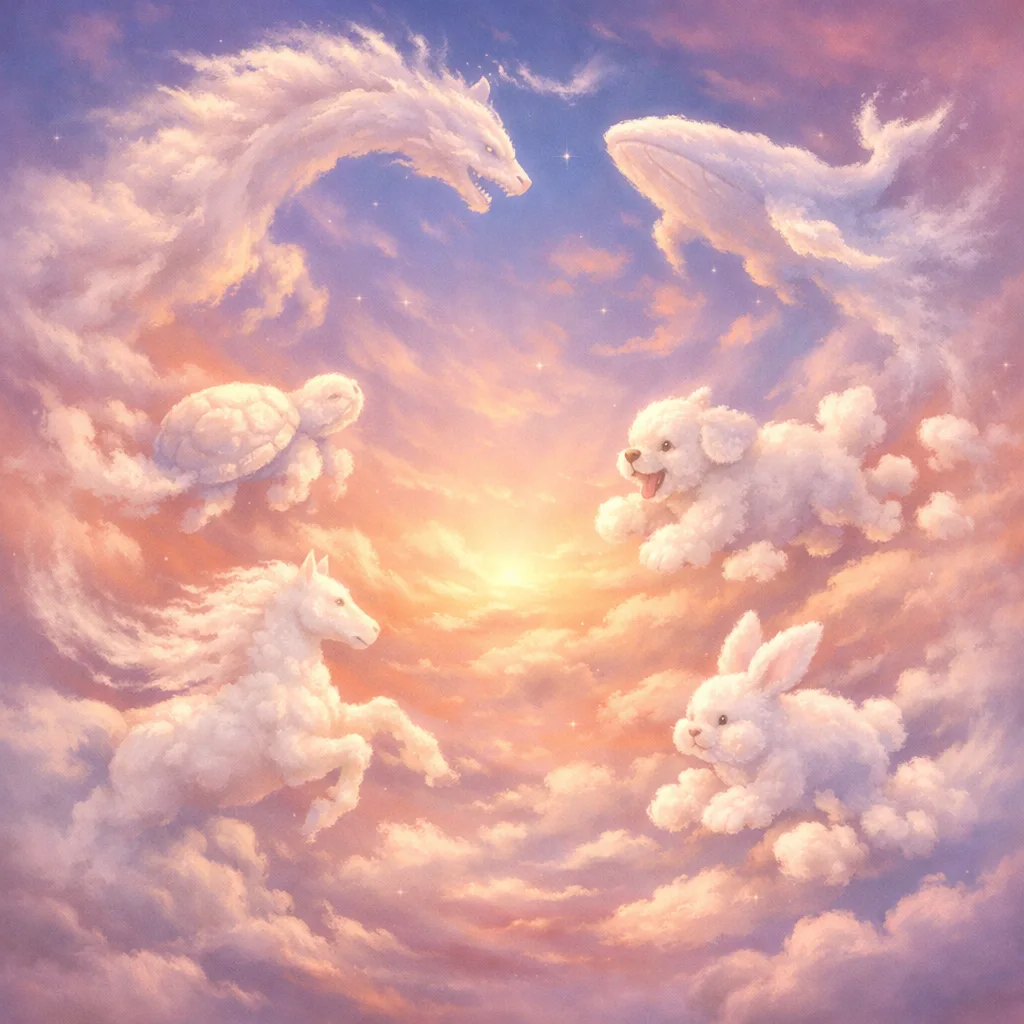
Each prompt says how the cloud moves, which way it travels and how the light changes. To create a new animal, keep those instructions and change the shape. Slow animals, like the whale and turtle, are often easier to keep looking natural than fast ones.
6 Cloud Animal Prompts for Veo
Sunset Galloping Cloud Horse
Floating Cloud Whale Glide
Bouncing Cloud Bunny Loop
Twilight Soaring Cloud Dragon
Joyful Running Cloud Puppy
Slow Rotating Cloud Turtle
Animated Line Art Prompts
These four AI video prompts animate whimsical line art: a girl twirling in the rain, a skateboard trick, a slow twilight spin and a leap between rooftops.
Use them in Veo, Runway, Pika or Kaiber. Line art has little to hide behind, so describe one clear movement and how the lines should behave. A short, single action tends to stay cleaner than a long sequence.
Rain Street Twirl – Premium Whimsical Drawing Line Art
Skate Motion – Powerful Whimsical Drawing Line Art
Twilight Spin – Refined Whimsical Drawing Line Art
Rooftop Leap – Dynamic Whimsical Drawing Line Art
Psychedelic Art Motion Prompts
These six AI motion prompts turn psychedelic art into short surreal videos, including a retro-futuristic astronaut, a van on a tropical road and a face blended with a cosmic scene. They were written for video tools such as Veo, and they suit music videos and experimental reels.
Each prompt describes the subject, the setting and how things should move. Keep one main motion in each clip, because too many moving parts can make the result smear or warp.
Cosmic Psychedelic Astronaut Dream
Surreal Cosmic Pathway Journey
Psychedelic Retro Van Road Trip
Floating Planet Stairway
Psychedelic Desert Cruiser
Cosmic Double Exposure Mindscape
Spring Journal Motion Prompts
These five AI motion prompts animate a spring Easter junk journal in a soft cottagecore style. They show a page turning, an egg nest, a butterfly landing, tea-stained paper and floating paper cutouts.
Use them in Veo, Runway or Pika. Small movements suit the style best, such as a drifting petal or light moving across paper. Big, fast motion can break the calm mood and tear or warp the paper.
Blooming Page Turn – Floral Awakening
Easter Egg Nest Scene – Gentle Life Motion
Butterfly Page Landing – Organic Motion Detail
Tea-Stained Memory Spread – Light & Atmosphere Motion
Floating Memory Cutouts – Layered Paper Lift Motion
Surreal Fruit Slicing Prompts
These six Veo prompts create satisfying slicing videos of fruit made from unexpected materials: a felt tomato, a glass apple, a leather strawberry, a clay mango, a rubber banana and a bubble orange.
The surprise comes from how each material reacts to the blade, so each prompt describes how it should behave as it’s cut. To make your own, change the fruit, change the material and describe what happens as it separates. Veo access depends on your plan.
Slicing a Felt Tomato
Slicing a Glass Apple
Slicing a Leather Strawberry
Slicing a Clay Mango
Slicing a Rubber Banana
Slicing a Bubble Orange
Animal Music Video Prompts
These six AI prompts create animal music videos, such as a cat on a concert stage, a parrot performing in the street and a cow playing an acoustic set.
Replace the animal in square brackets with the one you want. Each prompt gives a different setting, so match it to the mood of your song. Video tools vary in how well they handle lip sync, so add your audio in a video editor if needed.
Cinematic Stage Performance
Replace the highlighted text with your own details before you run the prompt.
Emotional Close-Up Performance
Replace the highlighted text with your own details before you run the prompt.
Street Performance Vibe
Replace the highlighted text with your own details before you run the prompt.
Fantasy Concert Theme
Replace the highlighted text with your own details before you run the prompt.
Funny Meme Performance
Replace the highlighted text with your own details before you run the prompt.
Indie Acoustic Session
Replace the highlighted text with your own details before you run the prompt.
Evolution Video Prompts
An evolution video shows one subject changing through history with no visible cuts. This guide gives you the image prompts and full workflow for three versions: a car, a phone and a human figure. The method is the same each time: create matching frames, put them in order, then morph between them.
Vehicle Evolution Video Workflow
Step 1: Create the Images
Create all six frames in ChatGPT, Nano Banana or Flux, using the same angle, background and framing. Small differences between frames can make the video jump.
6 Image Prompts for Vehicle Evolution
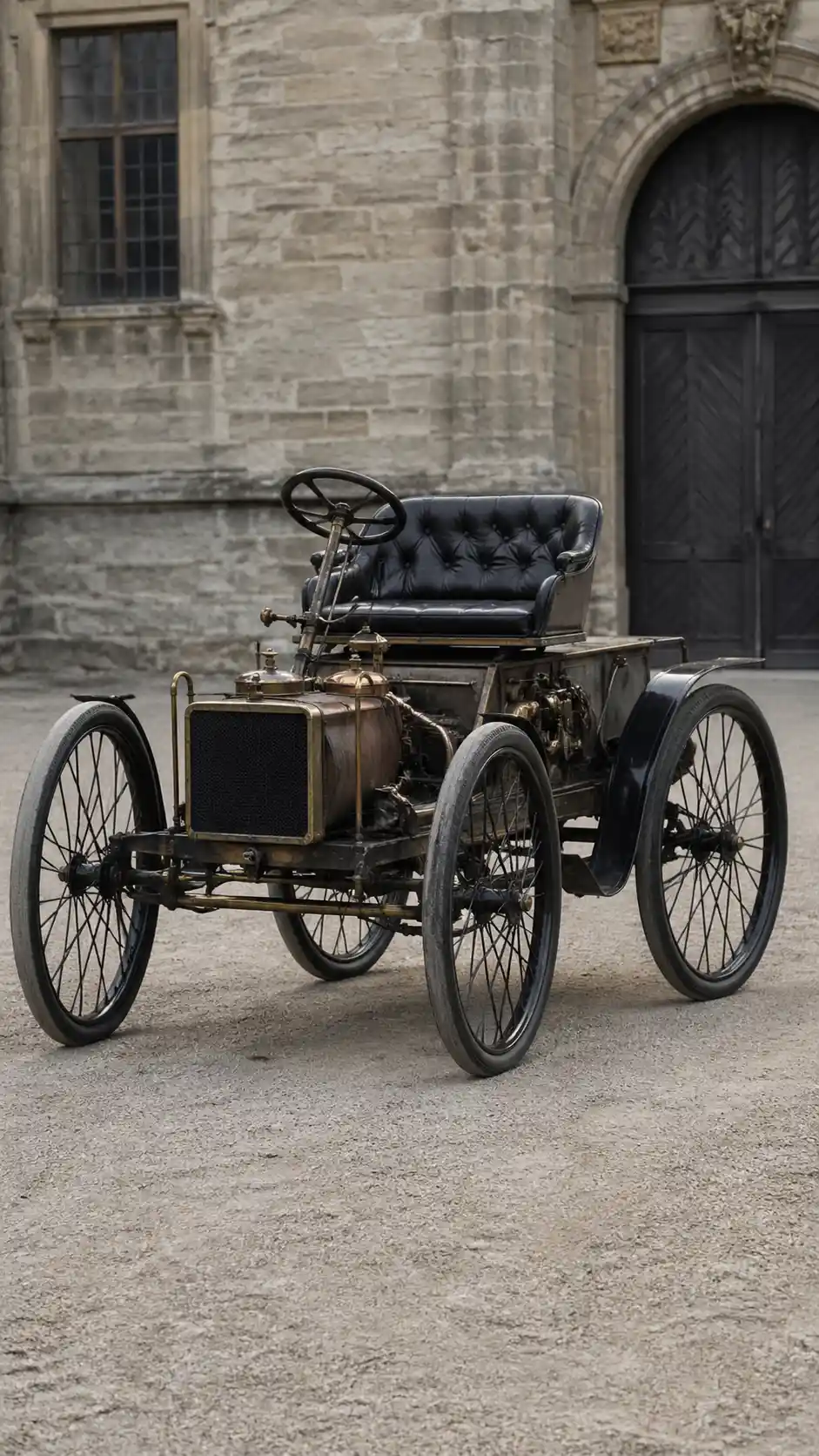
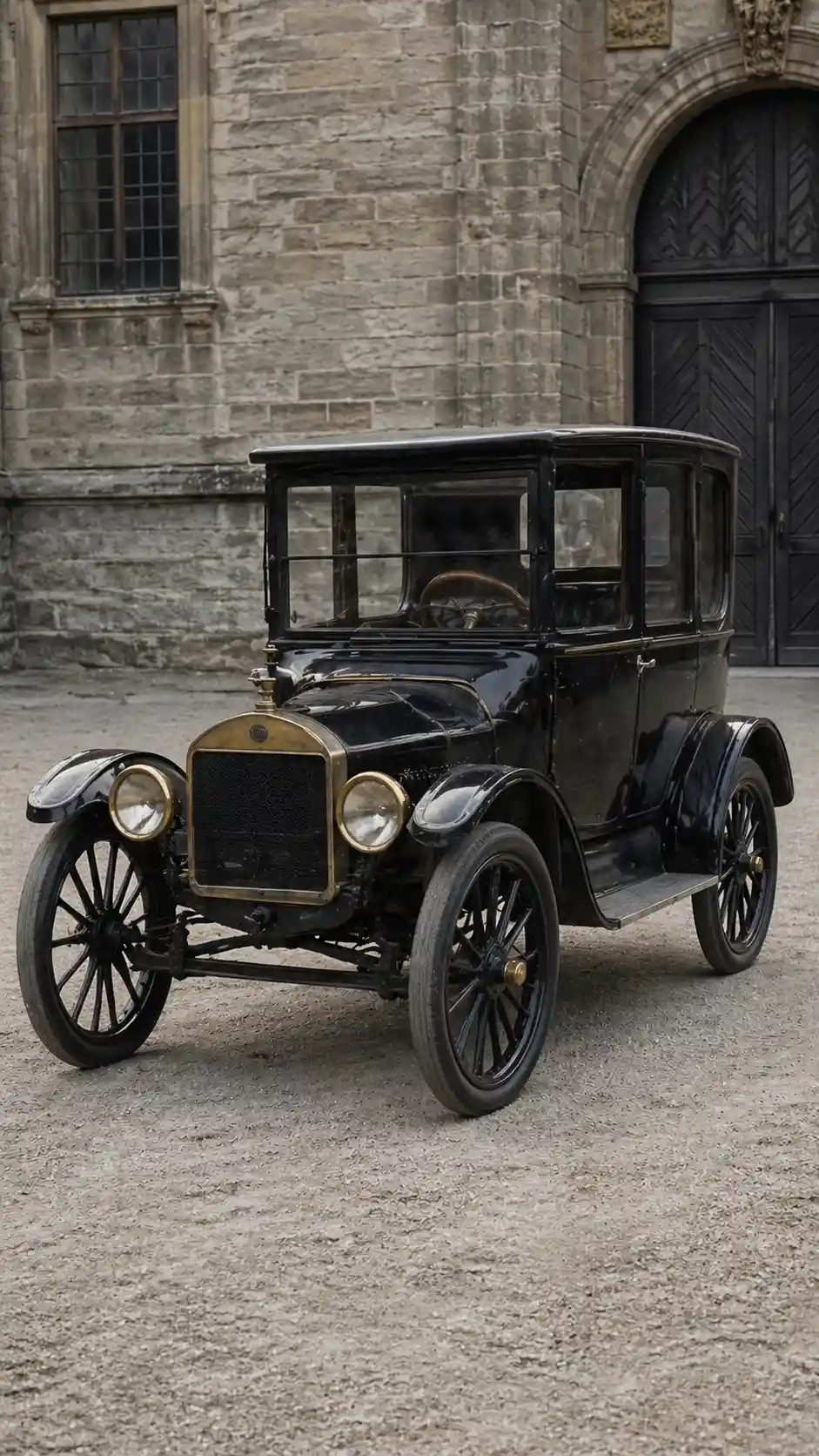
Early Mechanical Vehicle (1880s)
Replace the highlighted text with your own details before you run the prompt.
Industrial Era Vehicle (1900–1930)
Replace the highlighted text with your own details before you run the prompt.
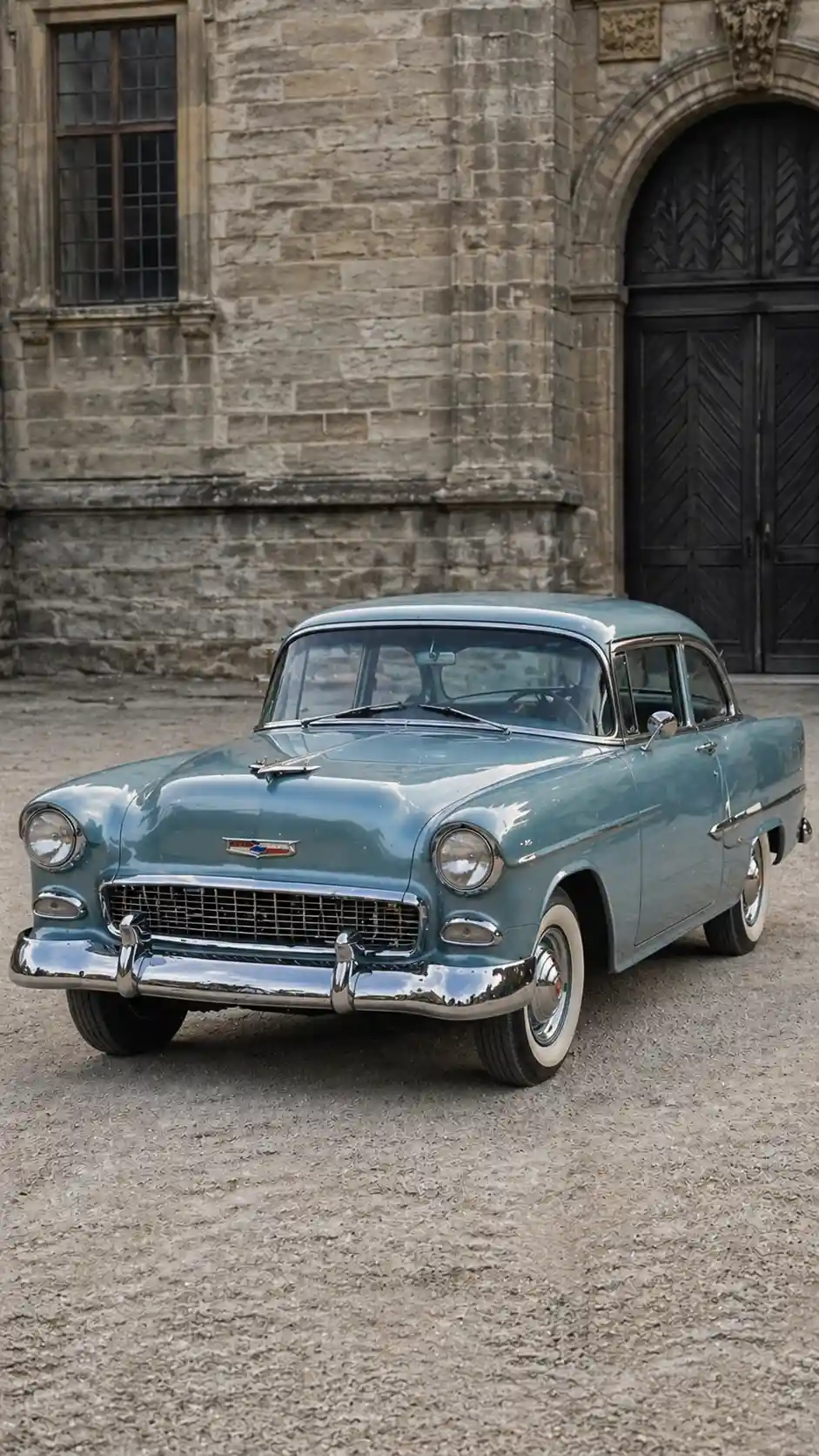
Mid-Century Development (1950–1980)
Replace the highlighted text with your own details before you run the prompt.
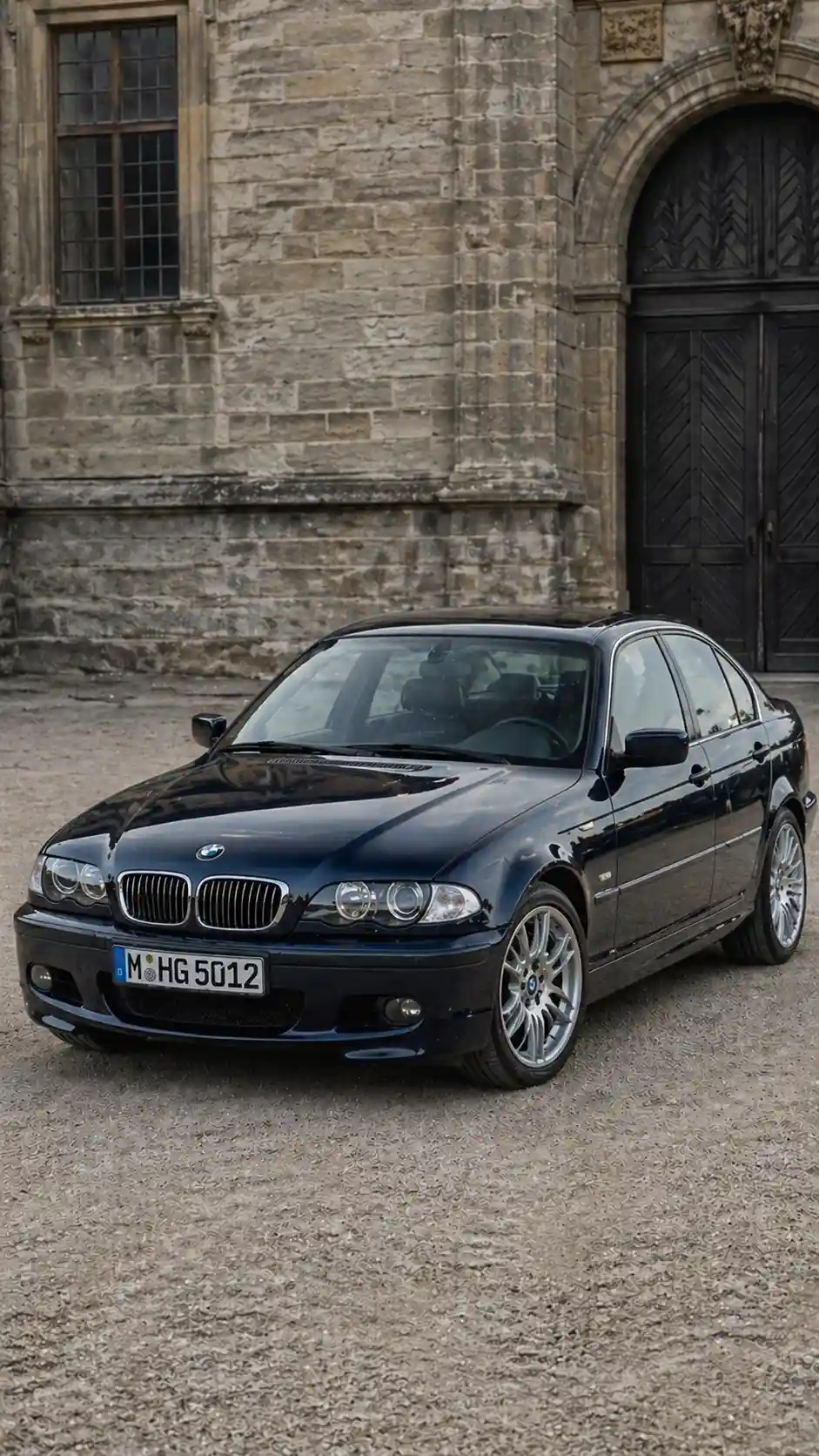
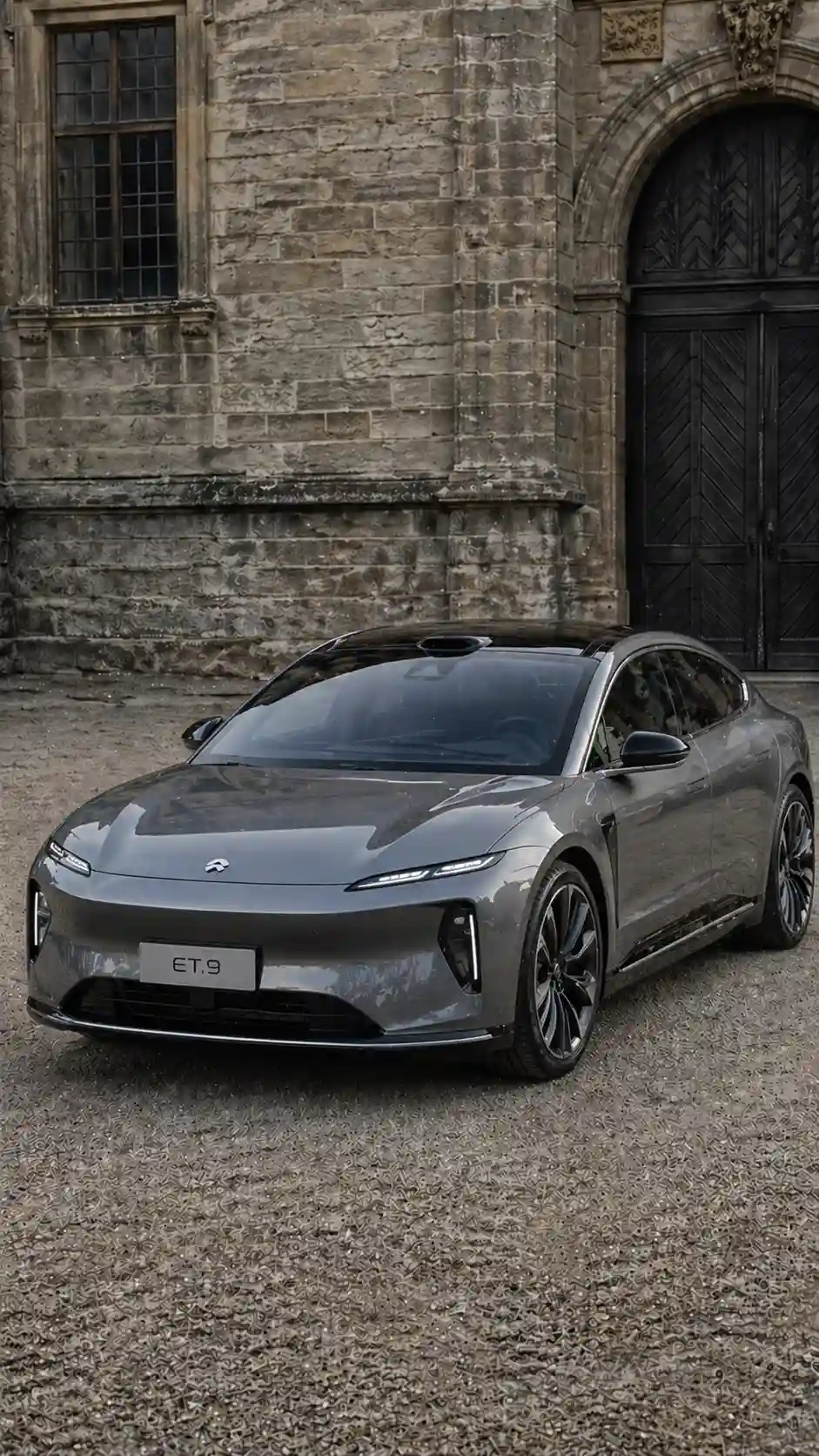
Modern Automotive Design (2000–2015)
Replace the highlighted text with your own details before you run the prompt.
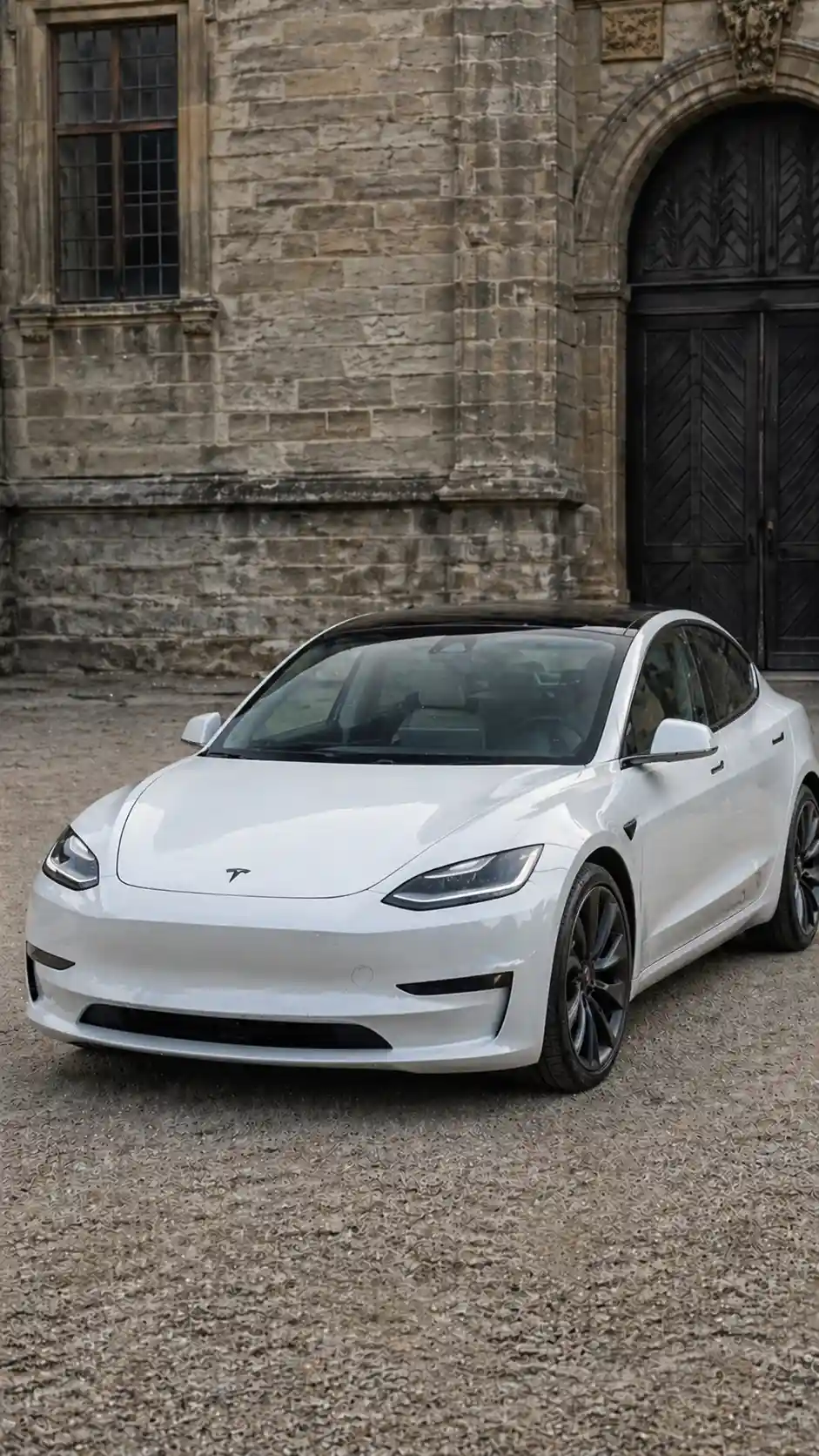
Electric Transition (2020–2024)
Replace the highlighted text with your own details before you run the prompt.
Latest Generation Vehicle
Replace the highlighted text with your own details before you run the prompt.
Step 2: Organize Your Frames
Name your images in order so they stay in sequence:
- frame_01.jpg
- frame_02.jpg
- frame_03.jpg
- frame_04.jpg
- frame_05.jpg
- frame_06.jpg
Step 3: Turn the Images Into Video
Open Google Flow, choose the option that makes a video from frames, and upload your first frame as the start and your last frame as the end. Menu names can change, so look for the start-and-end-frame option if these differ.
Video Prompt for Vehicle Evolution
Vehicle Evolution Video Prompt
For Smoother Results
One long clip has a lot to change at once. For smoother results, make shorter clips between neighbouring stages, then join them in your video editor or in Flow if your plan allows it:
- Early to industrial
- Industrial to mid-century
- Mid-century to modern
- Modern to latest
Mobile Evolution Video Workflow
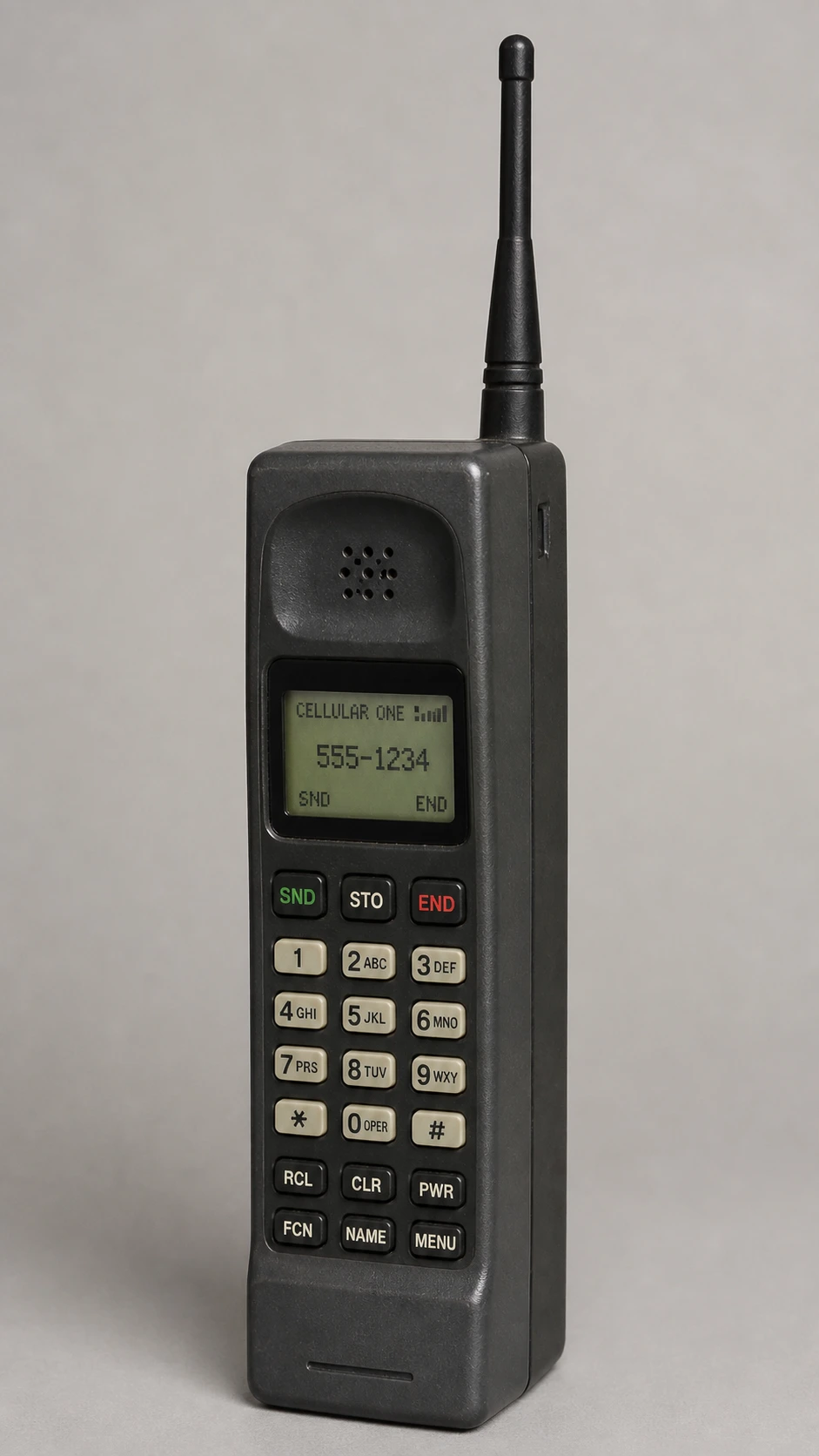
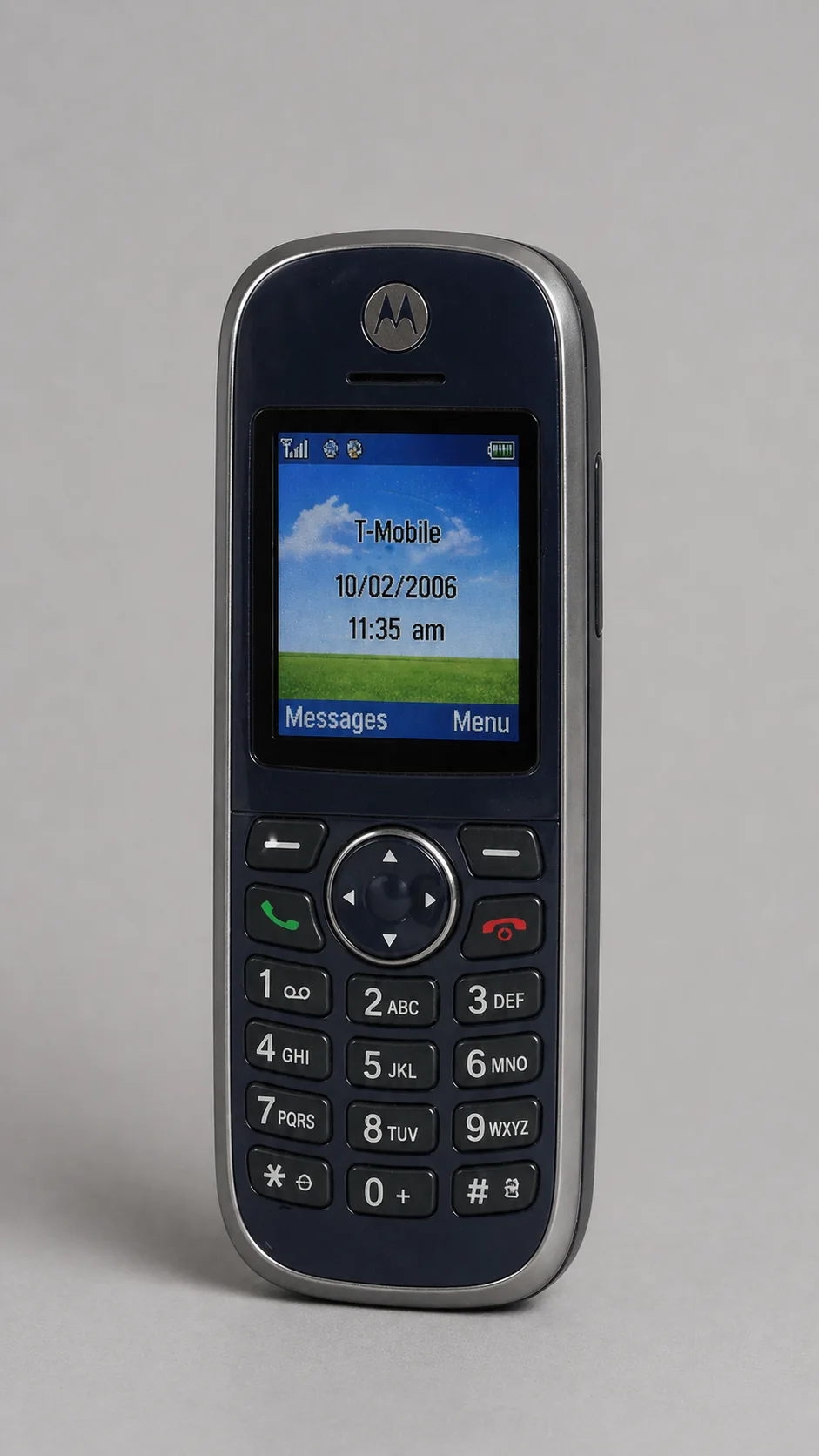
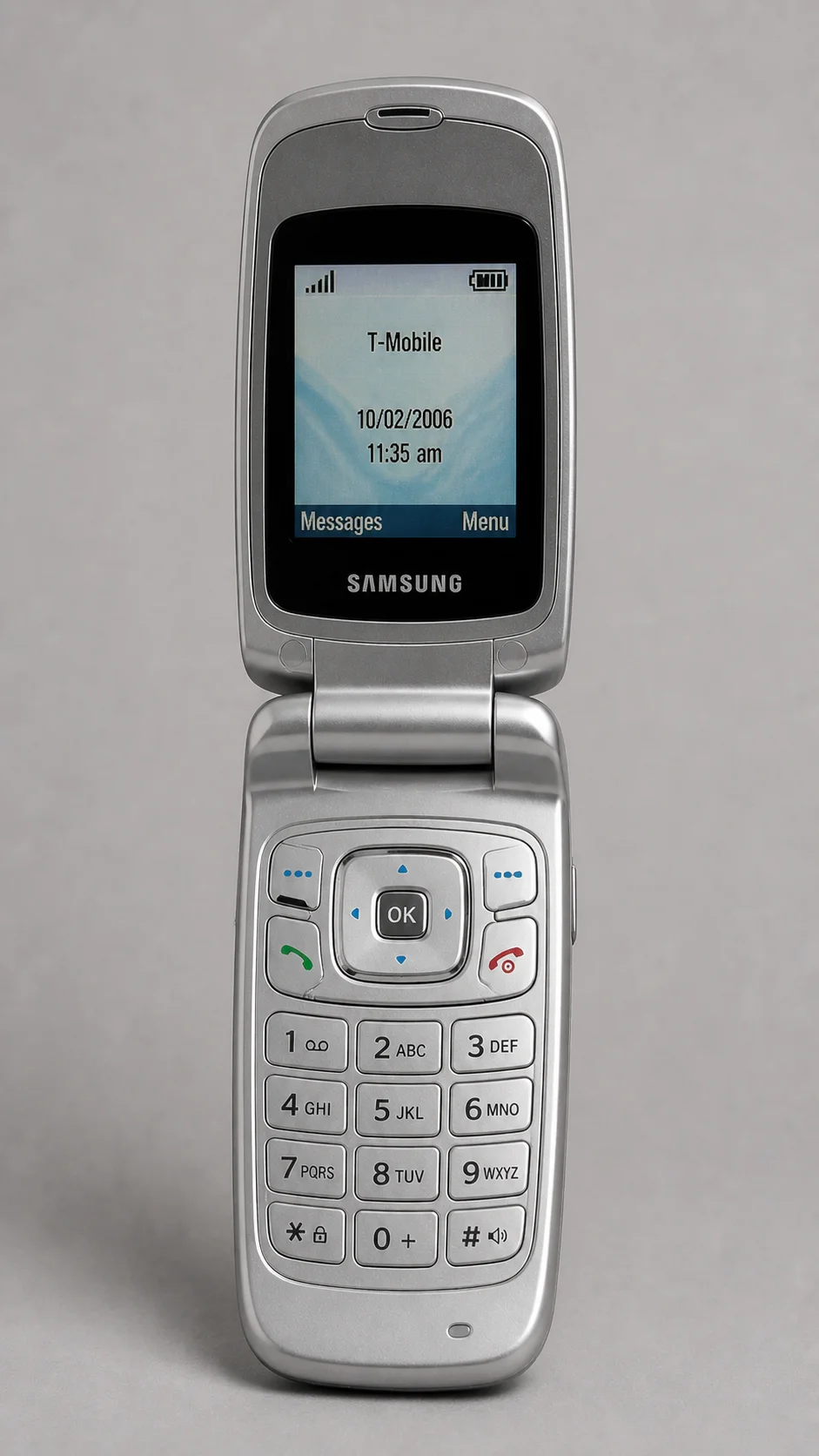
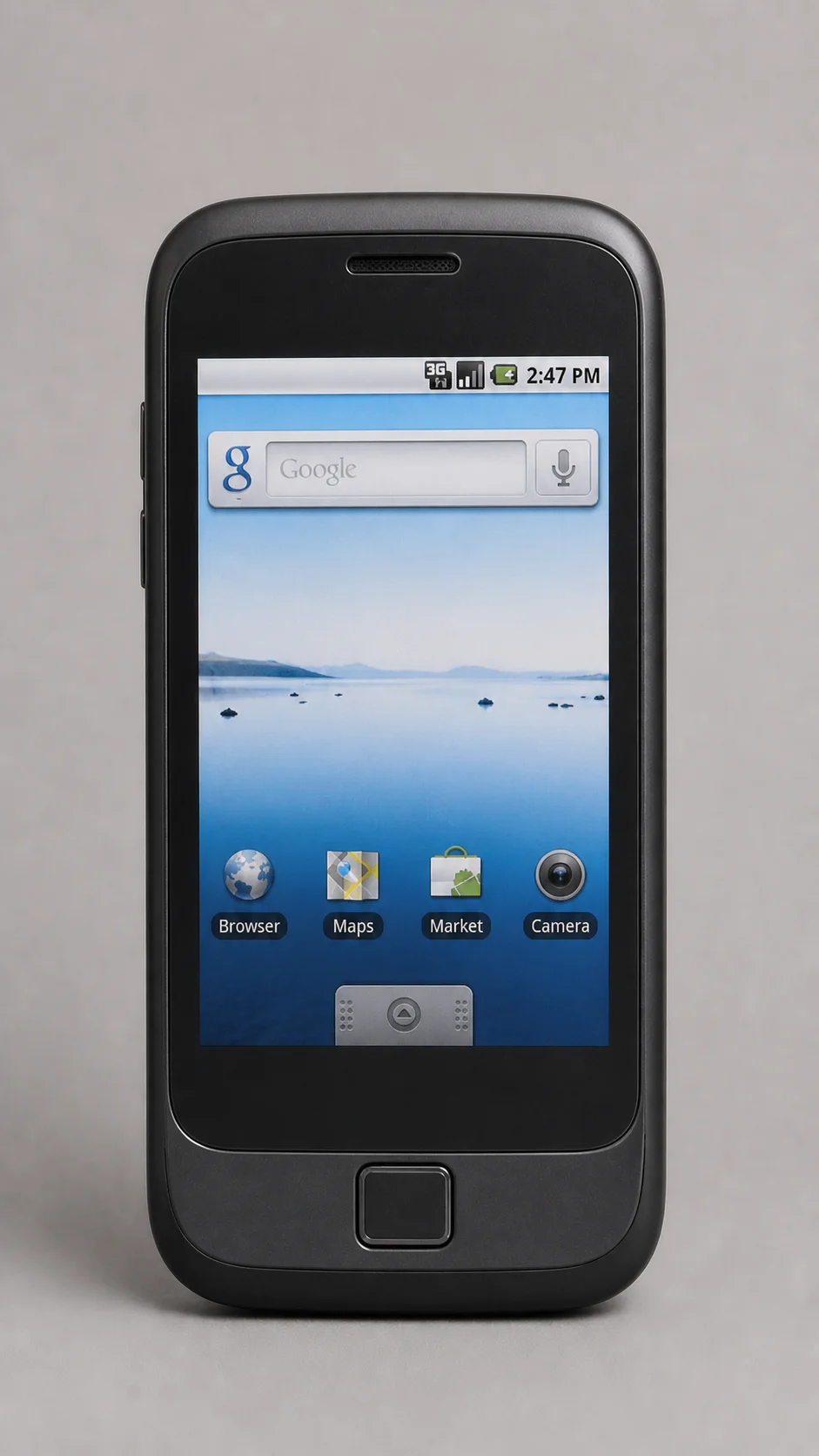
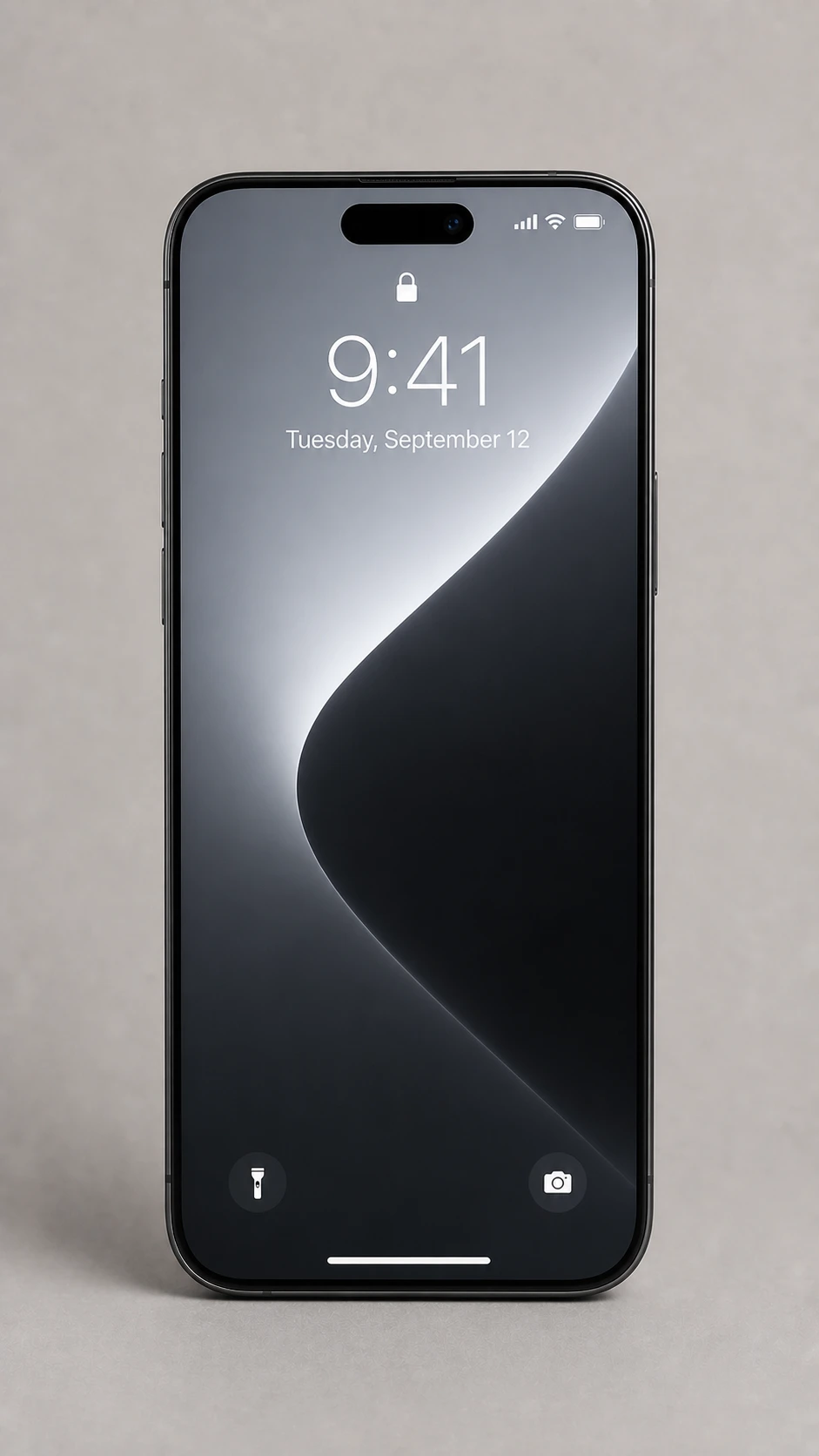
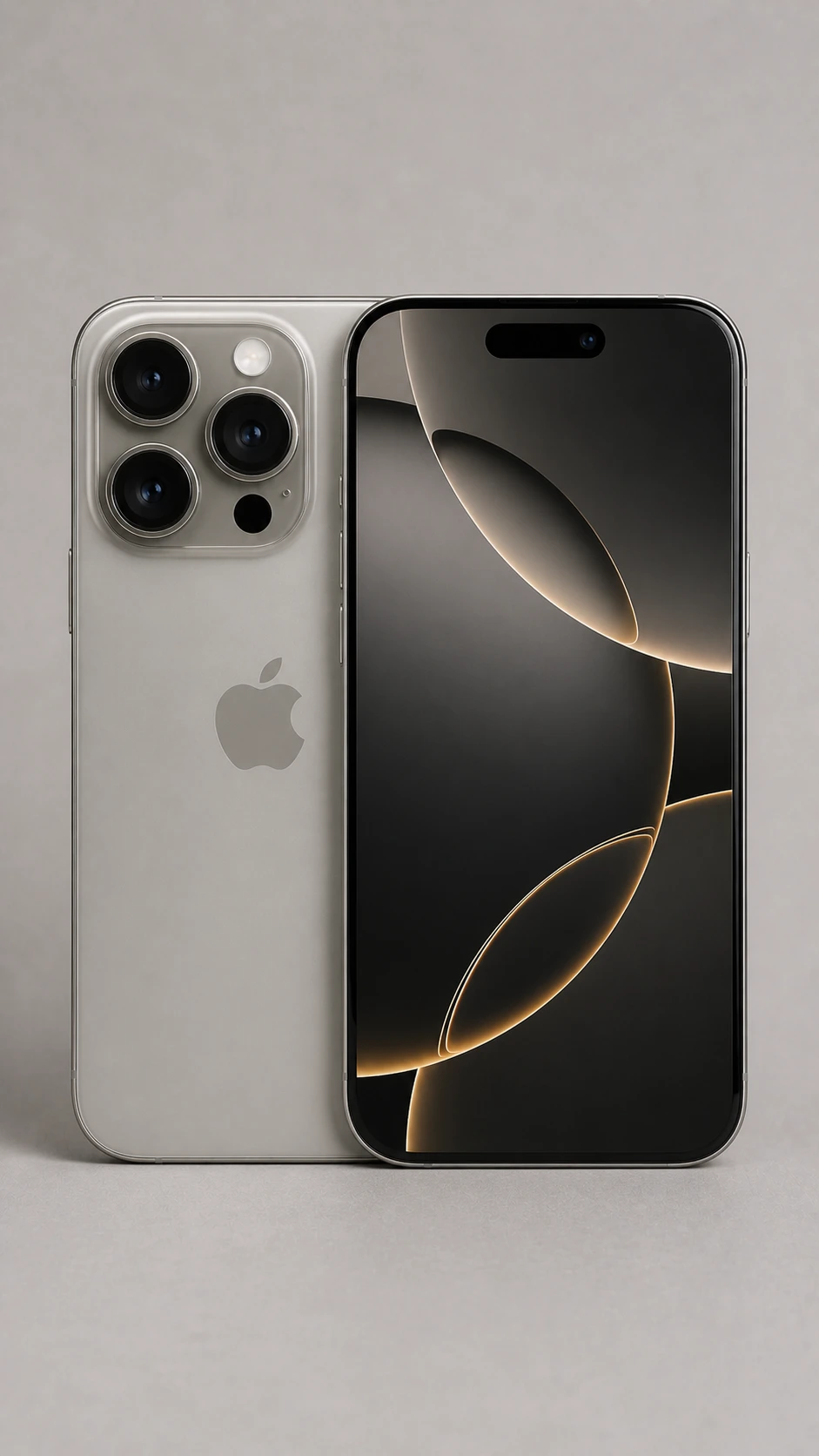
A mobile evolution video shows a phone changing from a 1990s brick to a modern smartphone. This guide gives you seven AI prompts: six for the images and one for the video. You generate the frames first, then join them in Google Flow.
Step 1: Create the Images
Create all six frames in ChatGPT, Nano Banana or Flux, using the same angle, background and size. If the phone moves between frames, the video can jump.
6 Image Prompts for Mobile Evolution
Early Mobile Phone (1990s Brick Phone)
Replace the highlighted text with your own details before you run the prompt.
Compact Keypad Phone (2000s)
Replace the highlighted text with your own details before you run the prompt.
Flip Phone Era
Replace the highlighted text with your own details before you run the prompt.
Early Smartphone (Touchscreen Introduction)
Replace the highlighted text with your own details before you run the prompt.
Modern Smartphone (Minimal Design)
Replace the highlighted text with your own details before you run the prompt.
Latest Generation Smartphone
Replace the highlighted text with your own details before you run the prompt.
Step 2: Organize Your Frames
Name your images in order so they stay in sequence:
- frame_01.jpg
- frame_02.jpg
- frame_03.jpg
- frame_04.jpg
- frame_05.jpg
- frame_06.jpg
Step 3: Turn the Images Into Video
Open Google Flow, choose the option that makes a video from frames, and upload your first frame as the start and your last frame as the end. Menu names can change, so look for the start-and-end-frame option if these differ.
Video Prompt for Mobile Evolution
Mobile Evolution Video Prompt
Recommended Settings
Use a short clip and keep the camera still, so that only the phone changes:
- Duration: 5–7 seconds
- Camera: locked
- Motion: smooth
- Style: realistic
Human Evolution Video Workflow
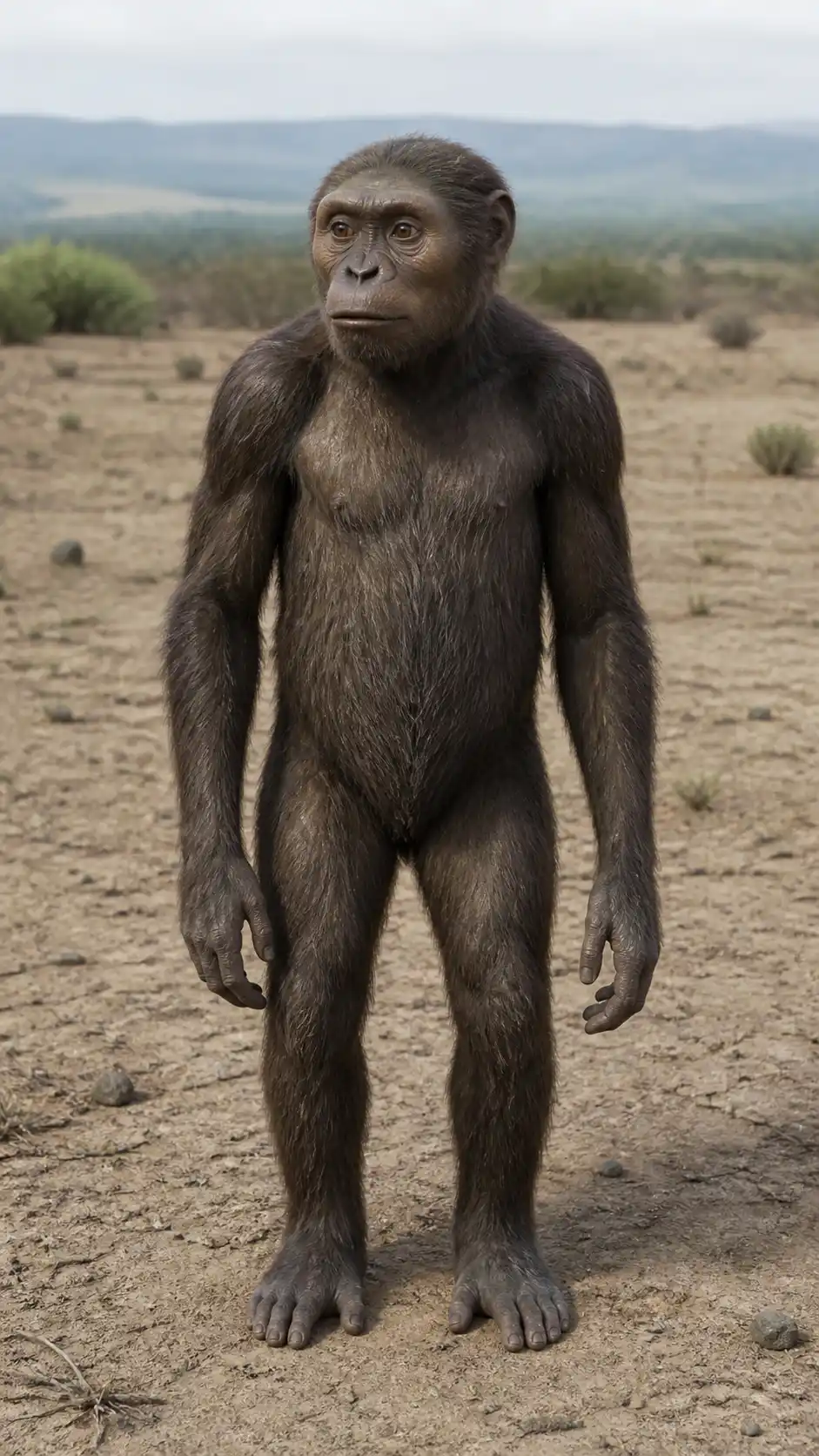
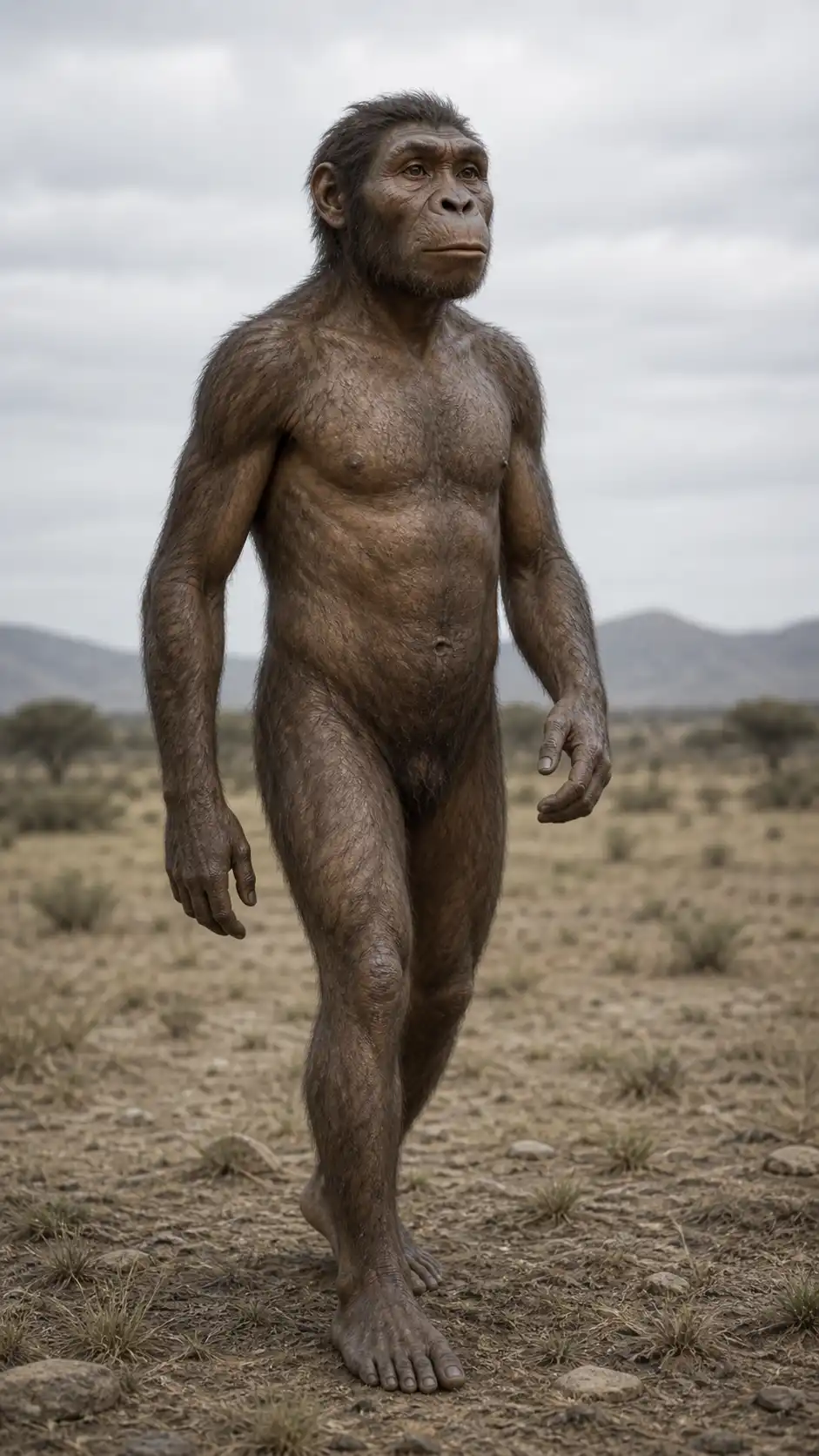
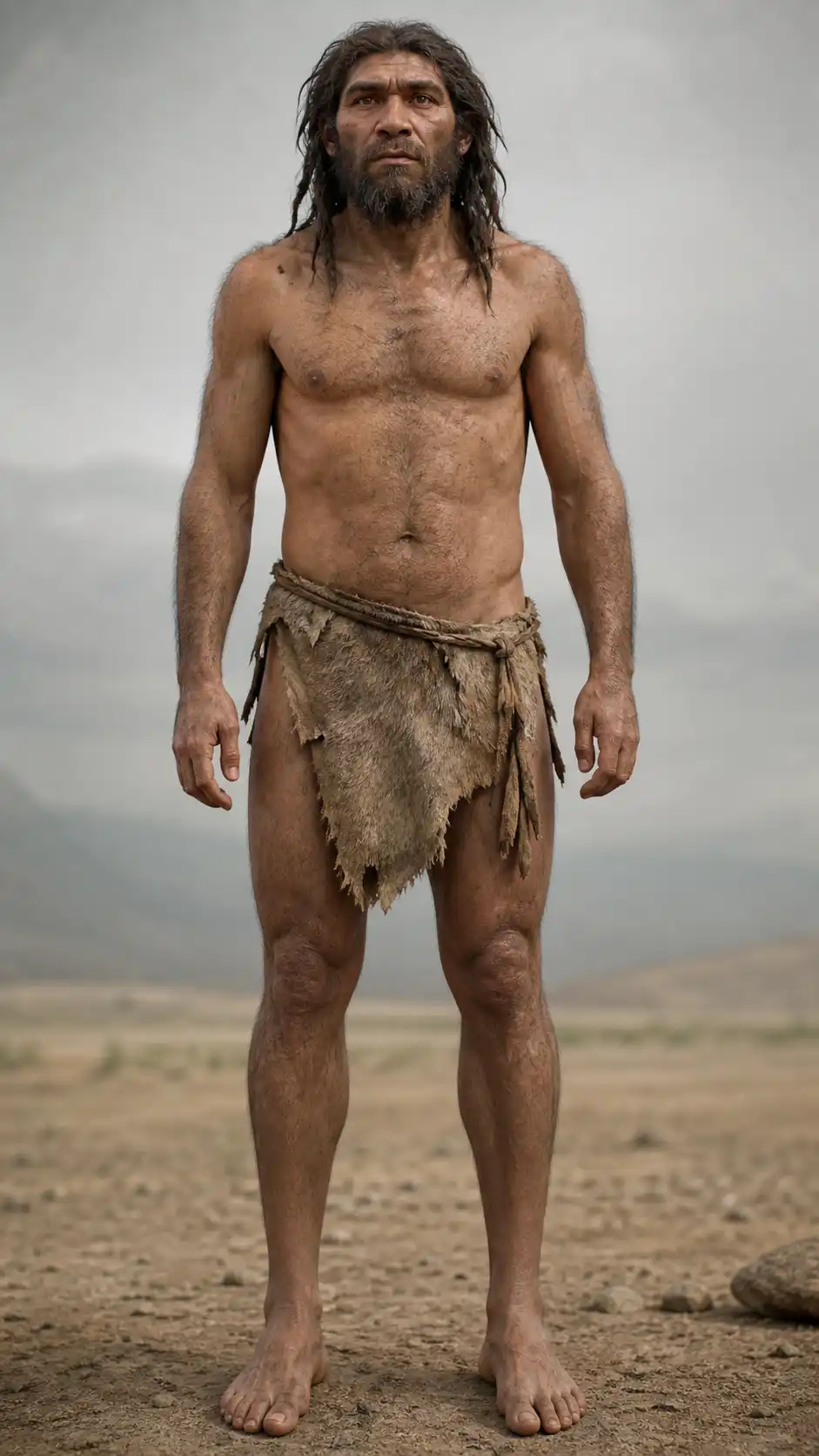
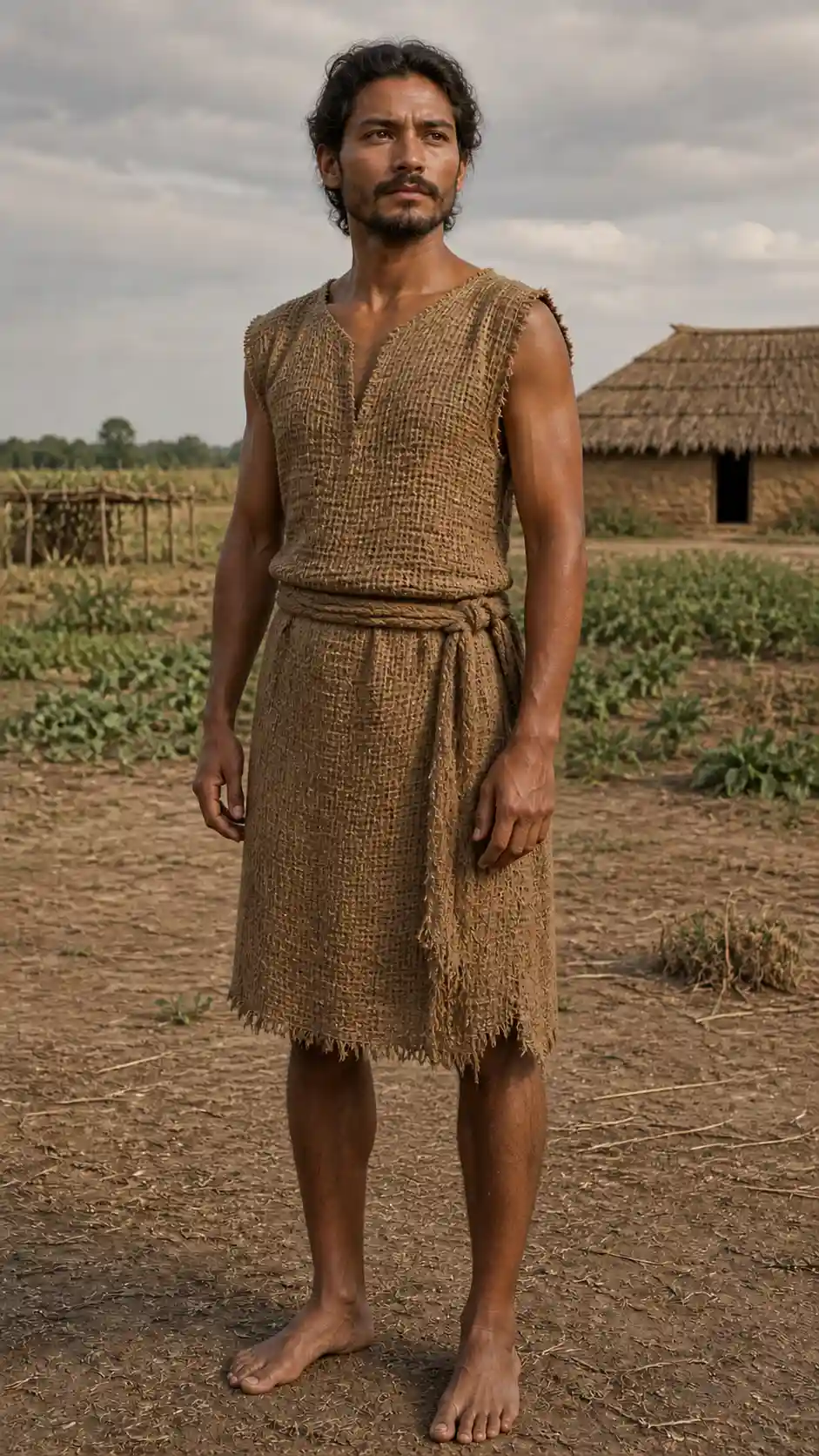
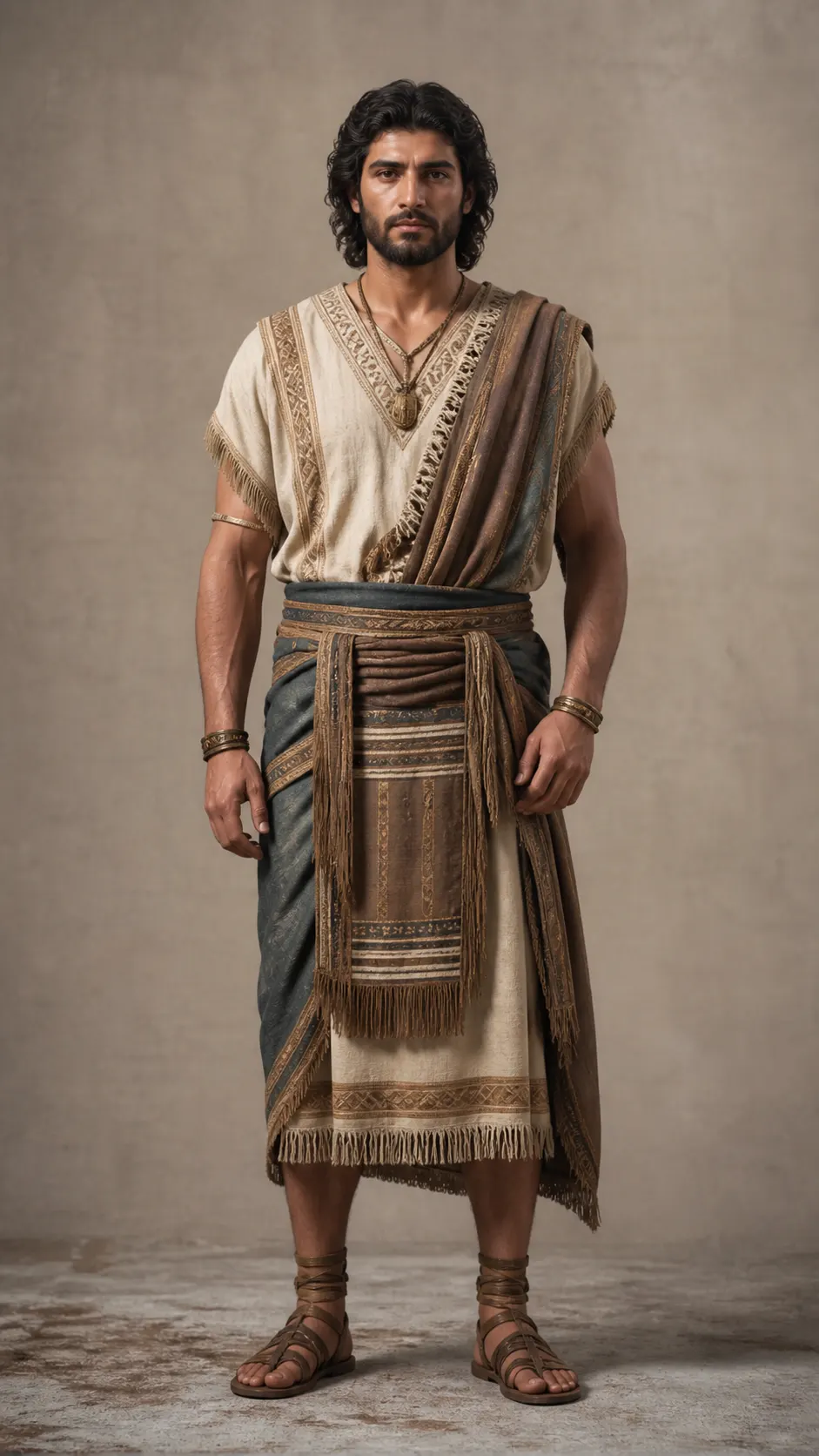
A human evolution video shows one figure changing from an early primate to a modern person, with no visible cuts. This guide gives you nine AI prompts: eight for the images and one for the video. The stages are a simplified creative sequence and not a scientific timeline.
Step 1: Create the Images
Generate each stage in ChatGPT, Nano Banana or Flux. Keep the same pose, framing and background in every image, because the video will jump if they change.
8 Image Prompts for Human Evolution
Frame 1 — Early Primate
Replace the highlighted text with your own details before you run the prompt.
Frame 2 — Hominid
Replace the highlighted text with your own details before you run the prompt.
Frame 3 — Early Human
Replace the highlighted text with your own details before you run the prompt.
Frame 4 — Agricultural Human
Replace the highlighted text with your own details before you run the prompt.
Frame 5 — Ancient Human
Replace the highlighted text with your own details before you run the prompt.
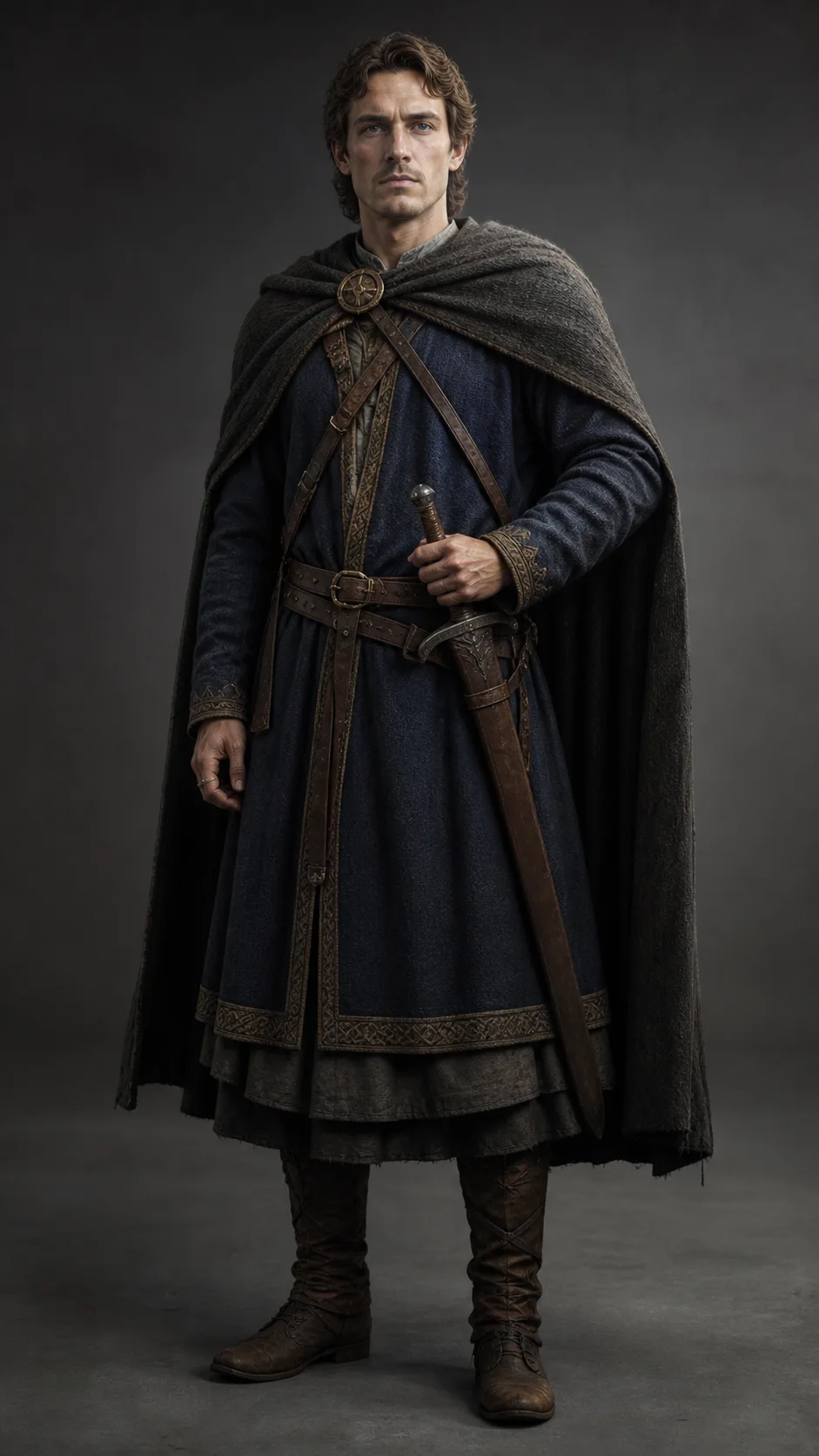
Frame 6 — Medieval Human
Replace the highlighted text with your own details before you run the prompt.
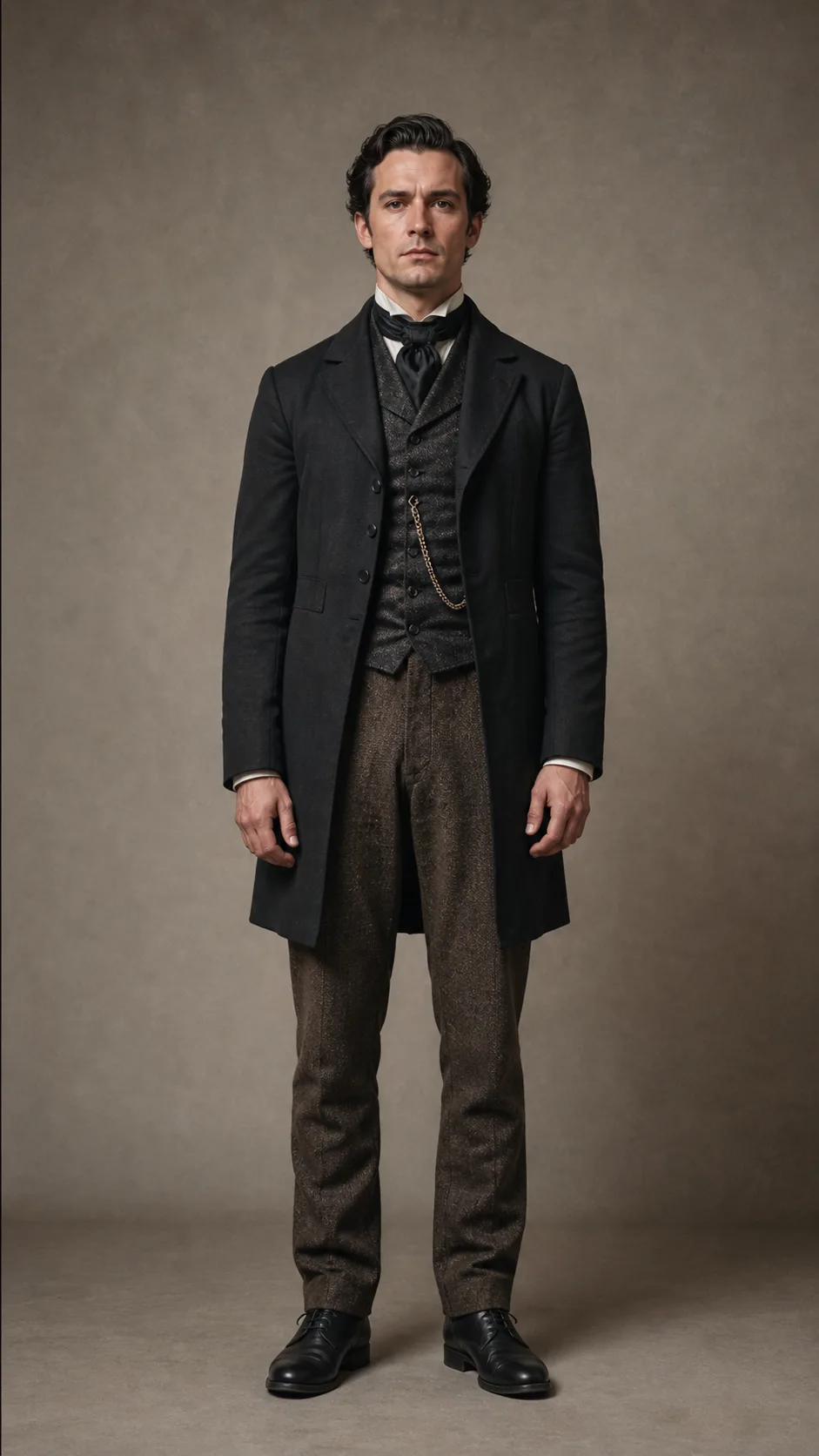
Frame 7 — Industrial Human
Replace the highlighted text with your own details before you run the prompt.
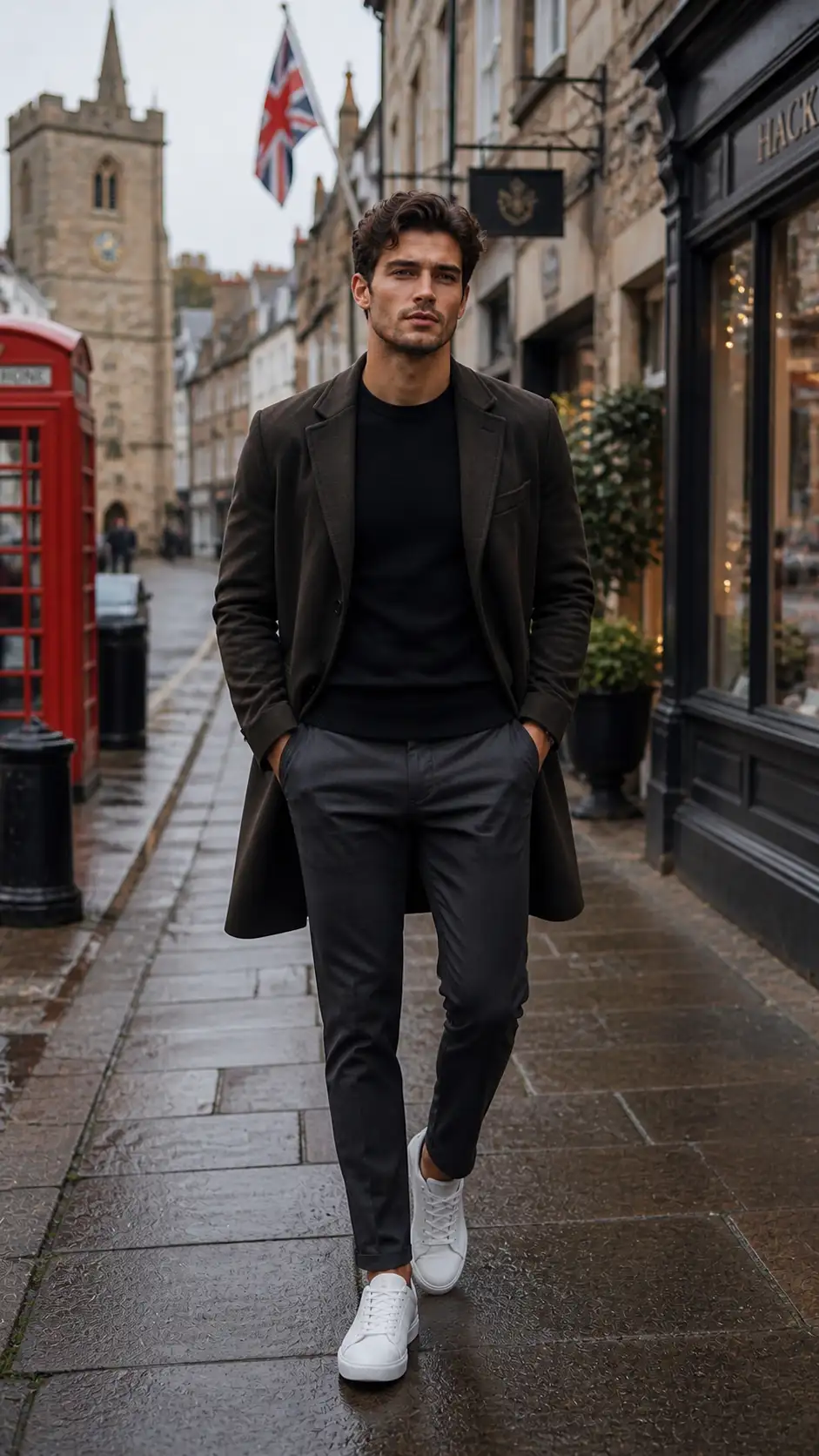
Frame 8 — Modern Human
Replace the highlighted text with your own details before you run the prompt.
Step 2: Organize Your Images
Name your images in order so they stay in sequence, from frame_01.jpg to frame_08.jpg.
Step 3: Turn the Images Into Video
Open Google Flow or PixVerse and choose the option that makes a video from a start frame and an end frame. Upload two frames at a time, not all of them at once. Menu names can change, and features depend on your plan.
Morph Prompt
Morph Video Prompt
Step 4: Make All the Transitions
Make one clip for each neighbouring pair, using the morph prompt each time:
- frame_01 to frame_02
- frame_02 to frame_03
- frame_03 to frame_04
- frame_04 to frame_05
- frame_05 to frame_06
- frame_06 to frame_07
- frame_07 to frame_08
Step 5: Join the Clips
Put the clips in order in a video editor and join them with no added transitions, so the change looks continuous.
More in AI Video Prompts and Workflows
This guide is part of our AI Video Prompts and Workflows hub, where you’ll find every related guide, along with tips and common questions.