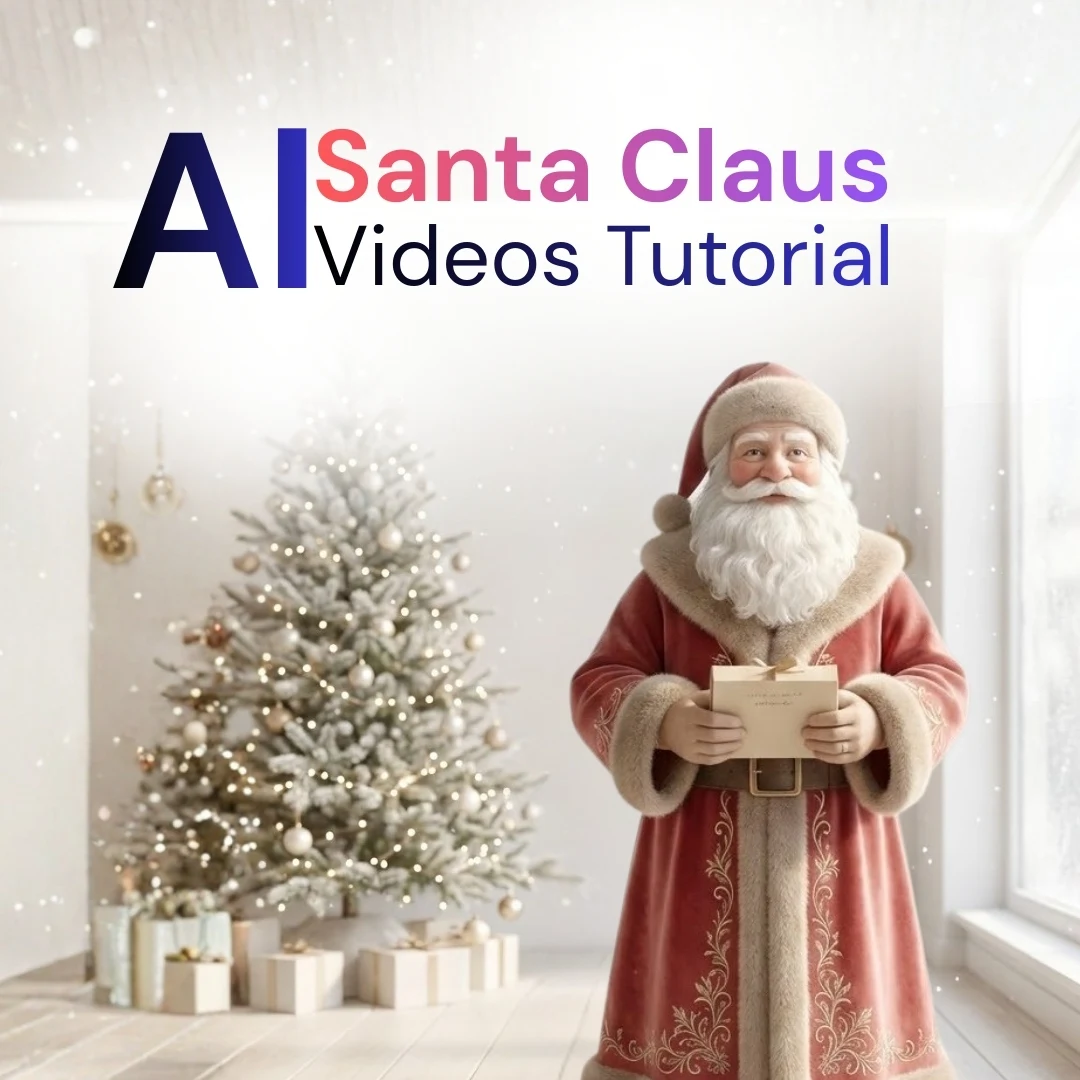
These prompts create five kinds of personal Santa Claus AI video with Veo: a greeting that says a name, a talking Santa made from your own photo, a gift opening, a Nice List message and a magical portal entrance.
Replace the highlighted text, such as {NAME}, before you generate. AI voices may mispronounce unusual names, so try a simple phonetic spelling if that happens.
Make Santa Say a Name
This is the simplest video to make and works well for a quick WhatsApp or email greeting. Eye contact matters most, so the prompt keeps the scene quiet and has Santa look straight into the lens.
Santa Says Your Name (Veo 3.1)
Replace the highlighted text with your own details before you run the prompt.
Turn a Photo Into a Talking Santa
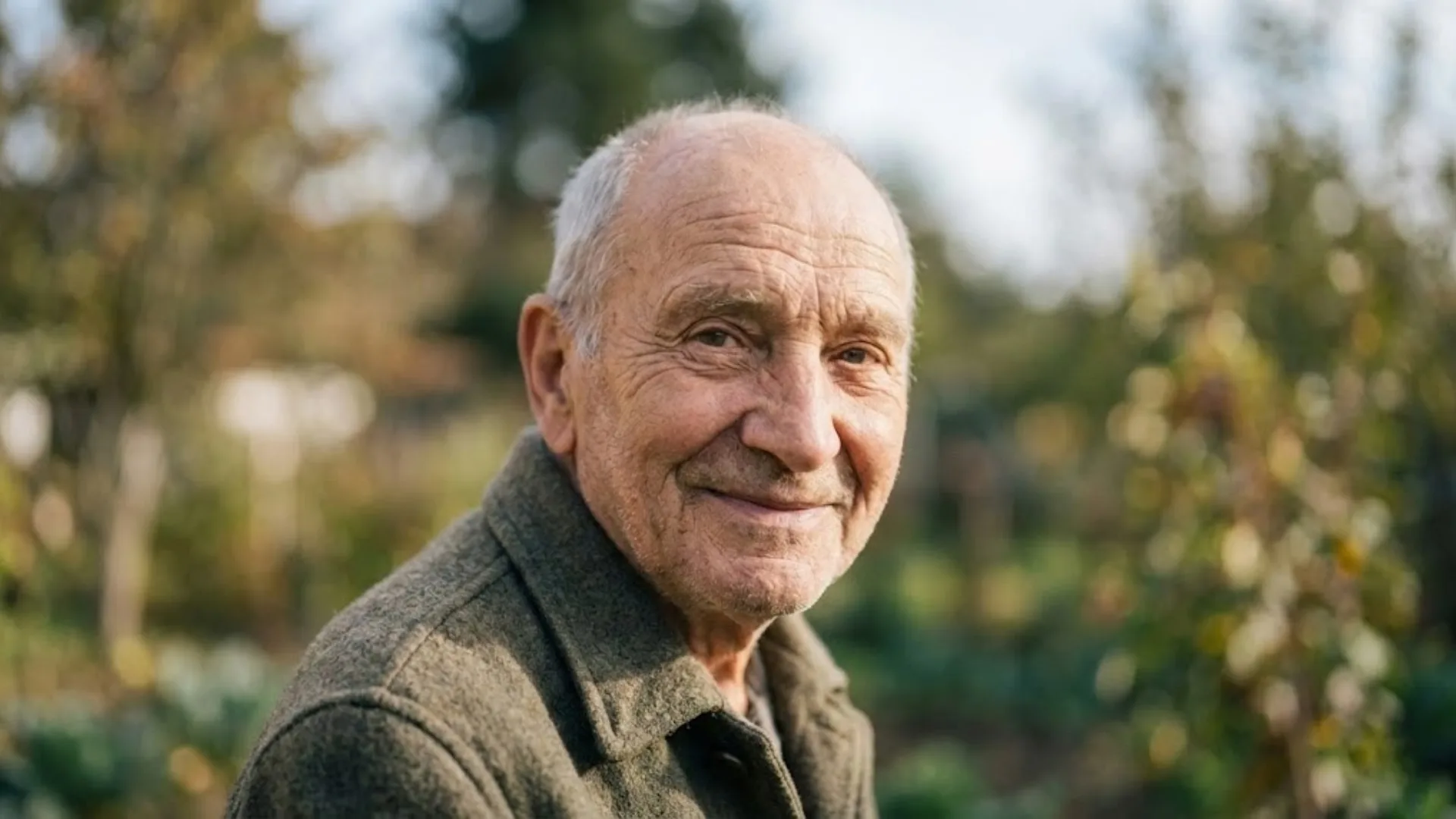
Step 1: Create the Santa portrait. Use an image generator such as Nano Banana, Midjourney or DALL·E to turn your photo into Santa. Use your own photo or one you have permission to use.
Step 2: Animate it in Veo. Upload the portrait, choose image-to-video, set the ratio to 16:9 and add the talking prompt. Starting from a clean portrait helps keep the face, beard and hat more stable than animating the original photo directly.
Step 1: Turn a Photo Into Santa (Image Prompt)
Upload your photo and run this prompt to get the Santa image.
Then use the new image with this video prompt.
Step 2: Make Your Santa Talk (Veo 3.1)

Create a Santa Gift-Opening Video
Step 1: Create the image. Generate Santa holding a wrapped gift with a name tag. Check that the name is spelled correctly, since AI often gets text wrong.
Step 1: Santa Holding a Named Gift (Image Prompt)
Replace the highlighted text with your own details before you run the prompt.
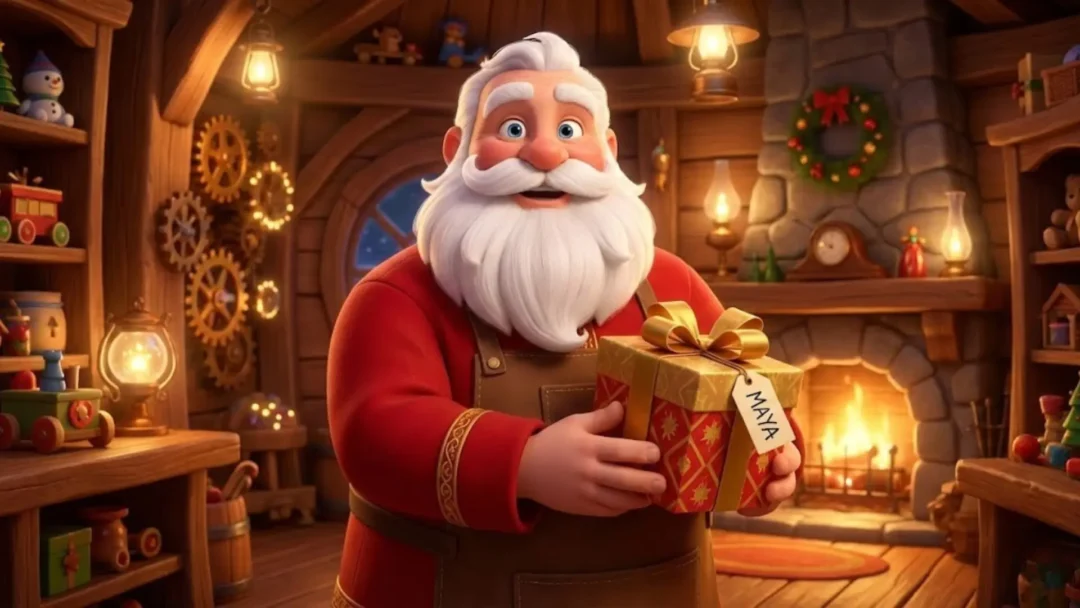
Step 2: Animate it. Upload that image to Veo and use this prompt. Replace {GIFT_TYPE} with a toy car, a puppy, a magic orb or a message scroll.
Step 2: Gift-Opening Video (Veo 3.1)
Replace the highlighted text with your own details before you run the prompt.
Create a Nice List Message for Kids
Parents can use this one to praise something specific, such as cleaning a room or being kind to a sibling. Change the drawing to something from the child’s life, and add a line like “I saw you helped with the dishes” if your tool supports spoken dialogue.
Nice List Message for Kids (Veo 3.1)
Replace the highlighted text with your own details before you run the prompt.
Make Santa Step Through a Portal
Santa walks from a snowstorm into a warm living room through a ring of golden sparks. The contrast between the two places makes the effect work, so keep the descriptions clear. Add your own room details, such as “beige walls, green sofa”, to make it feel closer to home.
Santa Steps Through a Portal (Veo 3.1)
Replace the highlighted text with your own details before you run the prompt.
Start with the name greeting, because it’s the quickest to get right. Before sharing a video, watch it through for errors in the mouth, hands and written names. Veo availability and limits depend on your plan, so check yours first.
More in AI Video Prompts and Workflows
This guide is part of our AI Video Prompts and Workflows hub, where you’ll find every related guide, along with tips and common questions.