Designrr vs Canva: The Short Answer
Choose Canva if design freedom matters most, and Designrr if you want to turn existing content into a structured eBook quickly. Canva is a general design tool with a large library of templates, images and icons. Designrr focuses on eBooks, with options to import content and export to several formats.
This guide walks through both tools, then shows how to use them together.
On this page
- Designrr vs Canva: The Short Answer
- Designrr vs Canva at a Glance
- How to Make an eBook in Canva
- How to Make an eBook in Designrr
- Using Designrr and Canva Together
- eBook Design Examples
- Which One Should You Choose?
- Choose by What You’re Making
- If You Plan to Publish on Kindle
- Check Your AI Draft Before You Publish
Designrr vs Canva at a Glance
| Canva | Designrr | |
|---|---|---|
| Main purpose | General design tool | eBook and lead magnet creation |
| Best starting point | A template and a blank page | Existing content such as a blog post, DOCX or video |
| AI writing | Magic Write in Canva Docs | Wordgenie builds a draft from a topic |
| Design control | Very high | Good, but based more on layouts |
| Main eBook export | PDF, plus Kindle and ePub on Pro and above | |
| Cost | Has a free plan, with paid plans for more features | Monthly plans from $29 on its pricing page in October 2026 |
| Other uses | Social posts, presentations and promotions | Mostly long-form content |
Both companies change their plans, so check their pricing pages before you pay.
How to Make an eBook in Canva
Canva suits you if you want control over how every page looks.
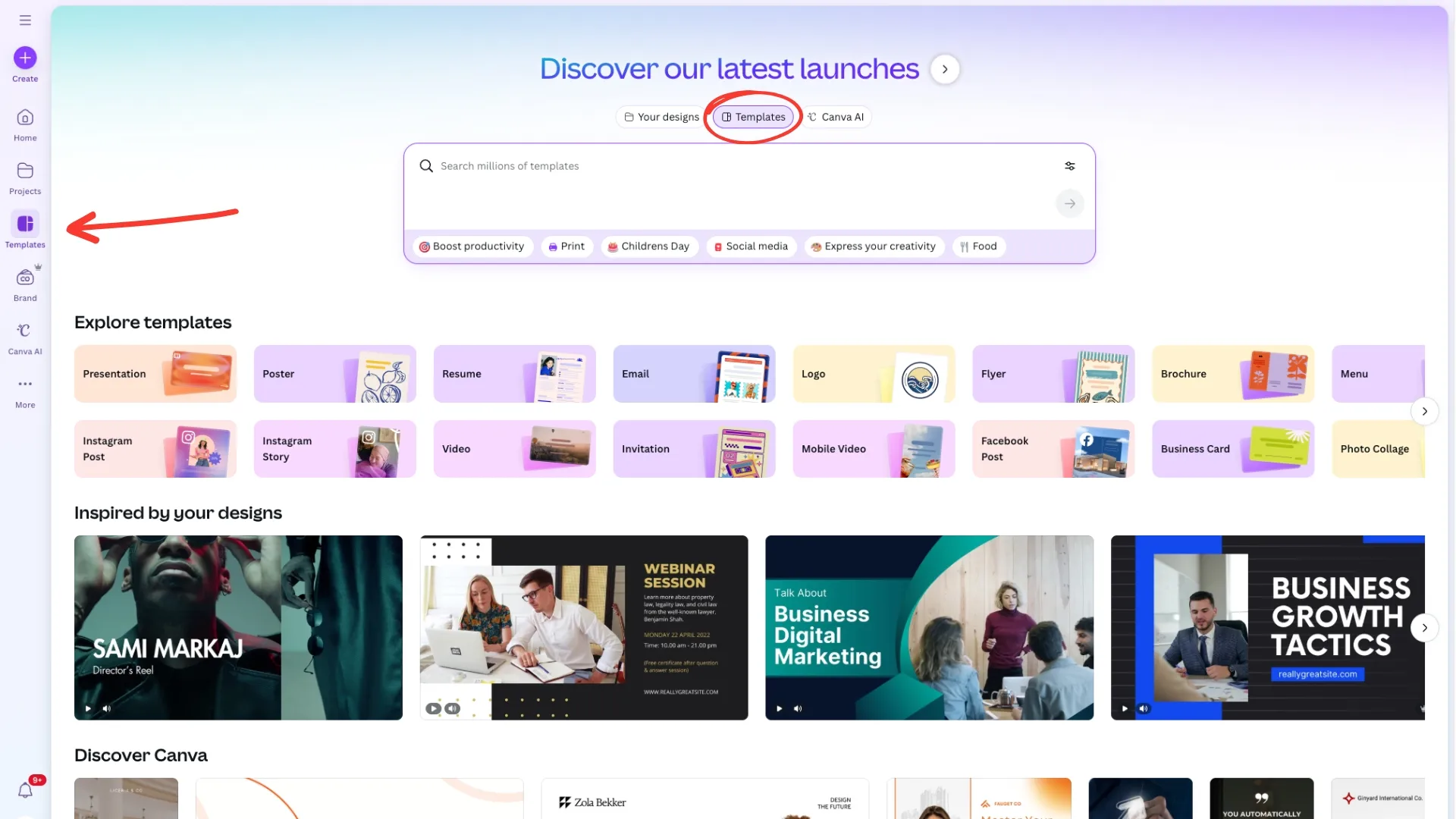
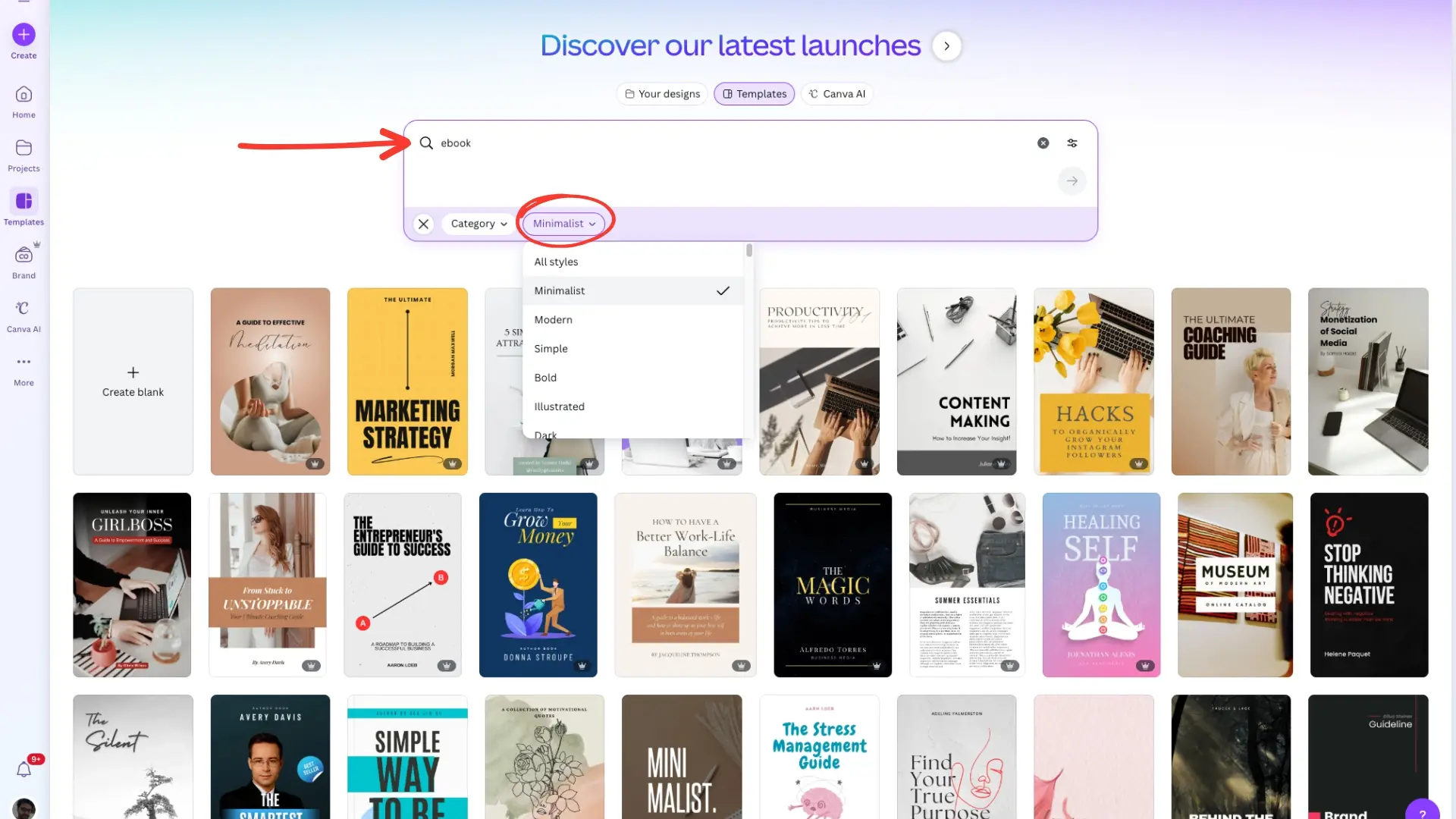
Step 1: Choose a template. Open Templates and search for “eBook”. Use the Category and Style filters to narrow the results, then pick a design that fits your topic.
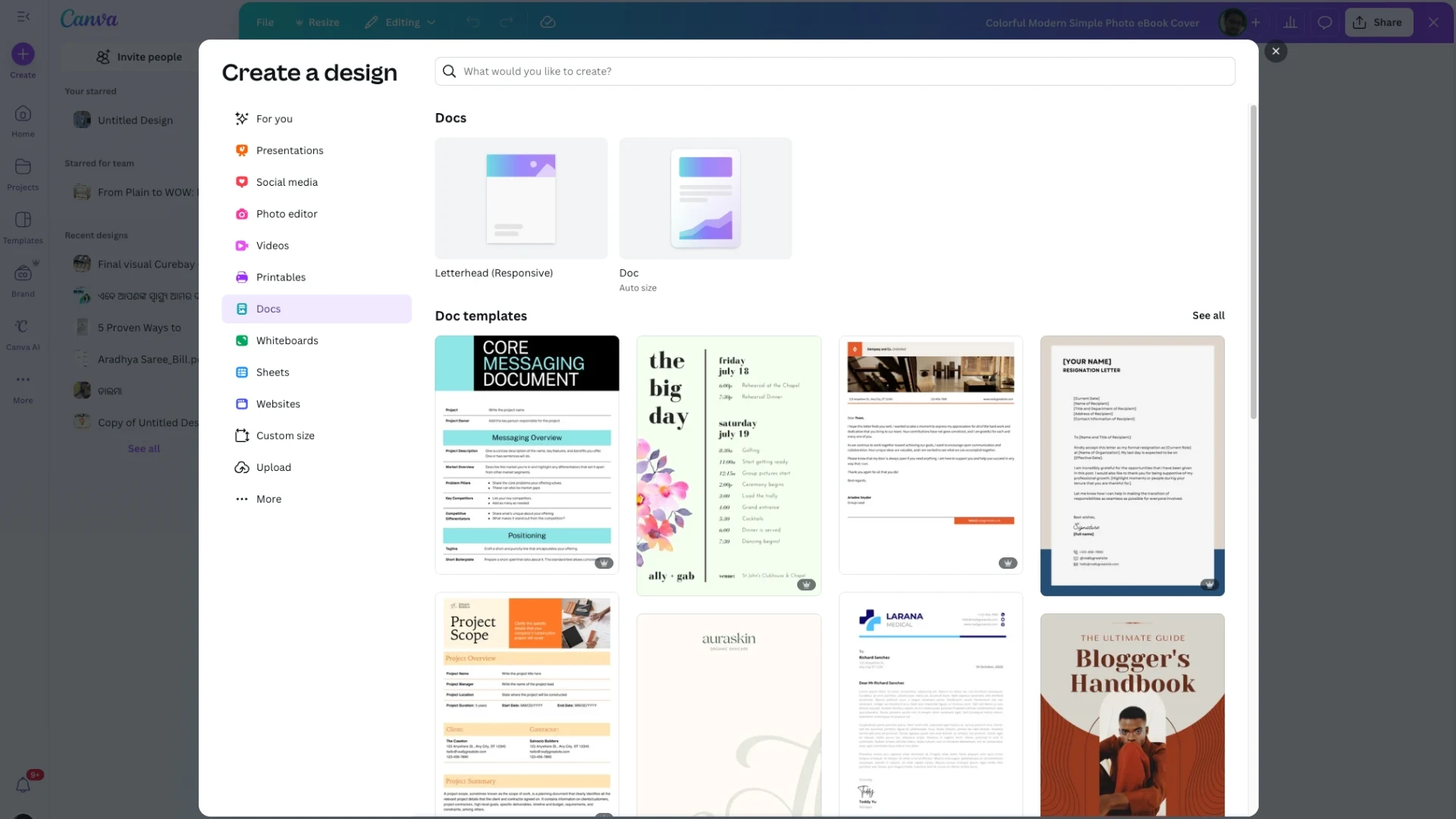
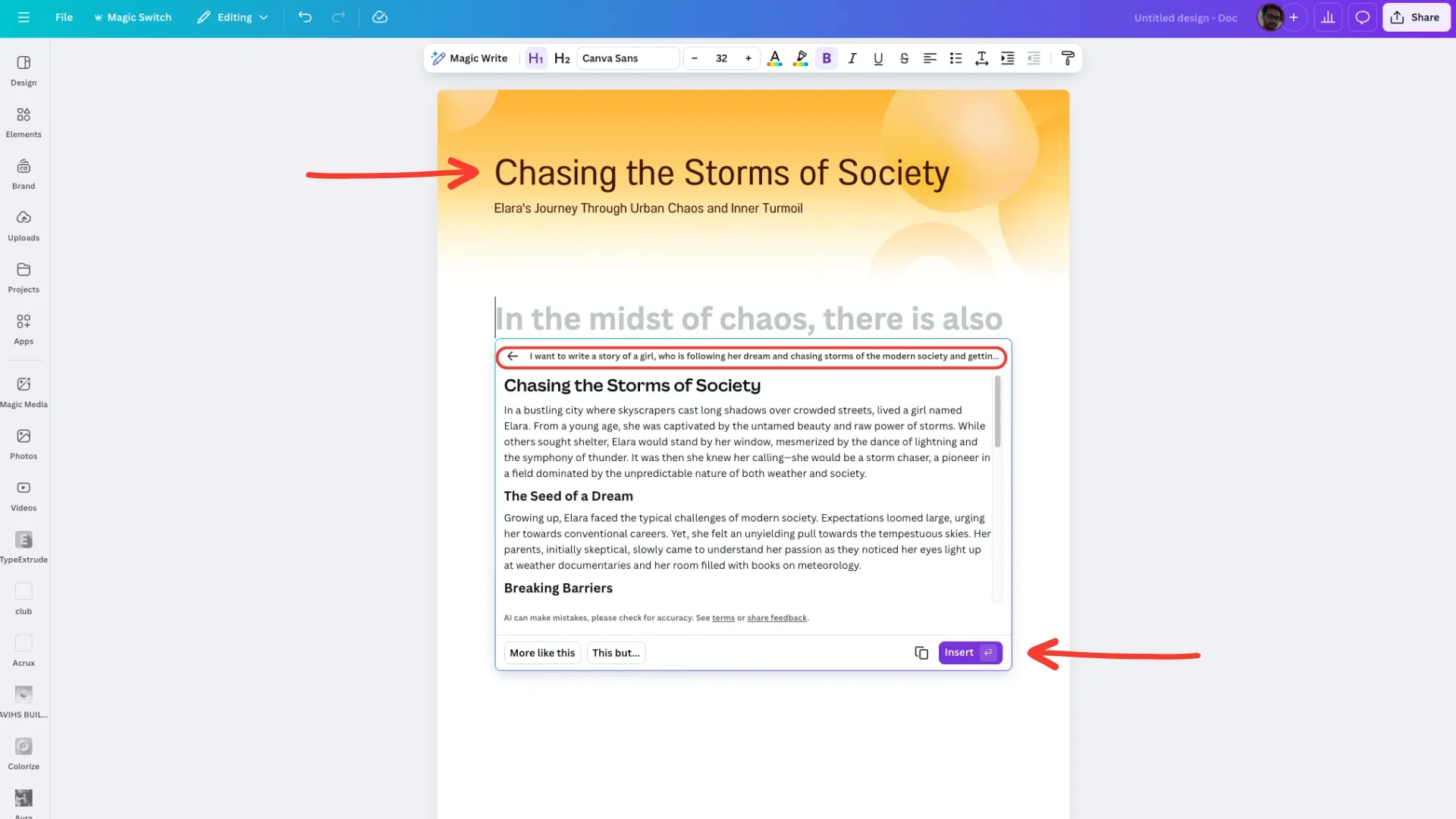
Step 2: Draft with Magic Write. Open Canva Docs and use Magic Write to create titles, outlines, descriptions or summaries. It has ready-made options for ideas, paragraphs, case studies, blog posts and more.
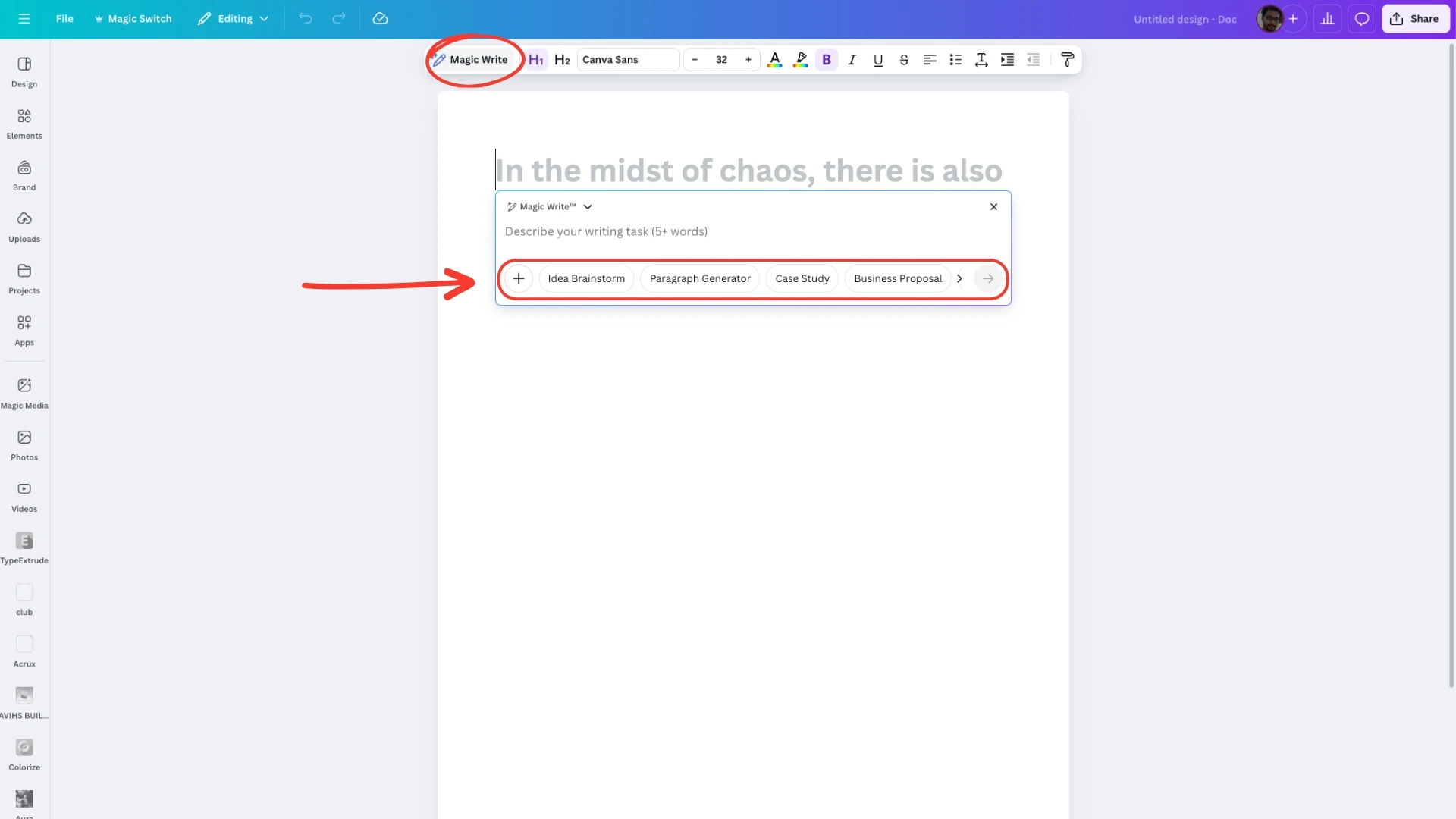
You can also type your own prompt, then edit the text.
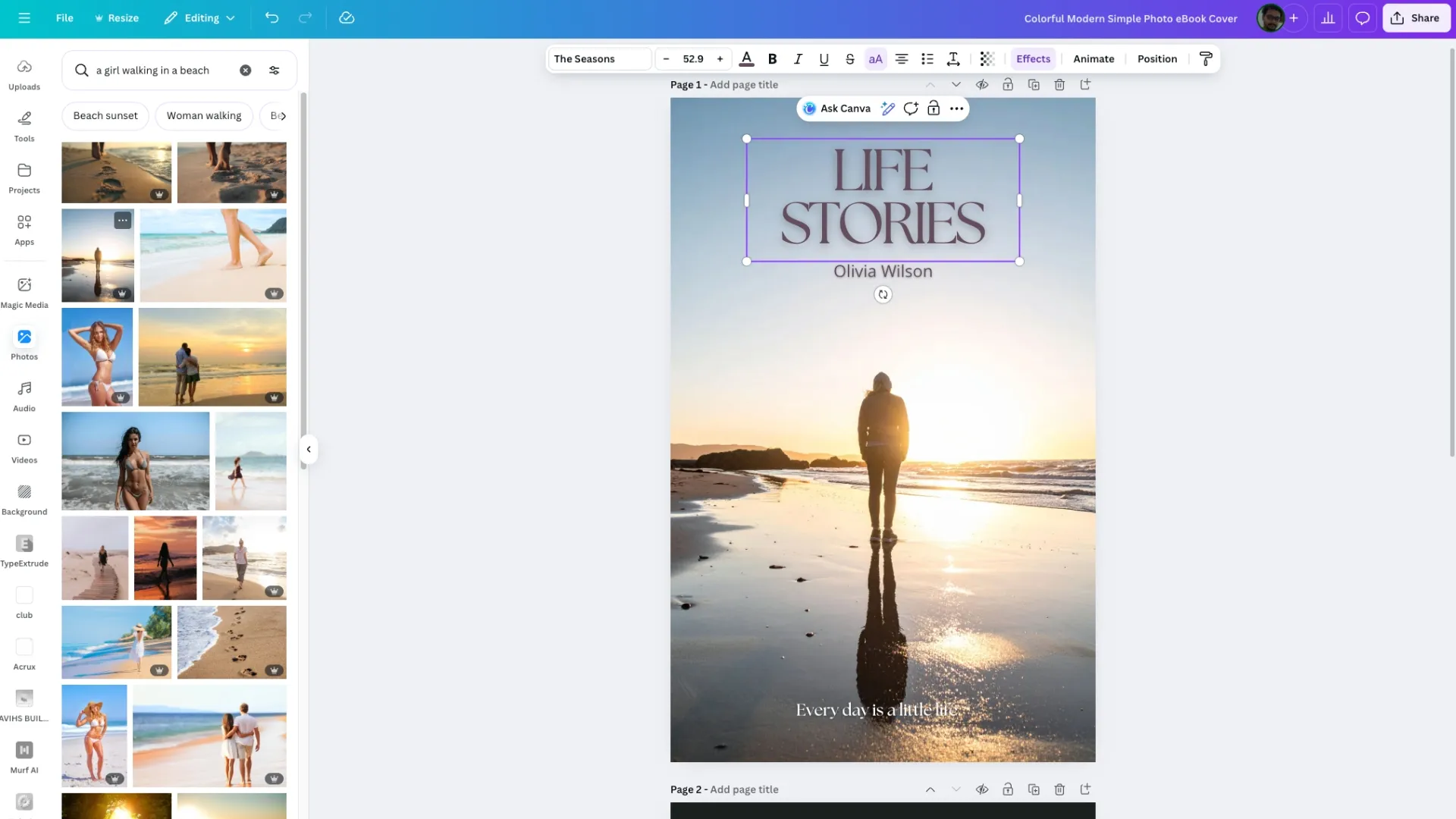
Step 3: Customize the design. Start with the cover, because readers see it first. Add stock images, elements, icons and your brand colours, and use grids and frames to keep each page consistent.
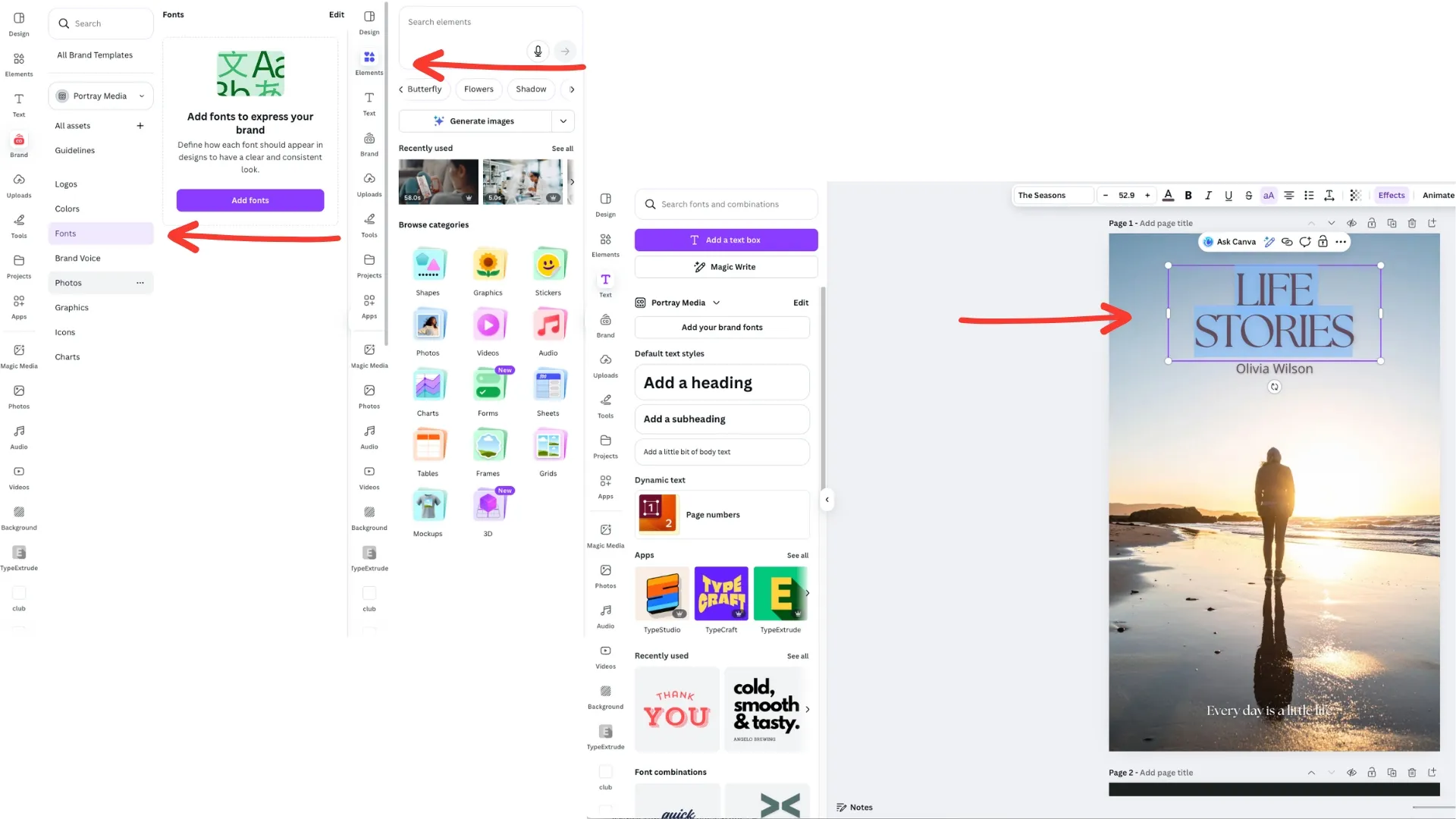
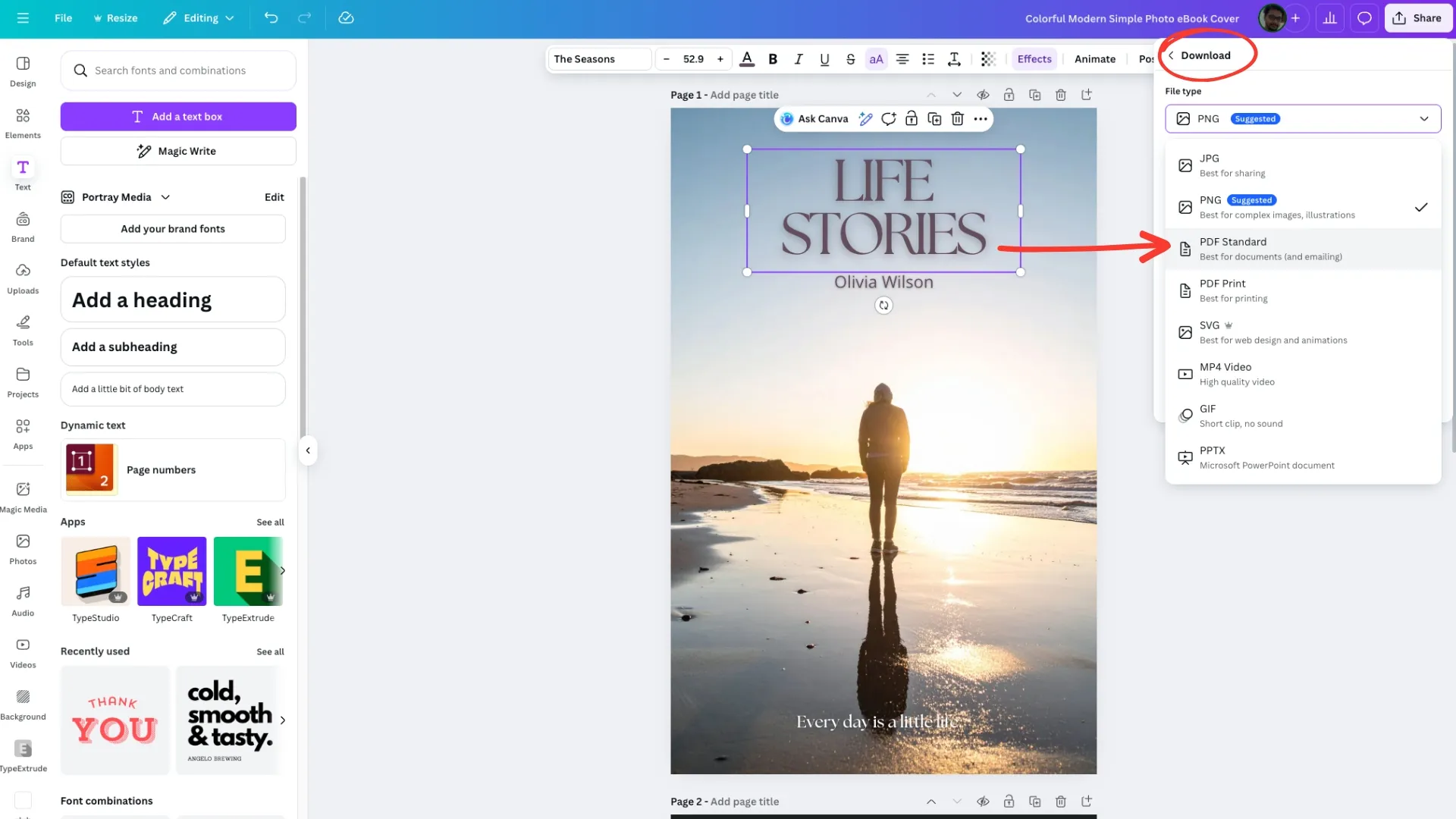
Step 4: Export or share. PDF is the usual format for an eBook. You can also invite others to review the design.
How to Make an eBook in Designrr
Designrr suits you if you already have content, or want help creating a structured draft.
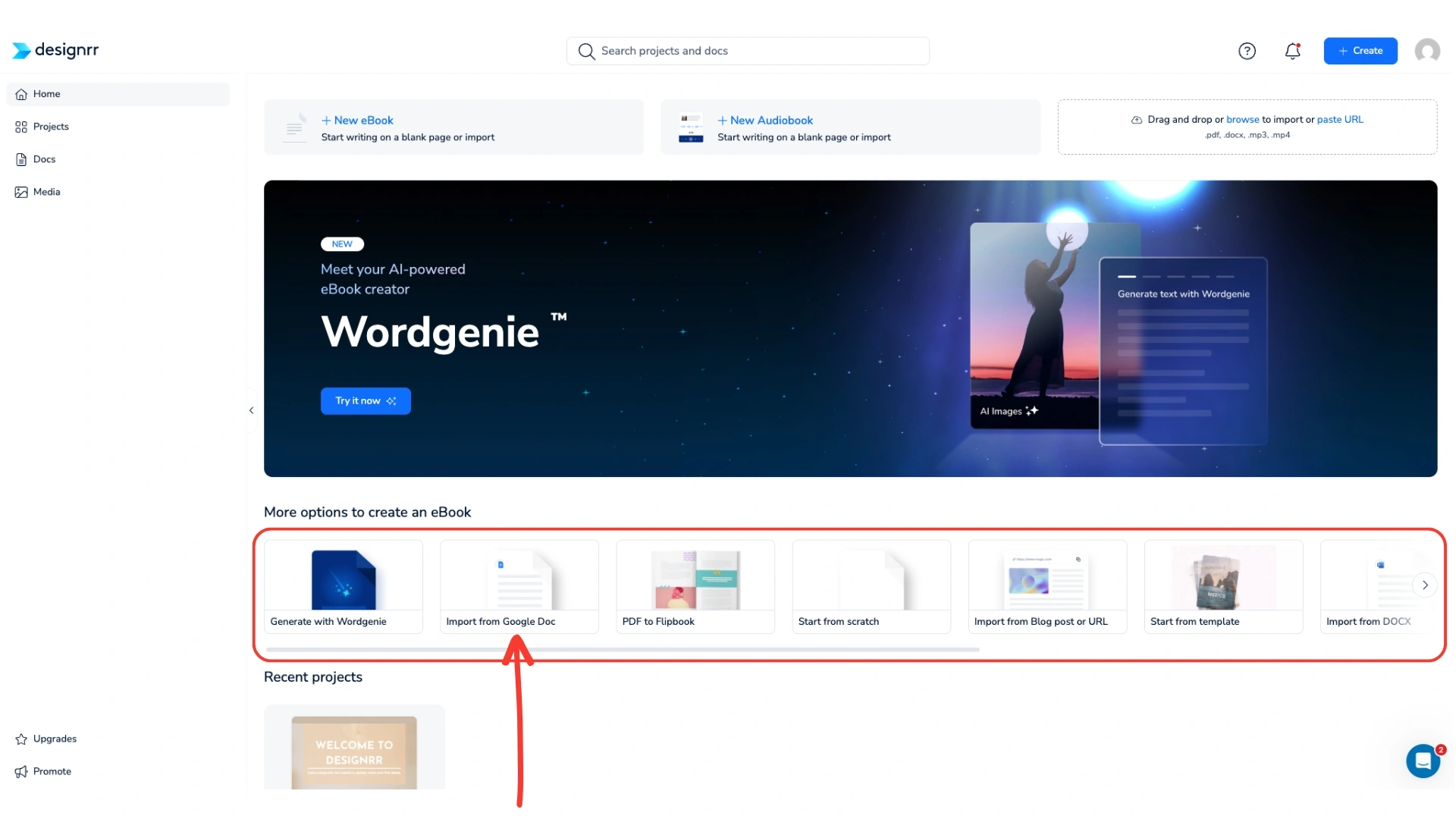
Step 1: Create a project. Import from Google Docs, a blog post or URL, a DOCX or PDF file, a video, a podcast or YouTube. You can also start from a template or with the Wordgenie AI tool.
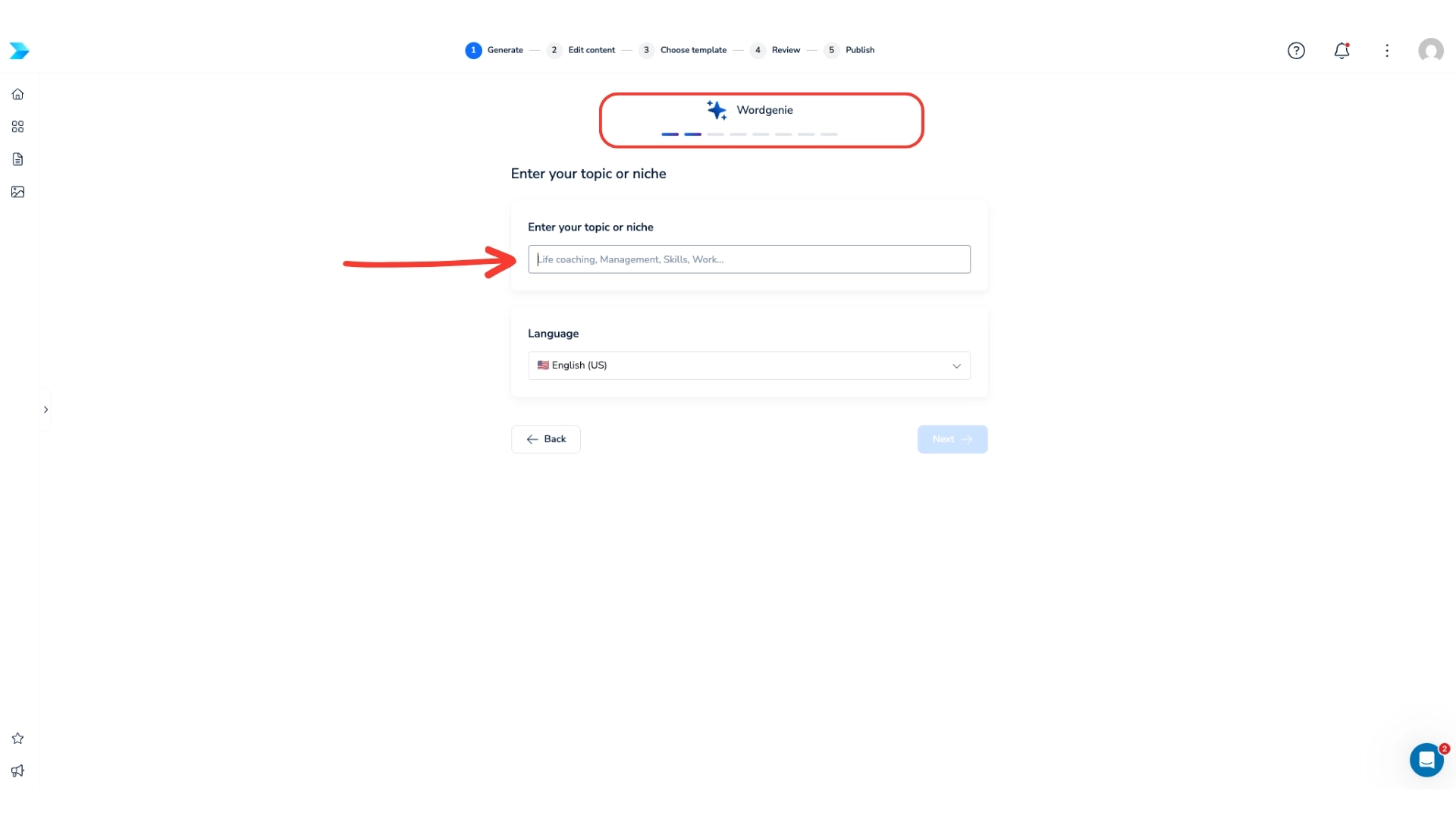
Step 2: Build a draft with Wordgenie. Start with a main topic, such as health, management or coaching.
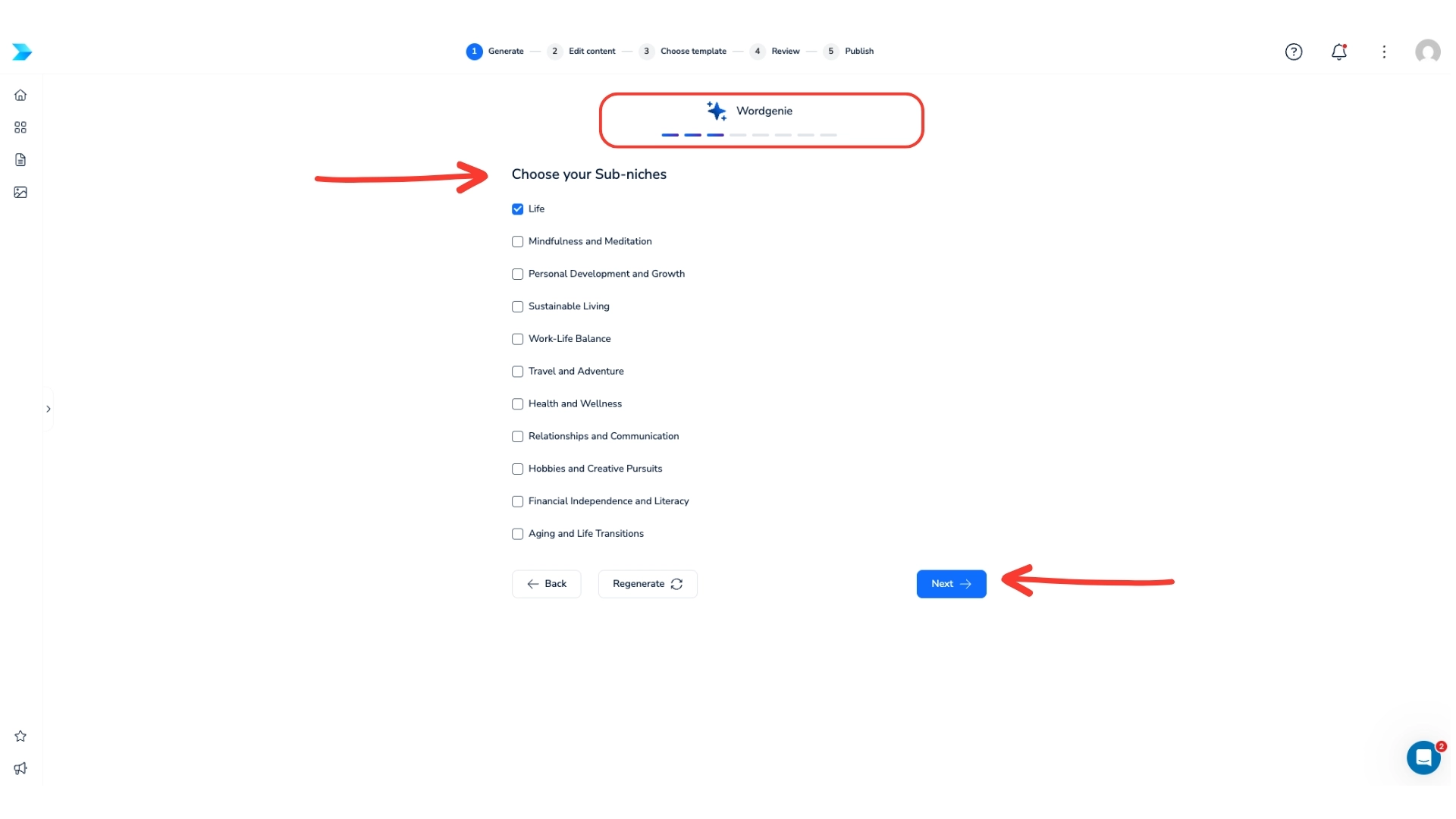
Choose a sub-niche to narrow the subject.
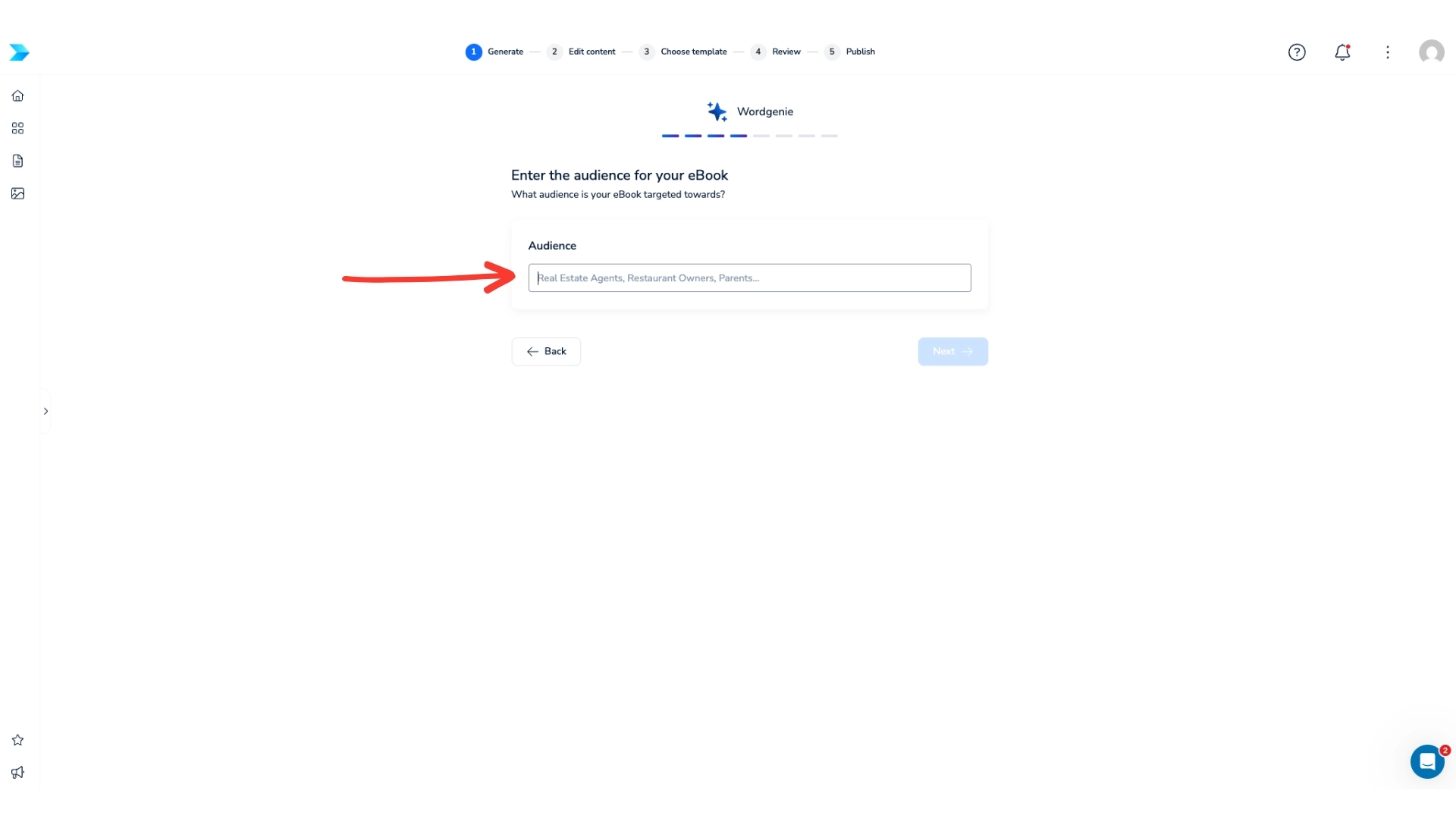
Choose your target audience, such as business owners, parents or young people.
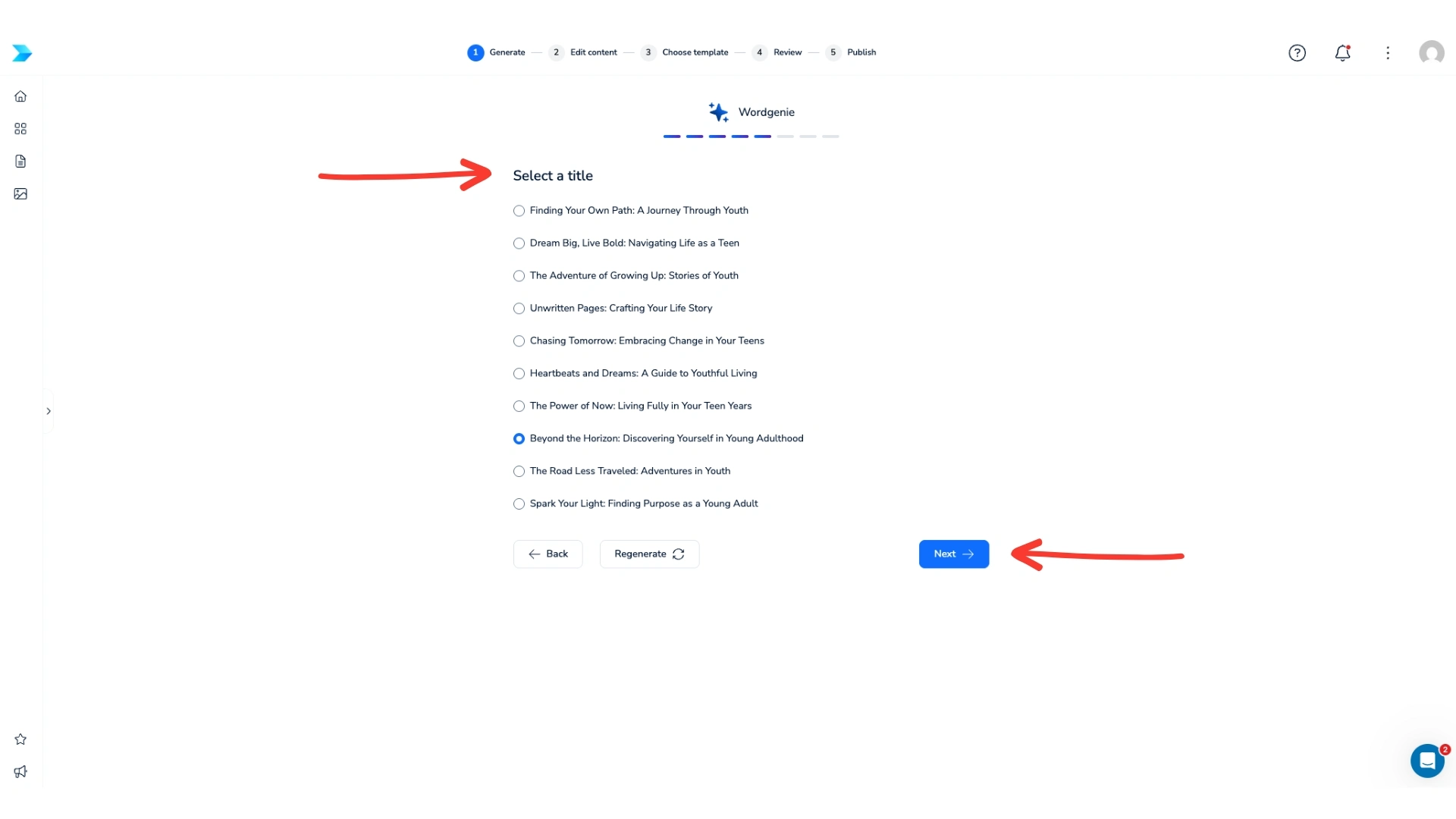
Select a suggested title, or regenerate the list for new options.
Choose a tone and theme.
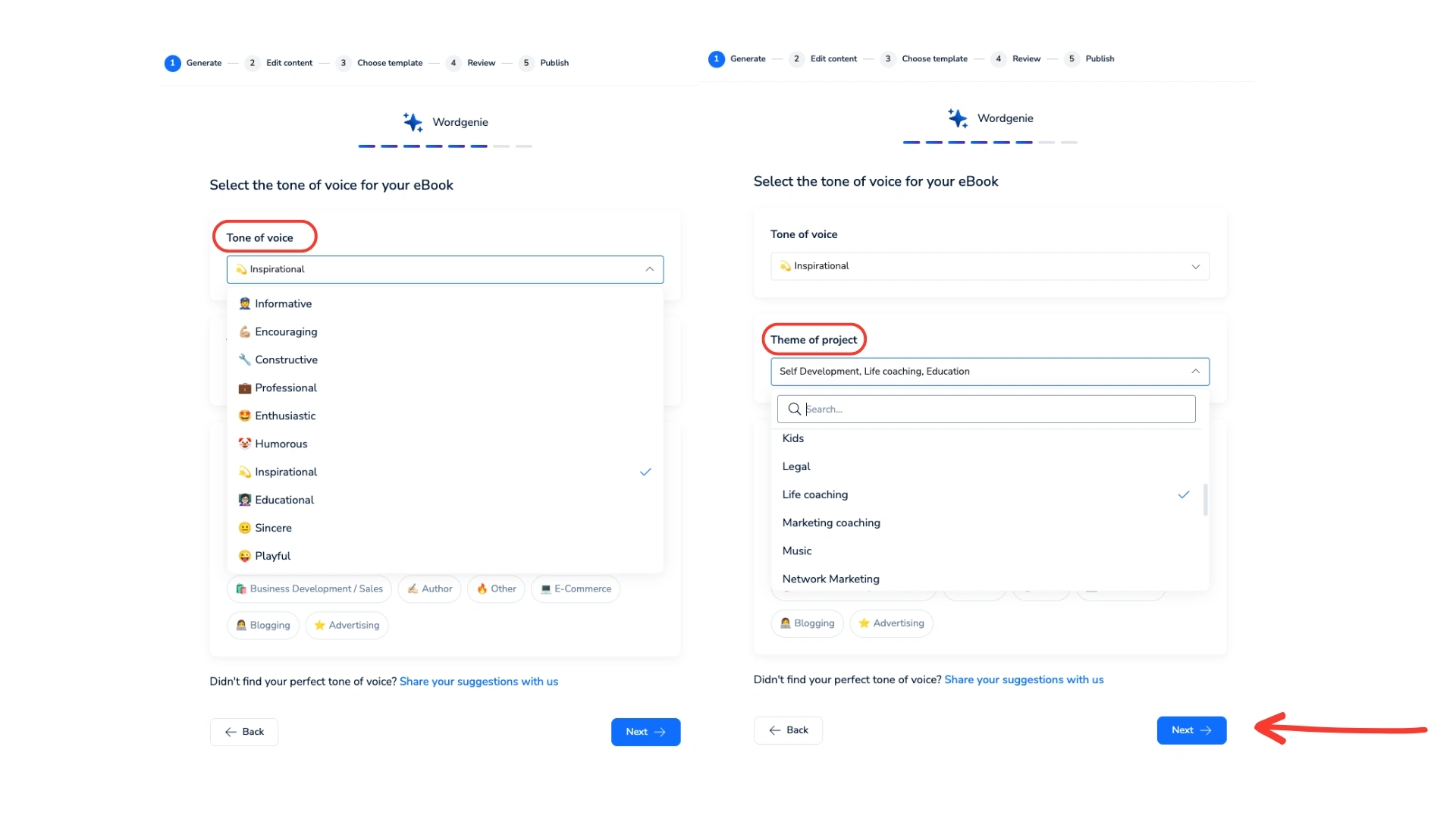
Wait a few minutes for the draft.
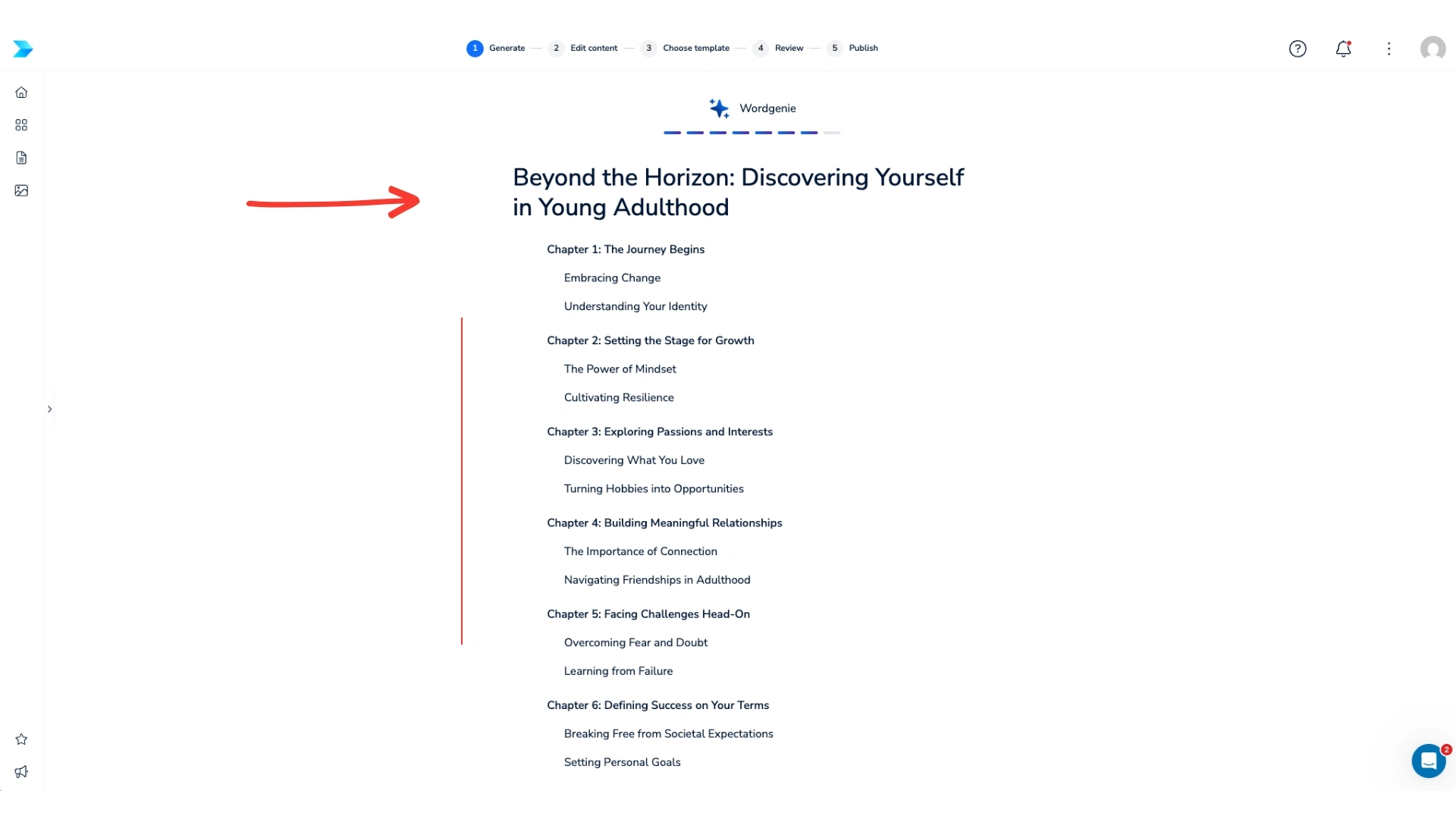
Tick “Add images to content” at the bottom of the page to place relevant images throughout the eBook.
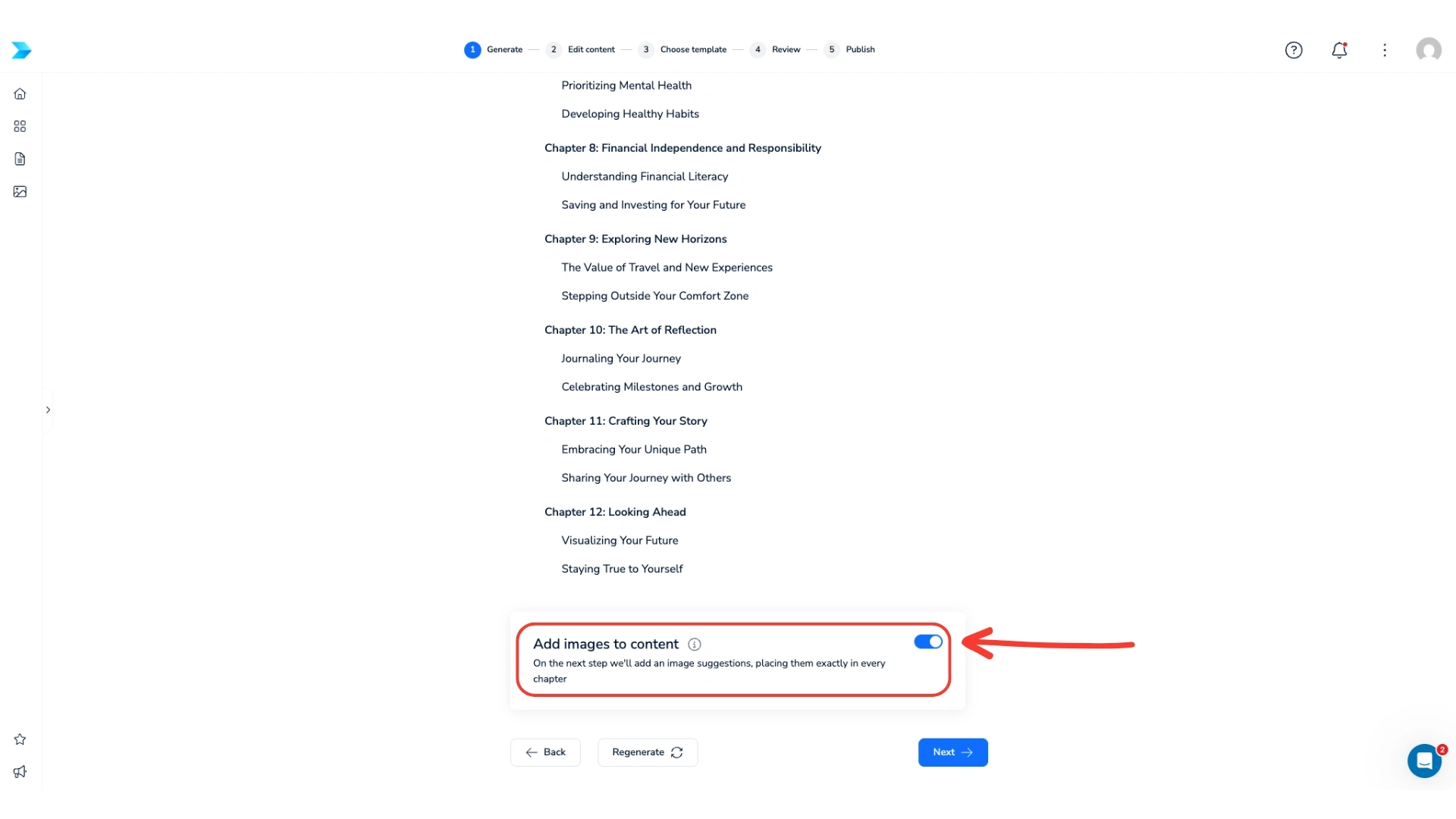
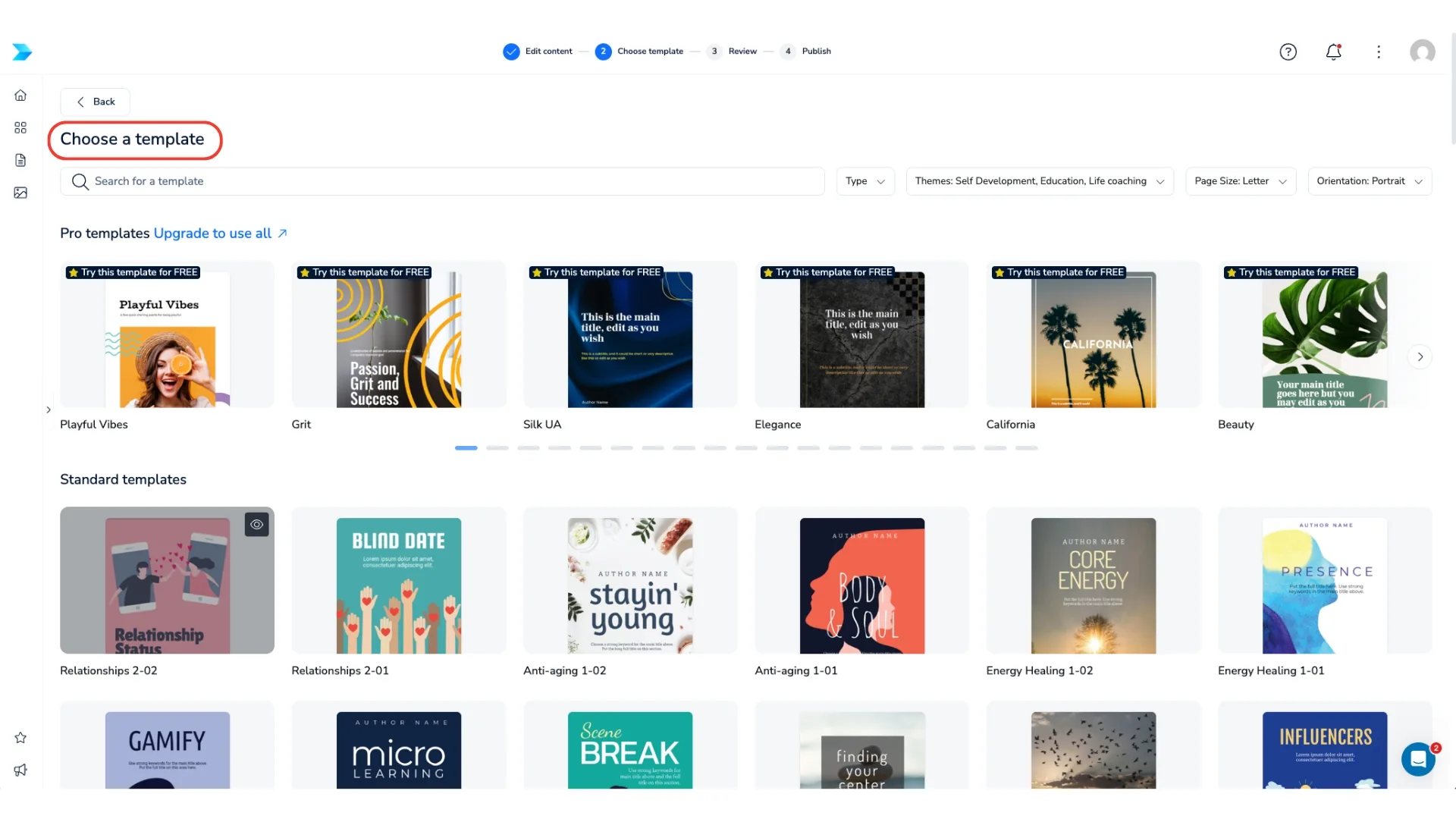
Step 3: Apply a template. Pick a professional layout from the available categories. Layouts can include a table of contents, headers and footers.
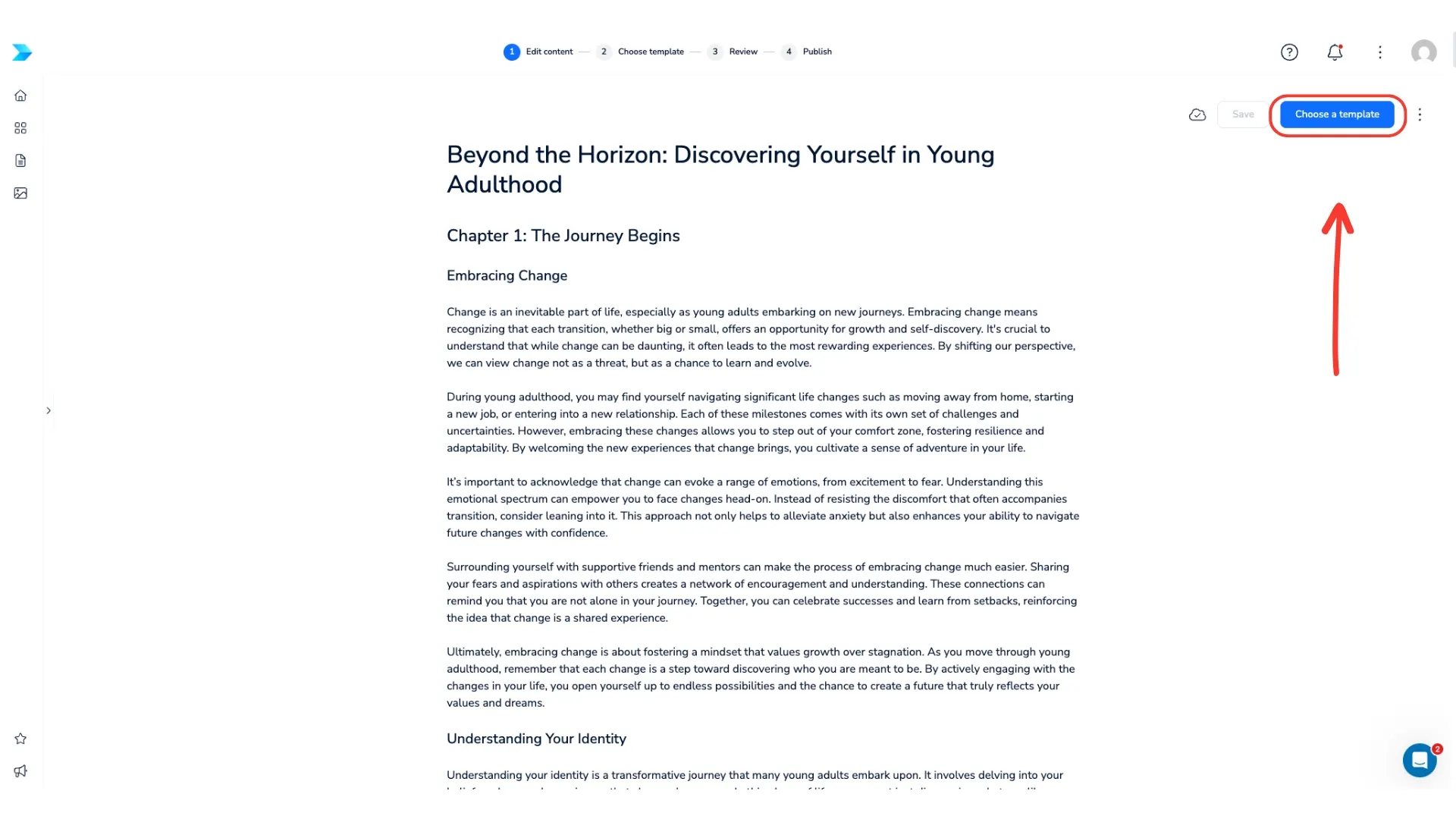
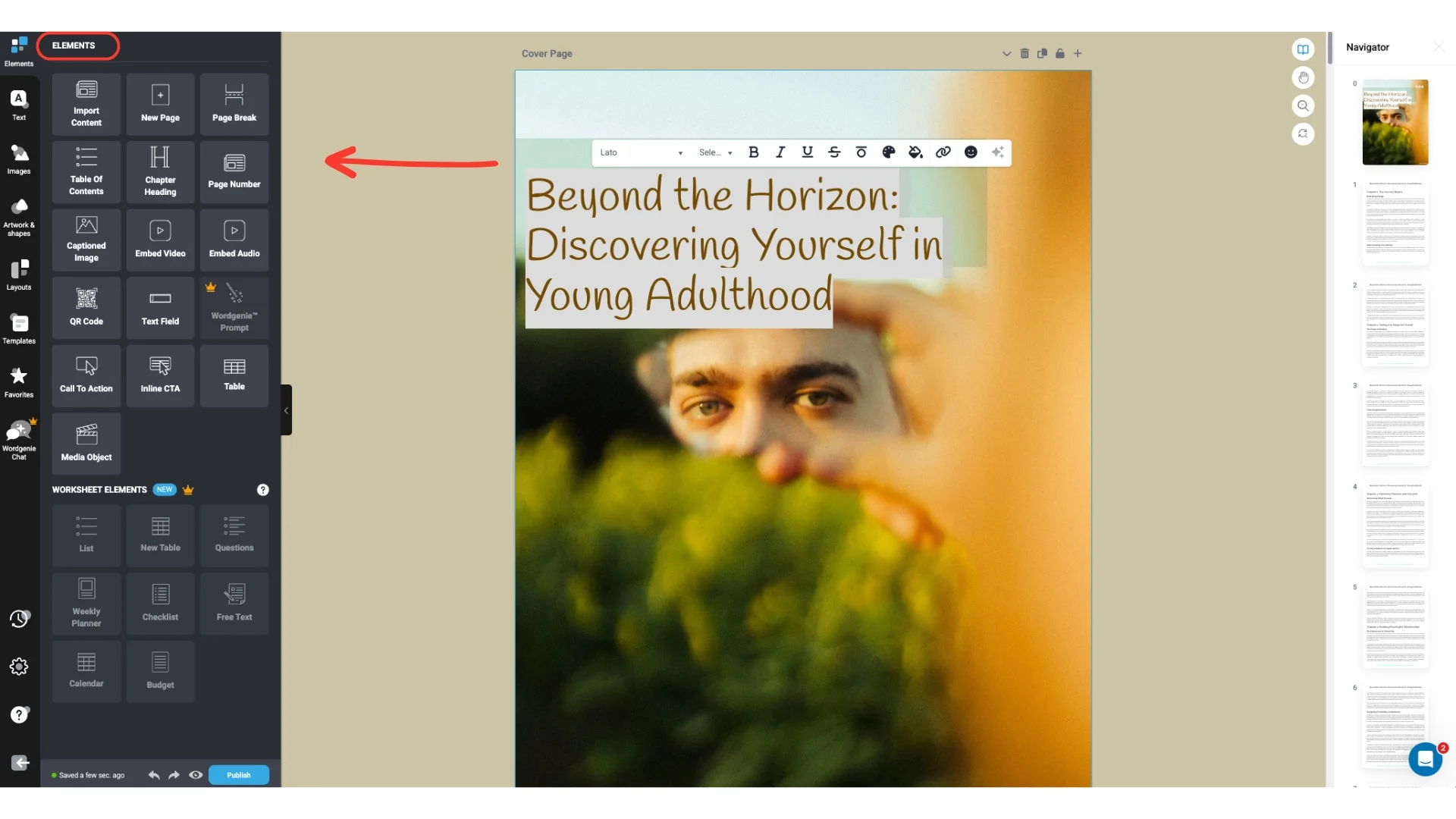
Then customize the logos, fonts, colours and images.
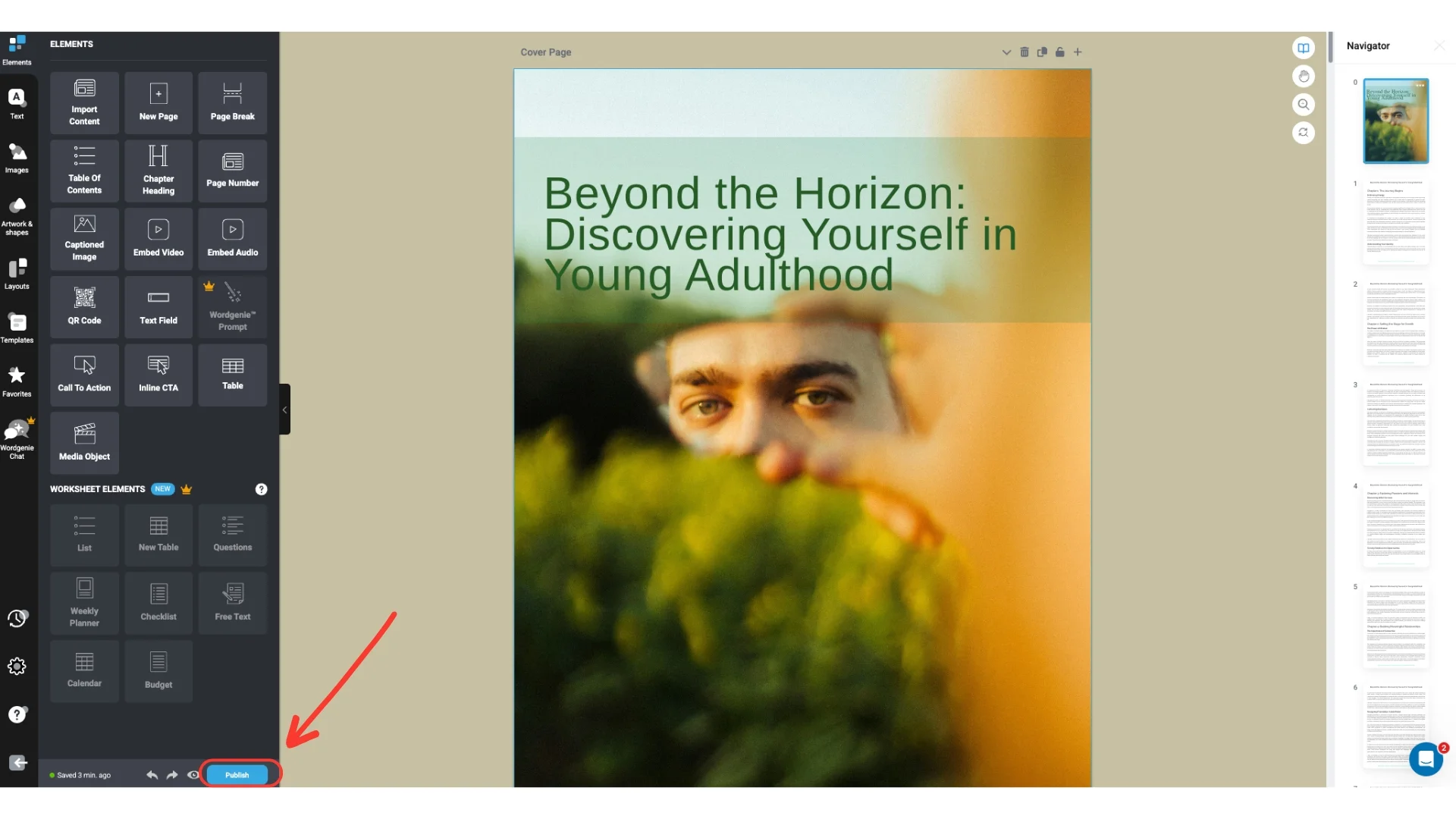
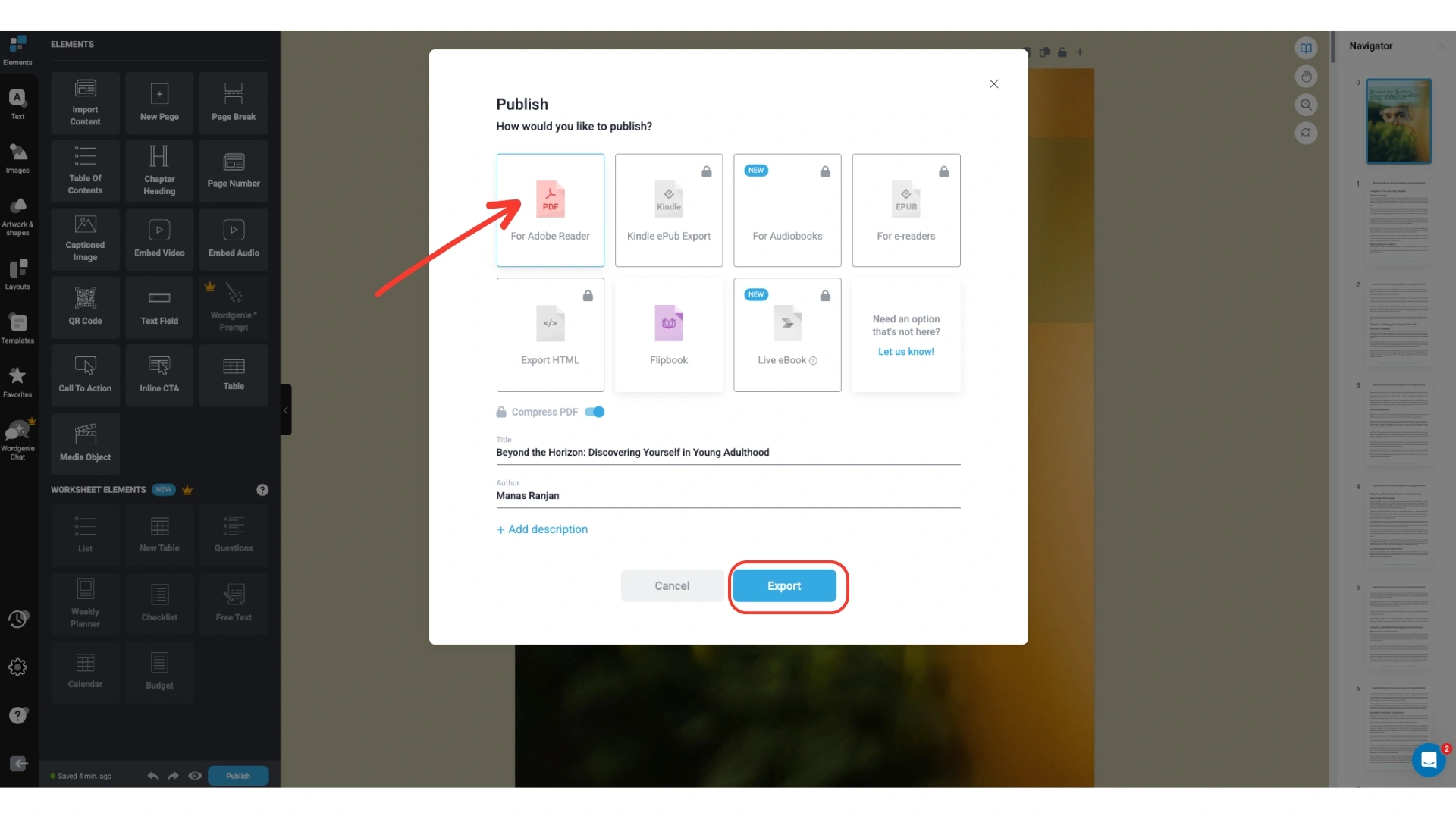
Designrr can export to the formats below, although some depend on your plan. When we checked in October 2026, its pricing page listed Kindle, iBooks and ePub from the Pro plan up.
- Kindle
- ePub
- Flipbook
- Audio Book
- HTML
- Live eBook
Using Designrr and Canva Together
You can also use both. Build the structure in Designrr, export a clean PDF, then use Canva to polish the cover and make promotional images.
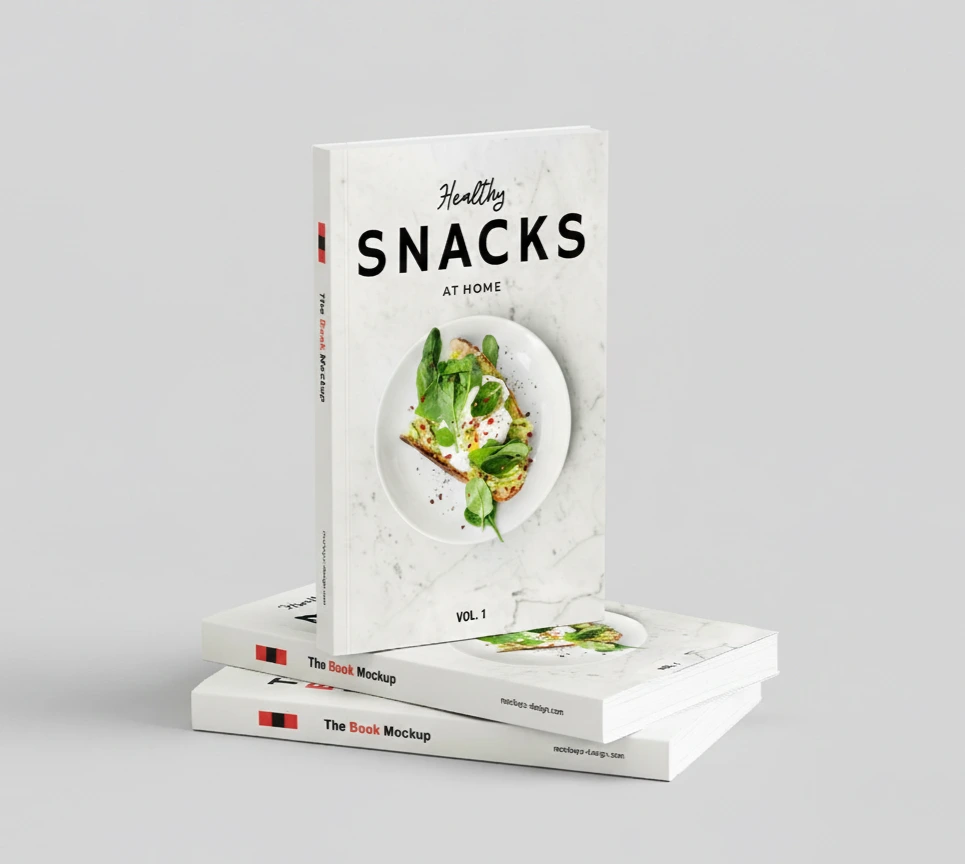
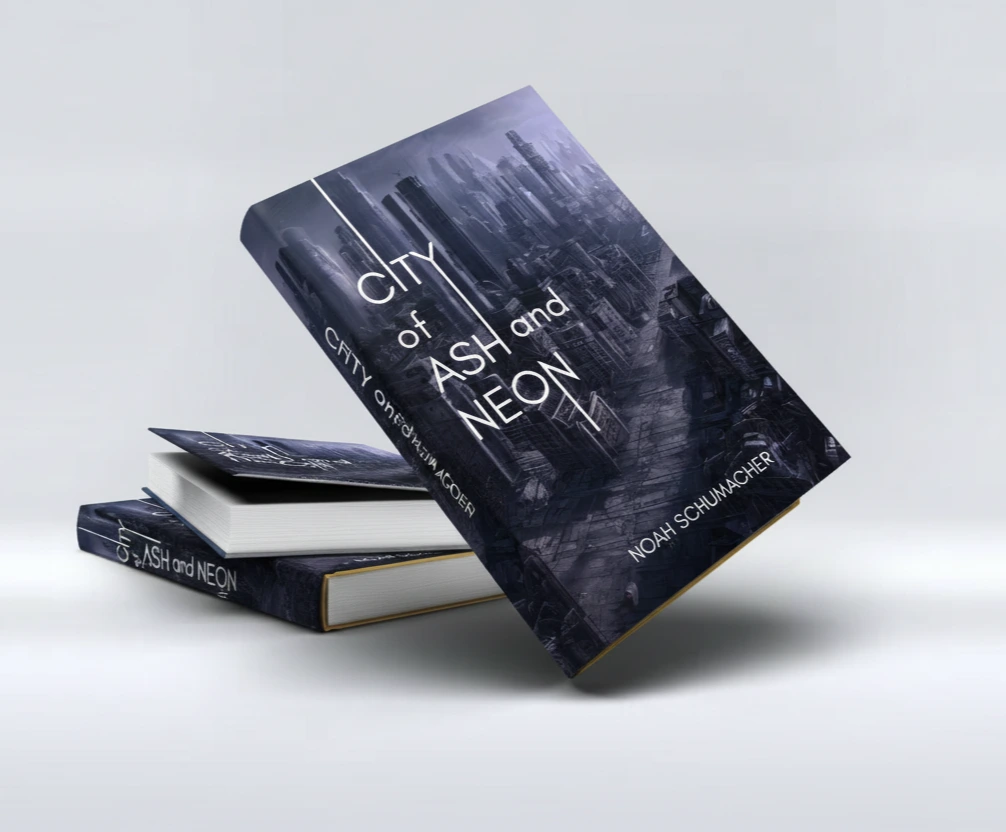
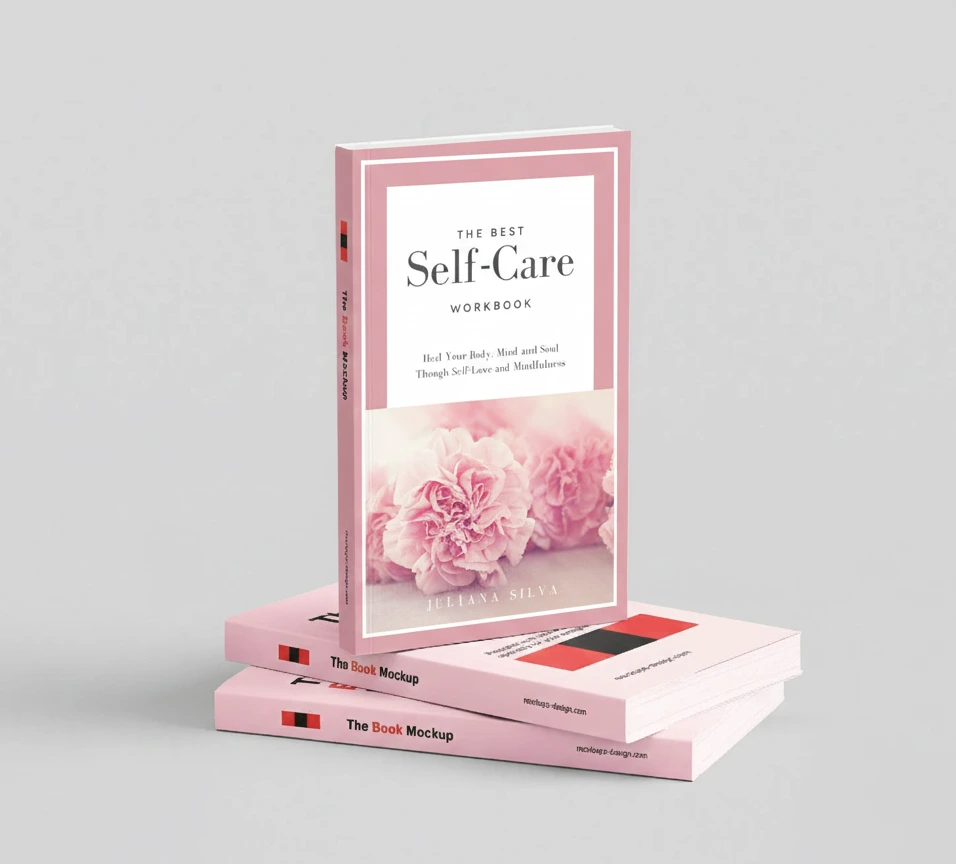
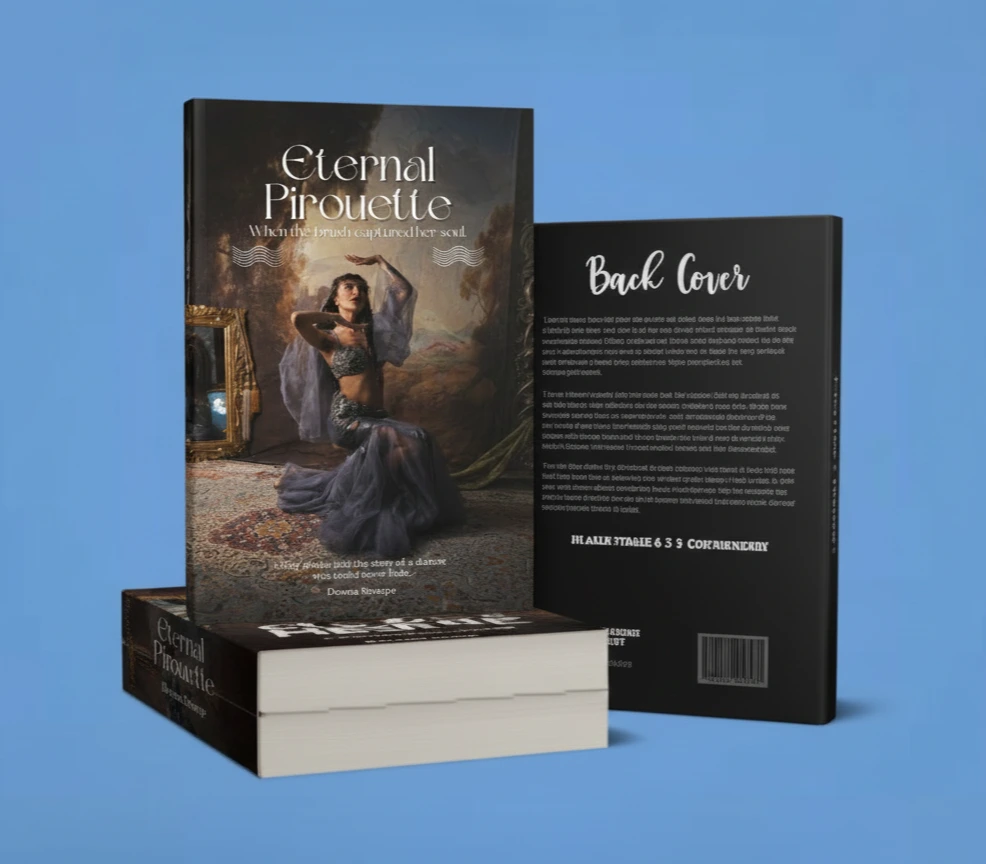
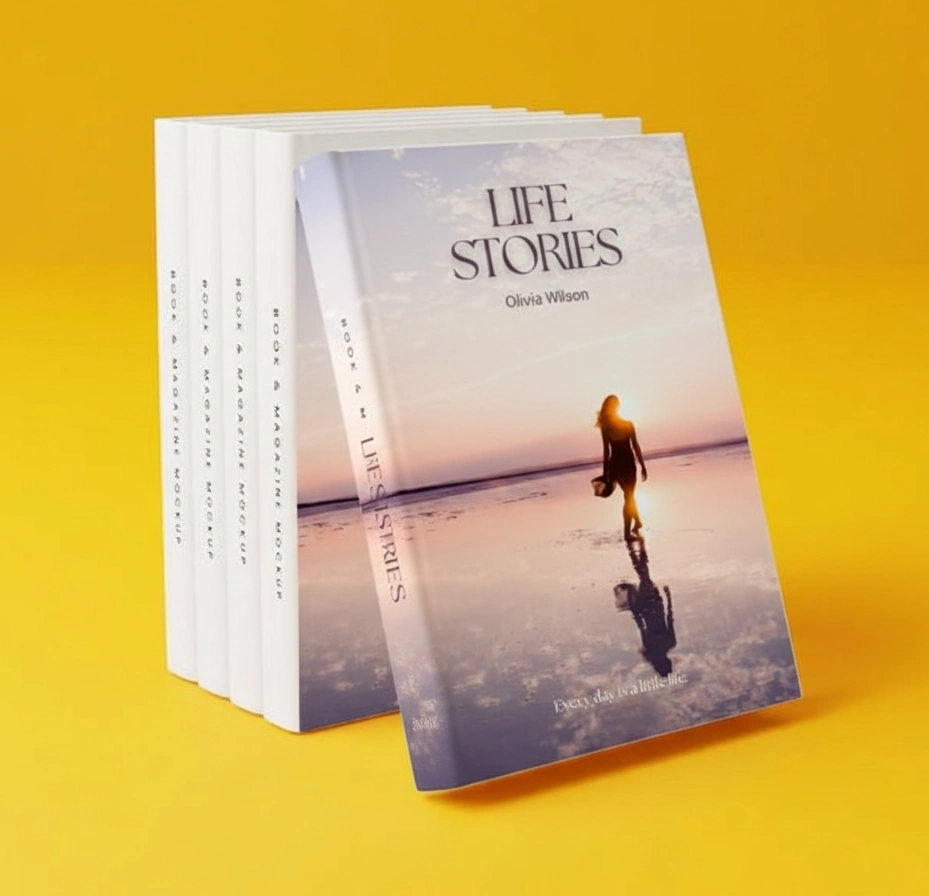
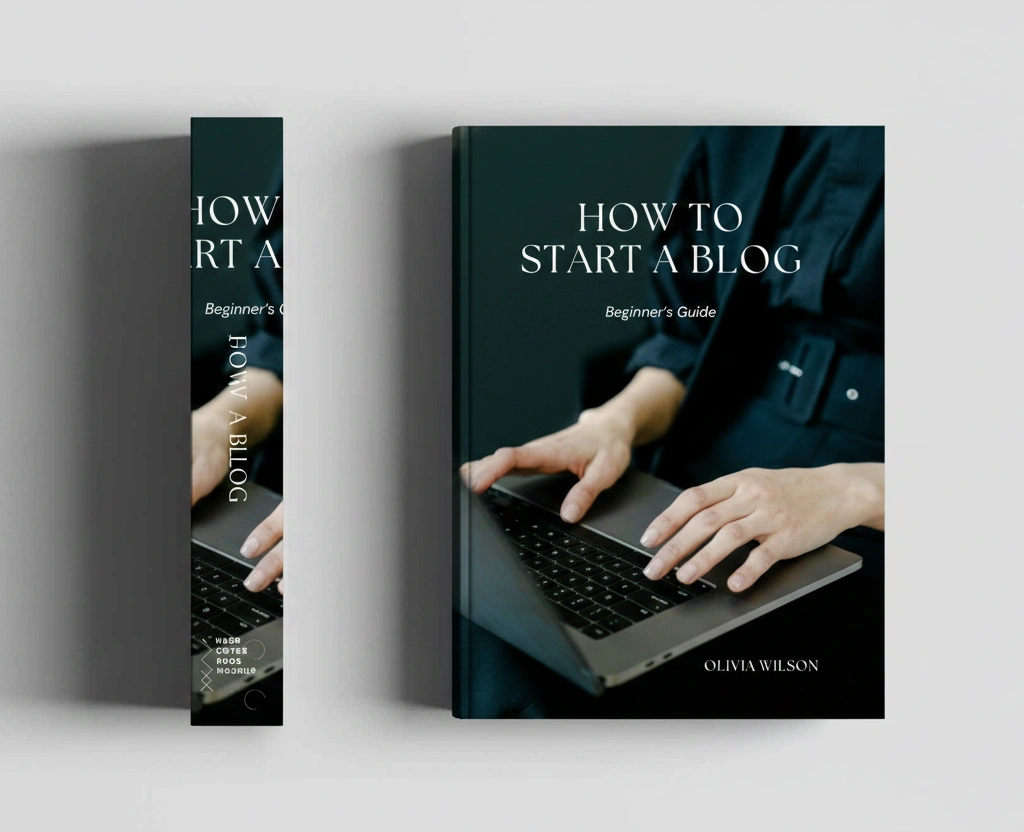
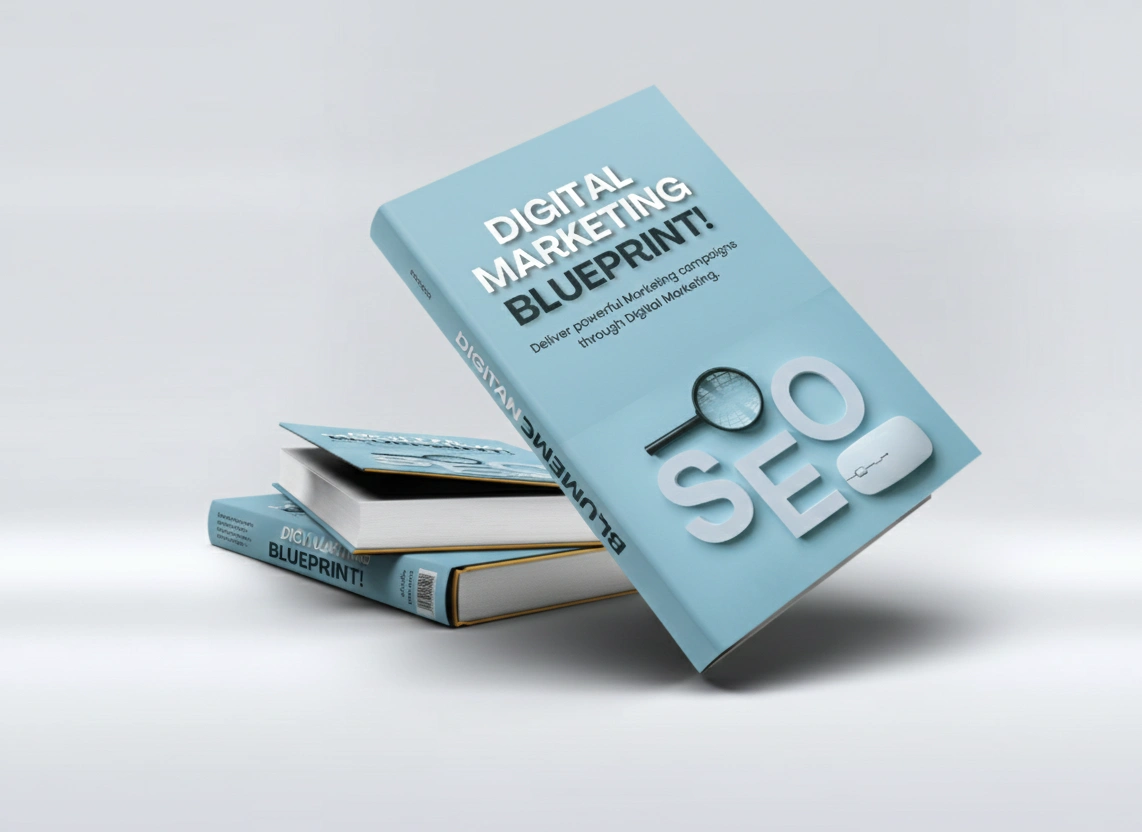
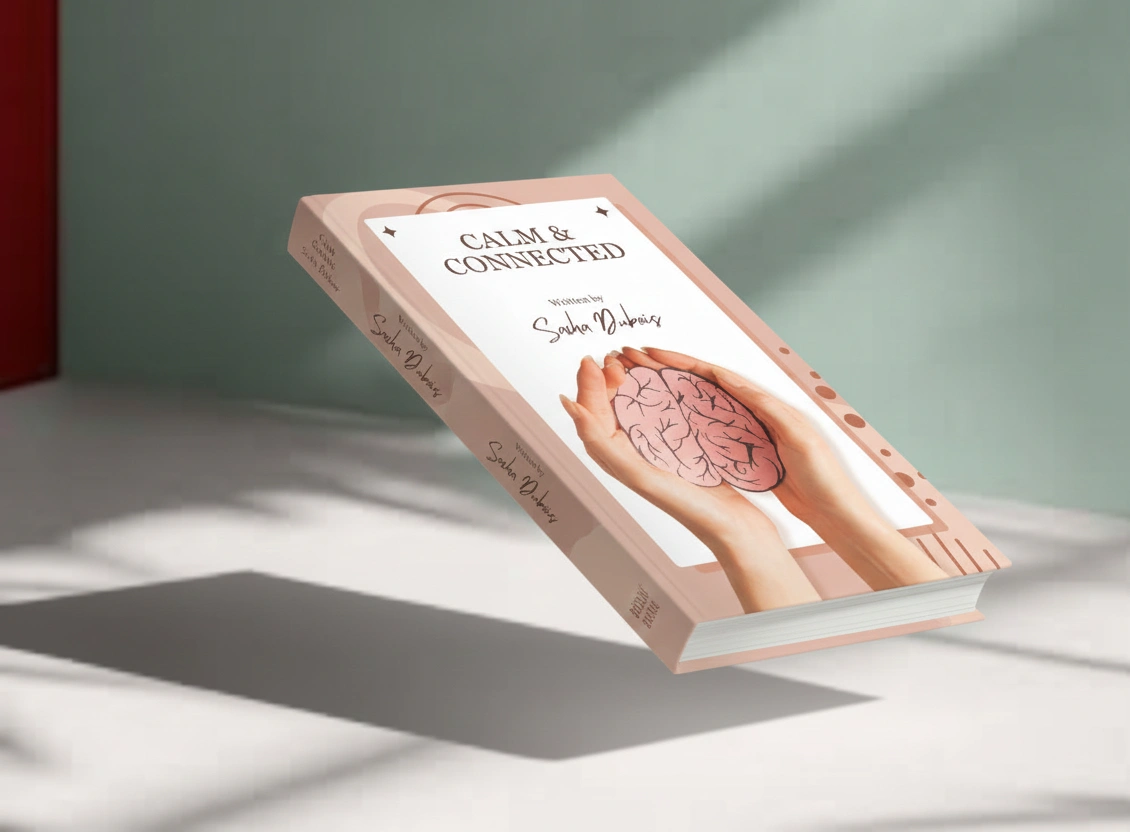
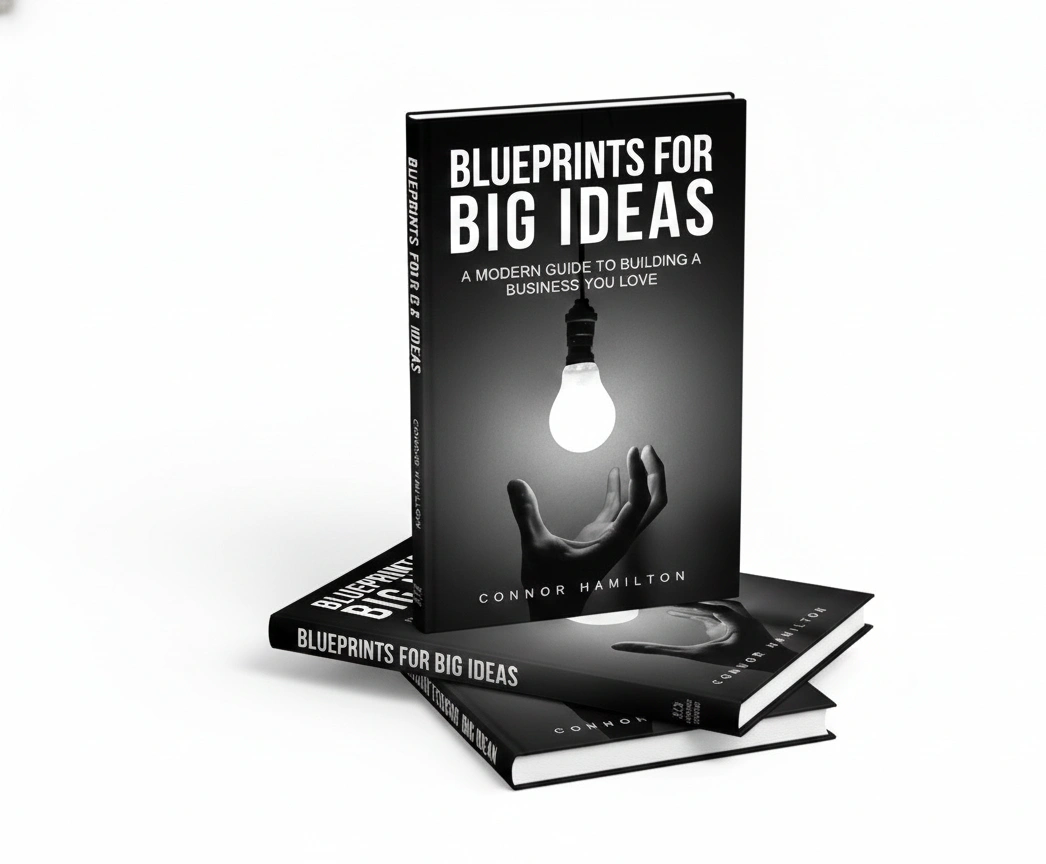
eBook Design Examples
Which One Should You Choose?
- Choose Canva for visual control, branding and a wide library of images, icons and fonts.
- Choose Designrr for importing content, building structure and exporting to several eBook formats.
- Use both if you want Designrr’s structure and Canva’s design tools.
Features and plans change, so check the current pricing of each tool before you commit.
Choose by What You’re Making
| You’re making | Better choice | Why |
|---|---|---|
| A visual guide, workbook or lookbook | Canva | You can control every page’s design |
| A lead magnet from your blog posts | Designrr | Importing a URL saves retyping and layout work |
| An eBook from a podcast or video | Designrr | It can import from those sources |
| A short PDF on a tight budget | Canva | The free plan may be enough |
| A book for Kindle | Designrr or a Kindle tool | You’ll want an ePub or a file made for Kindle |
| Book covers and social images | Canva | It has the widest design tools |
If You Plan to Publish on Kindle
A PDF keeps its layout, but it doesn’t reflow to fit small screens, so a designed PDF can be hard to read on a phone or e-reader.
Amazon KDP lists DOC, DOCX, KPF and ePub among its accepted formats. It accepts PDF only for some languages. If most of your book is text, start with a reflowable format, such as a Word file or ePub. Use a PDF for books that you’ll sell or share directly, or for ones that rely on page design.
Check Your AI Draft Before You Publish
Both tools can write a draft quickly, but a draft isn’t a finished book. Before you publish:
- Check every fact, number and claim yourself, because AI can state errors confidently.
- Add your own examples and experience, since readers can get generic advice anywhere.
- Look at every image, and check that you have the rights to use it.
- Read the book on a phone to see how it looks there.
- Check the rules of the store you’re publishing on. Amazon KDP, for example, asks authors to disclose AI-generated content.
More in AI Graphic Design Prompts
This guide is part of our AI Graphic Design Prompts hub, where you’ll find every related guide, along with tips and common questions.