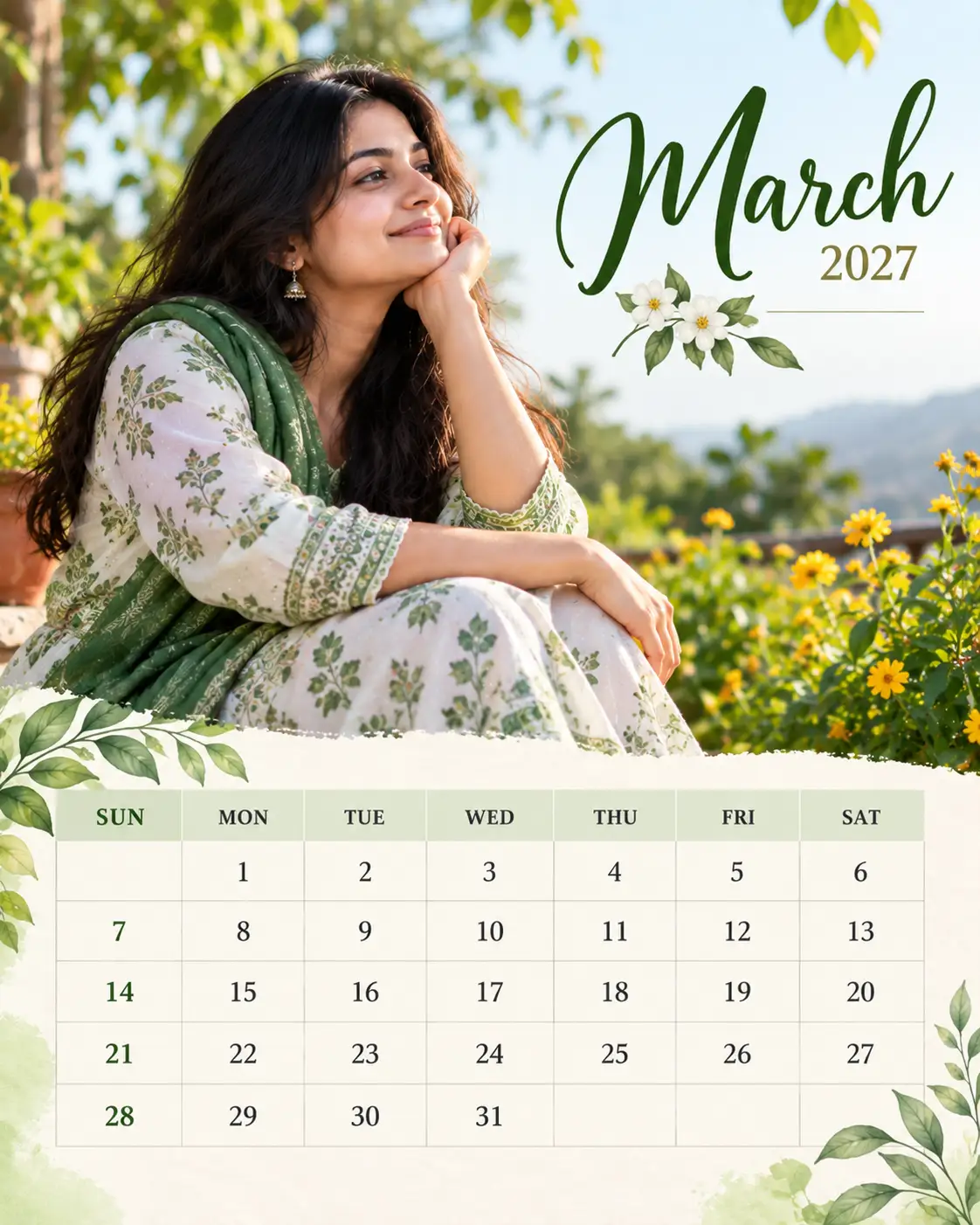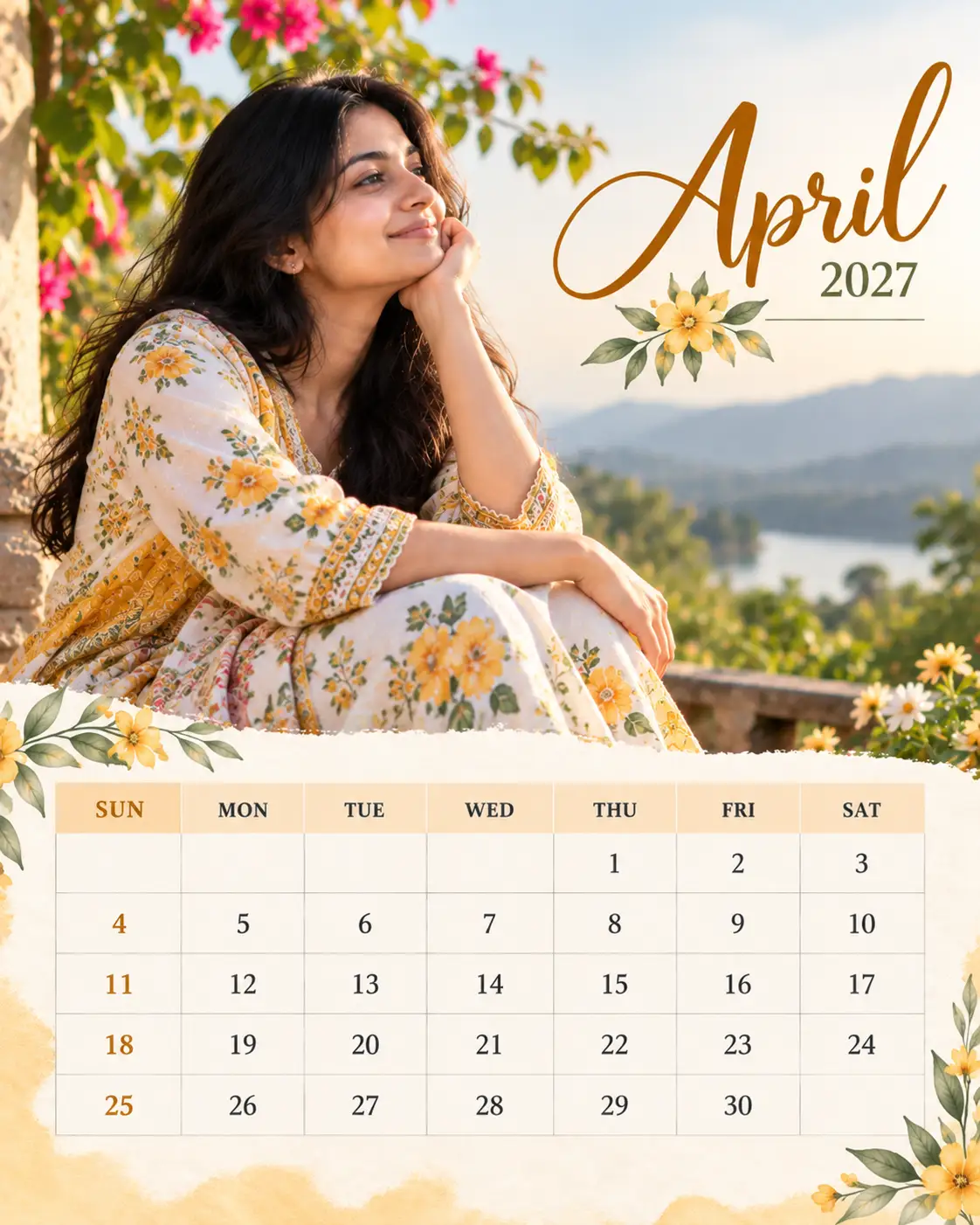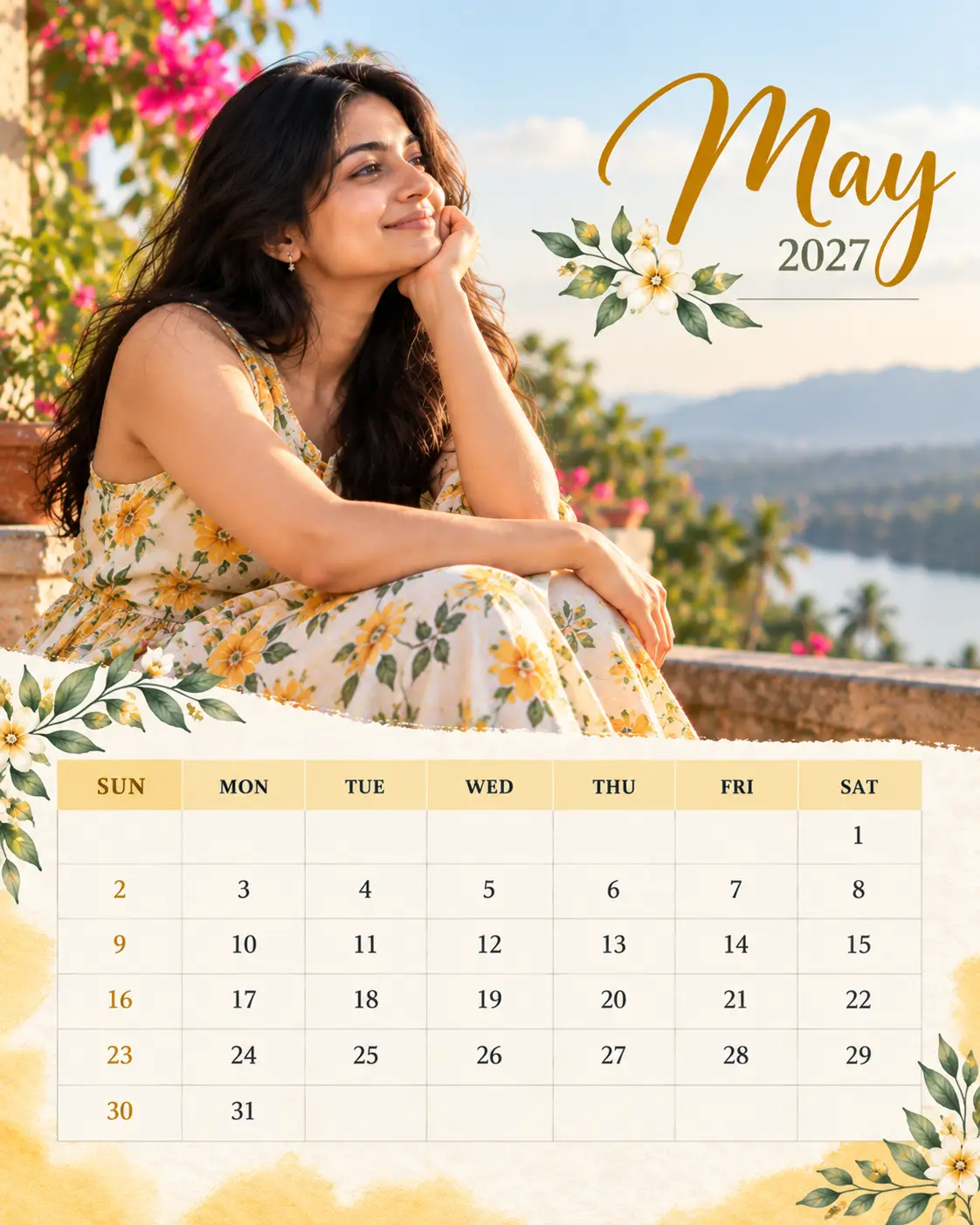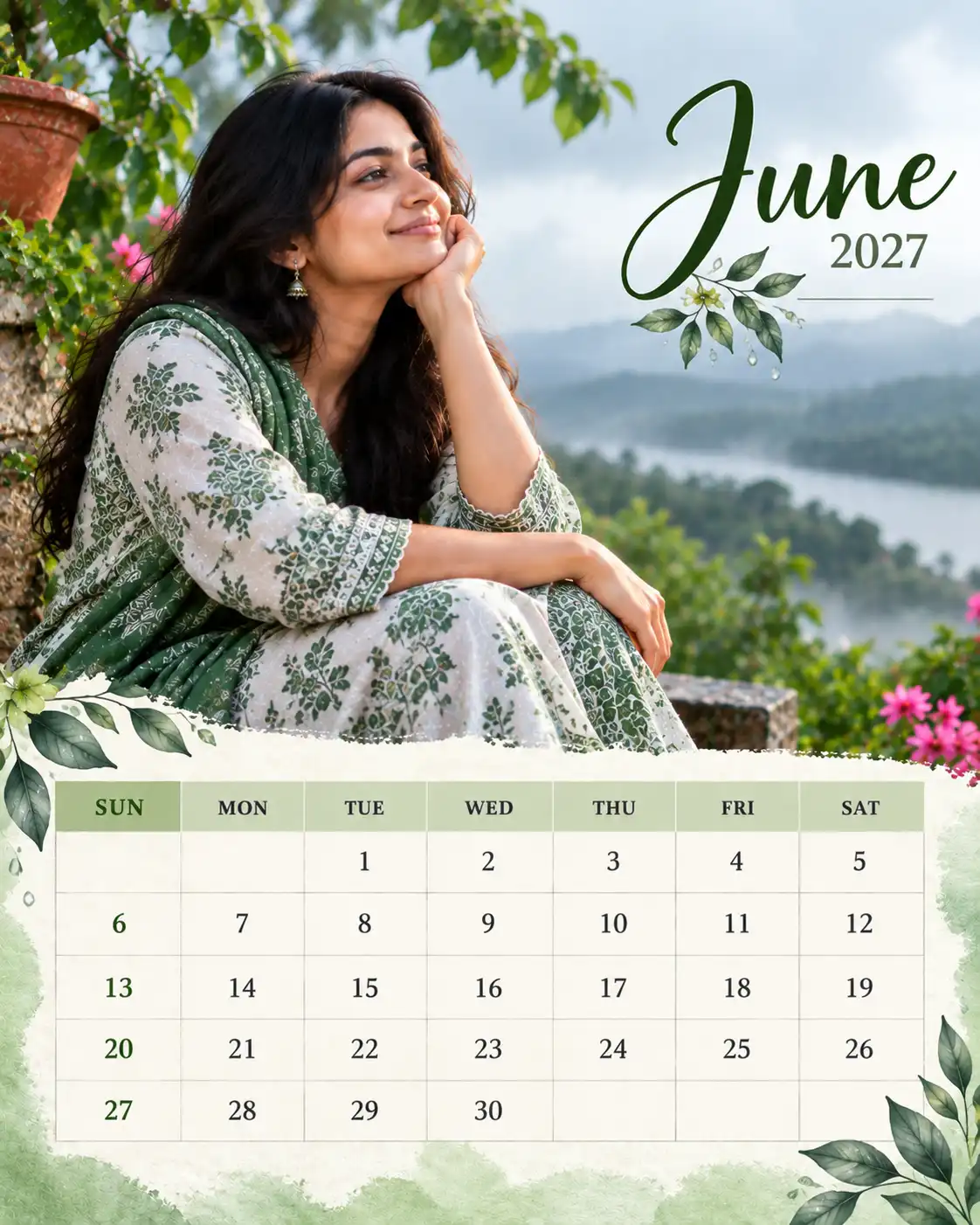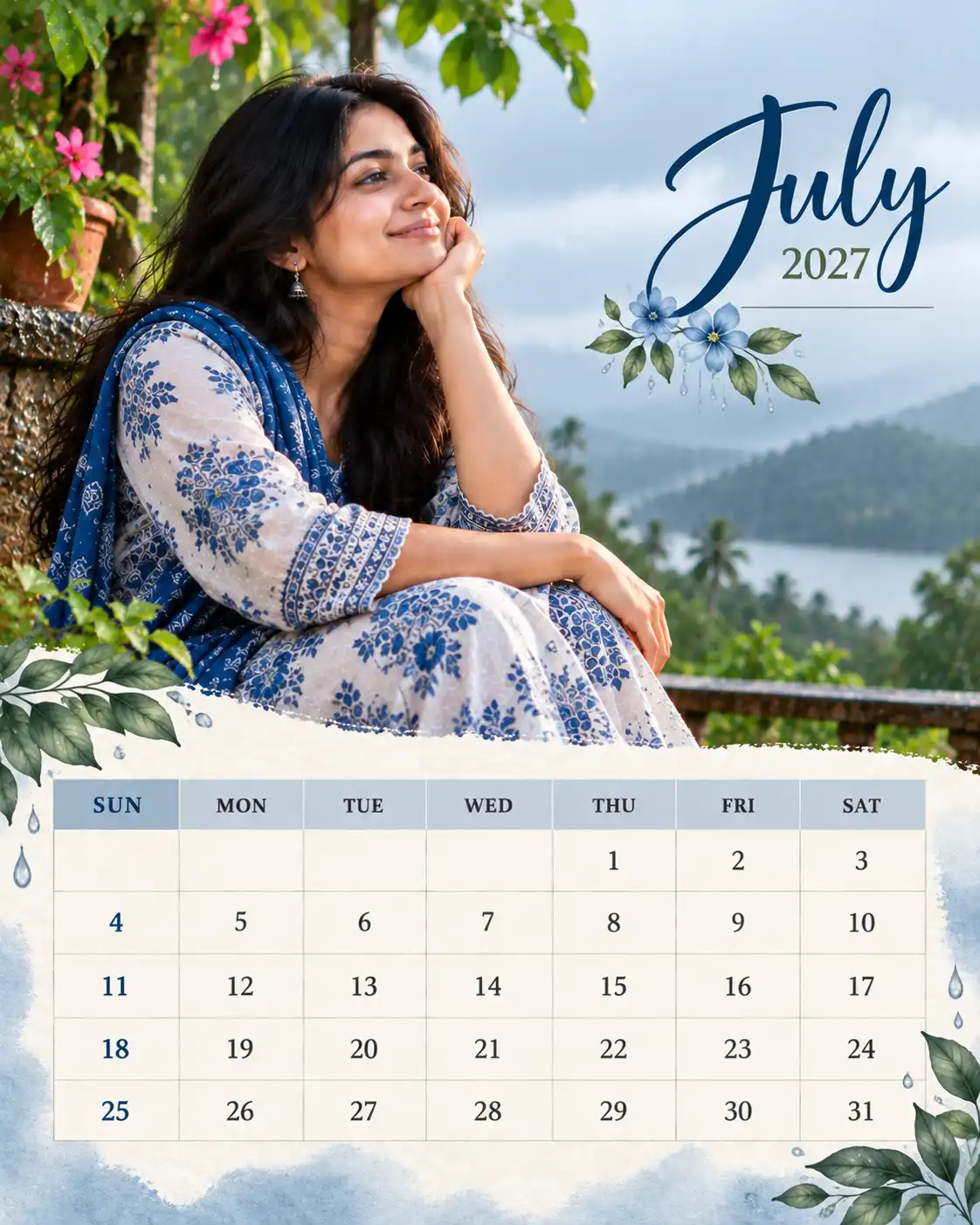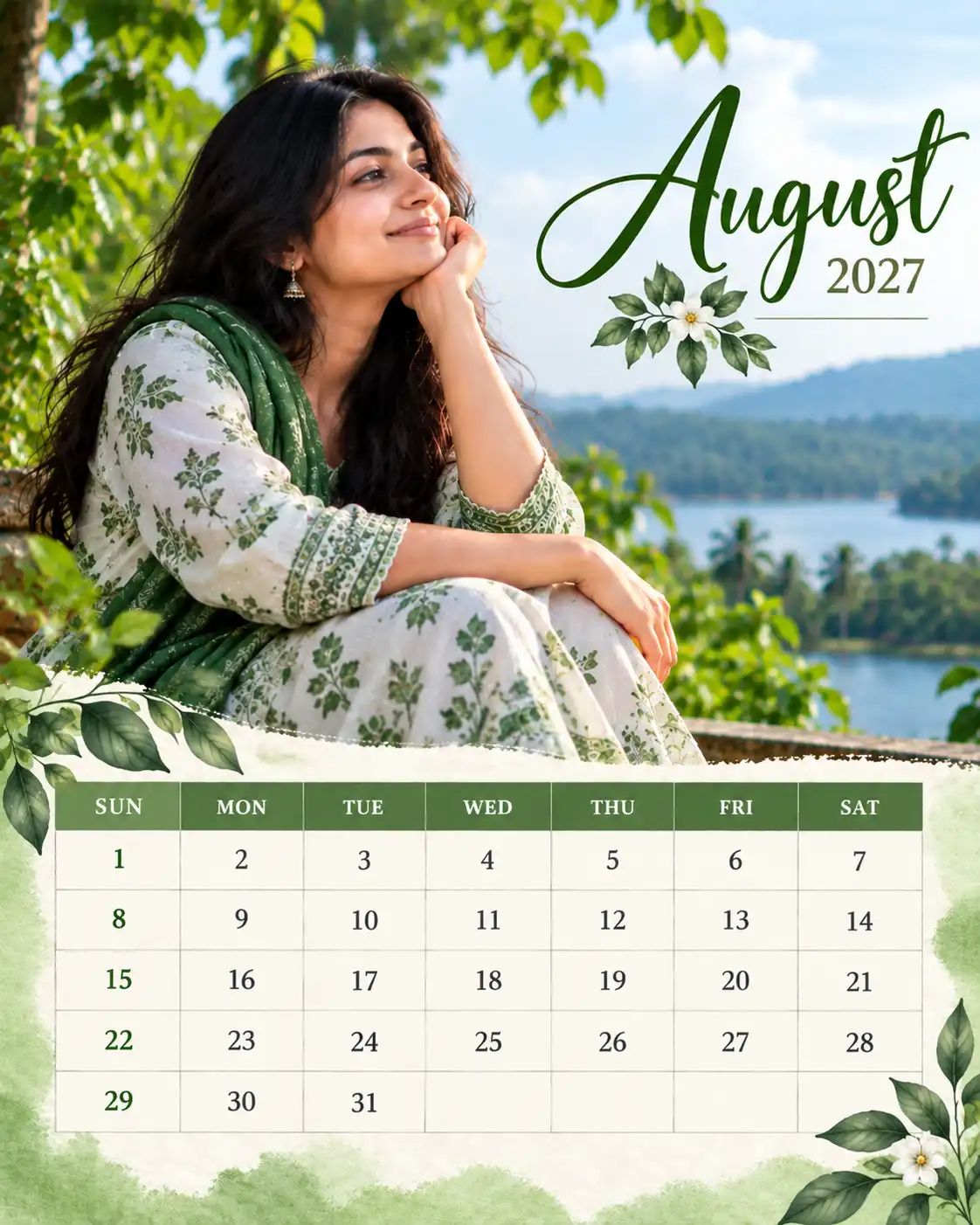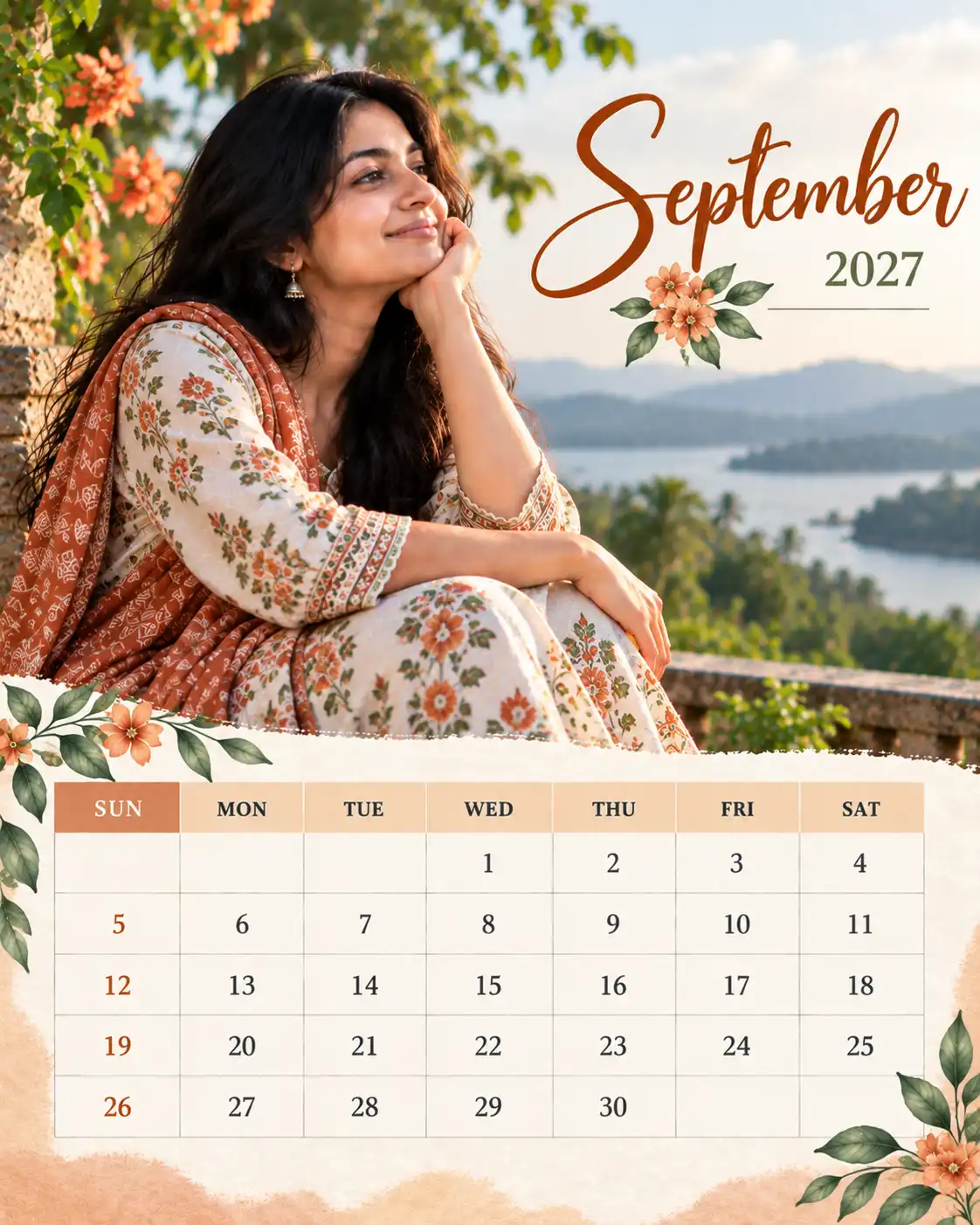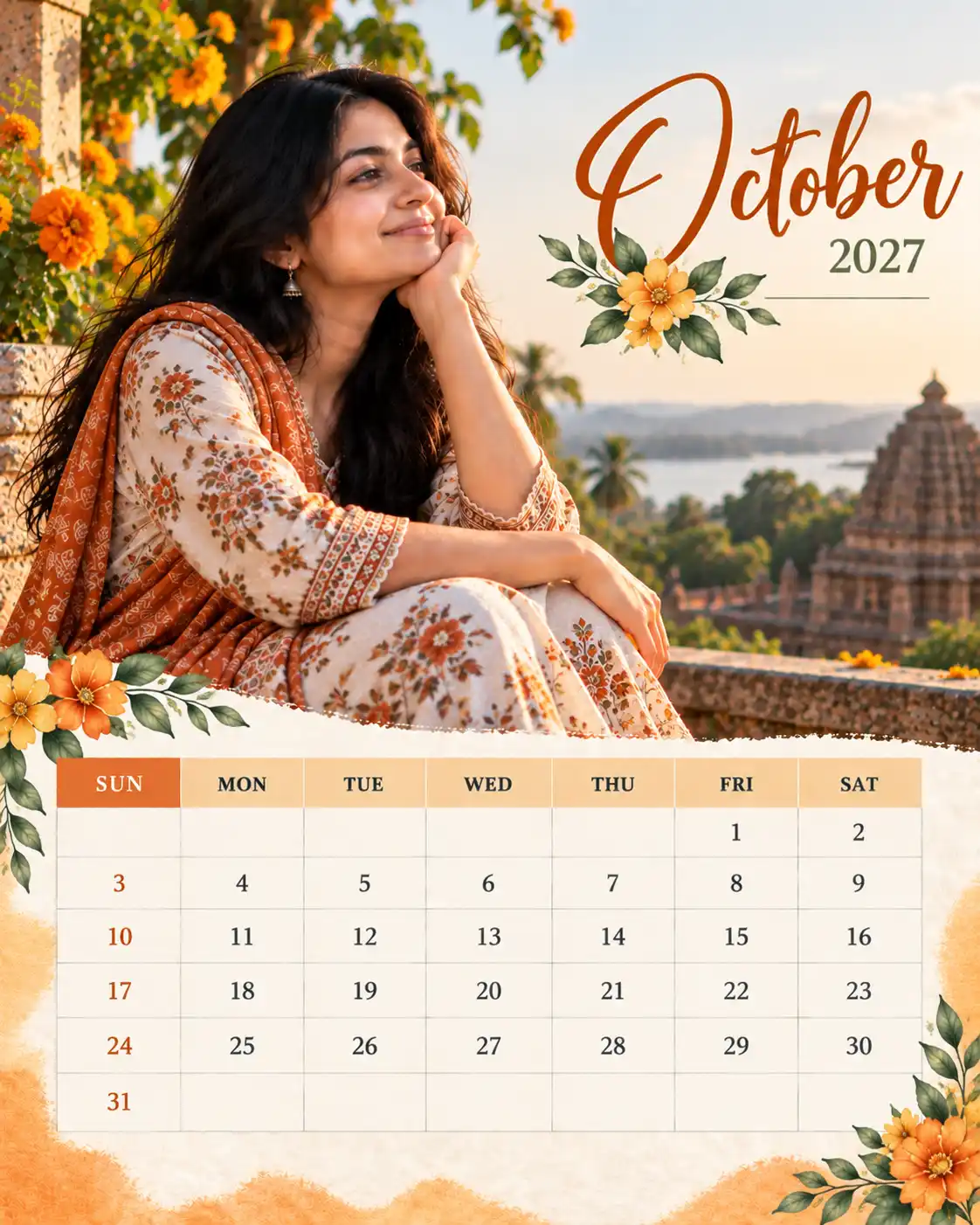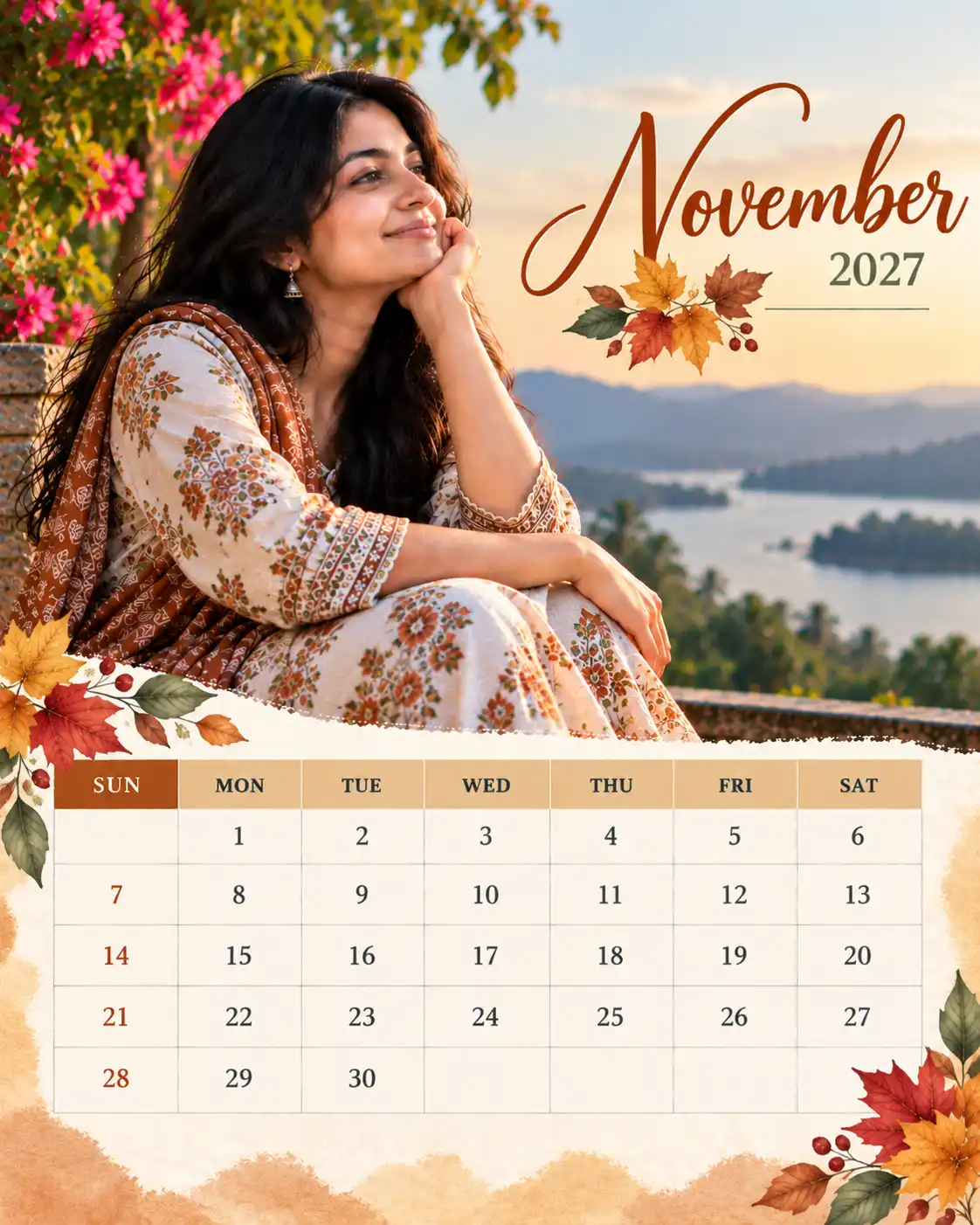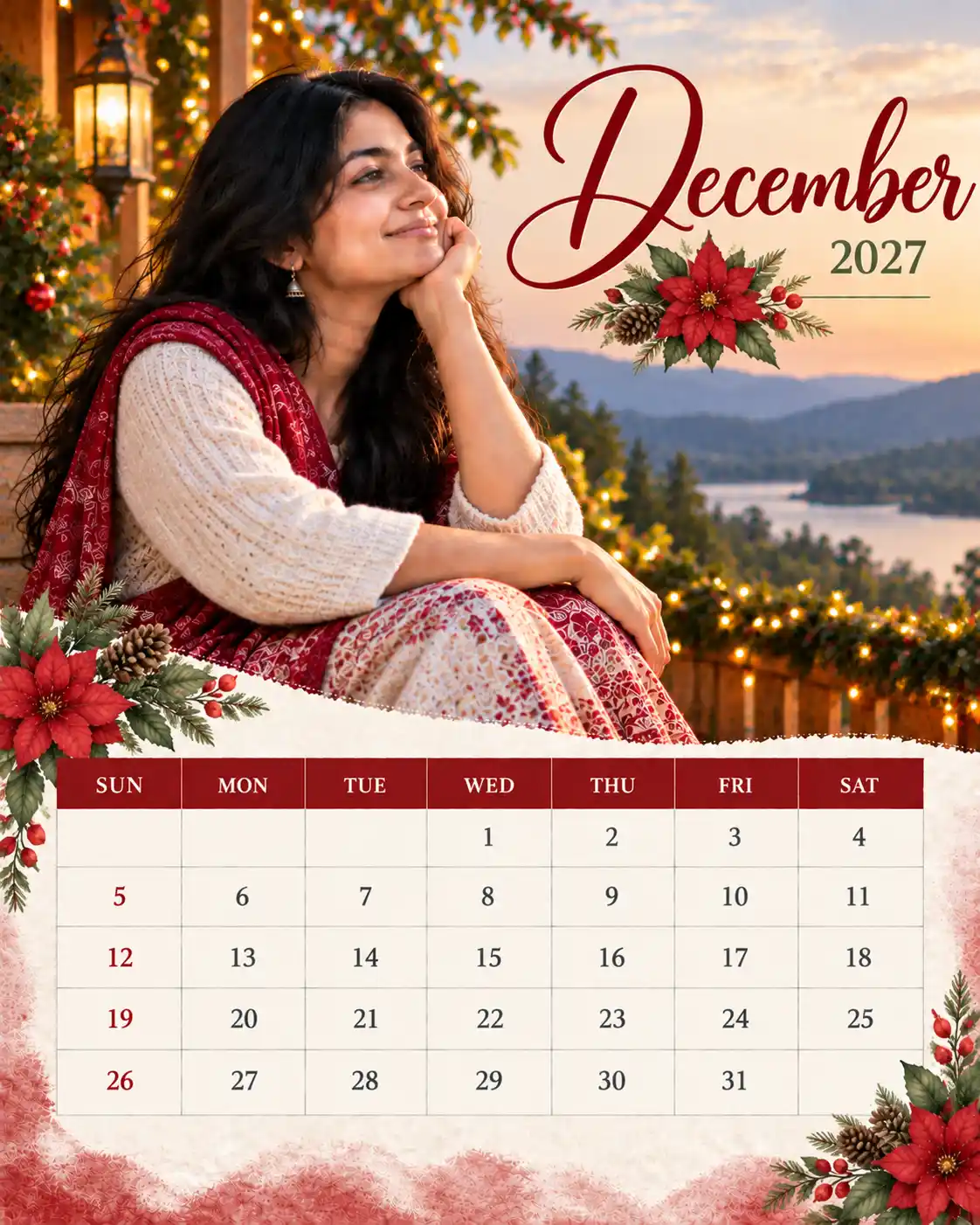
A personalised photo calendar works when the photograph and the dates receive equal care. The image gives the page its character; the calendar grid has to remain clear enough to use. A month-specific palette and considered typography can make each page feel distinct without turning the photograph into a different scene.
This reusable 2027 photo calendar prompt sets the visual direction from the selected month and adapts the layout to the chosen canvas size. You only change [MONTH] and [SIZE], then attach the photograph you want to use. The prompt includes the Gregorian date grids for all twelve months, but the generated numerals still need to be checked before the page is printed.
Quick answer: Replace [MONTH] and [SIZE], upload your photograph, generate the calendar page, and check every date against the supplied grid before printing.
What the Master Prompt Controls
The prompt gives the image model specific instructions for five parts of the design:
- Photo fidelity: retain the subject’s identity, clothing, pose, skin tone and recognisable details.
- Monthly art direction: adapt colour, typography, spacing and visual mood to the selected month.
- Season-aware colour grading: refine the photograph without inventing weather, scenery or seasonal objects.
- Responsive composition: arrange the photograph and date grid for portrait, landscape, square or social formats.
- Calendar data: use the supplied Sunday-first 2027 grid for the selected month.
How to Use the Prompt
- Choose the month you want to create, from January to December 2027.
- Replace [SIZE] with the final format, orientation and dimensions.
- Upload the exact photograph intended for the calendar page.
- Generate the design, then proofread the month heading and every date before sharing or printing it.
Choose the Canvas Size Before Generating
The canvas affects how much room the photograph and date grid can occupy. Print layouts need sufficient resolution and safe margins. Social formats have less space, so decorative elements should be restrained and date numerals must remain legible at phone size.
| Purpose | Format | Suggested dimensions |
|---|---|---|
| Print, portrait | A4 portrait | 2480 × 3508 px at 300 dpi |
| Print, landscape | A4 landscape | 3508 × 2480 px at 300 dpi |
| Social portrait | 4:5 portrait | 1080 × 1350 px |
| Square post | 1:1 square | 1080 × 1080 px |
The dimensions below are practical starting points, not a substitute for a printer’s production specifications. Confirm bleed, colour profile and trim-safe margins with the print provider.
One Adaptive Master Prompt for Every Month
Create one finished, print-aware personalised photo-calendar page for [MONTH] 2027, using my uploaded photograph as the required and primary image source. The final output dimensions and composition must follow [SIZE].

PURPOSE

Design a functional monthly calendar page with a premium editorial finish. It must be readable at the intended size, visually coherent, and ready for careful final proofing. This is a calendar, not a decorative poster.

SOURCE-PHOTO FIDELITY

Use the uploaded photograph itself. Do not substitute a stock image, invent a different person, or generate a replacement scene. Preserve the subject’s identity and recognisable features, including face shape, skin tone, age, hairstyle, body proportions, clothing, pose and distinctive details. Do not beautify, de-age, reshape, or alter the person. Keep the original scene and its meaningful details intact. Cropping is permitted only when it does not remove important identifying features; favour a layout that accommodates the photograph.

MONTH-RESPONSIVE ART DIRECTION

Automatically interpret [MONTH] and establish a distinct visual direction for that month: palette, typography, supporting shapes, spacing, mood and photo treatment. Avoid using the same template with only the month name changed. The month should influence the design, not overwhelm the photograph.

Use seasonality intelligently. Consider the photograph’s actual location and context before applying seasonal cues. For an Odisha or Indian setting, use locally relevant seasonal character only where it makes sense for the selected month. For photographs from elsewhere, adapt to the location shown or use a location-neutral editorial treatment. Do not assume that every place follows the same seasonal calendar. Never add snow, rain, flowers, leaves, festivals, landmarks, clothing or weather that are not present in the source photograph.

MONTH-BASED COLOUR GRADING

Apply restrained, professional colour grading that complements the selected month and the actual photograph. Adjust white balance, contrast, highlights, shadows and colour balance without changing the subject’s real appearance. Protect natural skin tones and preserve detail in bright and dark areas. Avoid excessive saturation, plastic skin, artificial glow, heavy HDR, fake bokeh and obvious synthetic effects. The treatment must feel like careful editorial photography, not an AI filter.

Suggested seasonal direction:

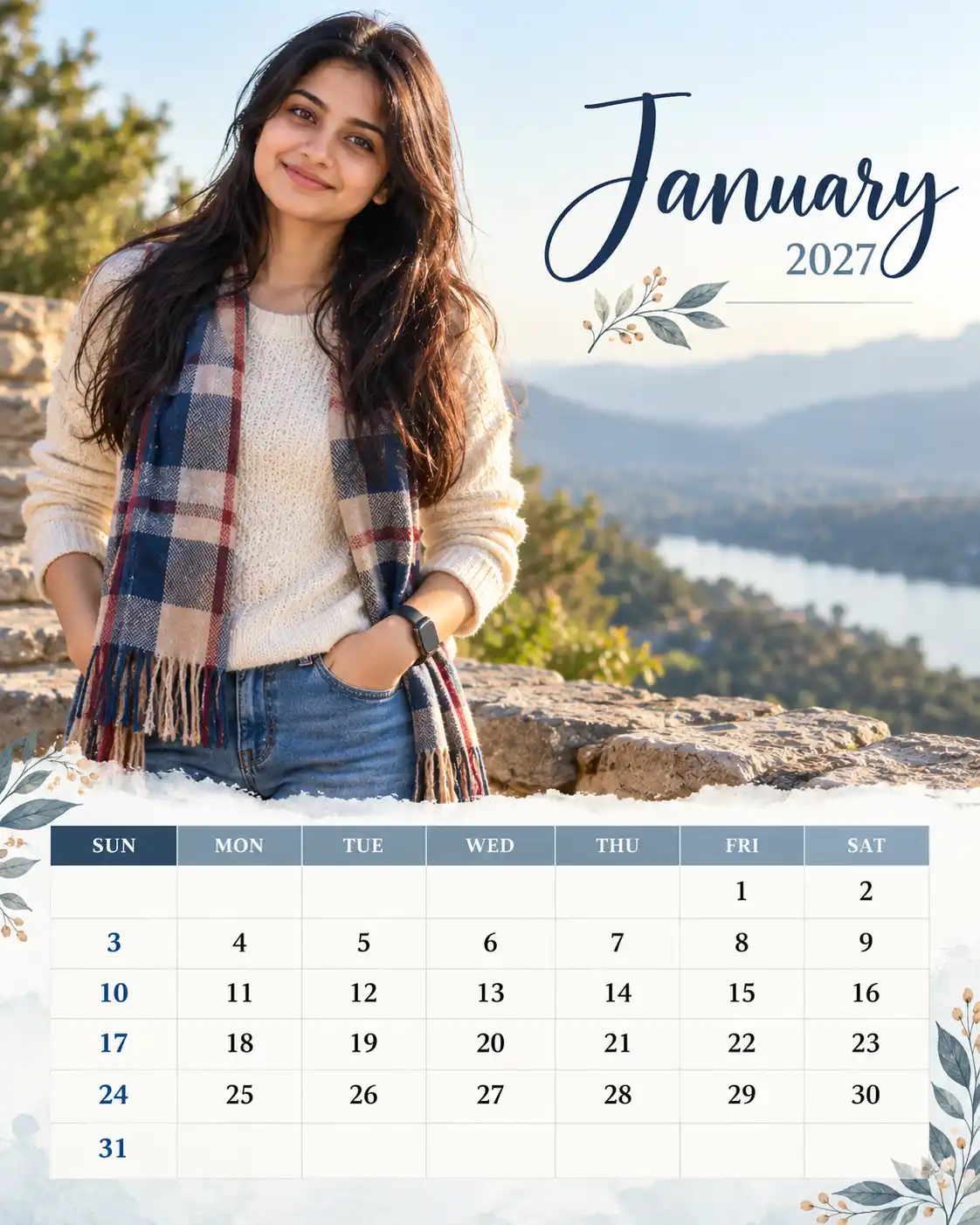
January — cool, crisp and restrained; preserve natural light.

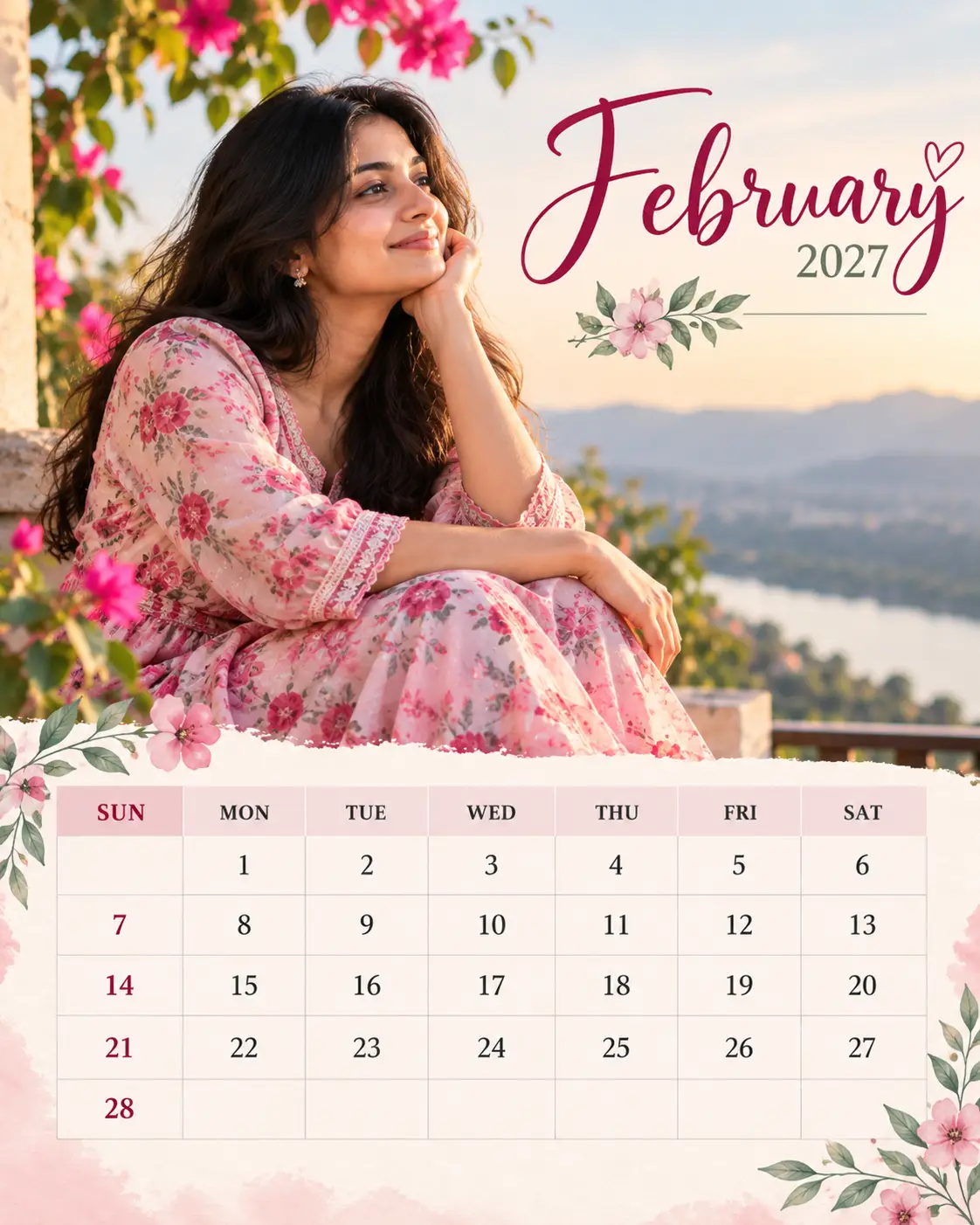
February — soft and airy with subtle romantic accents, without cliché symbols.

March — fresh, bright transition-season tones and natural greens.

April — clear light with warm, controlled highlights.

May — sunlit summer tones with protected skin highlights.

June — deeper greens and softened contrast only where the source context supports a monsoon mood.

July — atmospheric, rain-washed colour only when consistent with the actual image.

August — rich natural greens with controlled saturation where appropriate.

September — balanced light and earthy accents where appropriate.

October — restrained warm or festive-season accents; do not add festival objects.

November — clear, refined light with muted seasonal tones suited to the location.

December — calm year-end elegance, with cool or warm treatment chosen according to the image and location.

These are art-direction cues, not permission to alter the photograph or fabricate weather.

LAYOUT AND INFORMATION HIERARCHY

Include all of the following:

1. A clear month title: [MONTH].

2. The year: 2027.

3. A large, well-composed area for the uploaded photograph.

4. A dedicated calendar panel with enough space for every date.

5. Clear separation between the photograph, month heading and calendar grid.

6. Consistent alignment, strong contrast, legible type and comfortable spacing.

7. A refined editorial design with a deliberate typographic system and a limited, coordinated palette.

SIZE AND RESPONSIVE COMPOSITION

Treat [SIZE] as the required final canvas size, including its specified dimensions, orientation and aspect ratio. Adapt the composition to the canvas rather than stretching or distorting the photograph. For a portrait canvas, balance the photo and calendar vertically. For a landscape canvas, arrange them side by side when space allows. For a square or social format, simplify secondary decoration and keep the date grid readable. Do not crop, squeeze or shrink the calendar dates until they become difficult to read. Keep important text away from the trim edge and allow a practical safe margin.

EXACT 2027 CALENDAR DATA

Use Sunday-first columns in this exact order: SUN, MON, TUE, WED, THU, FRI, SAT. Select only the grid matching [MONTH]. Keep every date in its correct weekday column. Do not add dates from adjacent months, omit dates, duplicate dates, reorder dates or shift the week. Use blank cells where shown as 0. Do not display the zeroes.

January 2027:

SUN MON TUE WED THU FRI SAT

0 0 0 0 0 1 2

3 4 5 6 7 8 9

10 11 12 13 14 15 16

17 18 19 20 21 22 23

24 25 26 27 28 29 30

31 0 0 0 0 0 0

February 2027:

SUN MON TUE WED THU FRI SAT

0 1 2 3 4 5 6

7 8 9 10 11 12 13

14 15 16 17 18 19 20

21 22 23 24 25 26 27

28 0 0 0 0 0 0

March 2027:

SUN MON TUE WED THU FRI SAT

0 1 2 3 4 5 6

7 8 9 10 11 12 13

14 15 16 17 18 19 20

21 22 23 24 25 26 27

28 29 30 31 0 0 0

April 2027:

SUN MON TUE WED THU FRI SAT

0 0 0 0 1 2 3

4 5 6 7 8 9 10

11 12 13 14 15 16 17

18 19 20 21 22 23 24

25 26 27 28 29 30 0

May 2027:

SUN MON TUE WED THU FRI SAT

0 0 0 0 0 0 1

2 3 4 5 6 7 8

9 10 11 12 13 14 15

16 17 18 19 20 21 22

23 24 25 26 27 28 29

30 31 0 0 0 0 0

June 2027:

SUN MON TUE WED THU FRI SAT

0 0 1 2 3 4 5

6 7 8 9 10 11 12

13 14 15 16 17 18 19

20 21 22 23 24 25 26

27 28 29 30 0 0 0

July 2027:

SUN MON TUE WED THU FRI SAT

0 0 0 0 1 2 3

4 5 6 7 8 9 10

11 12 13 14 15 16 17

18 19 20 21 22 23 24

25 26 27 28 29 30 31

August 2027:

SUN MON TUE WED THU FRI SAT

1 2 3 4 5 6 7

8 9 10 11 12 13 14

15 16 17 18 19 20 21

22 23 24 25 26 27 28

29 30 31 0 0 0 0

September 2027:

SUN MON TUE WED THU FRI SAT

0 0 0 1 2 3 4

5 6 7 8 9 10 11

12 13 14 15 16 17 18

19 20 21 22 23 24 25

26 27 28 29 30 0 0

October 2027:

SUN MON TUE WED THU FRI SAT

0 0 0 0 0 1 2

3 4 5 6 7 8 9

10 11 12 13 14 15 16

17 18 19 20 21 22 23

24 25 26 27 28 29 30

31 0 0 0 0 0 0

November 2027:

SUN MON TUE WED THU FRI SAT

0 1 2 3 4 5 6

7 8 9 10 11 12 13

14 15 16 17 18 19 20

21 22 23 24 25 26 27

28 29 30 0 0 0 0

December 2027:

SUN MON TUE WED THU FRI SAT

0 0 0 1 2 3 4

5 6 7 8 9 10 11

12 13 14 15 16 17 18

19 20 21 22 23 24 25

26 27 28 29 30 31 0

DATE ACCURACY AND FINAL CHECK

Calendar numerals must be exact and readable. Do not invent public holidays or mark special dates unless I specifically provide them. Before finishing, check the selected month against the supplied grid, confirm the number of days and weekday alignment, and inspect every numeral. Image-generation systems can render text incorrectly. When exact date accuracy matters, keep the calendar grid as editable text in a design editor and proofread it after generation.

FINISH

Create one complete calendar page, not a mockup shown on a wall, desk or in someone’s hands. Do not add watermarks, logos, random captions, fake handwriting, extra dates or decorative text that competes with the calendar. Prioritise photographic fidelity, calendar accuracy, legibility and a distinctive month-specific design.
Example: Creating a Photo Calendar Using ChatGPT
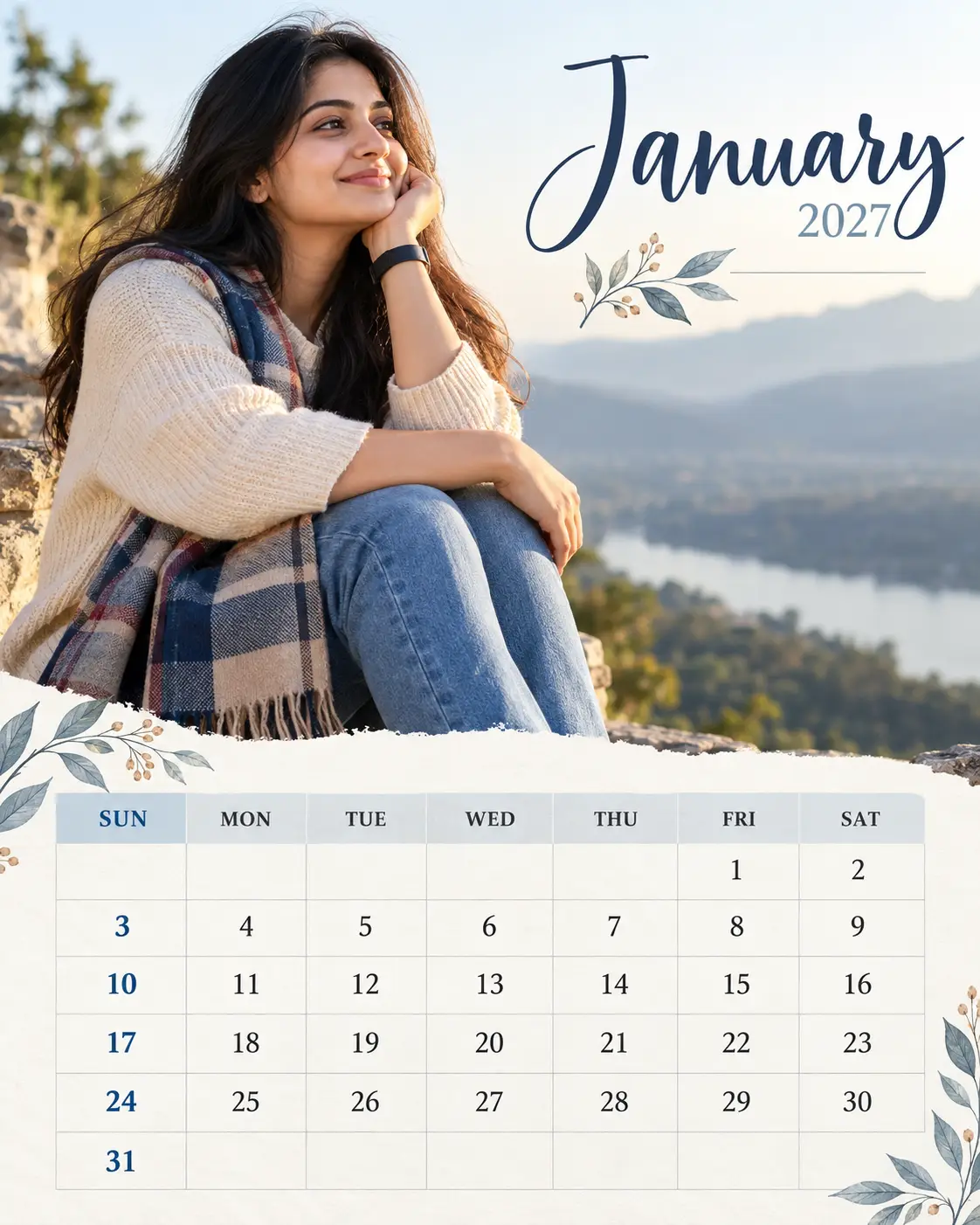
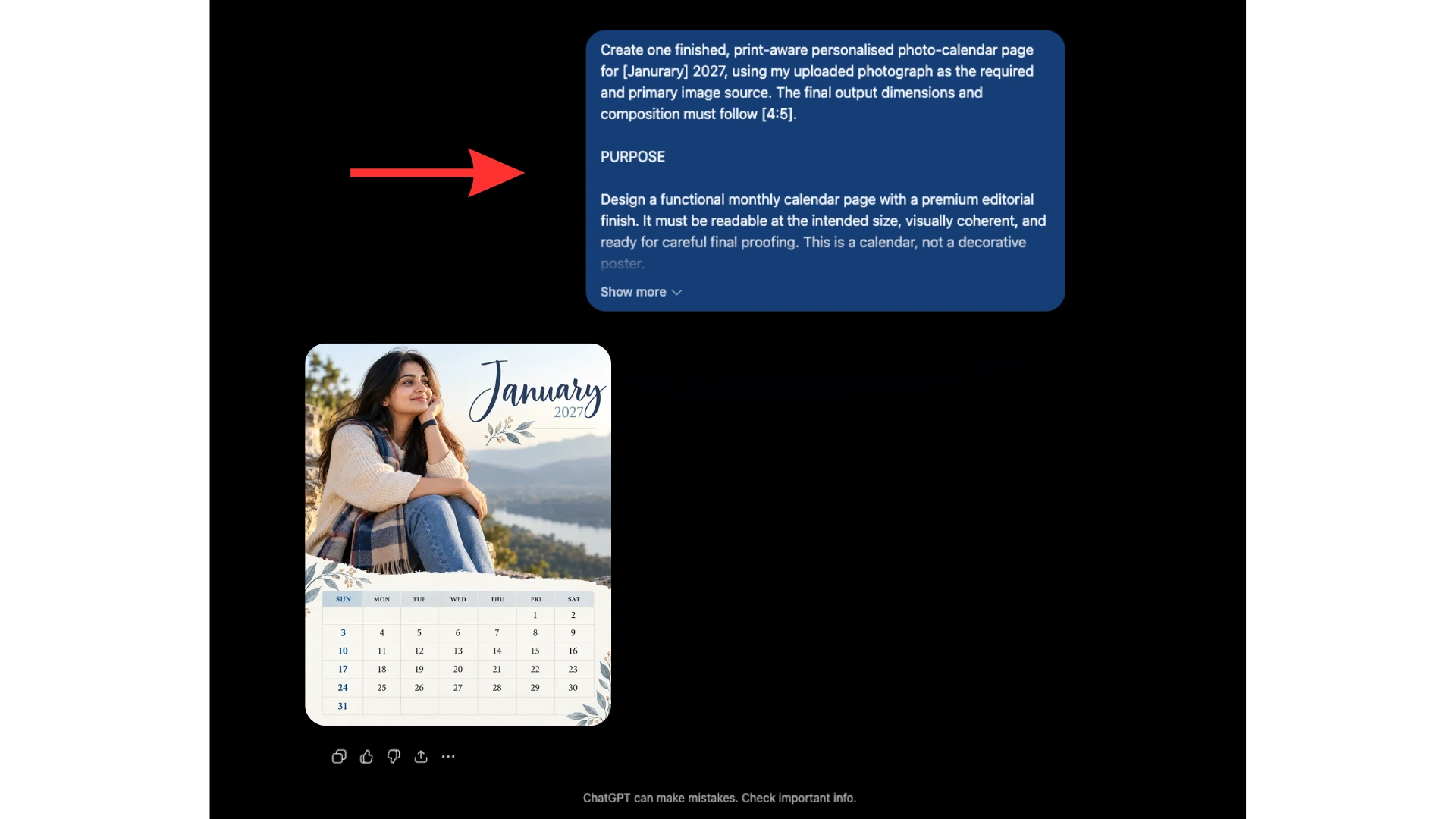
To see how the photo calendar prompt works in practice, I pasted the complete master prompt into ChatGPT, specified January 2027 and a 4:5 canvas, and uploaded my photograph as the primary image reference.
ChatGPT generated a personalised January 2027 calendar featuring the uploaded photograph, a month heading, coordinated typography, subtle botanical decorations and a Sunday-first calendar grid. The result demonstrates how the prompt can turn an ordinary photograph into a personalised calendar design.
The generated design is a starting point for the finished calendar. Before printing, check every date against the correct 2027 calendar grid and adjust the typography, spacing and margins as needed. For accurate dates, use editable text in Canva or another design editor.
Checking the Calendar Before Printing
The prompt supplies the 2027 date grids, but image-generation systems can still alter, repeat or distort numerals. For a print-critical calendar, treat the generated image as the visual artwork and place the dates as editable text in Canva, Word, InDesign or another layout tool. Check the weekday alignment, number of days, spacing and legibility at the final size.
Colour Grading That Respects the Original Photograph
Monthly colour treatment should support the photograph rather than change its meaning. A cooler January palette or warmer October accents can shape the overall design, but the subject’s skin tone and defining details should remain natural. Seasonal cues must suit the location shown; do not apply the same climate assumptions to every photograph.
Customise the Pose, Facial Expression and Body Position
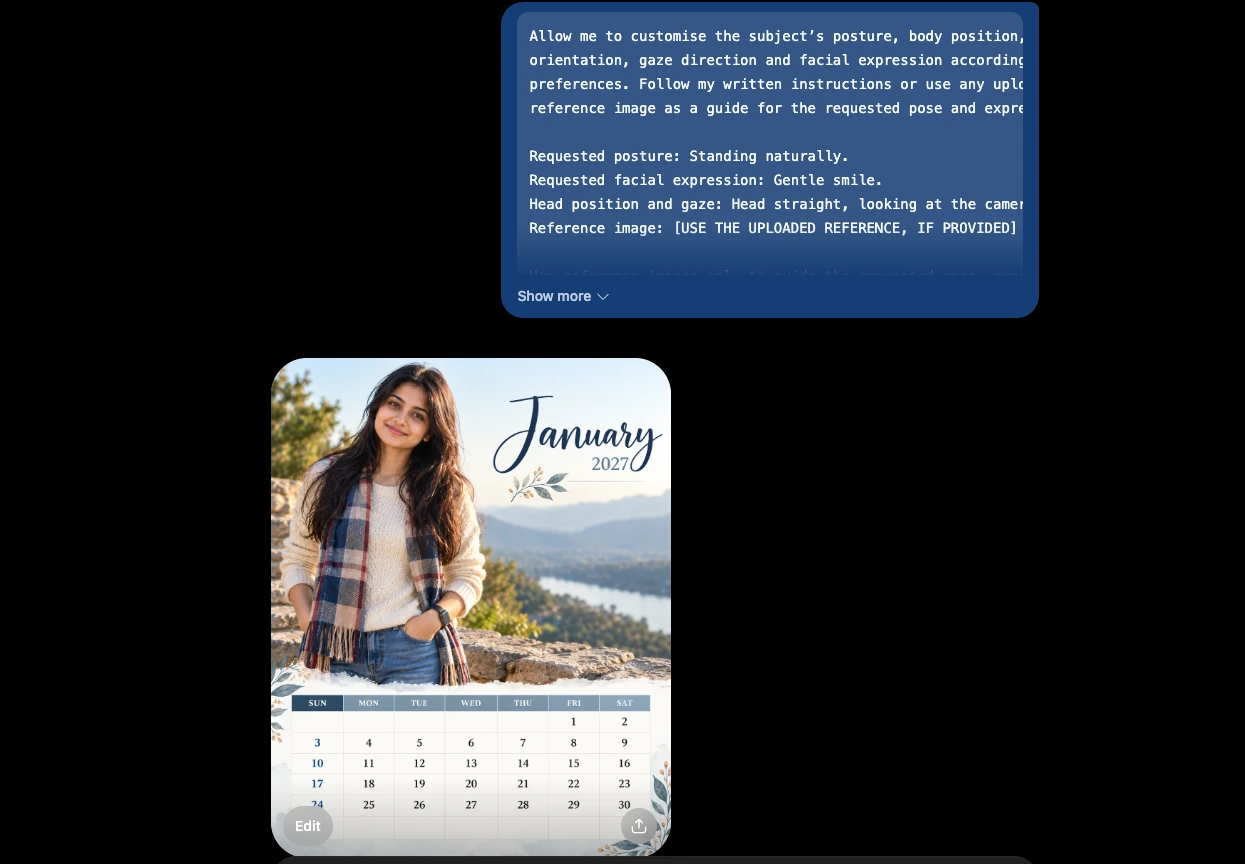
You can customise the subject’s posture, facial expression, head position, gaze direction and body positioning according to your preferences. Describe the changes you want in the prompt or upload reference images to guide the desired result. However, changing a pose or expression can also affect the subject’s facial features and natural body proportions. The add-on prompt below helps guide these changes while keeping the original photograph as the primary reference.
Add-On Prompt: Face, Pose and Body Structure
Copy the following add-on prompt and append it to the master prompt. Replace the instructions in brackets with your preferences.
FACE, POSE AND BODY STRUCTURE CUSTOMISATION

Allow me to customise the subject's facial expression, posture, body
position, head angle, gaze direction and hand placement according to
my preferences.

MY PREFERENCES:

Desired pose: [DESCRIBE YOUR PREFERRED POSE]
Facial expression: [DESCRIBE YOUR PREFERRED EXPRESSION]
Head position and gaze: [SPECIFY YOUR PREFERENCE]
Body positioning: [DESCRIBE YOUR PREFERRED POSITION]
Reference image: [USE AN UPLOADED REFERENCE IMAGE, IF PROVIDED]

FACIAL IDENTITY AND NATURAL BODY STRUCTURE

Use the original uploaded photograph as the primary reference for the
subject's identity and physical appearance. Preserve the person's
recognisable facial features, face shape, eyes, nose, lips, skin tone,
age, hairstyle and other distinctive characteristics.

Changing the facial expression is allowed, but keep the subject
recognisable as the same person. Do not unintentionally replace the
original face with a different identity.

Preserve the subject's natural body structure and proportions,
including shoulder width, torso, arms, hands, waist, hips and overall
physique. Do not make the person thinner, heavier, taller, shorter
or more muscular unless I explicitly request that change.

When changing the pose, adapt the body position naturally instead
of forcing the original posture. Maintain realistic anatomy, correctly
positioned joints, natural hand placement and believable body alignment.

REFERENCE IMAGE INSTRUCTIONS

Use uploaded reference images to guide only the requested pose,
facial expression, head angle or body positioning.

Do not automatically copy the reference person's face, identity,
body shape, clothing or background. Use the original photograph to
guide the subject's identity and appearance.

The reference image should guide the requested physical position
without unintentionally changing the subject's recognisable features
or natural body proportions.

FINAL RESULT

Make the requested changes look as natural and photorealistic as
possible. Match the original lighting, perspective, skin texture and
image quality. Avoid artificial facial features, distorted anatomy,
unnatural limbs, poorly rendered hands, plastic-looking skin and
exaggerated expressions.

When the requested pose conflicts with the original camera angle,
prioritise believable anatomy and a natural-looking composition while
preserving the subject's recognisable identity.

When no changes are specified, retain the original pose, facial
expression and body positioning.
Limitations of AI-Generated Poses and Facial Expressions
AI image-generation tools can modify facial expressions, body posture and positioning, but the results may not always look completely natural. A requested pose can produce an awkward body position, unrealistic proportions, incorrectly rendered hands or subtle changes to the person’s original facial features. Facial expressions may also appear artificial, and the generated face may not perfectly match the original photograph.
The challenge is that generating a new pose or expression while preserving the exact facial identity, natural body structure and photographic realism is not always reliable. A reference image and detailed instructions can guide the result, but they cannot guarantee perfect accuracy.
For more reliable results, use a reference image showing the desired pose from a similar camera angle. Make smaller changes rather than requesting a completely different body position and facial expression at the same time. Review the final image carefully, especially the face, hands, joints and overall body alignment, before using it in your photo calendar.
Highlight Special Dates with Circles and Popup Labels
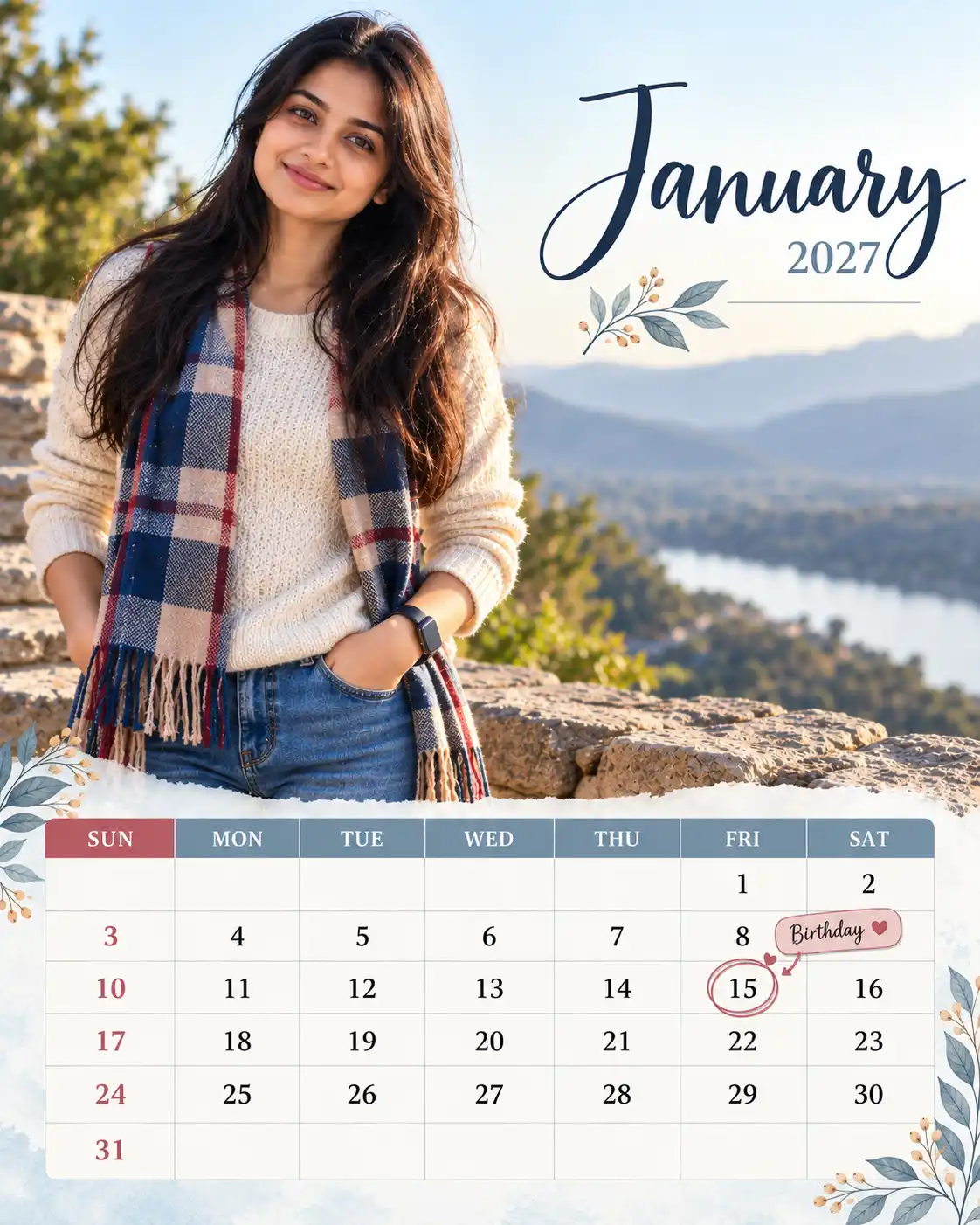
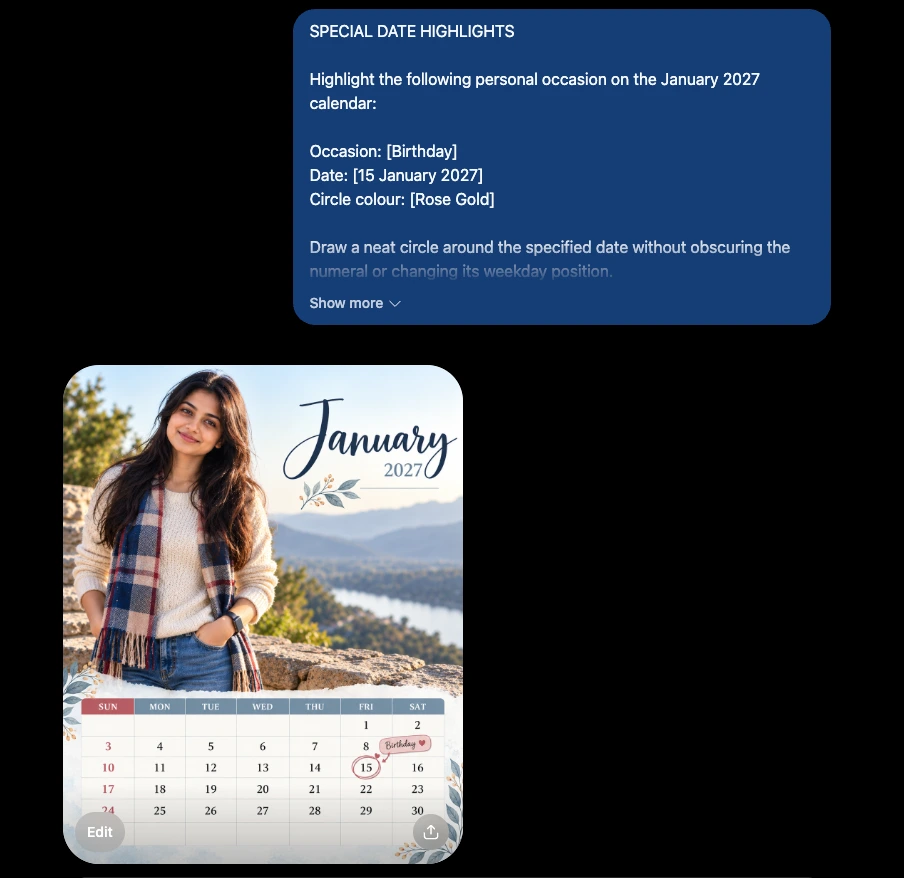
Highlight birthdays, holidays, festivals and other special occasions by circling the date and adding a small popup-style label with the occasion name. Use the add-on prompt below to customise the markers.
Add-On Prompt: Special Date Highlights
SPECIAL DATE HIGHLIGHTS

Highlight the following occasions on the calendar:

Occasion: [ENTER OCCASION NAME]
Date: [DD MONTH 2027]
Circle colour: [ENTER COLOUR]

Draw a neat circle around the specified date without
obscuring the numeral or changing its weekday position.

Add a small, elegant popup-style callout near the circled
date, displaying the exact occasion name. Use a subtle
background, rounded corners and a small pointer connecting
the label to the date.

Keep labels readable and prevent overlaps with other dates,
the photograph or calendar headings. For crowded layouts,
use short labels or a small occasion legend.

Use only the supplied occasion names and dates. Preserve
the original photograph and calendar layout.

IMPORTANT: Popup labels are static visual elements, not
interactive popups. Verify all dates and text before printing.
Note: AI-generated circles and text may not align perfectly. Check the result and correct any errors in Canva or another design editor before printing.
Frequently Asked Questions About Creating a Photo Calendar
What do I need to change in the Photo Calendar master prompt?
You only need to change two things: [MONTH] and [SIZE]. Enter the month you want to design and specify the canvas size, such as 4:5 portrait or A4 portrait. Then upload your photograph. The prompt takes care of the design direction, photo placement, typography and calendar layout.
Can I customise the subject’s posture and facial expression in a Photo Calendar?
Yes. You can describe how you want the person to appear in the final Photo Calendar. For example, you might prefer a standing pose, a gentle smile or a straight head position with the subject looking at the camera. You can also provide a reference image for the pose. Keep in mind that a reference should guide the posture and expression, not replace the original person’s identity.
Can I highlight birthdays and other special occasions on my Photo Calendar?
Yes. You can mark birthdays, anniversaries and other personal occasions directly on the calendar. Specify the occasion, date and circle colour in your instructions. For example, a birthday on 15 January 2027 can have a rose-gold circle around the date and a small label reading “Birthday”. Check that the label points to the right date and does not cover the numeral.
Are all 2027 dates included in the Photo Calendar prompt?
Yes. The prompt includes a separate Sunday-first date grid for all 12 months of 2027. Use the grid for your selected month when creating the Photo Calendar. Before printing, compare the generated dates with the supplied grid. A design may look perfectly finished while still containing a misplaced or missing numeral.
Can I use a photograph taken in another country for my Photo Calendar?
Yes. The prompt works with photographs taken anywhere. It asks the design to follow the setting shown in your image instead of forcing seasonal colours or decorations that do not fit the location. This matters when a photograph was taken during summer in one country but the calendar month falls in winter elsewhere.
Which size should I use for a printed Photo Calendar?
A4 portrait, measuring 2480 × 3508 pixels at 300 dpi, is a useful starting point for a printed Photo Calendar. If you plan to share the design on social media, a 4:5 format may be more suitable. For printing, check the printer’s requirements for bleed, trim margins and colour profile before preparing the final file.
Can I print my generated Photo Calendar without editing it?
You can, but check the dates and text first. Image generators sometimes get small details wrong, even when the instructions provide the correct information. A practical approach is to keep the generated photograph and overall design, then add the calendar dates and special-occasion labels as editable text in Canva, Photoshop or another design editor. This gives you more control over spelling, alignment and print readability.
Can I use an AI-generated person in my Photo Calendar instead of my own photograph?
Yes. If you do not have a photograph ready, you can create a Photo Calendar featuring an AI-generated adult subject. Describe the appearance, clothing, pose, expression and setting you want. In this case, adjust the source-photo instructions to allow a newly generated person rather than requiring an uploaded photograph. You can still use the same calendar grid and layout requirements.
Final Checks Before Publishing or Printing
- Confirm that the uploaded photograph remains the source and the subject’s identity is preserved.
- Check the month name and year: 2027.
- Compare every date with the correct weekday column in the supplied grid.
- Make sure the date grid is readable at the final output size.
- Check that colour grading looks natural and does not invent seasonal conditions.
- Confirm safe margins and remove unwanted labels, watermarks or decorative text.
Conclusion
A useful photo calendar balances a faithful photograph, a distinct monthly design and a date grid that can be trusted. One adaptive prompt provides a consistent starting point for all twelve months while allowing the art direction to change with the month and canvas. Before printing, verify the dates and use editable text wherever exact numerals matter.