Gradient Map Effect | portraymedia

Gradient Map Effect with AI Prompts: Control Color Like a Cinematic System

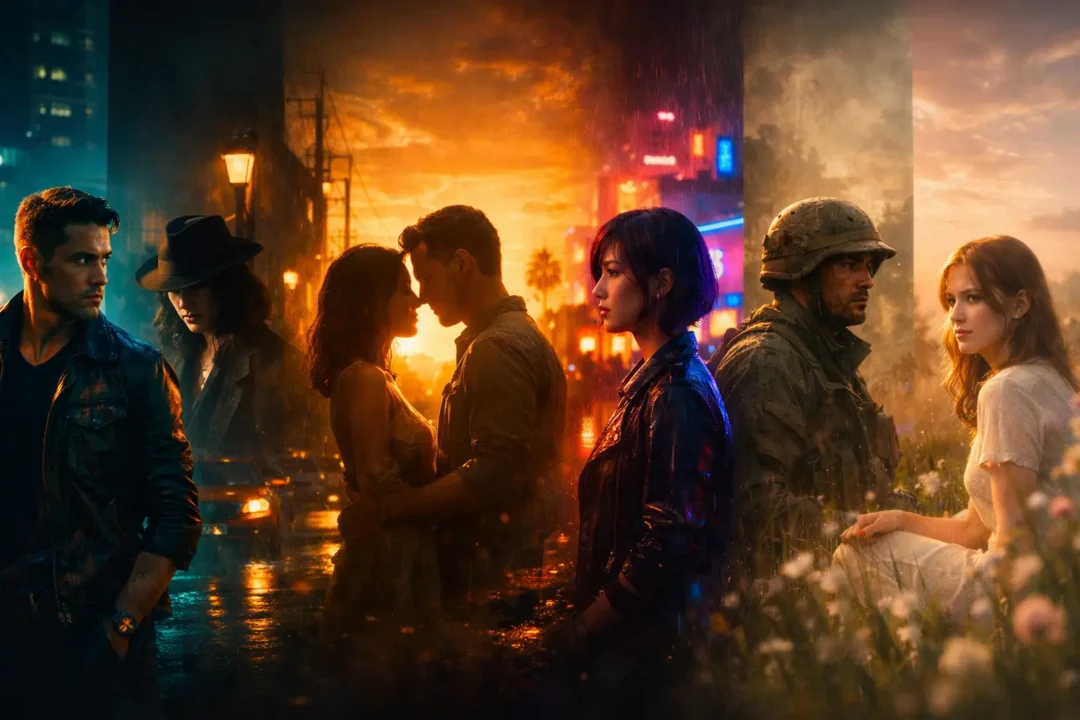
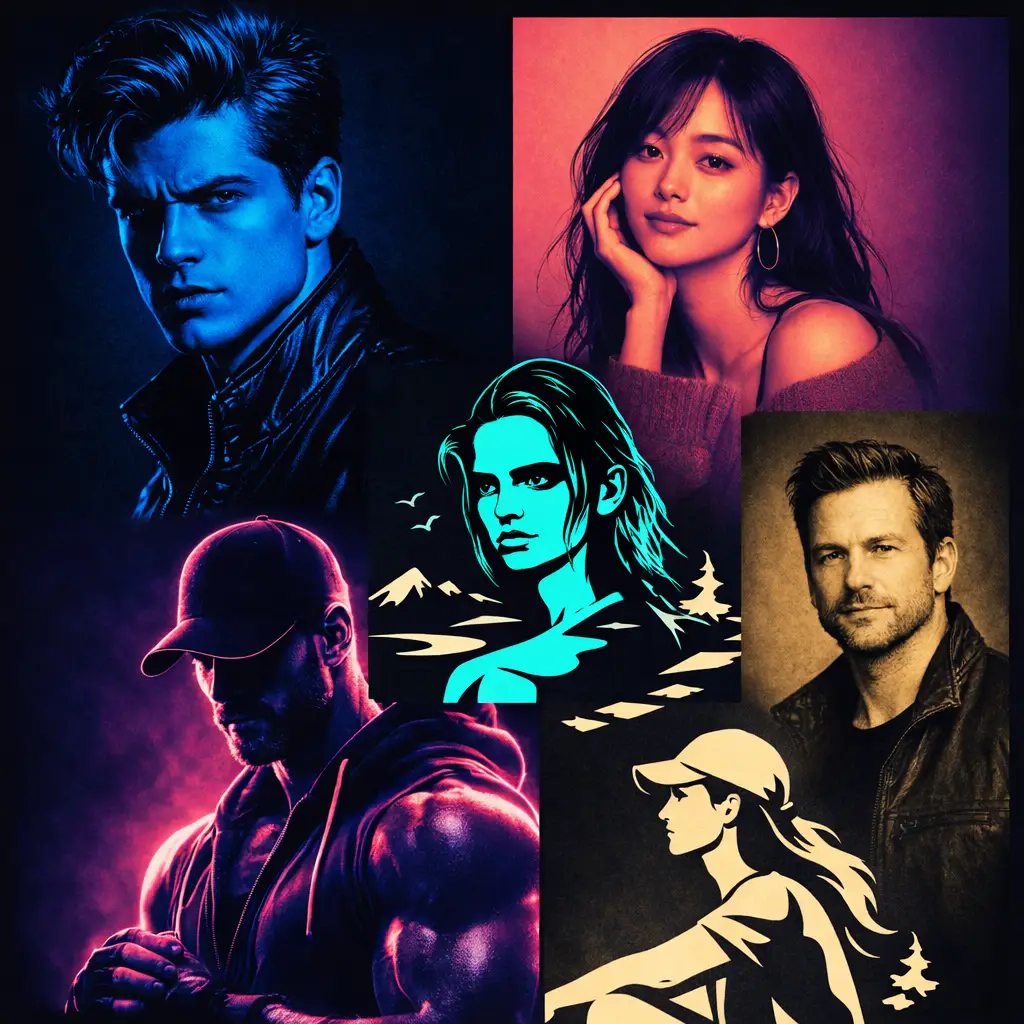
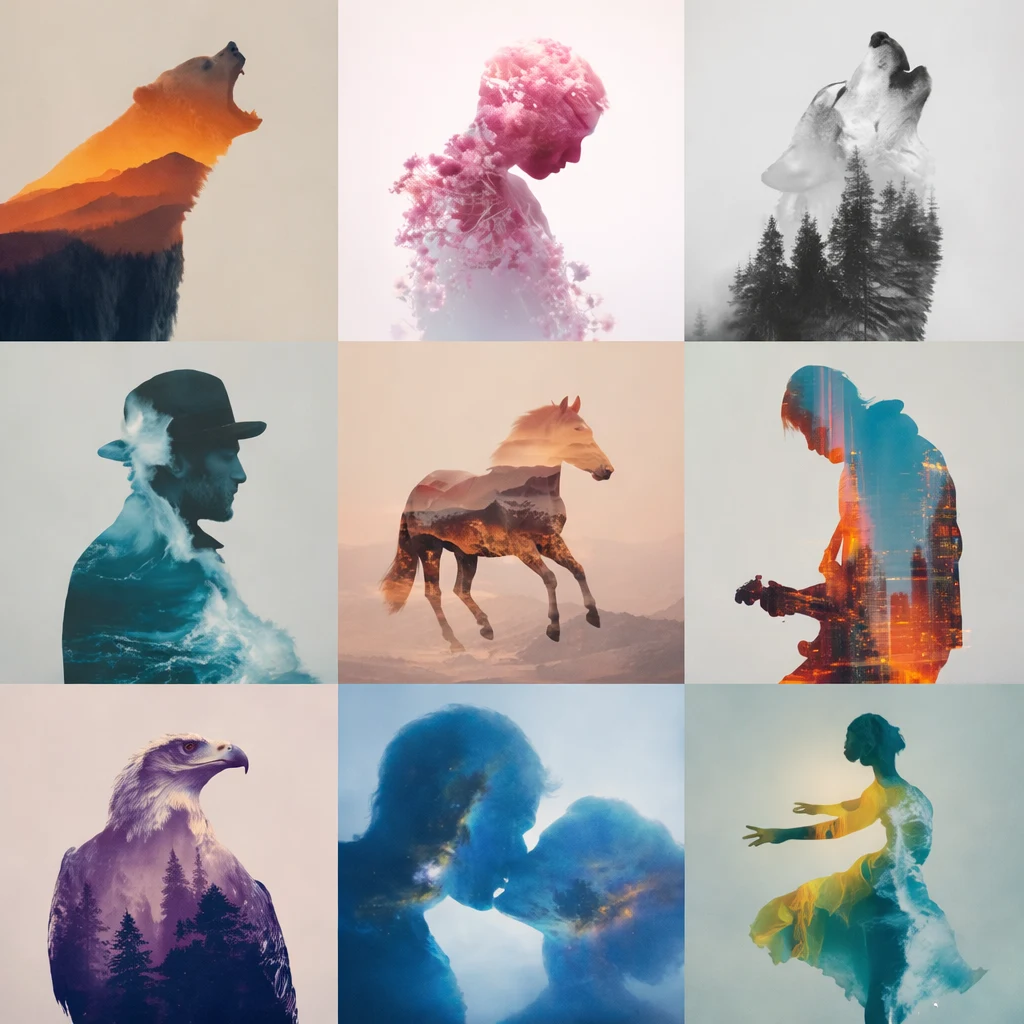
The Gradient Map Effect feels simple at first. However, the moment you use it with intention, everything shifts. Instead of tweaking colors piece by piece, you define how the entire tonal range behaves. As a result, shadows, midtones, and highlights start working together instead of competing.

Moreover, this is where AI prompts quietly change the workflow. Rather than guessing adjustments, you describe how tone should translate into color. Consequently, the image doesn’t feel edited—it feels directed.

At the same time, tools like ChatGPT image generation, Nano Banana, and Flux make execution smoother. Still, the outcome depends on clarity. Therefore, the better the prompt, the more controlled the result.

Gradient Map Effect AI Prompts (High Precision)

Cinematic Depth Balance Prompt:
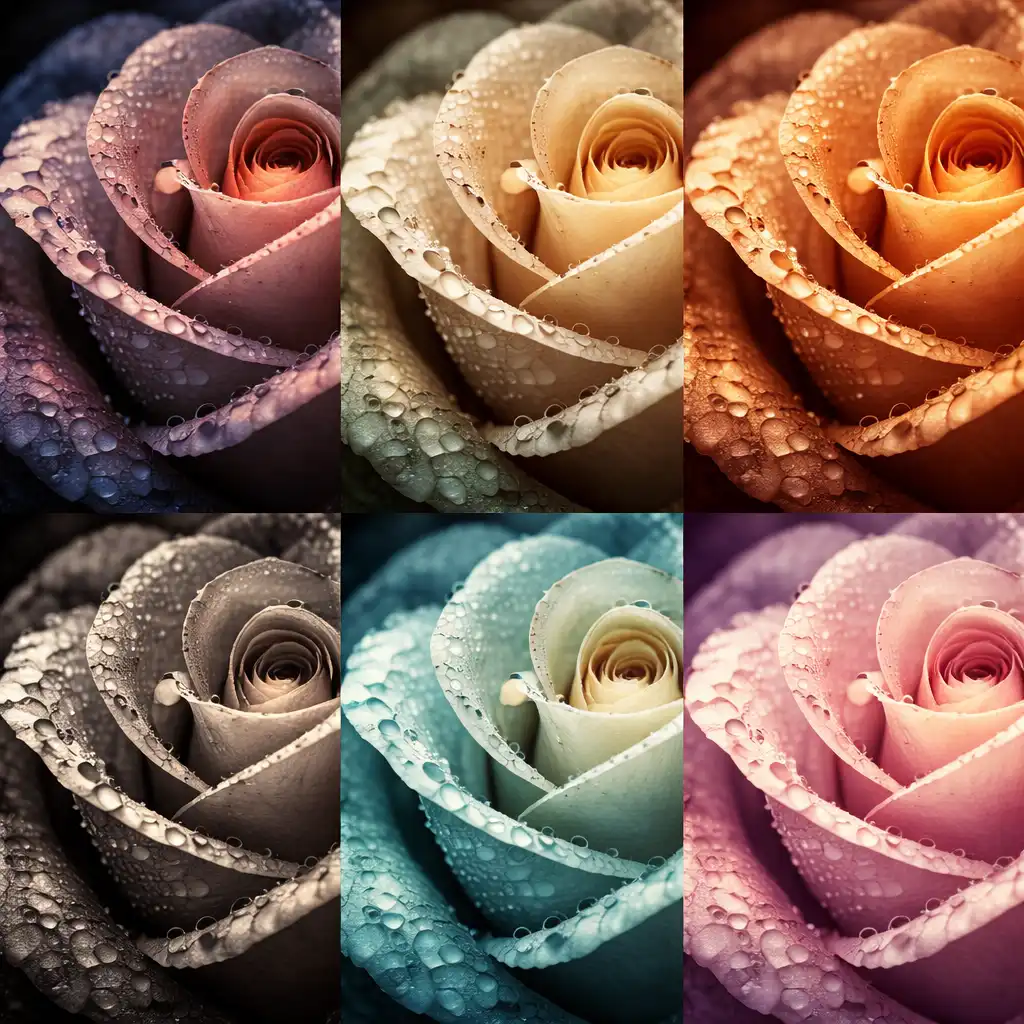
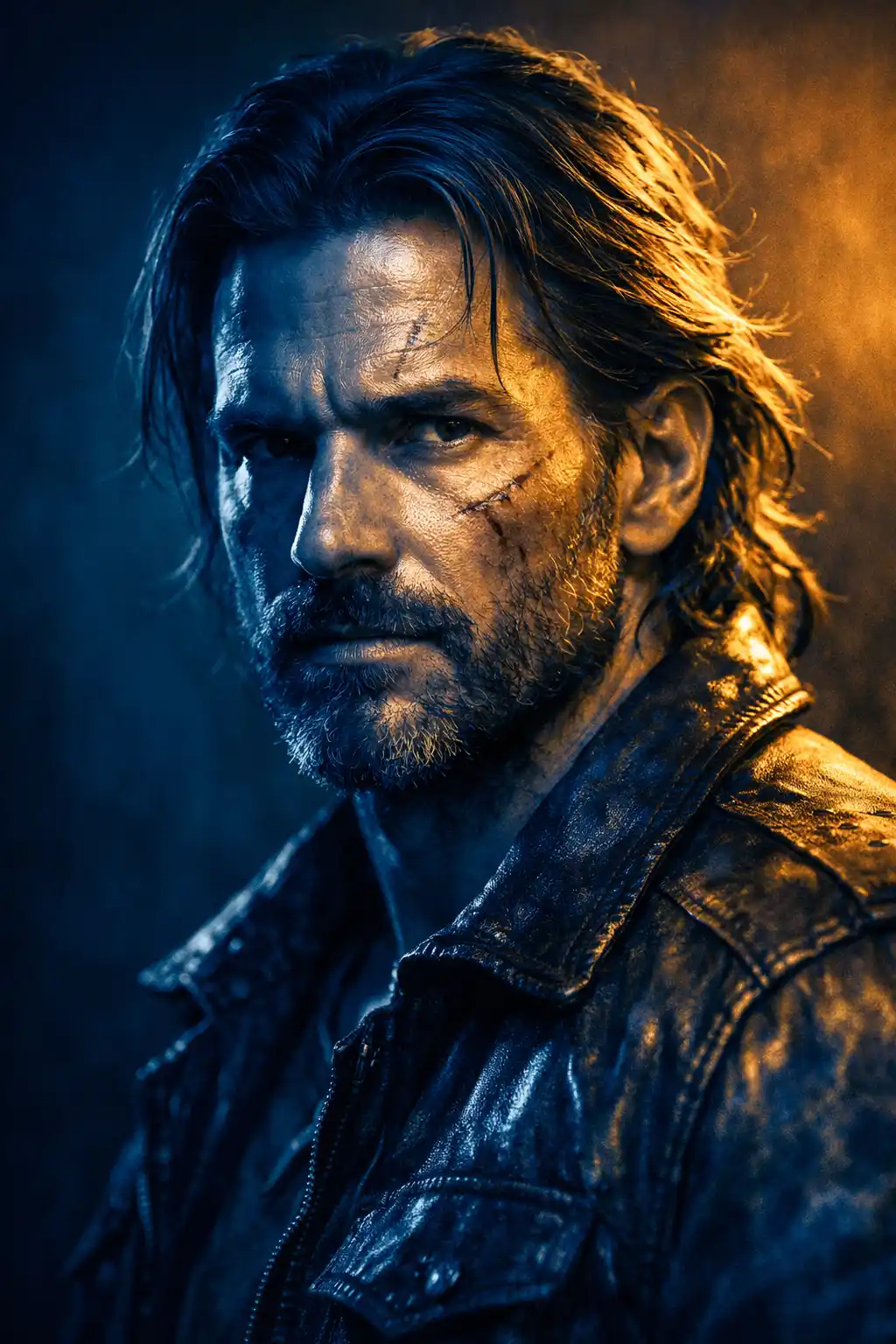
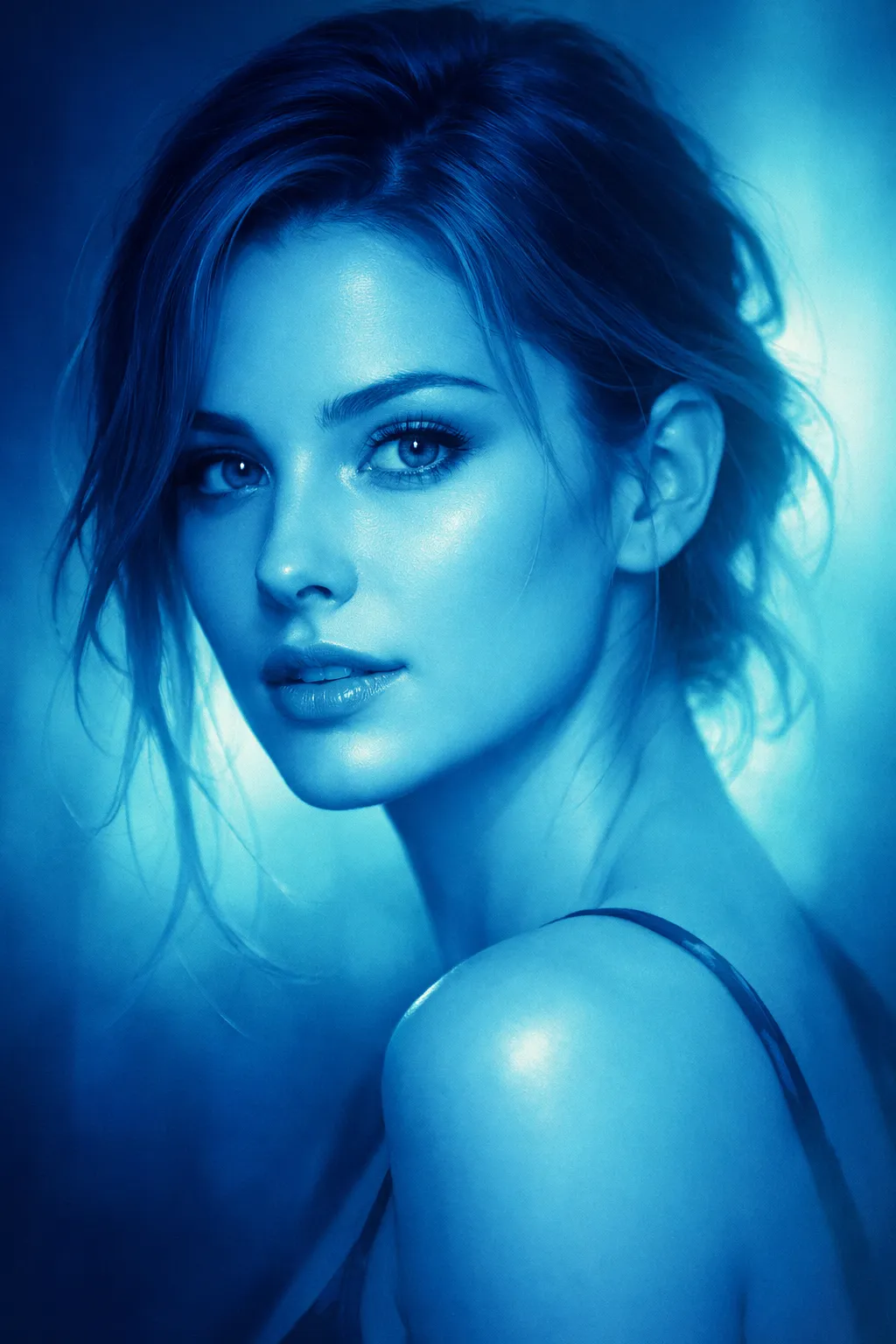
Use the uploaded image as base, apply Gradient Map Effect mapping shadows to deep cool blue, midtones to neutral soft gray, highlights to warm golden tones, preserve fine surface texture detail, maintain smooth tonal transitions, enhance directional lighting across contours, subtle depth separation from background, cinematic realism, aspect ratio [AR] Soft Detail Tone Control Prompt:
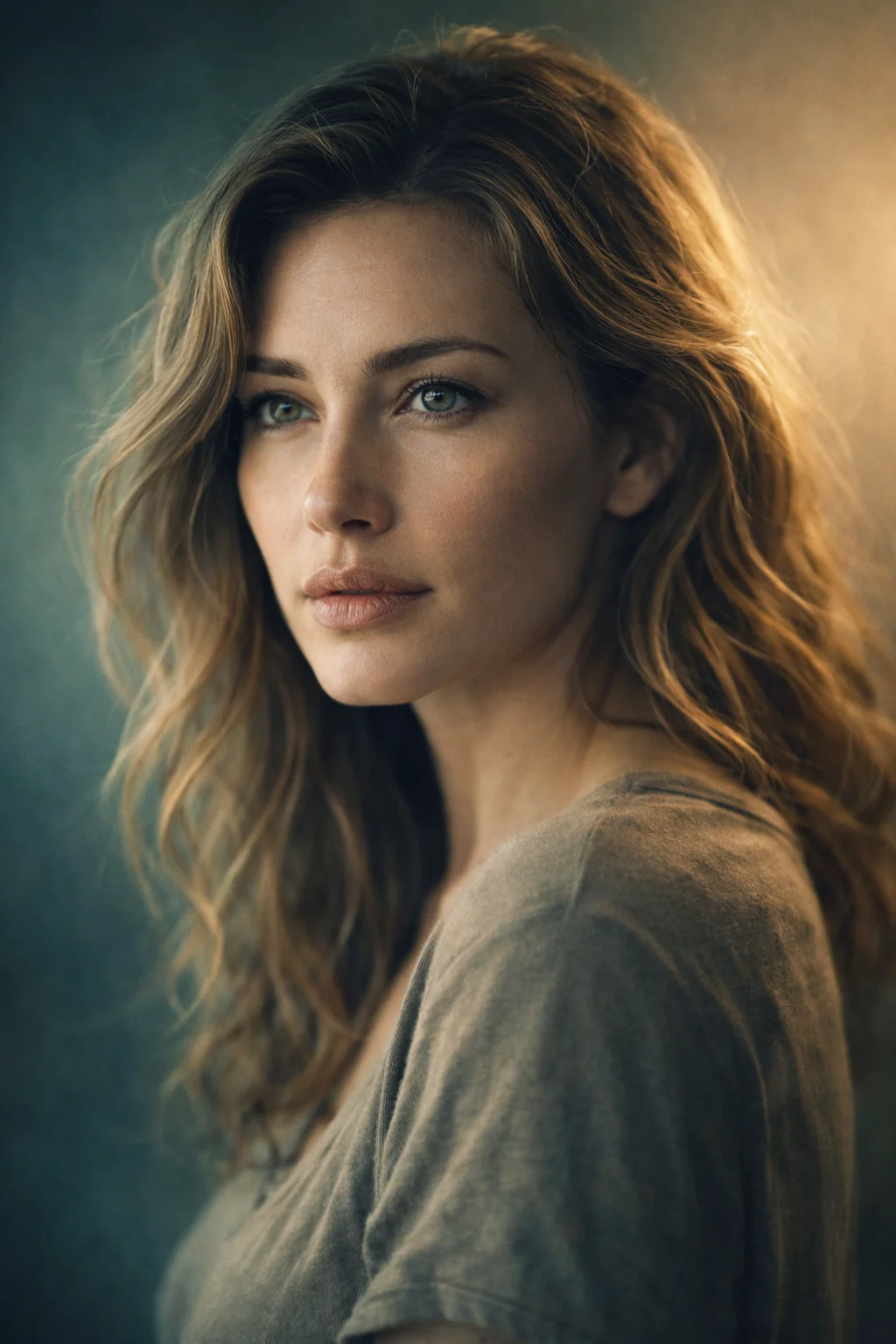
Use the uploaded image as reference, apply Gradient Map Effect mapping shadows to muted teal, midtones to soft earthy beige, highlights to warm cream, preserve layered detail structure, smooth tonal blending across surfaces, maintain natural light falloff, enhance depth without oversaturation, calm cinematic tone, aspect ratio [AR] Warm Natural Balance Prompt:
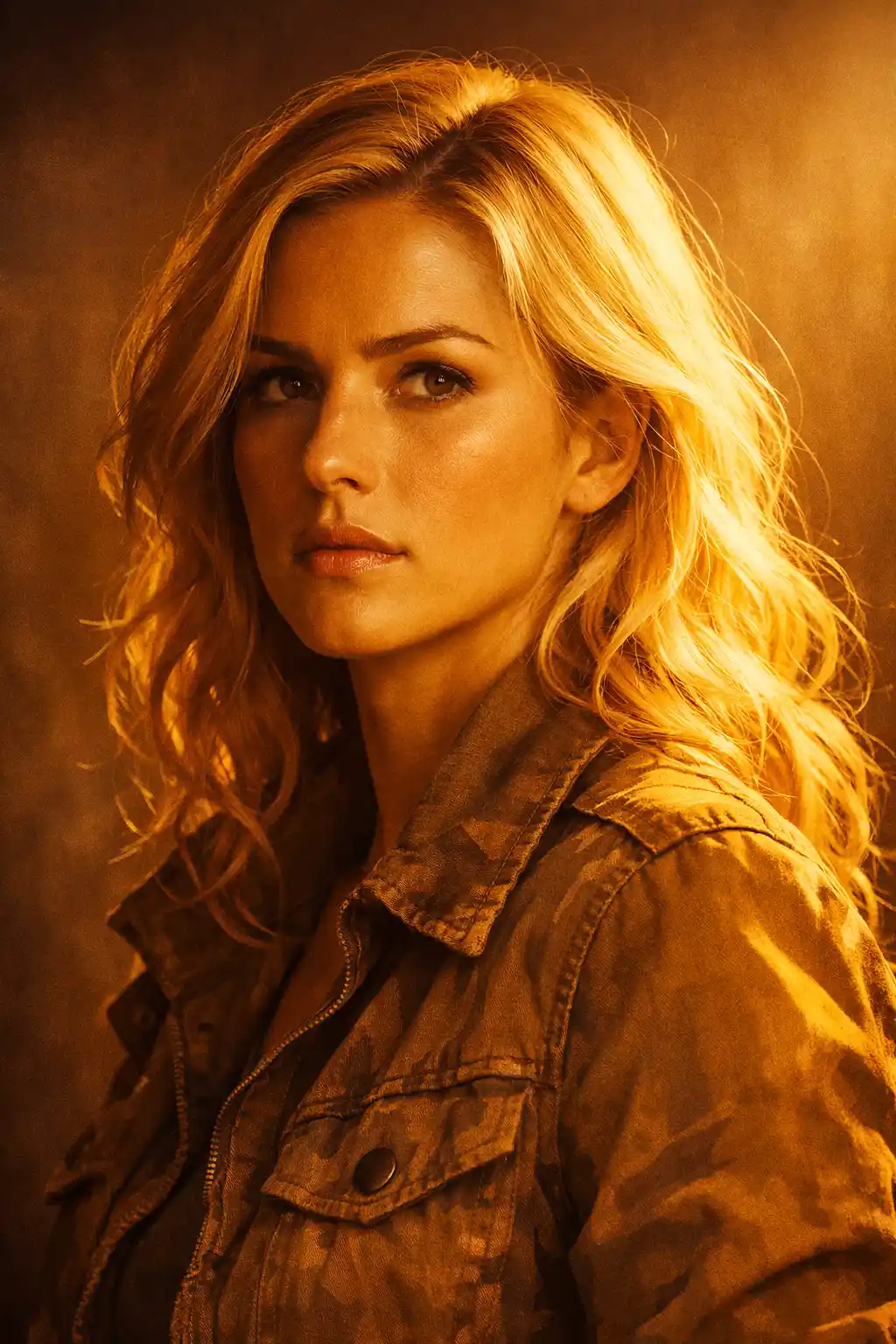
Use the uploaded image as subject, apply Gradient Map Effect mapping shadows to soft brown undertones, midtones to warm neutral tan, highlights to golden amber, maintain form definition through tonal contrast, preserve natural gradients across surfaces, enhance light direction, cinematic warmth with realism, aspect ratio [AR] High Contrast Focus Prompt:
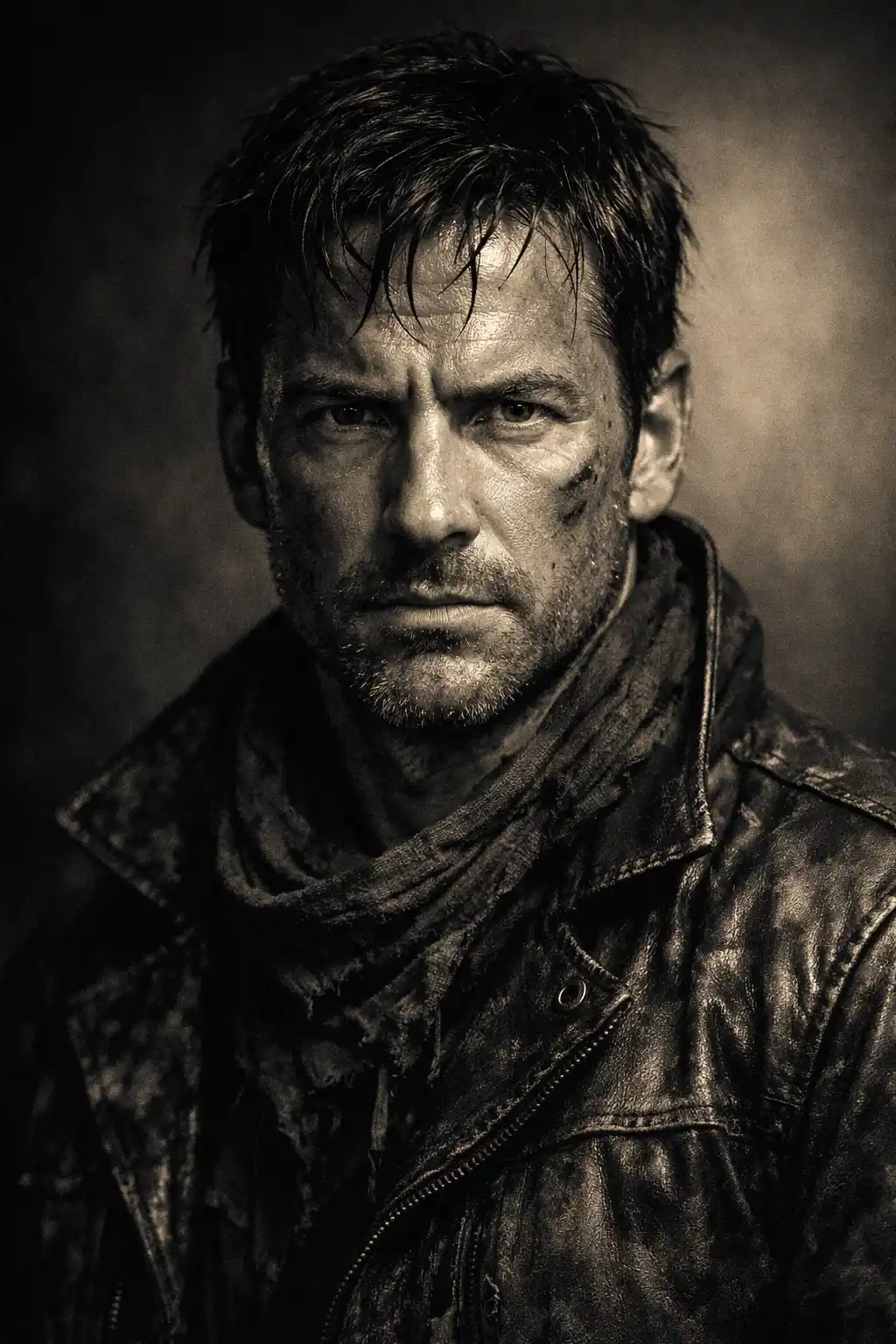
Use the uploaded image as base, apply Gradient Map Effect mapping shadows to deep charcoal, midtones to desaturated warm gray, highlights to soft pale gold, strong but controlled contrast, preserve surface texture clarity, isolate subject with subtle tonal separation, cinematic intensity, aspect ratio [AR] Subtle Cool Atmosphere Prompt:
Use the uploaded image as reference, apply Gradient Map Effect mapping shadows to deep blue, midtones to soft teal, highlights to pale aqua light, preserve smooth reflective transitions, enhance depth perception, maintain fluid tonal blending, atmospheric cinematic tone, aspect ratio [AR] Delicate Micro Contrast Prompt:
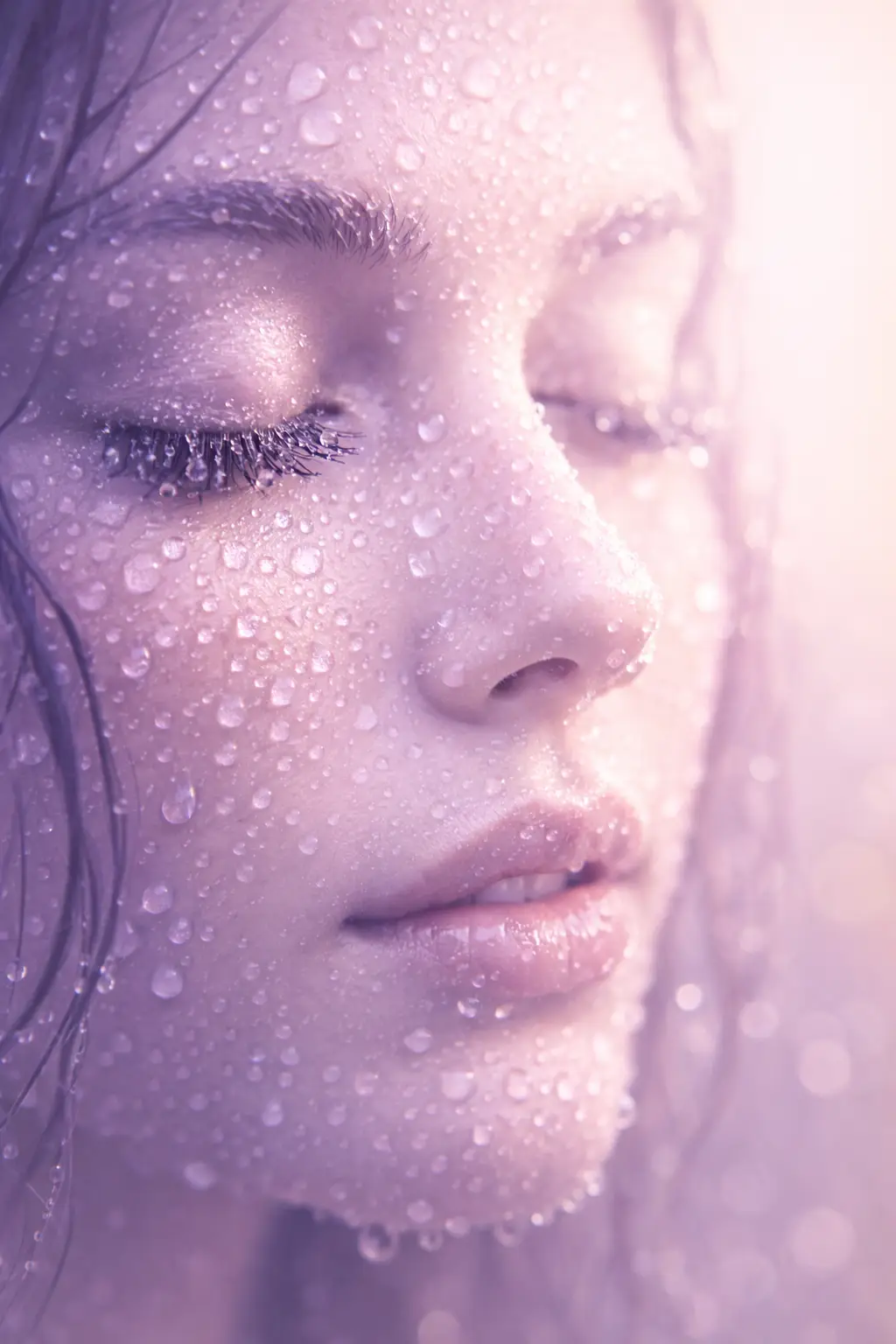
Use the uploaded image as subject, apply Gradient Map Effect mapping shadows to soft violet, midtones to muted neutral tones, highlights to light pastel glow, preserve fine detail structure, enhance subtle contrast without harsh edges, maintain softness and clarity, cinematic macro feel, aspect ratio [AR]
Scroll to Top