
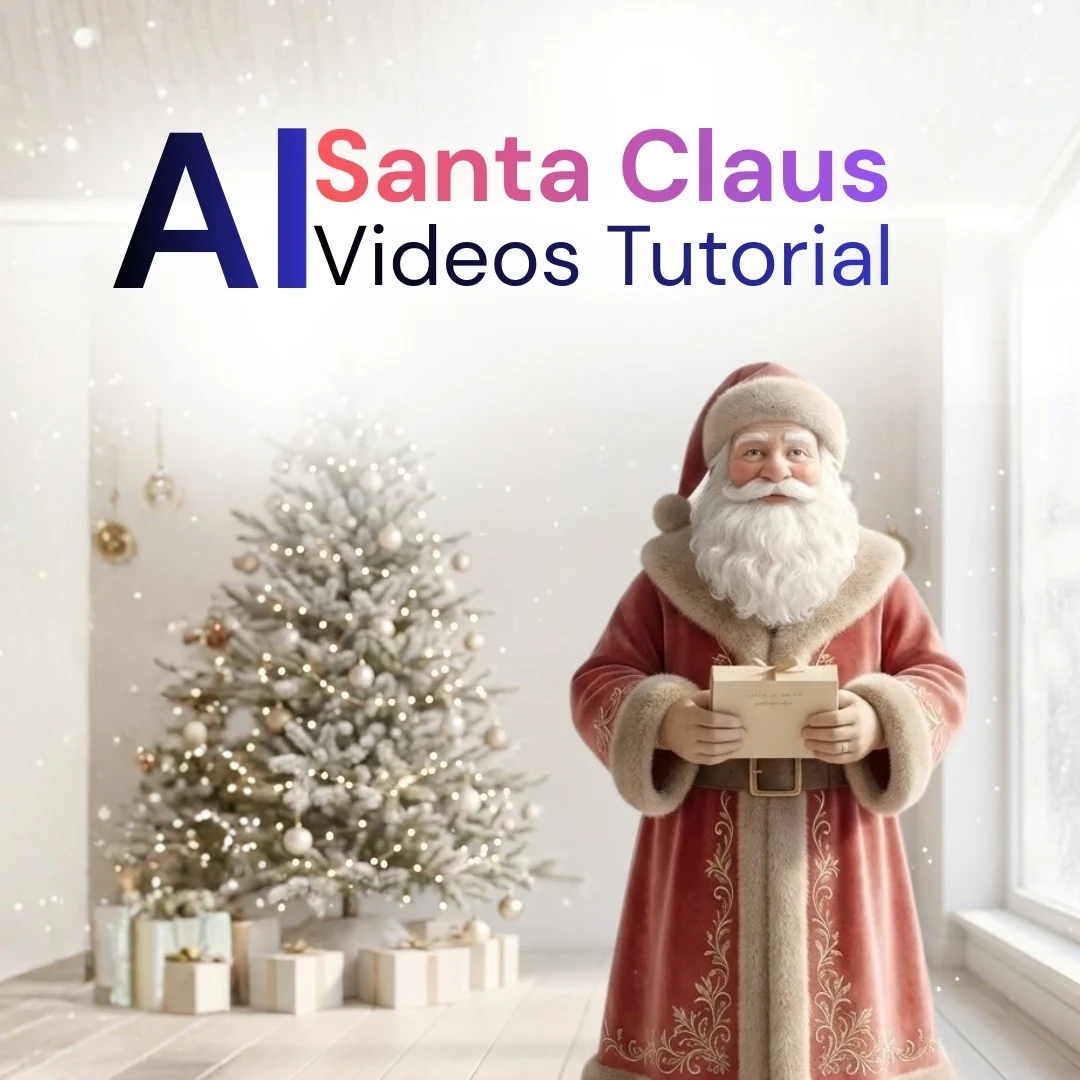
There is something undeniably special about the moment a child realizes Santa Claus knows who they are. Growing up, we relied on handwritten letters sent to the North Pole, hoping for a reply. Today, we can do something even more incredible: we can bring Santa Claus right into our living rooms through the magic of video.
Using AI tools like Veo 3.1 isn’t just about the technology; it’s about crafting a memory. It’s about seeing that spark of wonder in your loved one’s eyes when Santa Claus says their name or opens a gift meant just for them. If you are looking to add some extra sparkle to your holidays, this guide is for you. We are going to walk through exactly how to create six different types of personalized wish videos. It’s easier than you might think, and the results are heartwarming.Make Santa Claus Call Your Name in a Wish Video
This is the classic personalized message. There is nothing quite like hearing your own name spoken by the big man himself. It instantly breaks the “fourth wall” and makes the viewer feel seen. This works perfectly for quick greetings sent via WhatsApp or email to friends and family.
Step-by-Step Guide:
- Set the Scene: Start by defining a cozy, quiet atmosphere so the focus remains on the voice and face.
- Define the Action: Instruct the AI to have Santa Claus look directly into the camera lens—eye contact is key here.
- Input the Prompt: Use the workflow below in Veo 3.1 to generate the clip.
SCENE: A cozy, dimly lit corner of the North Pole workshop. A crackling fireplace is in the background.
CAMERA: Medium Close-Up (MCU), shallow depth of field, focus sharp on face.
CHARACTERS: STYLE: Hyper-Realistic CGI. Classic Santa Claus, photorealistic texture, white beard, red velvet suit with white fur trim,
kind twinkling eyes.
ACTION: Santa looks directly into the lens, smiles warmly, waves slightly, and speaks the name ‘{NAME}‘. (Replace {NAME} with Alex, Emma, or your chosen name)
AUDIO: Ambient crackling fire, faint sleigh bells, deep warm voice saying ‘Merry Christmas, {NAME}!’ (Replace {NAME} with your chosen name)
VFX: Soft warm lighting, slight film grain.
FORMAT: 16:9
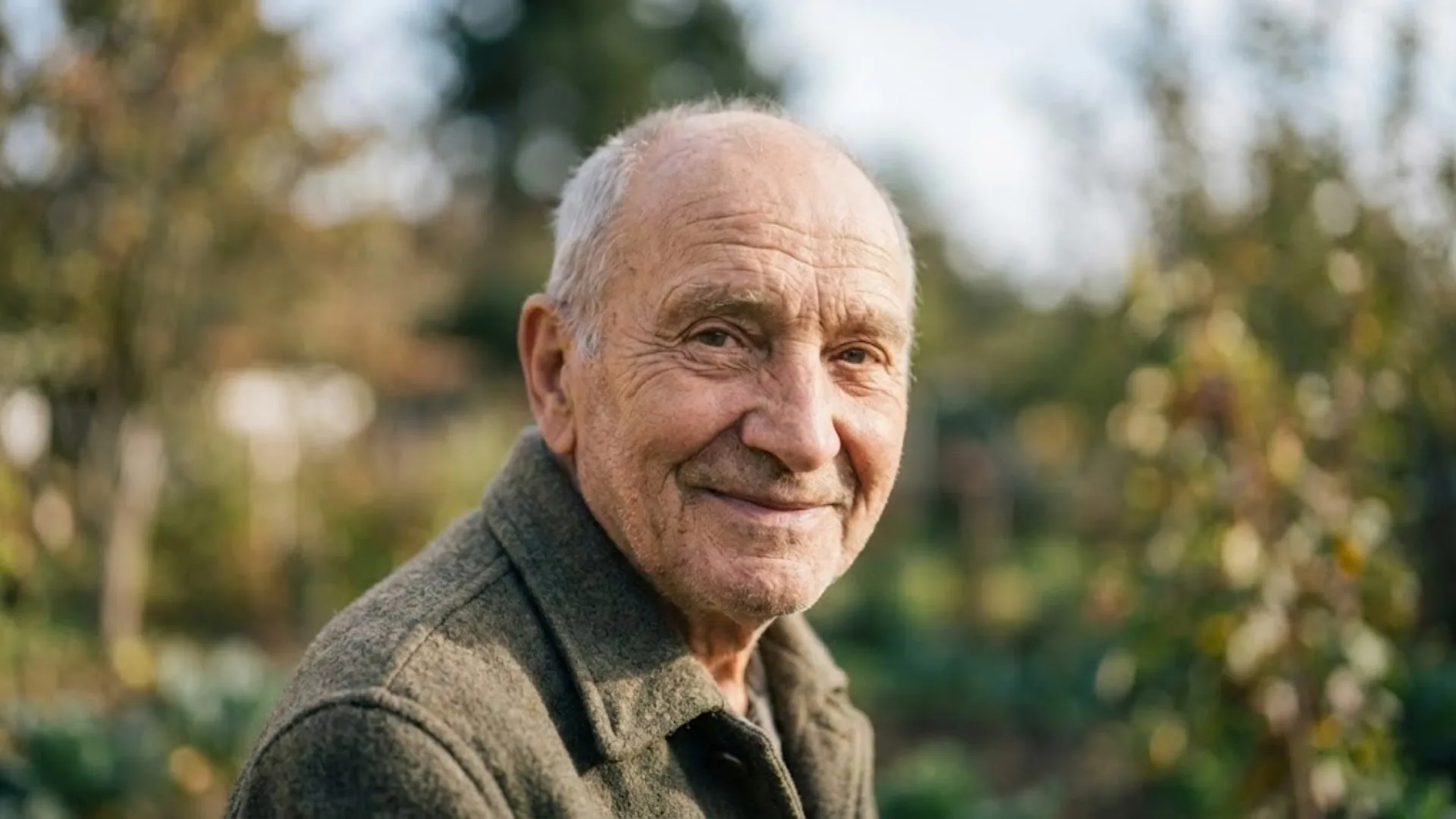
Turn Your Photo Into a Talking Santa Claus
Step 1 — Transform the Photo into a Santa Claus Image (Image Generation)
First create a high-quality Santa version of the person using an image generator (such as Nano Banana, Midjourney, DALL·E, etc.). This Santa-style portrait becomes the clean base for the video.Step 2 — Feed the Image Into Veo 3.1 (Image-to-Video)
Upload the generated Santa image into Veo → Image-to-Video, set the aspect ratio to 16:9, and apply your animation and talking-Santa prompt. This method produces:- Cleaner beard
- Better Santa hat and clothing
- Stable facial structure
- Smooth animation
- No facial morphing or distortion
Step 1 Prompt — Transform Photo into Santa (Image Generation Prompt)
Use this image-generation prompt before using Veo:“Create a realistic portrait of the person from the uploaded photo transformed into Santa Claus. Keep the original facial structure and expressions. Add a fluffy white beard, Santa hat, and red coat with white fur trim. Warm glowing cheeks, friendly eyes, magical Christmas lighting. High detail, ultra-clean, no distortion, no extra props. Digital painting or semi-realistic style. Format: 16:9 (Horizontal Cinematic)”
Step 2 Prompt — Turn Santa Image Into Talking Santa (Veo 3.1)
Use this after generating the Santa image:“SCENE: Inside Santa’s sleigh flying through the night sky under the Aurora Borealis.
CAMERA: Selfie-style, slightly high angle.
CHARACTERS: STYLE: Digital Painting / Concept Art. Santa version of the person (from input image). Maintain original face structure and recognizable details.
ANIMATION: Santa performs a slow, joyful 8-second speech sequence clearly saying: ‘Ho Ho Ho Merry Christmas Ho Ho Ho.’ Mouth movements must sync to each word: wide mouth opening on every ‘Ho’, warm smiling shape during ‘Merry Christmas’, cheeks lifting, shoulders gently bouncing, chest expansion with deep breaths, and beard swaying naturally. Pace must be slow and even so the full phrase lasts exactly 8 seconds.
AUDIO: Deep warm Santa voice speaking clearly: ‘Ho Ho Ho Merry Christmas Ho Ho Ho’ over 8 seconds, with pronounced rhythm, subtle pauses between words, faint sleigh wind ambience, and soft breath puffs in the cold air.
VFX: Magical sparkles drifting around him, subtle cold-air mist on each HO, and soft moonlight reflections across his face.
FORMAT: 16:9″

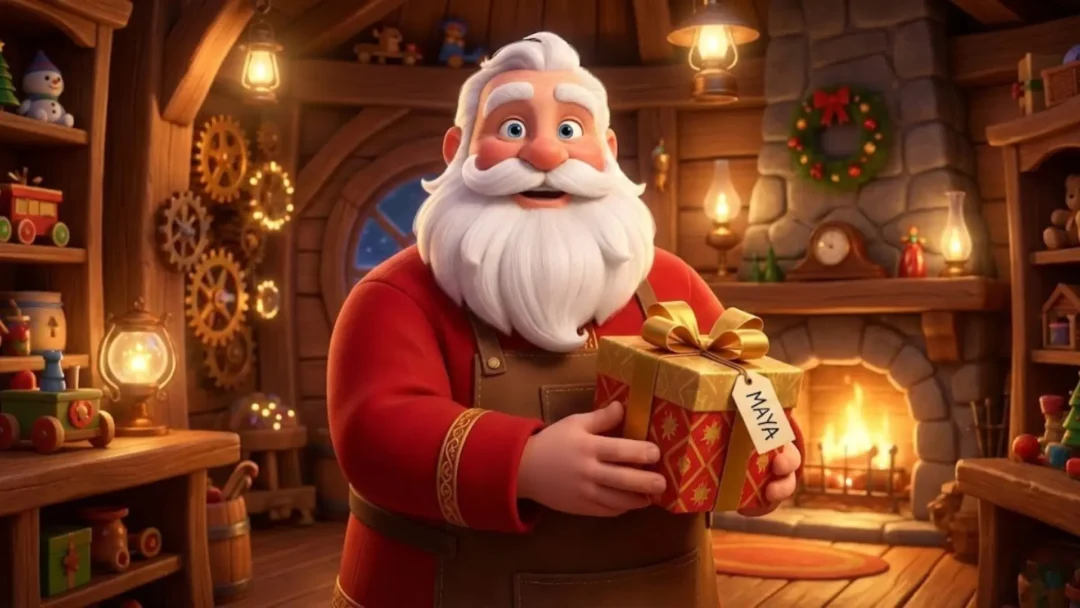
Create a Magical Santa Claus Gift-Opening Wish
Step 1 — Generate the Santa Image First (Better Quality)
Before making the video, first generate a high-quality Santa image holding the wrapped gift box with the name tag.Choose Your Style
Pixar / Disney Animated Santa Pixar-style Santa Claus character in a magical workshop. Big expressive eyes, smooth lighting, stylized beard, soft textures. Santa holds a gold-red wrapped box with a tag labeled “{NAME}“. Whimsical lighting, warm festive glow, magical sparkles.
“Pixar-style Santa Claus character standing in a magical wooden workshop, holding a gold-red wrapped gift box with a tag labeled ‘{NAME}‘. Keep the original facial structure, expressive eyes, stylized beard, warm festive lighting, soft magical glow, smooth animated textures, and whimsical Christmas ambience. High detail, clean, no distortion.”
Step 2 — Veo 3.1 Prompt (Gift-Opening Video)
(Now use the generated Santa image as INPUT)“INPUT_IMAGE: Upload your generated Santa-with-gift image.
SCENE: Santa’s cozy wooden workshop. A workbench filled with toys, gears, ribbons, and glowing lanterns.
CAMERA: Starts with an over-the-shoulder shot looking down at Santa’s hands holding a wrapped gift box, then smoothly pans up to reveal Santa’s joyful face.
CHARACTERS: STYLE: Stop-Motion Claymation / Detailed Fabric Texture. Santa Claus wearing workshop shirt sleeves and soft work gloves. Highly textured beard, suit fabric, and handcrafted style.
ACTION: Santa gently holds a beautifully wrapped gold-and-red box. A visible tag on the ribbon reads ‘{NAME}‘. (Replace {NAME} with Maya, Sam, or your chosen name.) He slowly unties the ribbon, lifts the lid, and reveals a glowing {GIFT_TYPE} inside. {GIFT_TYPE} may be: a puppy, a toy car, a magic orb, a glowing light, or a message scroll.
AUDIO: Rustling wrapping paper, ribbon sliding, workshop ambience, and a magical chime upon reveal.
VFX: Warm golden god-rays pouring out of the box, soft sparkle particles drifting into the air, light reflecting onto Santa’s amazed face.
FORMAT: 16:9″
Create Personalized Santa Kids Wishes
Step-by-Step Guide
- The Setup: Santa should be holding an item that relates to the child (a toy, a drawing, or a report card).
- The Message: The body language should be proud and encouraging.
- The Environment: Make it look like the toy factory is busy in the background to show the scale of the operation.
“SCENE: The busy toy factory floor. Elves are working in the blurred background.
CAMERA: Eye-level shot, as if talking to a child.
CHARACTERS: STYLE: Modern Animation/Pixar-Esque. Santa Claus, looking joyful and proud, clean lines, friendly expression.
ACTION: Santa holds up a drawing (looks like a child’s drawing of a reindeer). He points to it, gives a thumbs up, and says, “{CHILD_NAME}, you made the Nice List!” (Replace {CHILD_NAME} with Sofia, or your chosen name)
AUDIO: Factory hustle and bustle sounds, upbeat holiday music.
VFX: Soft focus background, vibrant colors for the toys.
FORMAT: 16:9″
Make Santa Step Through a Portal to Deliver Wishes
Step-by-Step Guide
- Define the Contrast: You need two distinct environments — the cold, blue North Pole and the warm, dark living room.
- The Portal: Describe the portal clearly (swirling, glowing ring) so the AI understands the transition effect.
- The Arrival: Santa should look like he just finished a journey.
“SCENE: Split scene. Starts in a snowstorm, transitions to a quiet living room with a Christmas tree.
CAMERA: Wide shot capturing the full body.
CHARACTERS: STYLE: Hollywood Blockbuster/Cinematic VFX. Santa Claus with a sack of toys over his shoulder, suit has glowing elements, dynamic lighting.
ACTION: A swirling ring of golden sparks opens in the air. Santa steps through the portal, shaking snow off his coat, and says, “Hello, {CHILD_NAME}, I’m here!” (Replace {CHILD_NAME} with Olivia, or your chosen name)
AUDIO: Howling wind cutting abruptly to silence/clock ticking, magical portal “whoosh.”
VFX: Particle effects for the portal, snow melting on the suit.
FORMAT: 16:9″
Creating these videos is about more than just typing a prompt; it is about extending the joy of the season. Whether you are creating a quick greeting for a friend or a “proof of existence” video for a child who is just starting to doubt, Santa Claus videos are a powerful way to connect.
The technology in Veo 3.1 allows us to be the directors of our own holiday movies. So, grab a hot chocolate, copy one of the prompts above (remembering to clearly replace the example names like Alex, Maya, or Ethan with your intended recipient’s name), and start creating. You might just find that making the magic is just as fun as watching it.