How to Enhance Wallpapers Like a Pro with JSON Prompts
You download a wallpaper, set it on your screen, and suddenly it doesn’t look as good as you expected. Maybe it’s slightly blurry, the colors feel dull, or it just lacks that “premium” vibe. This is a common issue—and it’s not because your wallpaper is bad. It’s because it hasn’t been enhanced properly. That’s where json prompts come in.
Using a structured json prompt, you can take any uploaded wallpaper and transform it into something sharp, cinematic, and visually rich. Instead of relying on guesswork, you guide the AI step by step.
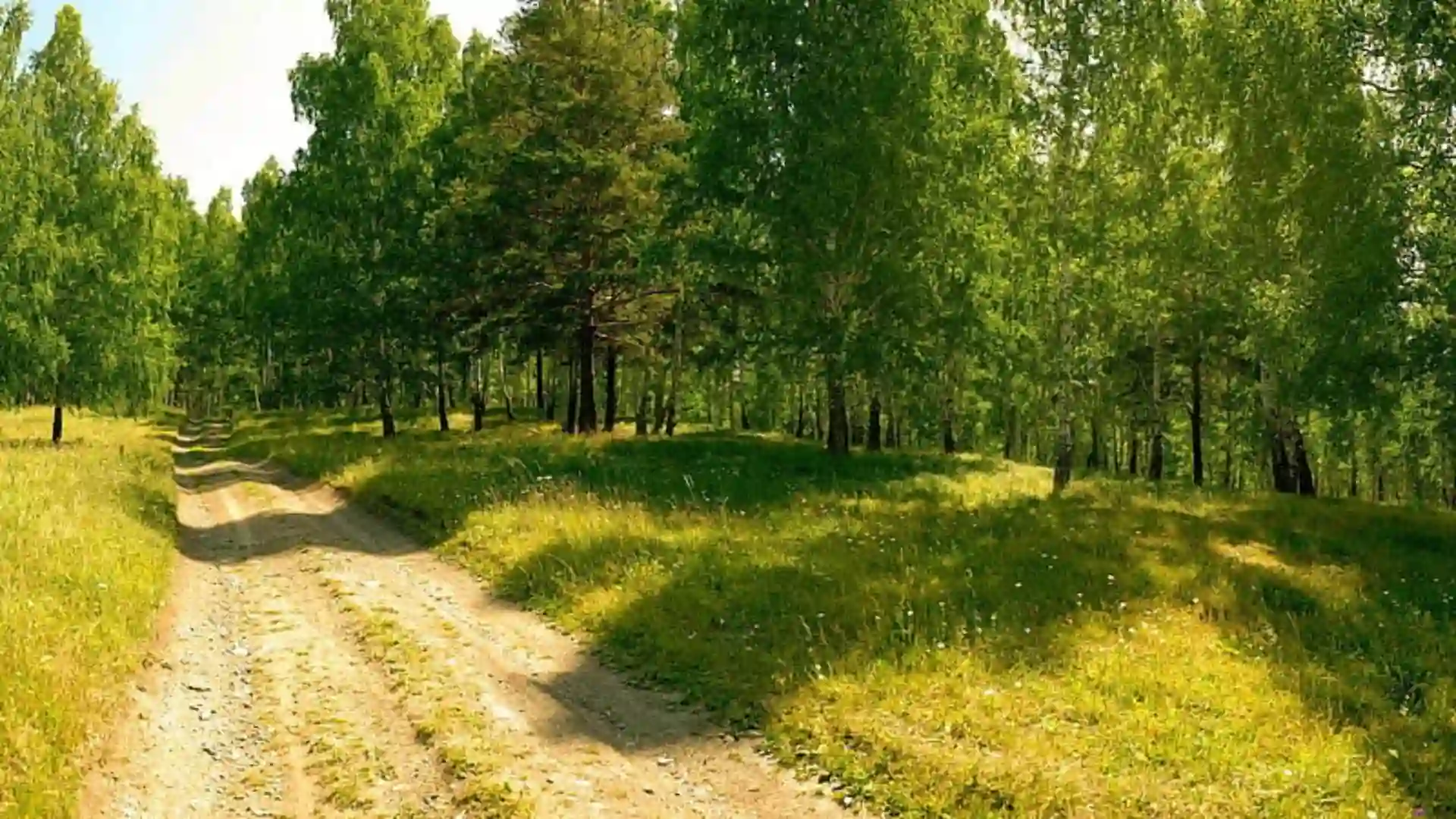
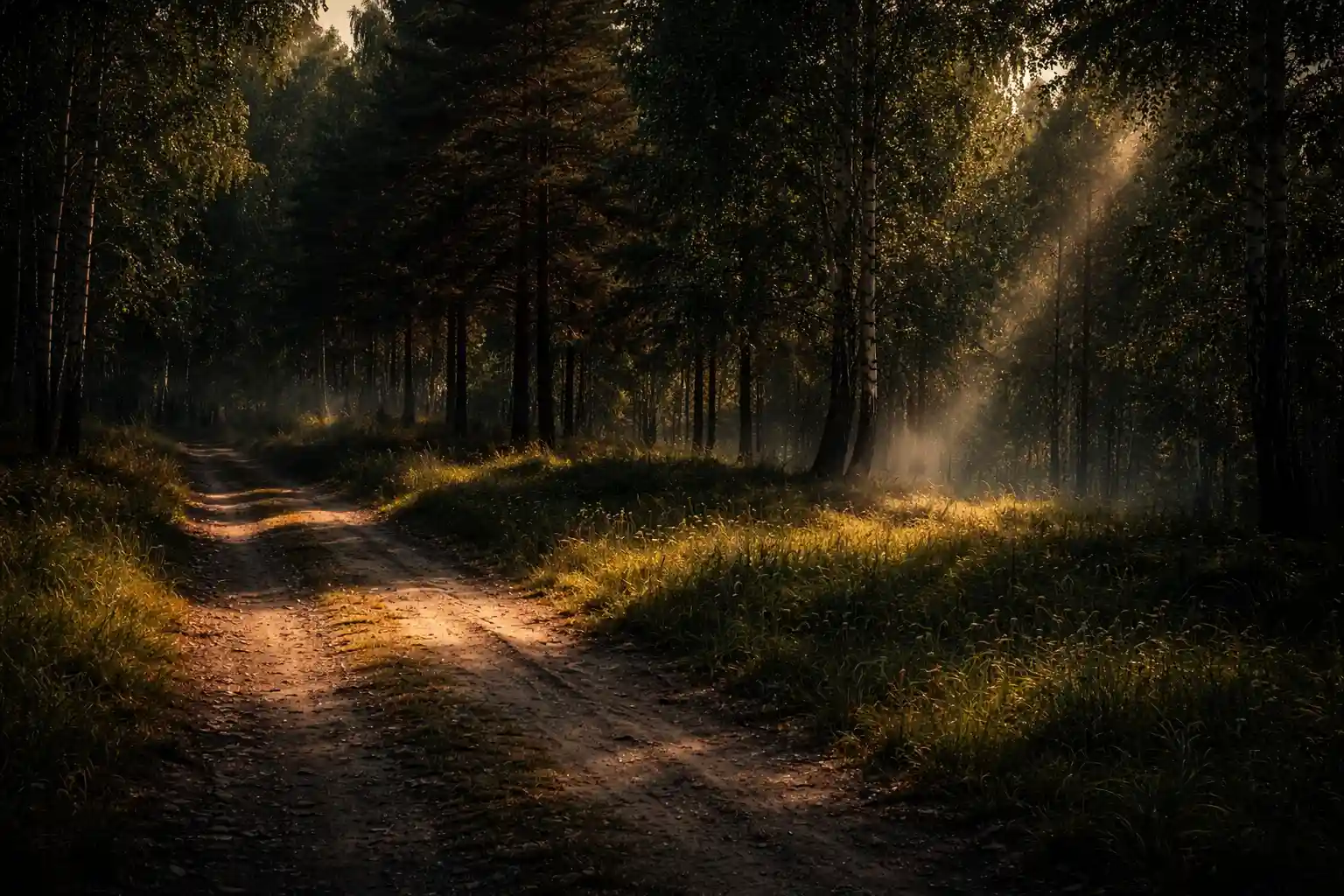
In this guide, you’ll learn how to enhance wallpapers like a pro using json prompts, along with real before-and-after improvements and ready-to-use examples.
What is a JSON Prompt?
A json prompt is a structured way of giving instructions to AI tools. Instead of writing everything in one long sentence, you define clear elements like style, lighting, resolution, and details.
Because of this, json prompts remove confusion and produce more consistent results.
Once you understand how a json prompt works, you can reuse the same structure for different wallpapers—just by changing the subject or style.
Why JSON Prompt Make a Huge Difference
Without structure, AI tools often produce average results. The lighting may be flat, details may be missing, and the overall image can feel unfinished.
With json prompt, you control everything:
Sharpness and clarity
Lighting and shadows
Color grading
Overall depth and atmosphere
As a result, your wallpapers start looking professional instead of basic.
Cinematic Ultra HD Enhancement (Universal)
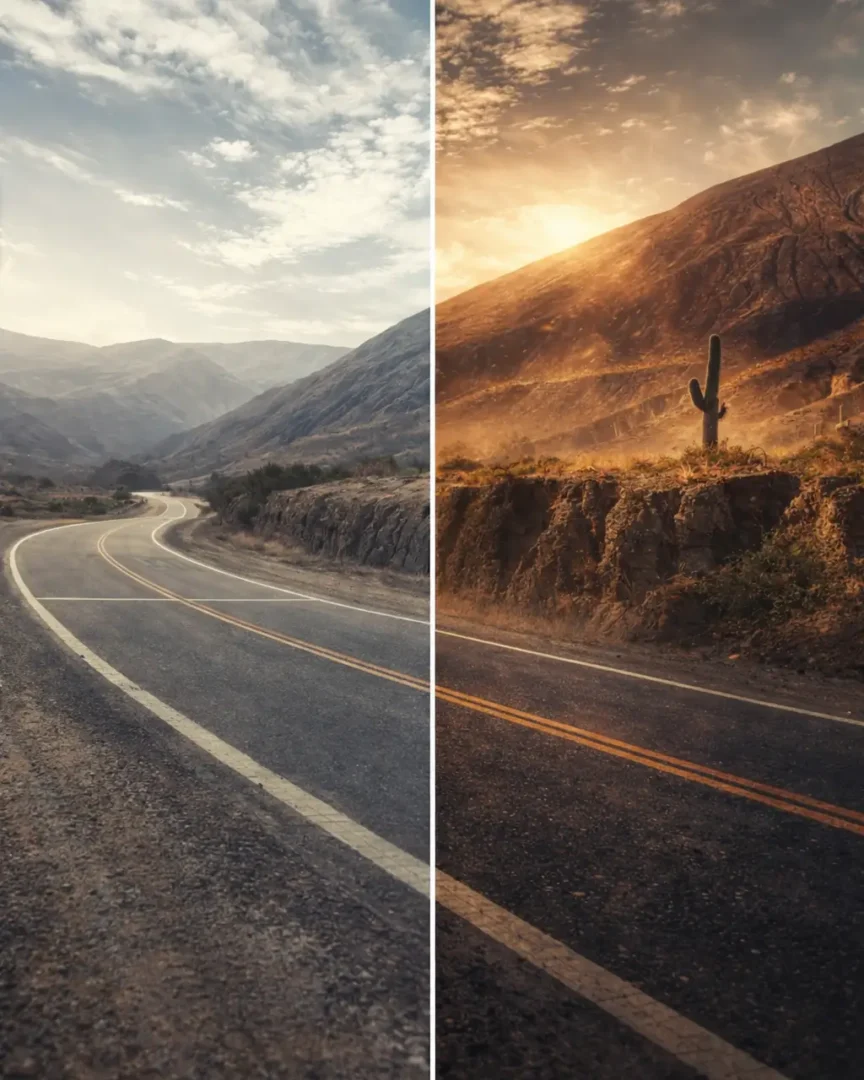
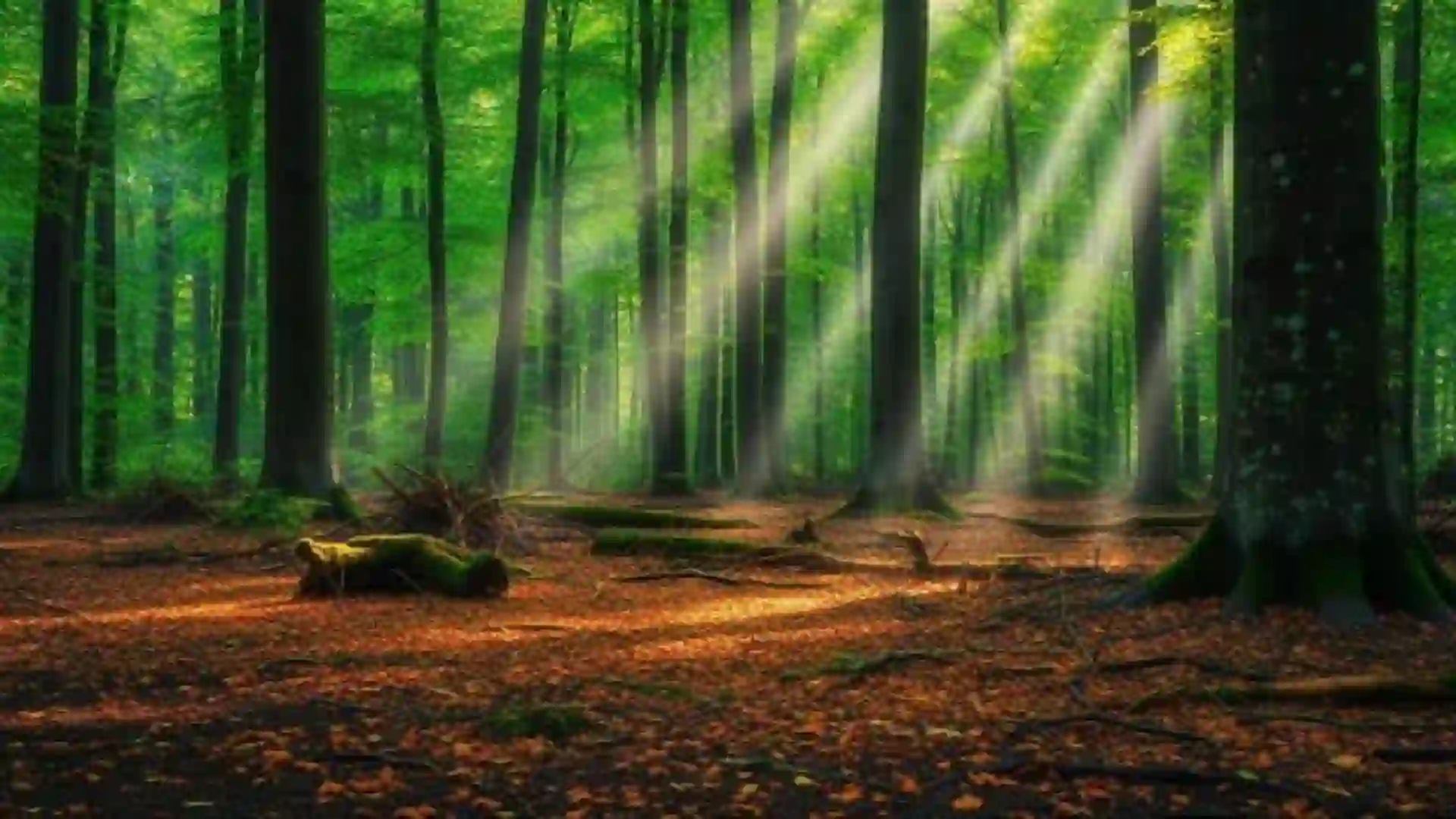
Before:
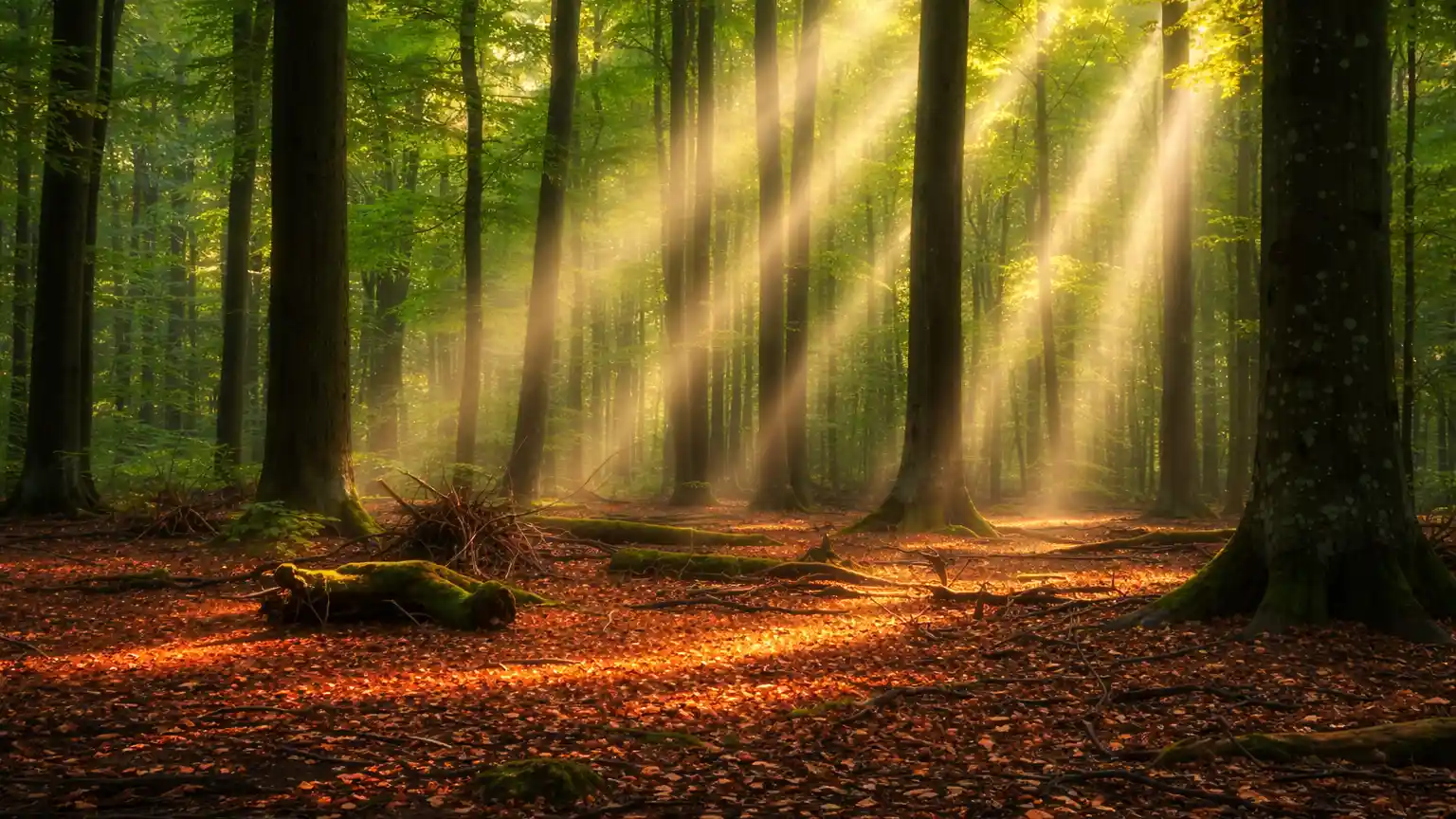
After using JSON prompt:
{“task”: “enhance uploaded wallpaper”,“style”: “cinematic, ultra realistic”,“resolution”: “8k ultra HD”,“lighting”: “dramatic volumetric lighting, soft glow, global illumination”,“details”: “ultra sharp focus, high texture detail, depth of field”,“color”: “rich cinematic color grading, high contrast”,“atmosphere”: “fog, light rays, particles”,“quality”: “HDR, noise reduction, clarity enhancement”}
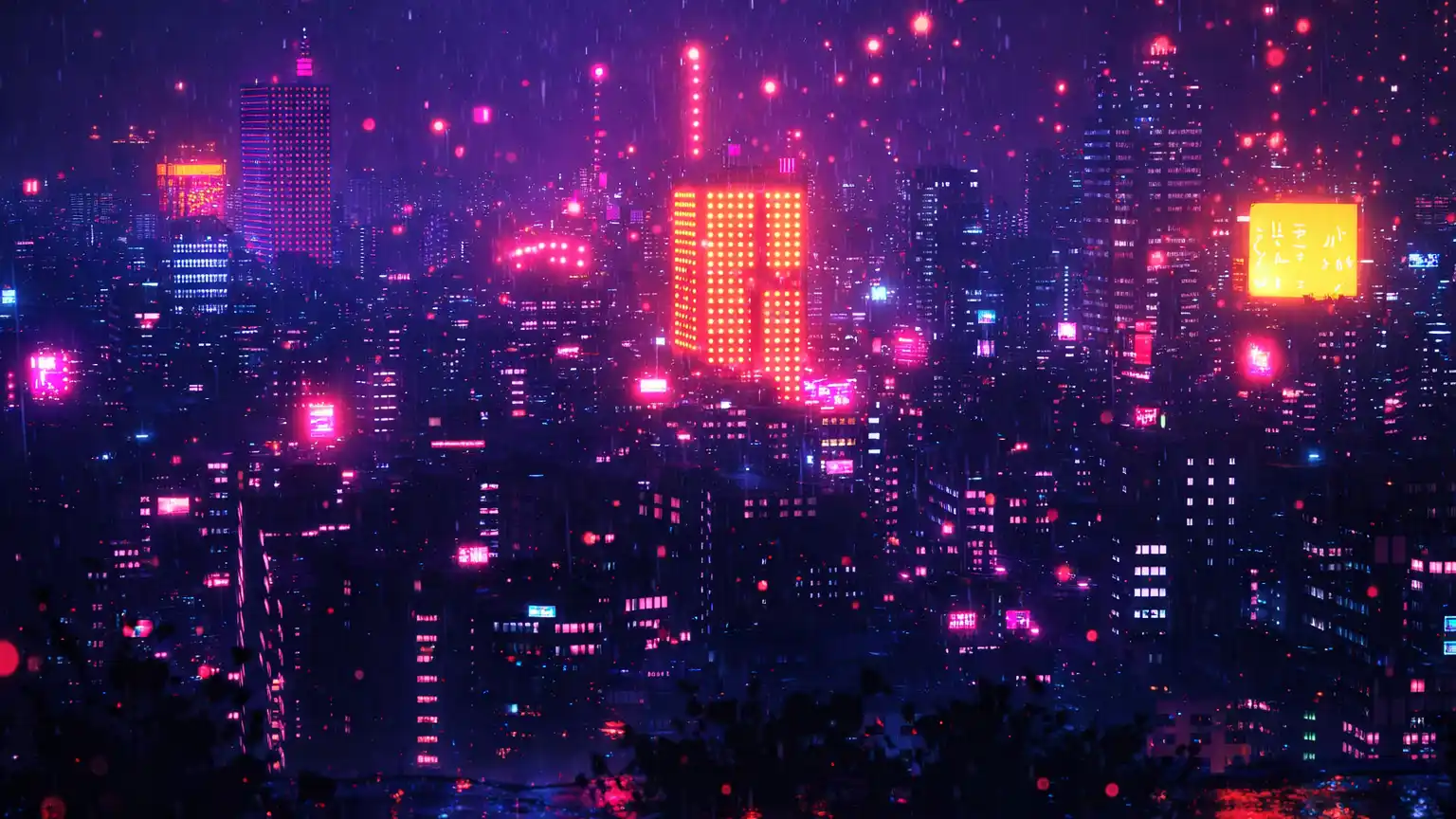
{“task”: “enhance uploaded wallpaper”,“style”: “dark cinematic realism”,“resolution”: “8k”,“lighting”: “low-key lighting, strong shadows, rim light”,“details”: “sharp textures, depth of field”,“color”: “deep blacks, high contrast”,“atmosphere”: “smoke, fog, particles”,“quality”: “HDR, ultra clarity”}
How to Use JSON Prompts Like a Pro
To get the best results, focus on a few key things.
First, always prioritize lighting—it’s the biggest upgrade factor. Next, ensure your json prompt includes sharpness and detail enhancements.
Also, keep your structure clean. Adding too many random elements can reduce quality instead of improving it.
Finally, match the prompt style to your wallpaper type for the best results.
Summary
Enhancing wallpapers doesn’t require advanced editing skills anymore. With the right json prompts, you can turn any basic image into a high-quality, cinematic wallpaper.
As shown in the examples above, each json prompt targets a specific style—whether it’s sharpness, realism, minimalism, or dramatic lighting.
Once you start using json prompts, you’ll notice the difference instantly. Your wallpapers will look sharper, more vibrant, and far more professional.
And the best part? You can reuse the same structure again and again.